
Profiler Workflow
Learn how to configure and run the Profiler Workflow to extract Profiler data and execute the Data Quality.UI configuration
After the metadata ingestion has been done correctly, we can configure and deploy the Profiler Workflow. This Pipeline will be in charge of feeding the Profiler tab of the Table Entity, as well as running any tests configured in the Entity.1. Add a Profiler Agent
Create and deploy a profiler agent on the database service:- Navigate to Settings > Services > Databases.
- Select the service.
-
Click the Agents tab.
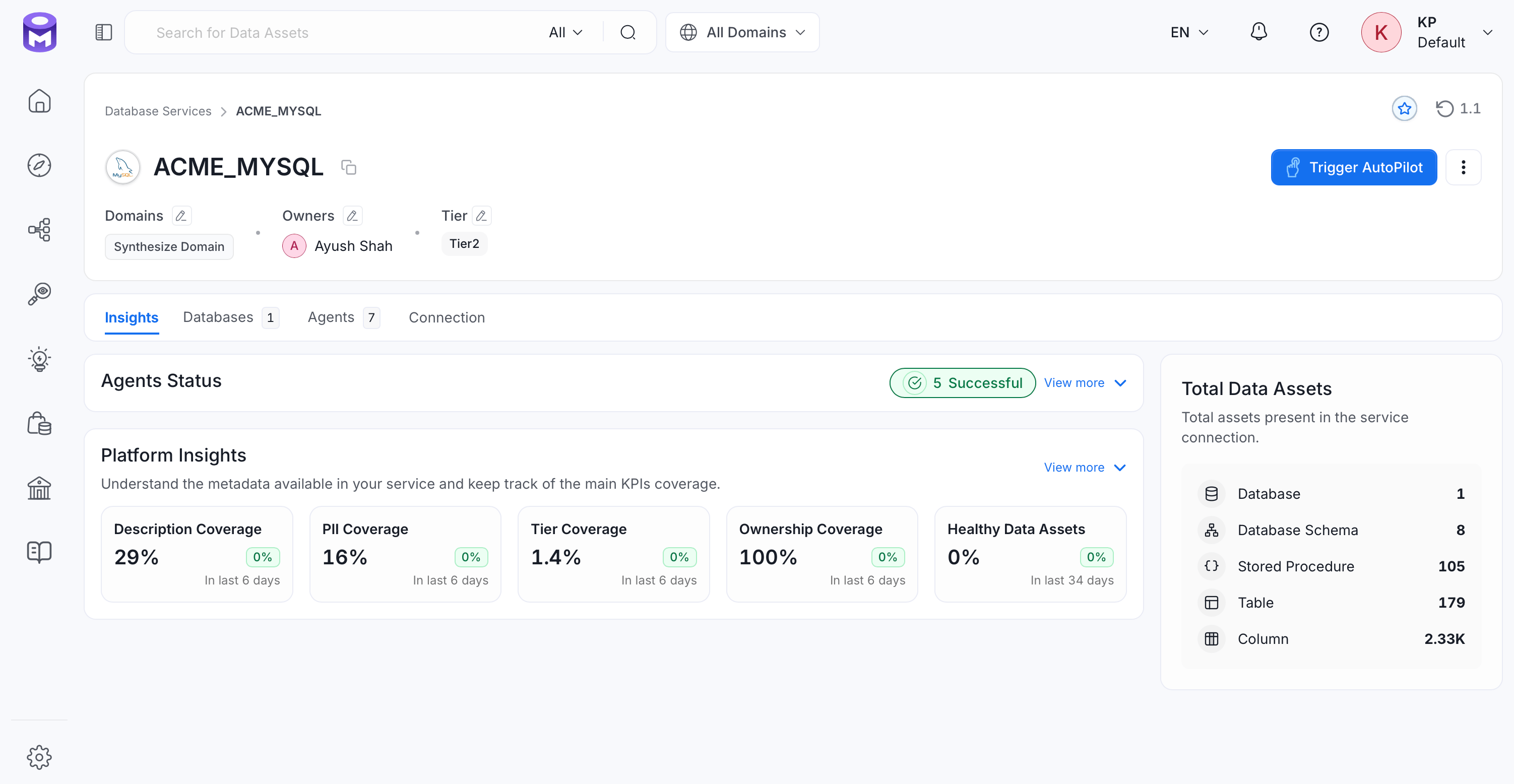
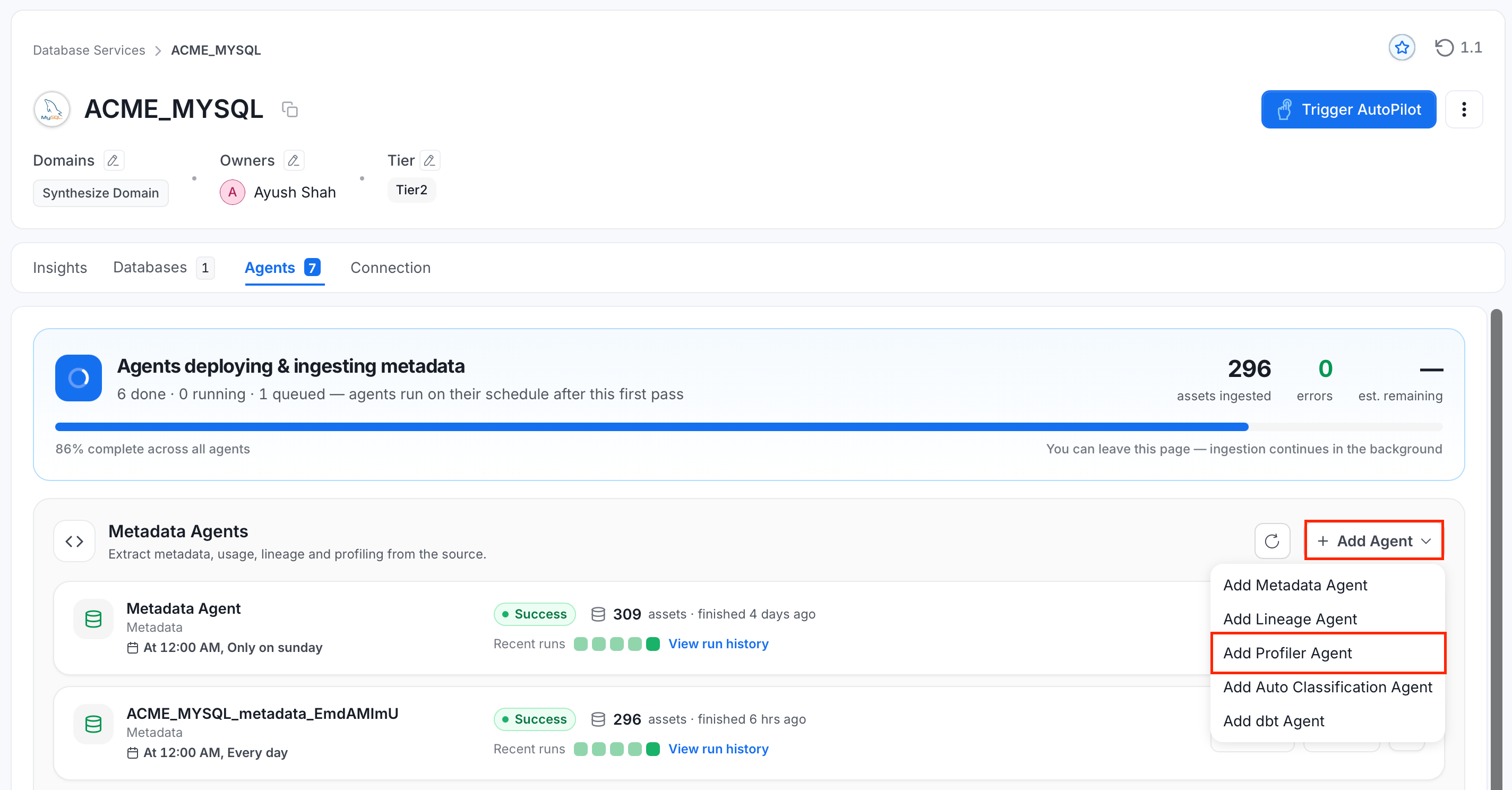
- Click Add Agent.
-
Select Add Profiler Agent.
2. Configure the Profiler Agent
In the Configure Ingestion step, enter a unique, descriptive Name. Then set up the options in the following sections.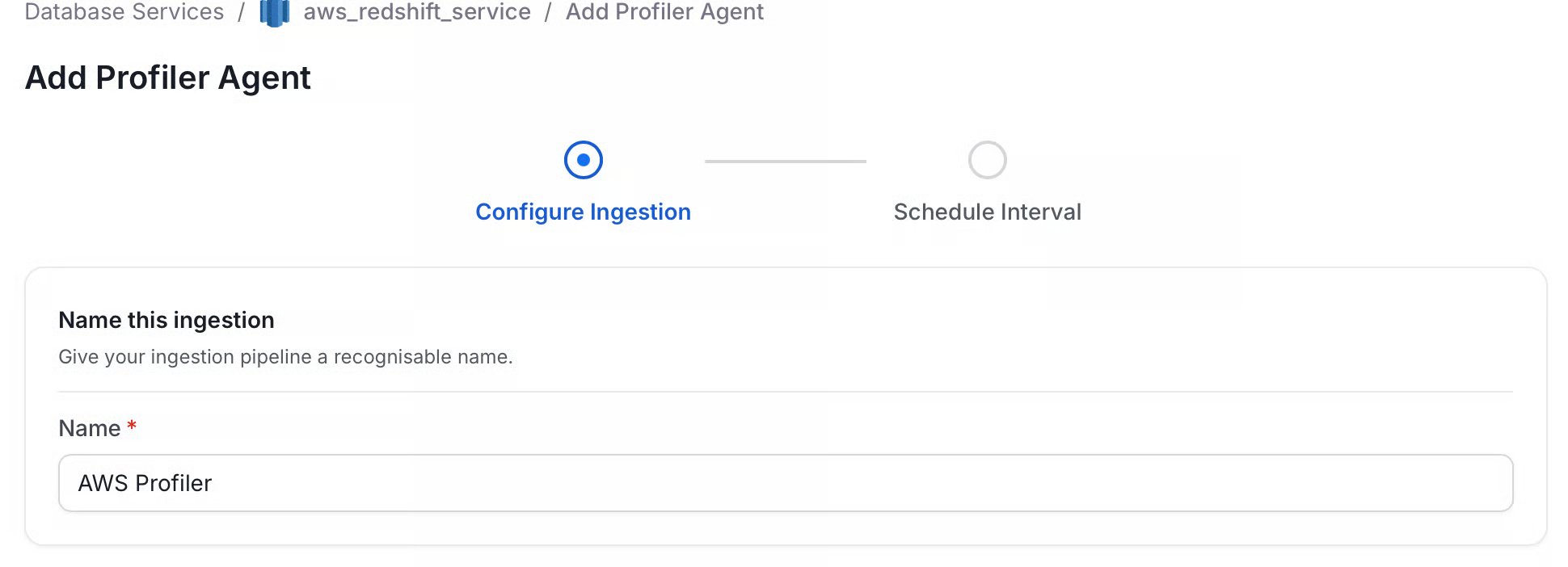
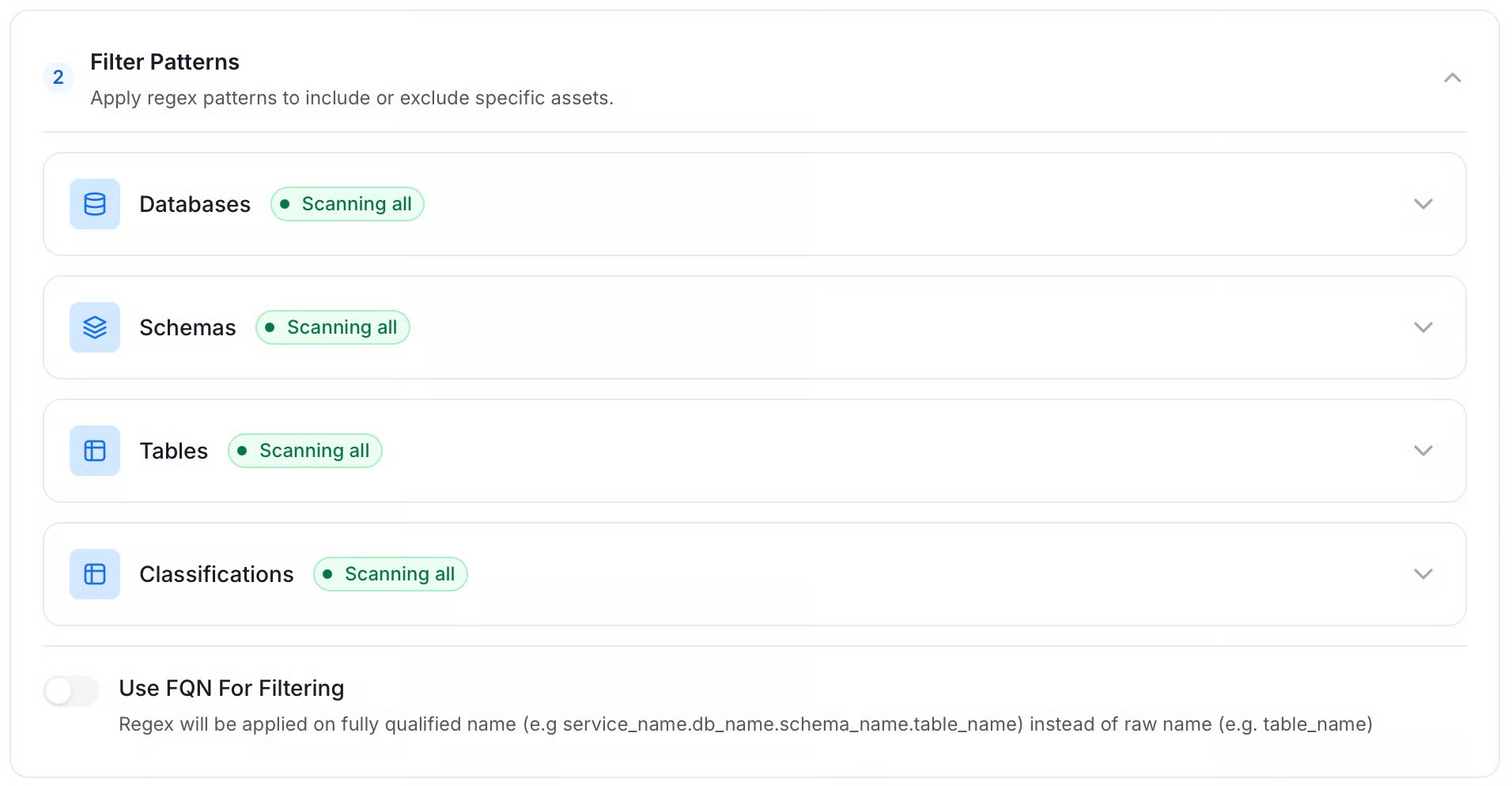
Filter Patterns
Filter patterns control which databases, schemas, and tables the profiler targets. Each pattern field accepts a regular expression (regex) with separate include and exclude lists.- Database filter pattern (Optional): Regex to include or exclude databases by name.
- Schema filter pattern (Optional): Regex to include or exclude schemas by name.
- Table filter pattern (Optional): Regex to include or exclude tables by name.
- Classification filter pattern (Optional): Regex to target tables by classification, tag, tier, or glossary term. The profiler computes metrics only for tables whose classification matches the pattern.
- Use FQN For Filtering: Regex patterns apply to the fully qualified name (FQN) instead of the raw asset name when enabled. For example,
service_name.db_name.schema_name.table_name. Enable this when different schemas share the same table name across multiple databases.
Scope & Behaviour
Enable Debug Log logs the profiler run at debug level. Check the logs in the Agents tab of the service.
Advanced Config
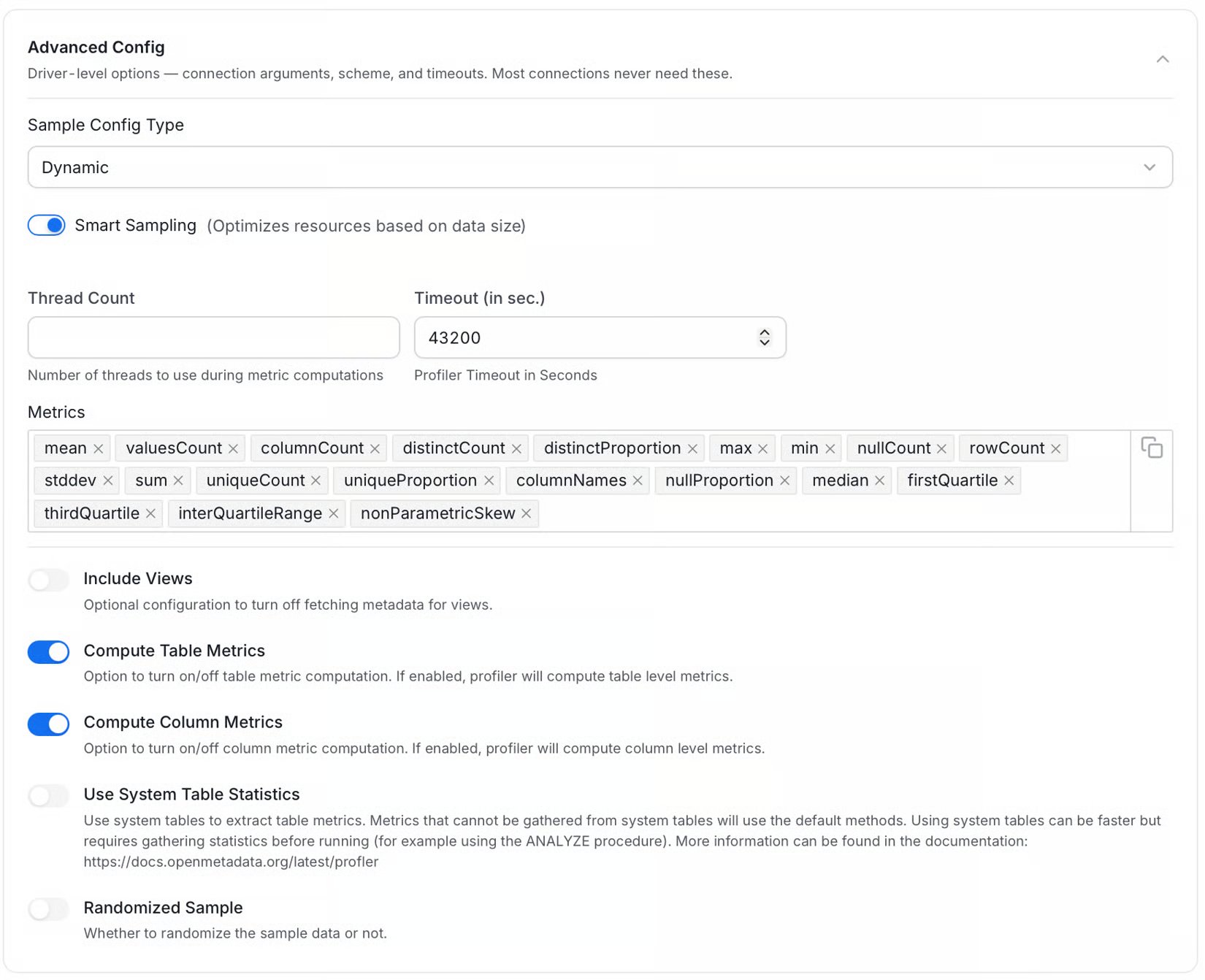
Profiler agents created in the UI default to Dynamic sampling instead of scanning all rows. This default has applied since OpenMetadata 1.13. Upgrading keeps your existing sample settings as Static, but turns Randomized Sample off and removes the deprecated Compute Metrics setting. The default Metrics list doesn’t includehistogram, cardinalityDistribution, or system, among others. Add them to Metrics if you use the column distribution charts or system data manipulation language (DML) metrics.
Configure sampling, execution, and metrics with the following settings.
Sampling Settings
Use Sample Config Type to select Dynamic (the default) or Static sampling. With Dynamic sampling, Smart Sampling is enabled by default and scales the sample percentage based on table size:
If you turn off Smart Sampling, use Thresholds to define custom row-count thresholds and sample percentages. If you leave Thresholds empty, the profiler applies no sampling and scans all rows.
With Static sampling, configure these settings:
- Profile Sample: Set a fixed sample size for each profiler run.
- Profile Sample Type: Select Percentage for a fraction of the table or Rows for an absolute number of rows.
- Sampling Method Type: For percentage samples on PostgreSQL and Snowflake, select BERNOULLI to sample rows independently or SYSTEM to sample disk pages. Row sampling is more statistically uniform but slower. Page sampling is faster but less statistically uniform.
Execution Settings
Control concurrency, timeouts, and view inclusion with these settings:- Thread Count: Set the number of threads for parallel metric computation, from 1 to 20. For Snowflake, set this to 1 because of a known issue with
snowflake-connector-python. If omitted, the profiler calculates it from the number of metrics. - Timeout (in sec.): Set how long a profiling job waits before moving to the next table. The default is 43,200 seconds (12 hours). The profiler waits for the current query to finish before timing out. Set a query or connection timeout on the database engine to limit hanging queries.
- Include Views: Enable profiling for views. Including views might reduce profiler performance.
Metric Settings
Select the metrics to compute and how to retrieve them:- Metrics: Add or deselect metrics to control what the profiler computes and reduce profiling time or cost.
- Compute Table Metrics: Compute table-level metrics, such as row count and column count. Enabled by default.
- Compute Column Metrics: Compute column-level metrics, such as null count, distinct count, and mean. Enabled by default.
- Use System Table Statistics: Read available table metrics from system catalogs instead of scanning data. Keep database statistics up to date, for example by running
ANALYZEon PostgreSQL. Metrics unavailable in system tables use the default scan method.
3. Schedule and Deploy
- Click Next to open the scheduling step.
- Select how the profiler runs:
- Schedule: Set a recurring schedule to run the profiler automatically at a fixed interval.
- On Demand: Run the profiler manually whenever needed.
- Click Deploy.
4. Updating Profiler setting at the table level
Once you have created your profiler you can adjust some behavior at the table level by going to the table and clicking on the profiler tab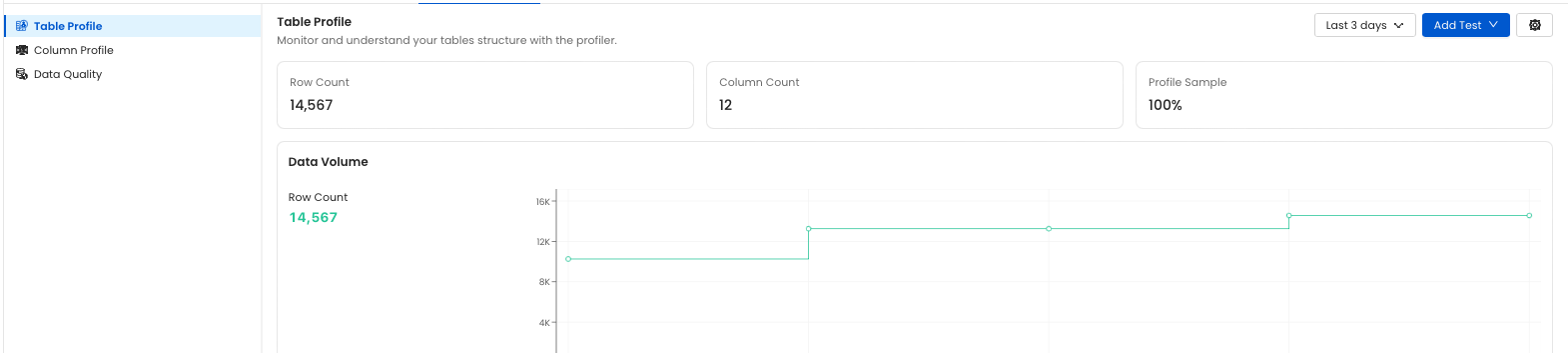
Profiler Options
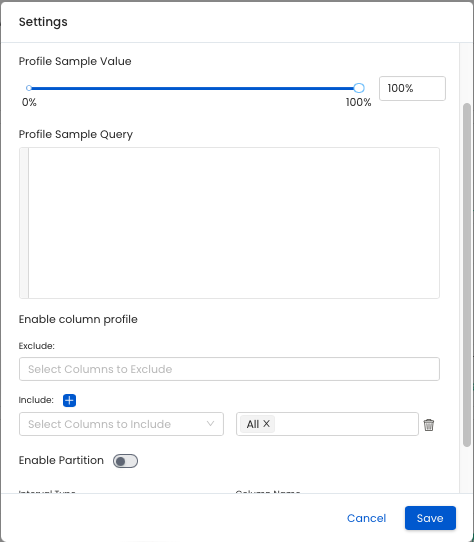
Profile Sample Set the sample to be use by the profiler for the specific table.Percentage: Value must be between 1 and 100. This will sample the table based on a percentageRow Count: The table will be sampled based on a number of rows (i.e.1,000,2,000), etc.
0. In the table profiler settings, the percentage and the row count must be at least 1.
⚠️ This option is currently not support for Druid. Sampling leverage RANDOM functions in most database (some have specific sampling functions) and Druid provides neither of these option. We recommend using the partitioning or sample query option if you need to limit the amount of data scanned.
Enable Column Profile
This setting allows user to exclude or include specific columns and metrics from the profiler.
Note: for Google BigQuery tables partitioned on timestamp/datetime column type, month and year interval are not supported. You will need to set the Interval Unit to DAY or HOUR.
Enable Partition
When enabled, the profiler will fetch the data based on your profiler settings. Note that if “profile sample” is set, this configuration will be used against the partitioned data and not the whole table.
Column Name: this is the name of the column that will be used as the partition fieldInterval Type:TIME-UNIT: a business logic timestamp/date/datetime (e.g. order date, sign up datetime, etc.)INGESTION-TIME: a process logic timestamp/date/datetime (i.e. when was my data ingested in my table)COLUMN-VALUE: a value representing a chunk of data (e.g. Product Type A, B, C, etc.)INTEGER-RANGE: a range of integer that will be used as the partition (e.g. Customer ID between 1 and 10)
Interval Type you will need to define the configuration specific to your Interval Type.
INGESTION-TIME or INTEGER-RANGE
Interval: the interval value (e.g.1,2, etc.)Interval Unit:HOURDAYMONTHYEAR
COLUMN-VALUE
Value: a list of value to use for the partitioning logic
INTEGER-RANGE
Start Range: the start of the range (inclusive)End Range: the end of the range (inclusive)
5. Updating Profiler setting at the platform level
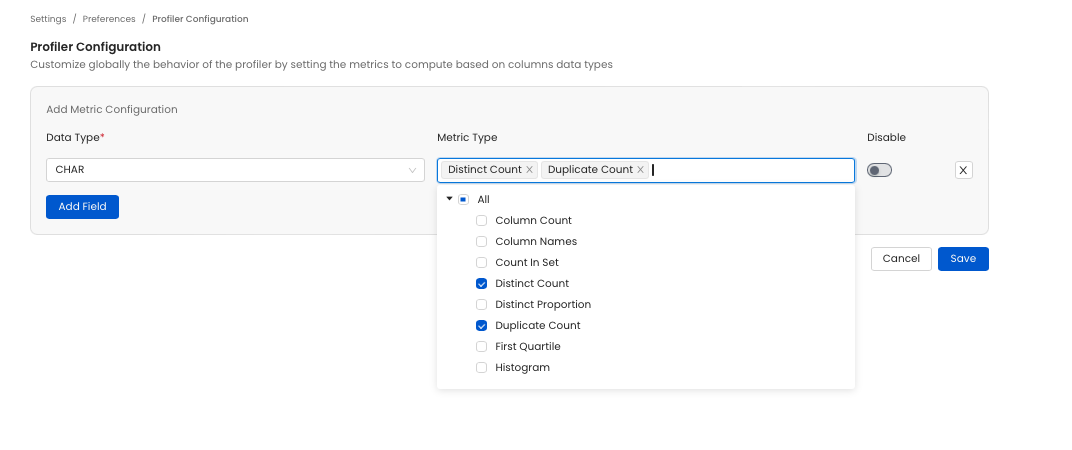
The behavior of the profiler can be configured at the platform level. Navigating toSettings > Preferences > Profiler Configuration you will find settings to adjust the behavior of the profiler.
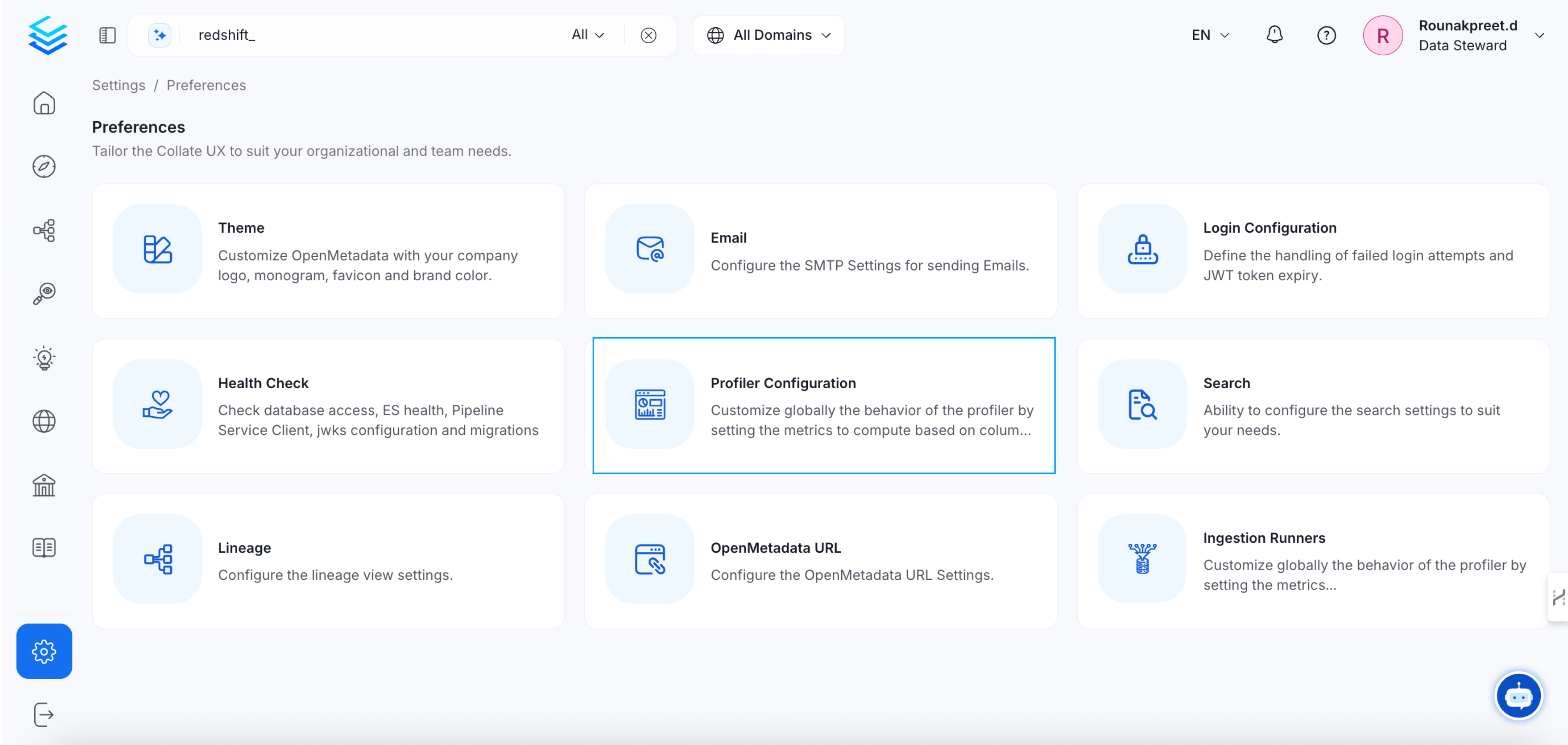
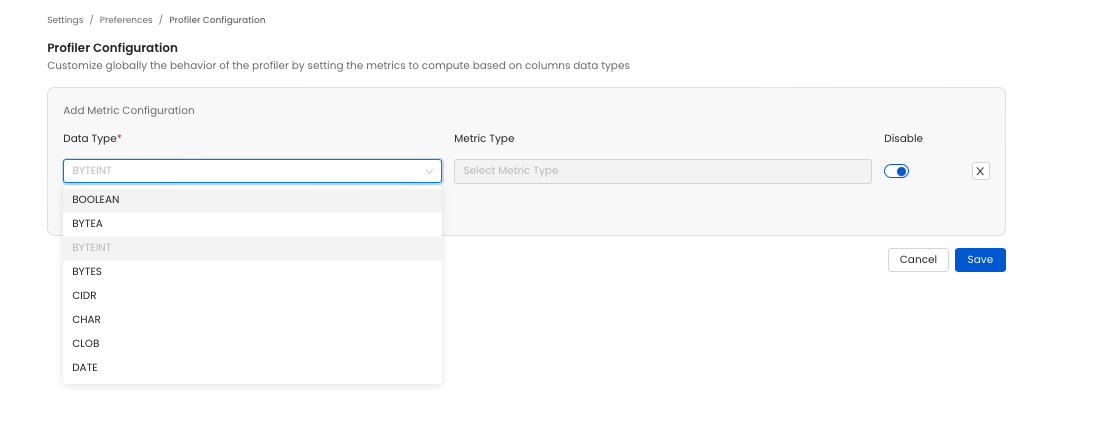
Metric Type section select the metric you to compute (or unselect the ones you don’t want to compute). When running the profiler the unselected metric will not be computed.
YAML Configuration
In the connectors section we showcase how to run the metadata ingestion from a JSON file using the Airflow SDK or the CLI via metadata ingest. Running a profiler workflow is also possible using a JSON configuration file. This is a good option if you which to execute your workflow via the Airflow SDK or using the CLI; if you use the CLI a profile workflow can be triggered with the commandmetadata profile -c FILENAME.yaml. The serviceConnection config will be specific to your connector (you can find more information in the connectors section), though the sourceConfig for the profiler will be similar across all connectors.
This is a sample config for the profiler:
1
computeTableMetrics
computeTableMetrics: Option to turn on/off computing table-level metrics. Turn both this and
computeColumnMetrics off to run the profiler without computing metrics. To collect sample data, use Auto-Classification instead.2
computeColumnMetrics
computeColumnMetrics: Option to turn on/off computing column-level metrics.
3
profileSampleConfig
profileSampleConfig: How much data the profiler and tests run on.
sampleConfigType is either DYNAMIC (the default), which resolves the sample size at runtime from the table’s row count, or STATIC, which uses a fixed size you set yourself. config holds the settings for the type you chose.4
threadCount
threadCount: Number of threads to use during metric computations.
5
timeoutSeconds
timeoutSeconds: Profiler Timeout in Seconds
6
databaseFilterPattern
databaseFilterPattern: Regex to only fetch databases that matches the pattern.
7
schemaFilterPattern
schemaFilterPattern: Regex to only fetch tables or databases that matches the pattern.
8
tableFilterPattern
tableFilterPattern: Regex to only fetch tables or databases that matches the pattern.
9
Processor Configuration
Processor Configuration
Choose theorm-profiler. Its config can also be updated to define tests from the YAML itself instead of the UI:tableConfig: tableConfig allows you to set up some configuration at the table level.10
Sink Configuration
Sink Configuration
To send the metadata to OpenMetadata, it needs to be specified astype: metadata-rest.11
Workflow Configuration
Workflow Configuration
The main property here is theopenMetadataServerConfig, where you can define the host and security provider of your OpenMetadata installation.For a simple, local installation using our docker containers, this looks like:2. Run with the CLI
After saving the YAML config, we will run the command the same way we did for the metadata ingestion:ingest, we are using the profile command to select the Profiler workflow.
Profiler Best Practices
When setting a profiler workflow it is important to keep in mind that queries will be running against your database. Depending on your database engine, you may incur costs (e.g., Google BigQuery, Snowflake). Execution time will also vary depending on your database engine computing power, the size of the table, and the number of columns. Given these elements, there are a few best practices we recommend you follow.1. Profile what you Need
Profiling all the tables in your data platform might not be the most optimized approach. Profiled tables give an indication of the structure of the table, which is most useful for tables where this information is valuable (e.g., tables used by analysts or data scientists, etc.). When setting up a profiler workflow, you have the possibility to filter out/in certain databases, schemas, or tables. Using this feature will greatly help you narrow down which table you want to profile.2. Sampling and Partitioning your Tables
On a table asset, you have the possibility to add a sample percentage/rows and a partitioning logic. Doing so will significantly reduce the amount of data scanned and the computing power required to perform the different operations. For sampling, you can set a sampling percentage at the workflow level.3. Excluding/Including Specific Columns/Metrics
By default, the profiler computes a standard set of metrics (see Metrics under Advanced Config) for all columns. This behavior can be fine-tuned only to include or exclude specific columns and specific metrics. For example, excludingid columns will reduce the number of columns against which the metrics are computed.