
Manage Applications
Admins install and manage OpenMetadata applications from Settings > Applications. Only admins see Applications and the marketplace.This page describes AI mode, where Settings opens as a modal. For more information, see Profile Menu and Settings.
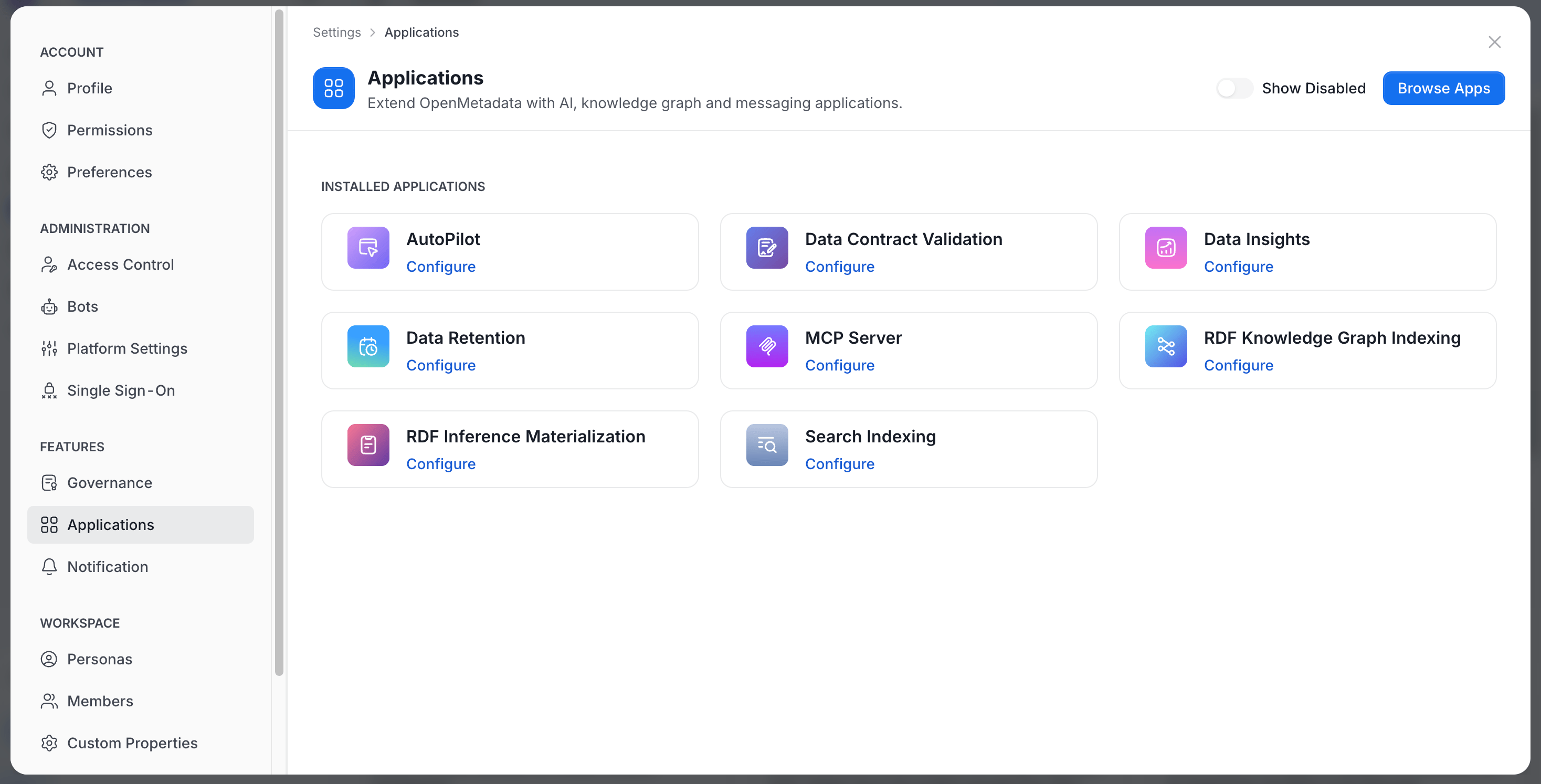
Installed Applications
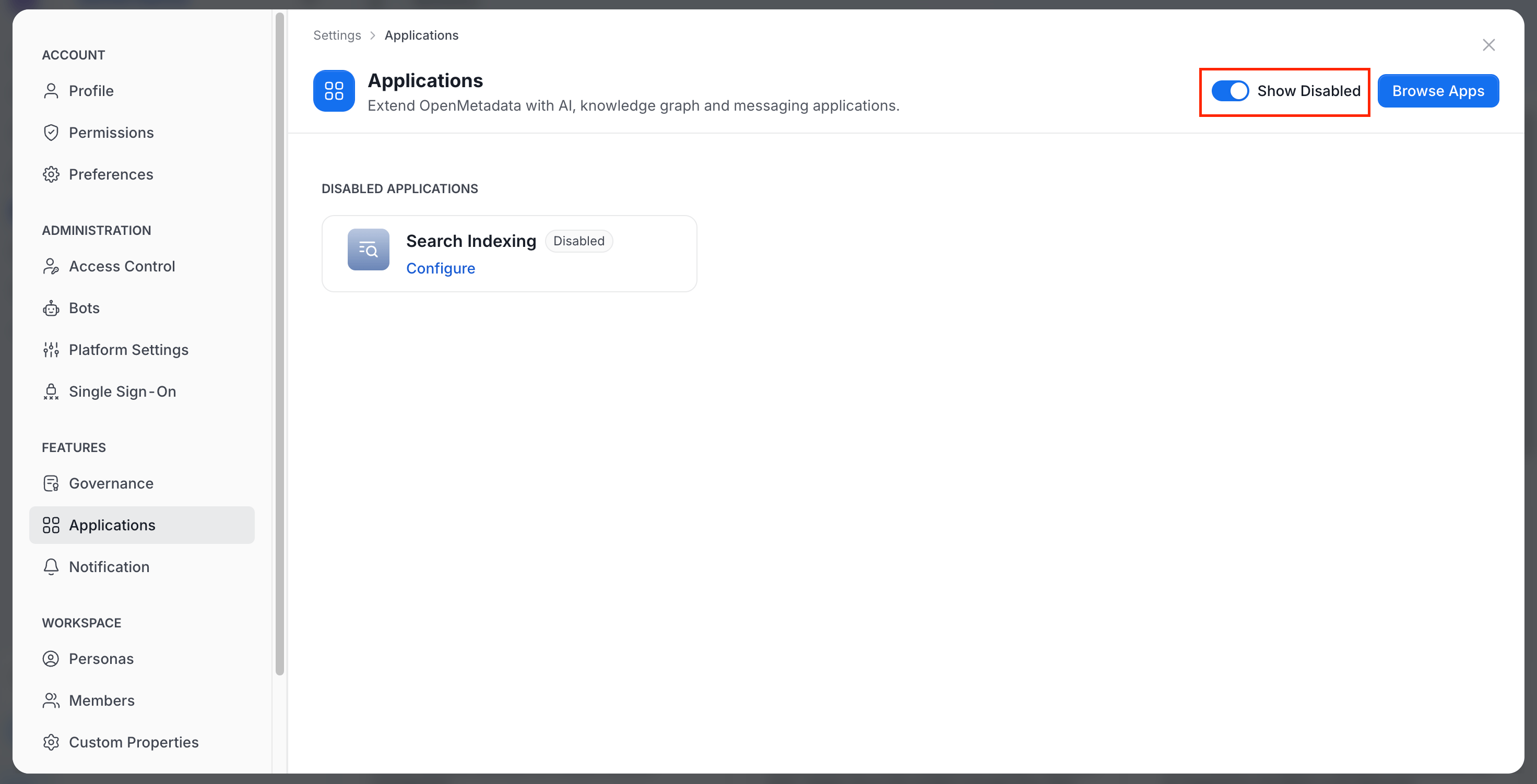
The page lists your installed applications.- Turn on Show Disabled to list disabled applications instead. The heading changes from Installed Applications to Disabled Applications.
- Click Browse Apps to open the Marketplace.
Install an Application
-
Click Browse Apps and select an application. The application page shows an Overview and its Details.
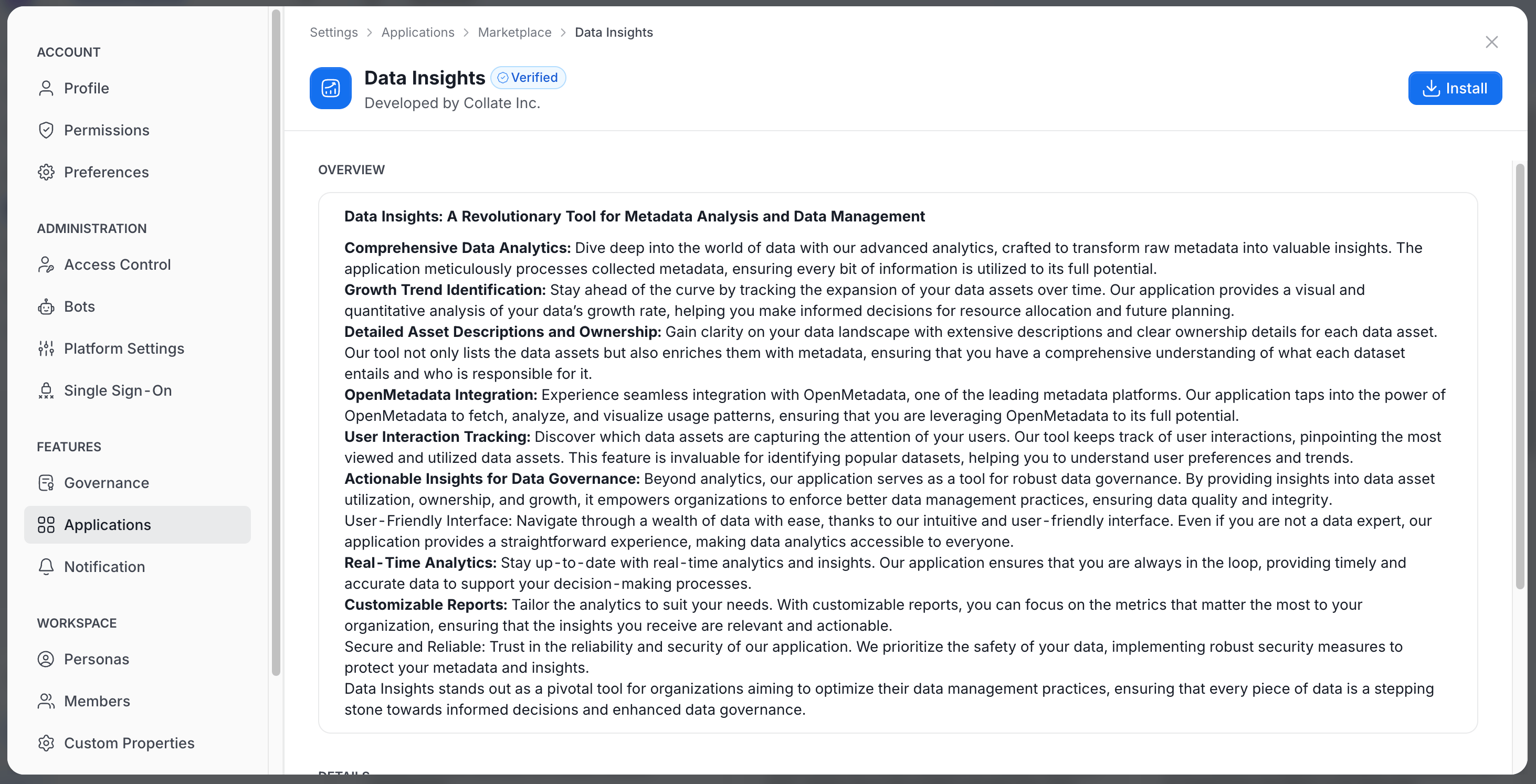
- Click Install.
-
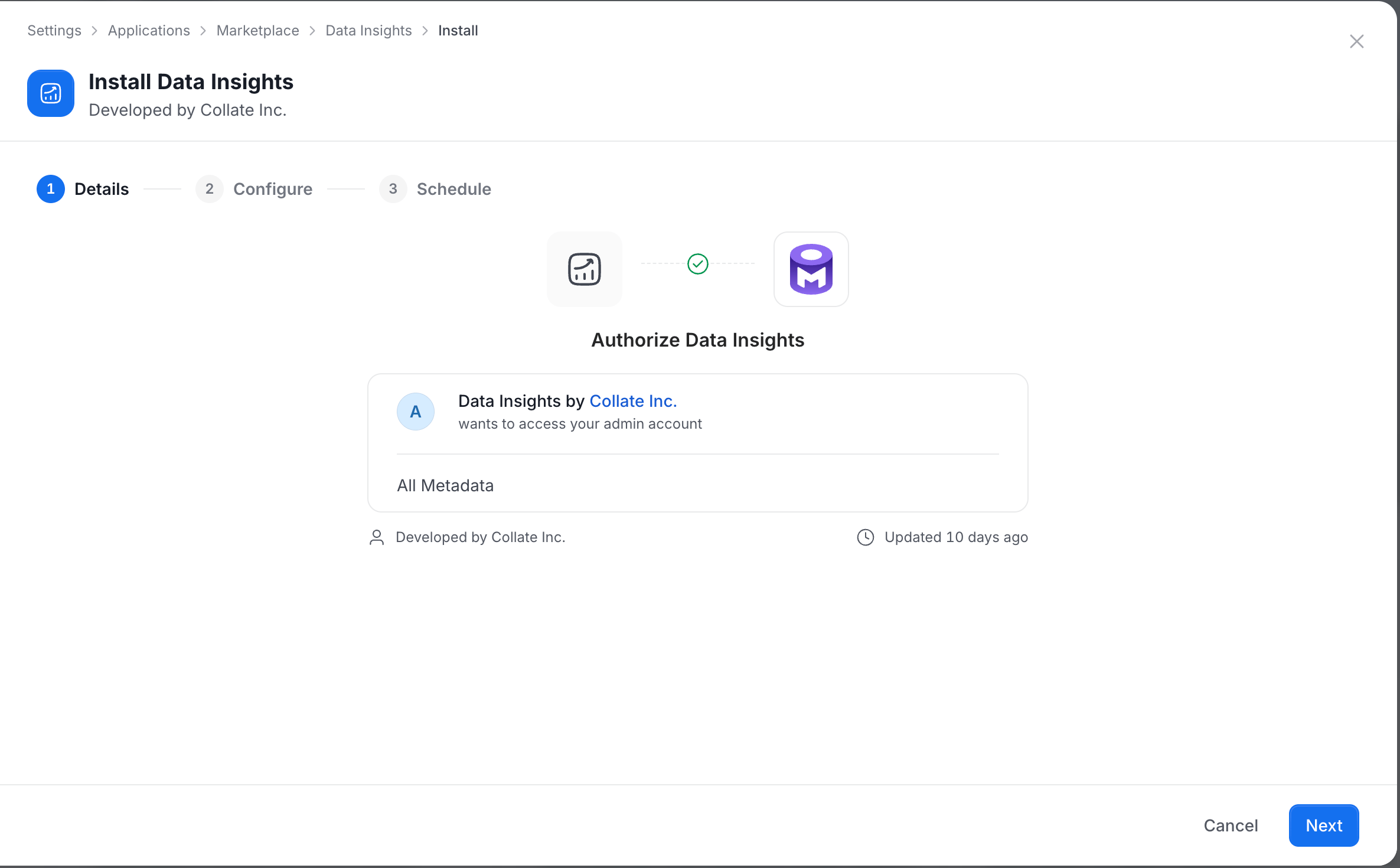
Complete the wizard steps. The buttons in the footer change with each step:
- Details: Review the authorization screen, which lists what the application can access, such as All Metadata. The footer has Cancel and Next.
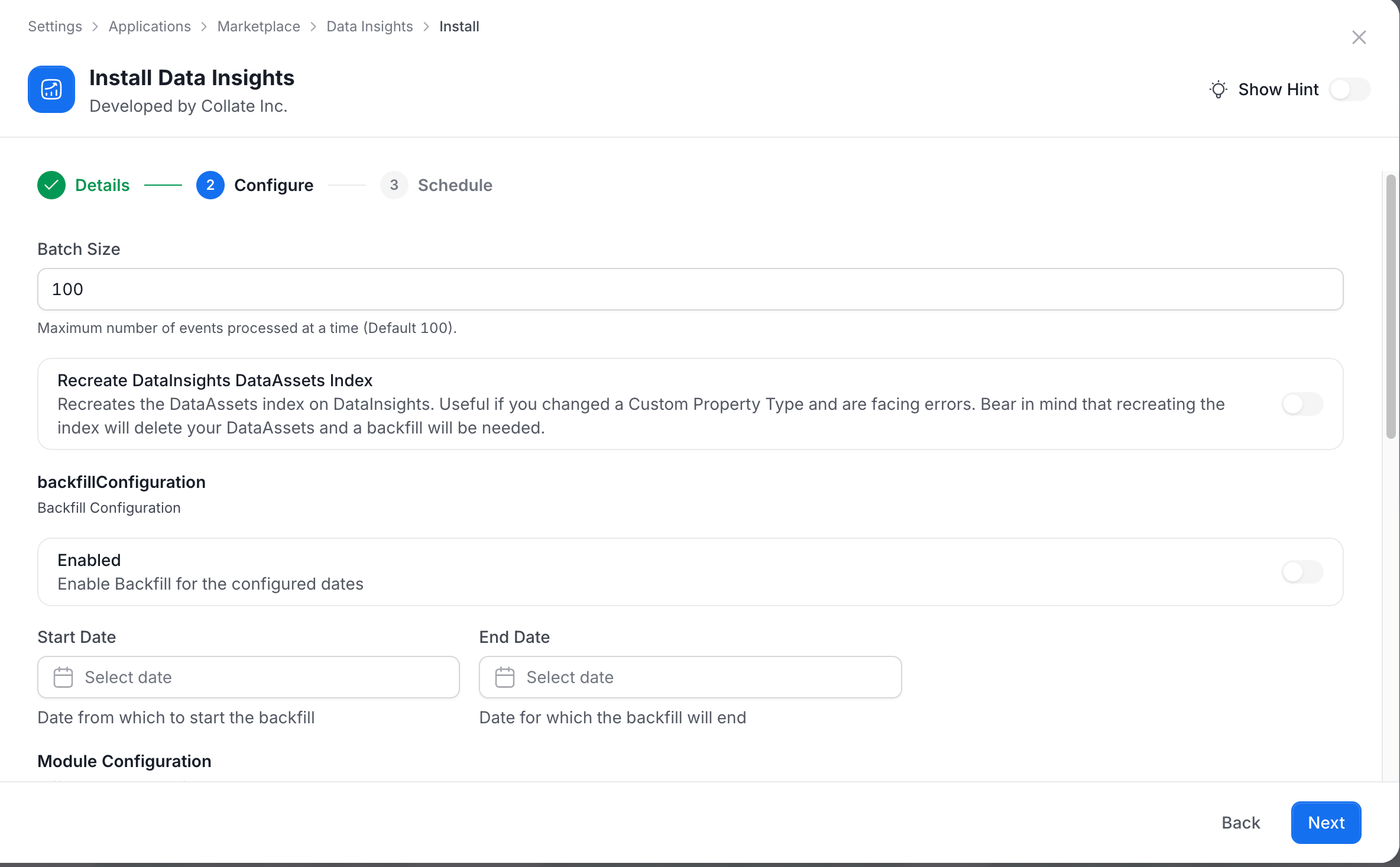
- Configure: Fill in the application settings. The footer has Back and Next.
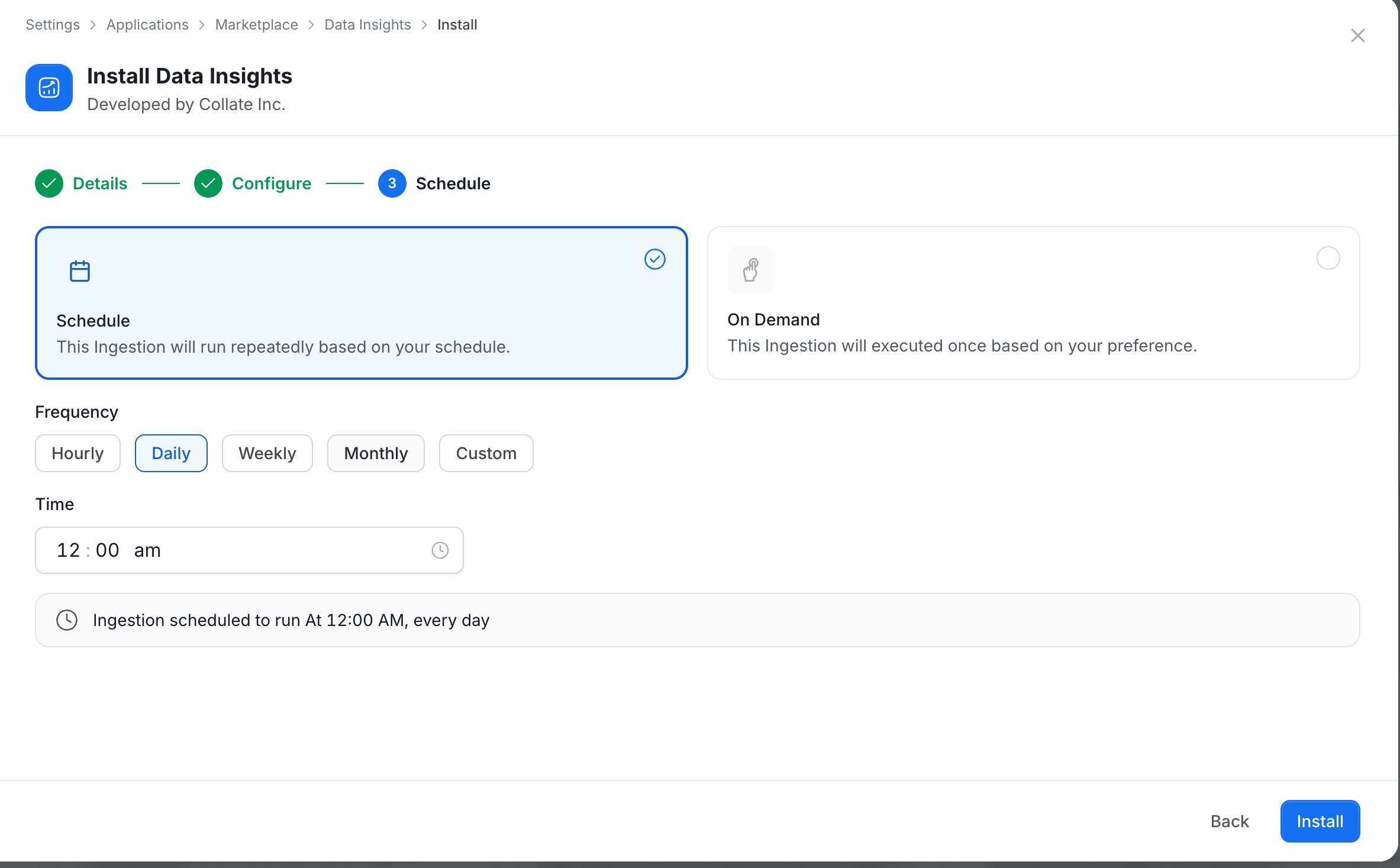
- Schedule: Choose how the application runs. The footer has Back and Install.
- Schedule: Runs the application repeatedly. Select a Frequency, then set the Day (for weekly runs) and the Time. The available frequencies depend on the application, for example Hourly, Daily, Weekly, Monthly, or Custom. A summary line shows when the next runs happen.
- On Demand: Runs the application once, when you start it.
Application Details
Select an installed application to open its details.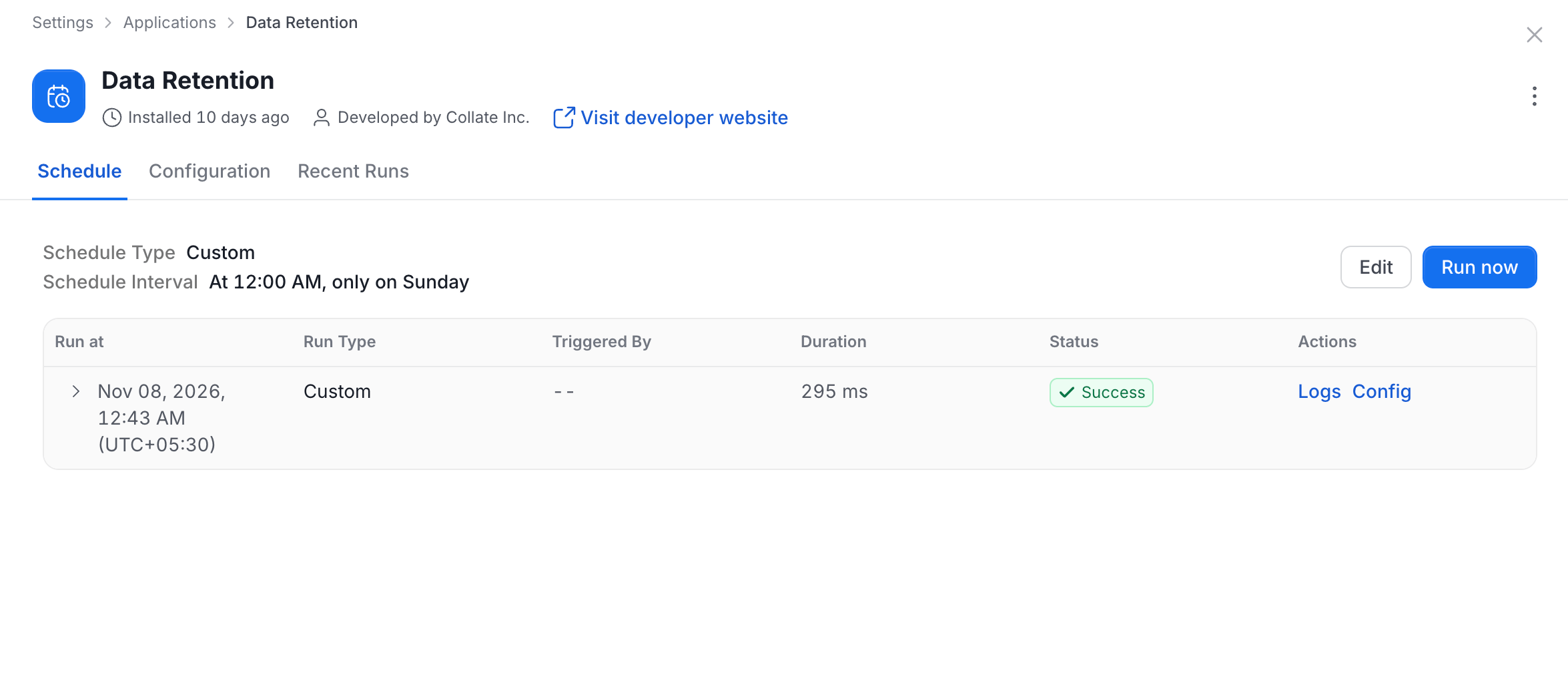
- Header: Shows Installed with a relative time, “Developed by” with the developer name, and Visit developer website when a website exists.
- Tabs:
- Schedule: Set when the application runs. This tab is hidden for applications without a schedule.
- It shows the schedule type and interval, with Edit and Run now buttons.
- A table lists each run with its run time, type, who triggered it, duration, and status, and links to the logs and configuration.
- Configuration: Edit the application settings. It appears only for applications that have a configuration form and allow configuration. When none is available, the page shows No Configuration.
- Recent Runs: Review past runs.
- Live Indexing: Appears only for the Search Indexing application.
- Schedule: Set when the application runs. This tab is hidden for applications without a schedule.
- Show Hint: On the Configuration tab, turn on Show Hint to display field hints.
Disable, Restore, or Uninstall
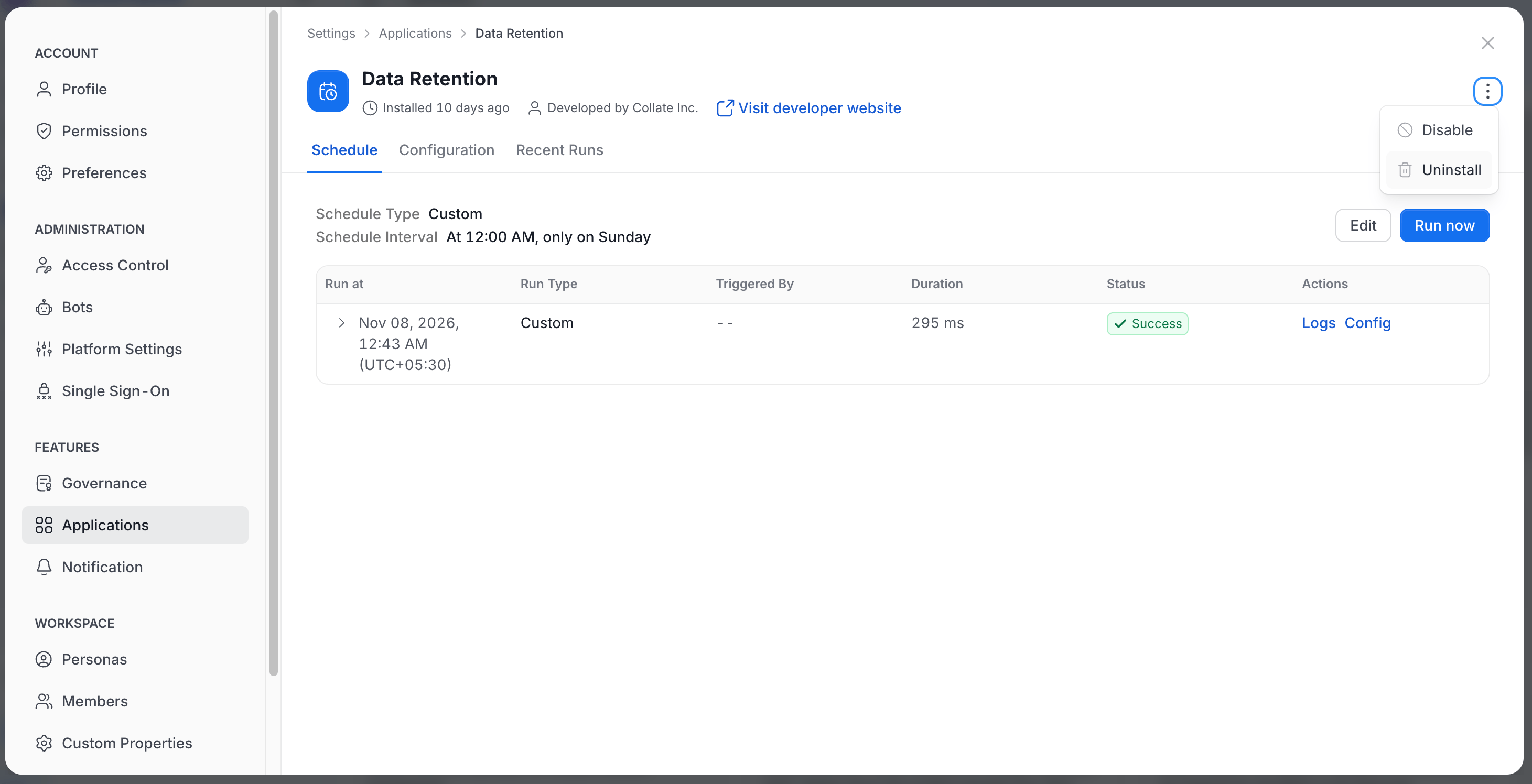
Use the three-dot menu in the application header.- Disable: Turns the application off. A disabled application moves to the Disabled Applications list.
- Restore: Appears instead of Disable for a disabled application. It turns the application back on.
- Uninstall: Removes the application. It is not offered for system applications.
Permissions
Actions on an application depend on your permissions.- Delete: Shows the three-dot menu.
- EditAll: Allows edits to the schedule and configuration.
- Trigger: Allows Run now.
- Deploy: Allows deploying the application.