
How to Ingest Metadata
This guide covers how to integrate third-party sources with OpenMetadata and run ingestion workflows from the UI. OpenMetadata supports metadata ingestion from third-party sources through the CLI or the UI. Admin users can connect to multiple source types: Databases, Dashboards, Pipelines, ML Models, Messaging, Storage, and Metadata services. You can add a connector and schedule metadata fetches at your preferred frequency.Note: You must have Admin access in the source tool to add a connector and ingest metadata.
Step 1: Create a Service Connection
-
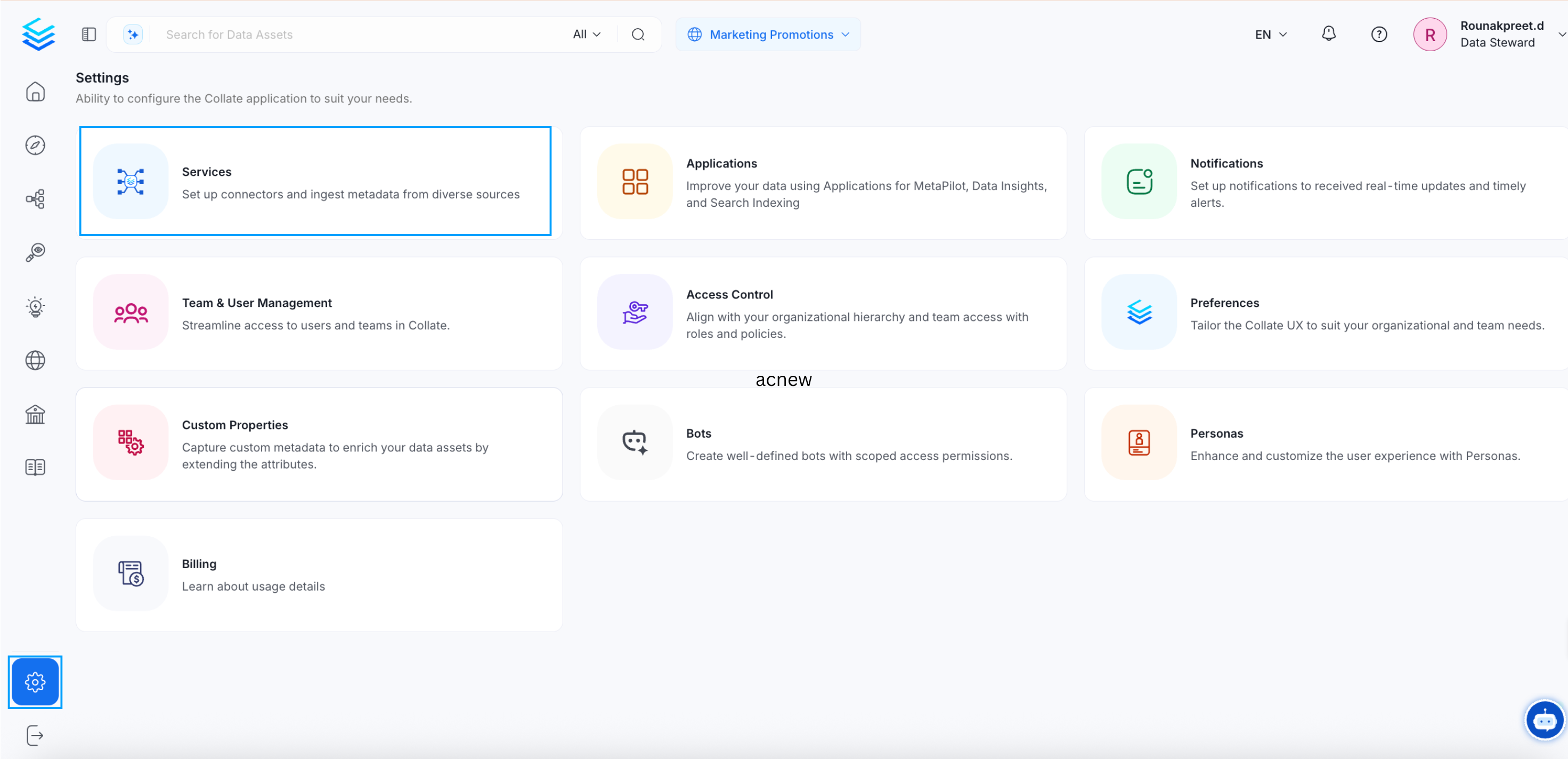
Go to the Settings page and click Services.
-
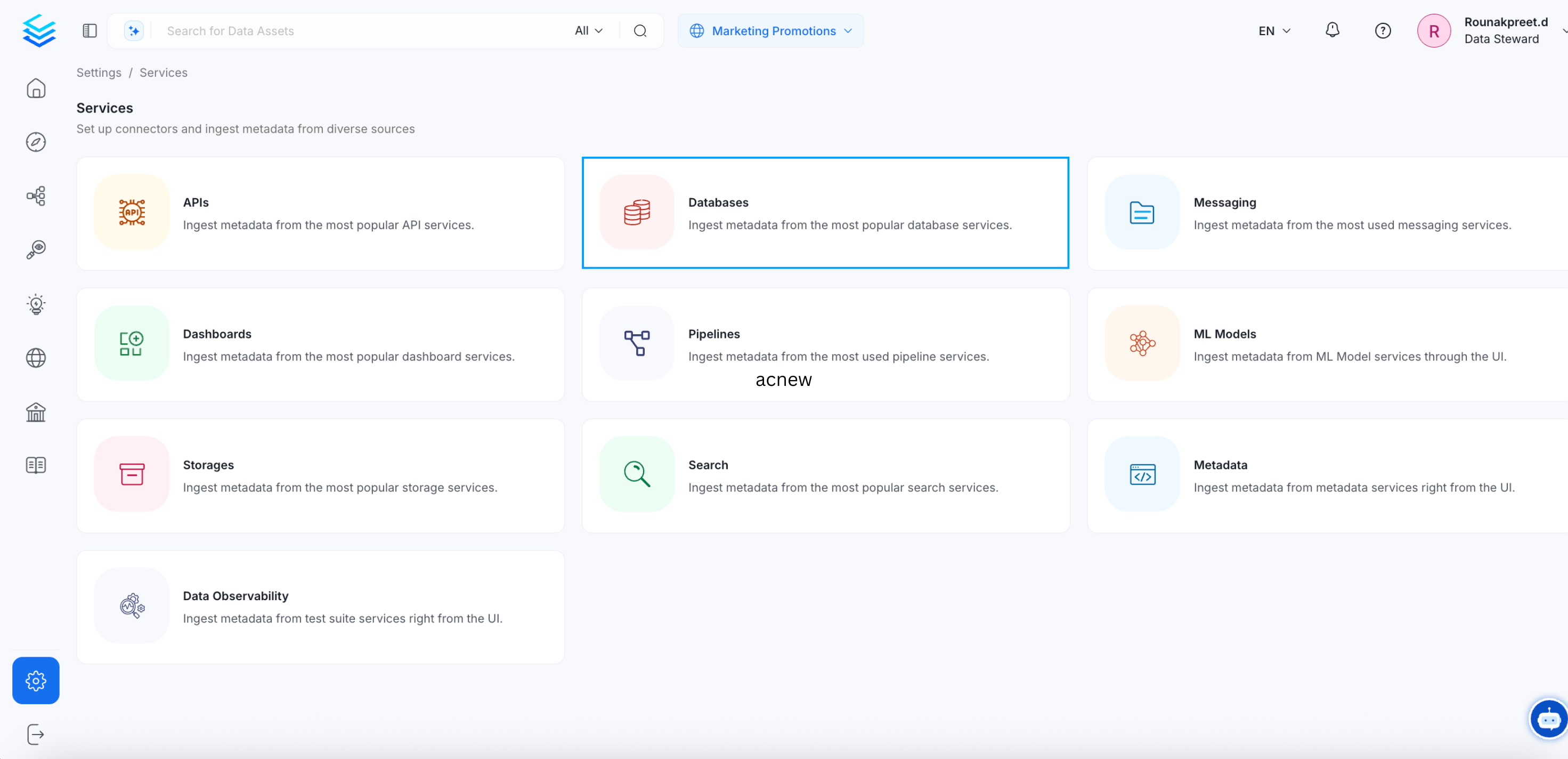
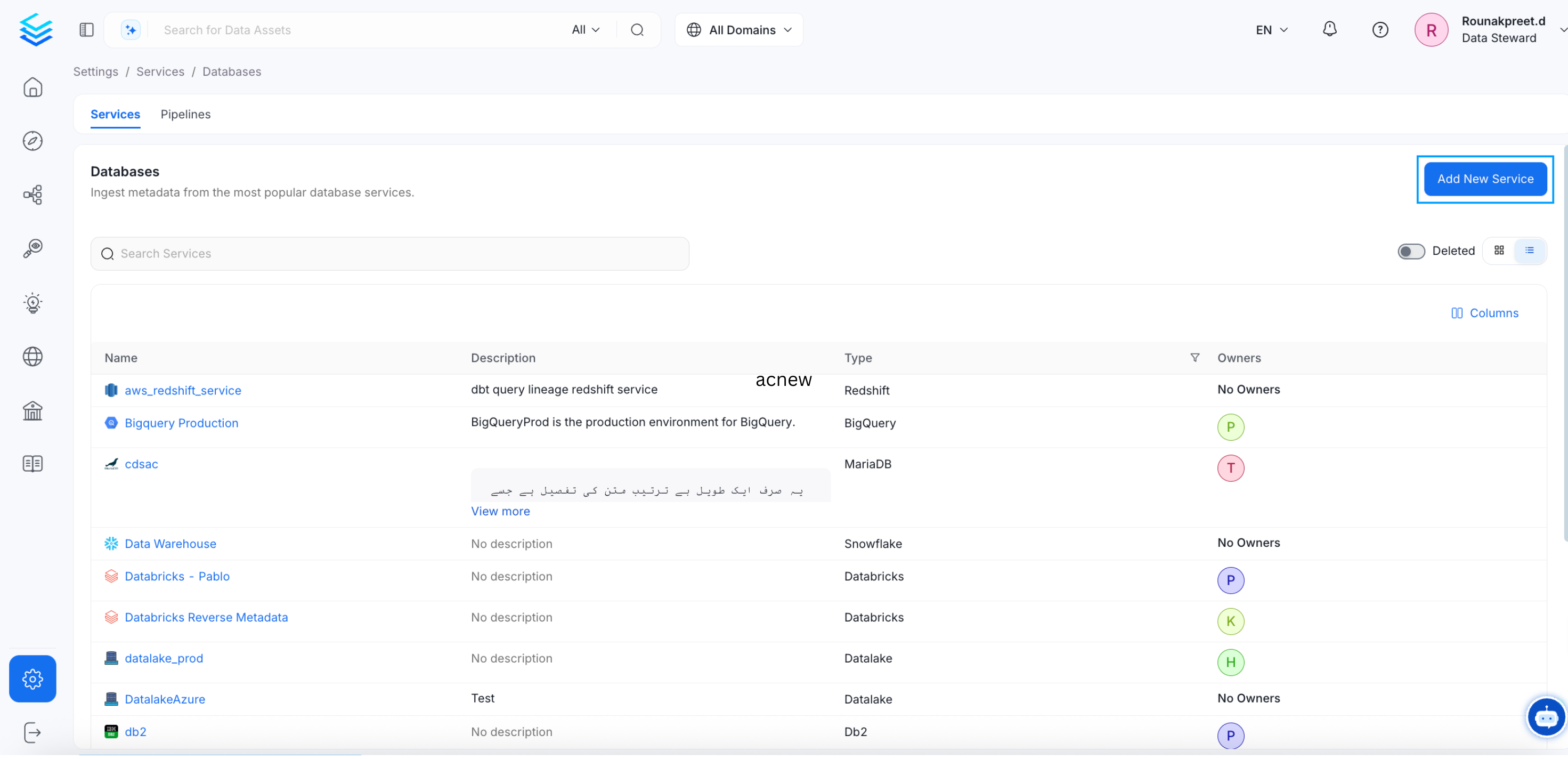
On the next page, select Databases and click Add New Service.
Step 2: Select a Database Connector
Select the Snowflake database service and click Next. You can select your desired database from the various database service options available.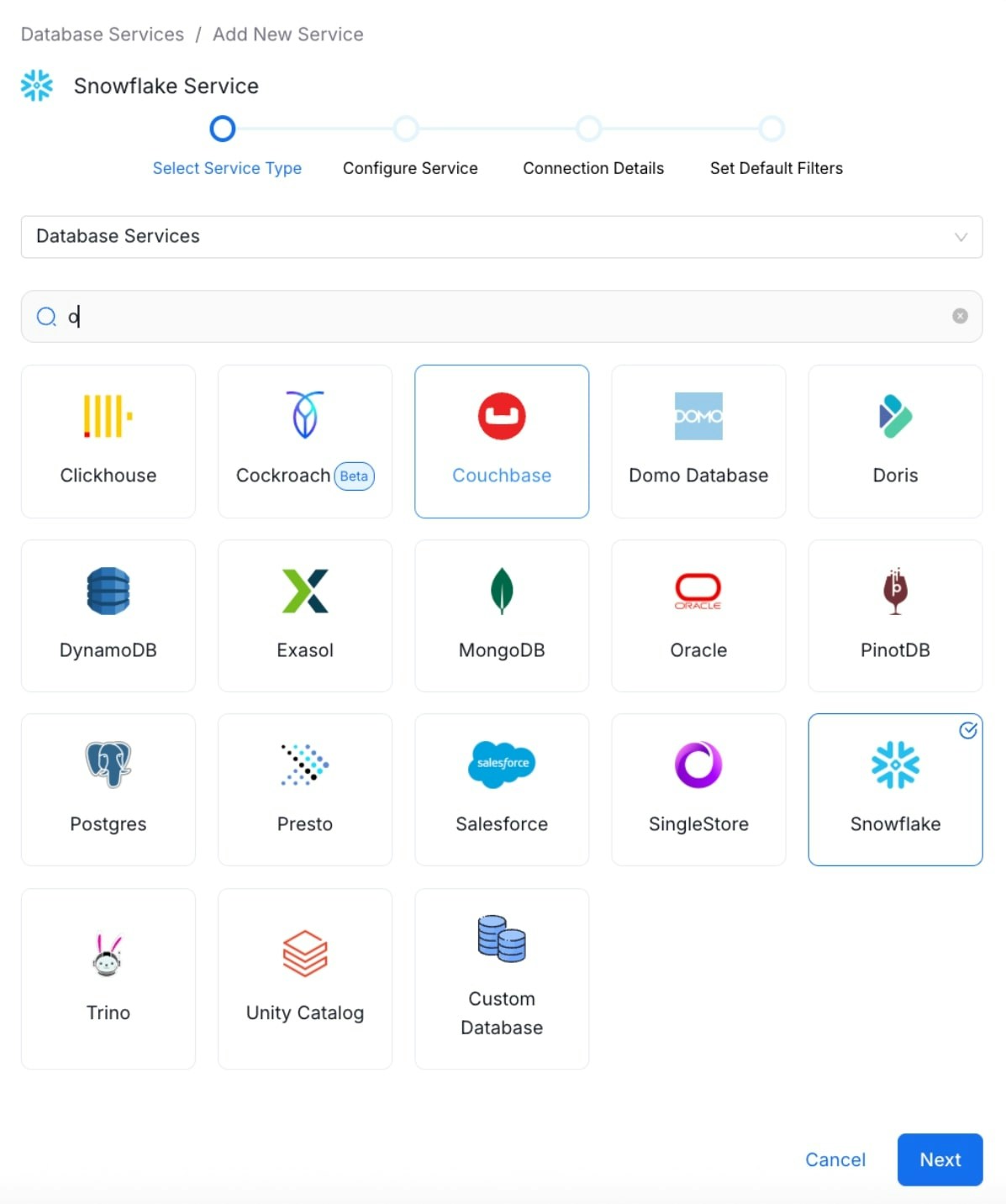
Step 3: Configure the Service
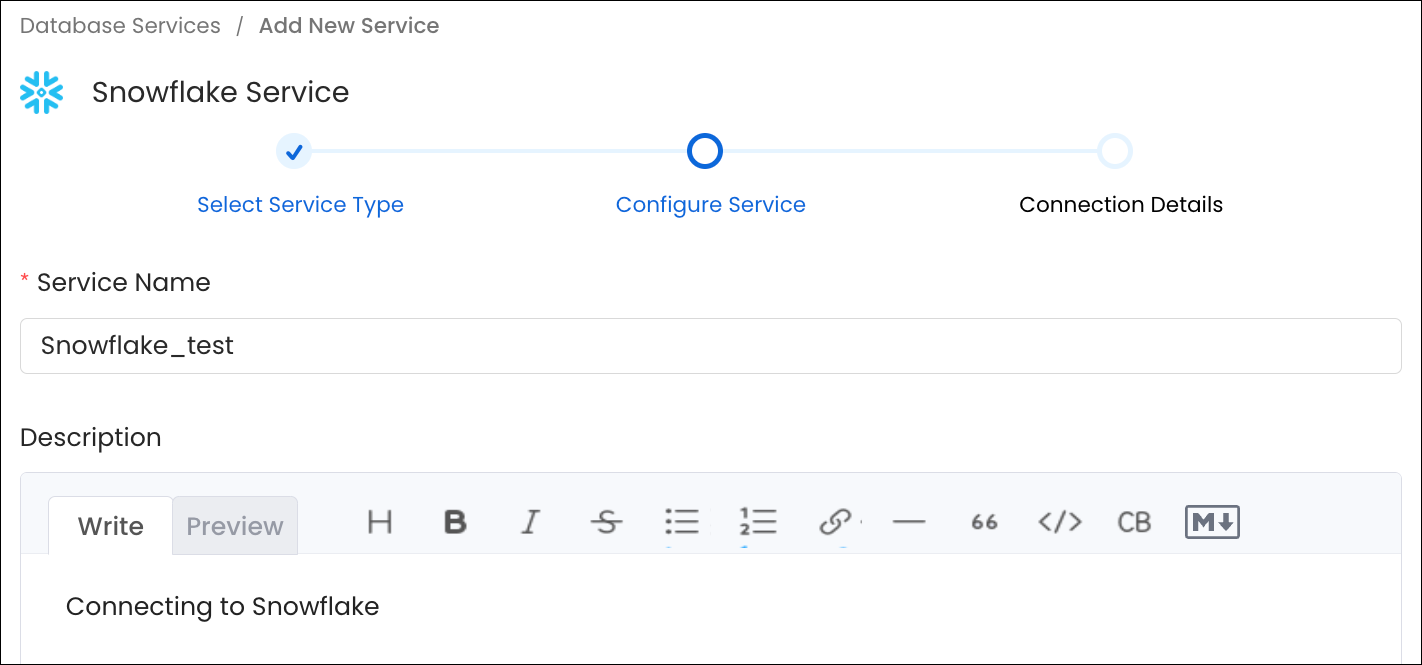
Enter a unique Service Name and Description, then click Next.- Service Name (required): No spaces allowed. Apart from letters and numbers, you can use _ - . & ( )
- Description (optional): Add a description to document the service and support data culture.
Step 4: Enter Connection Details
Enter the Connection Details for your service. The connector documentation is available in the right side panel within the OpenMetadata product UI. Required fields differ based on the service you selected. Enter your credentials to create the service and set up ingestion workflows.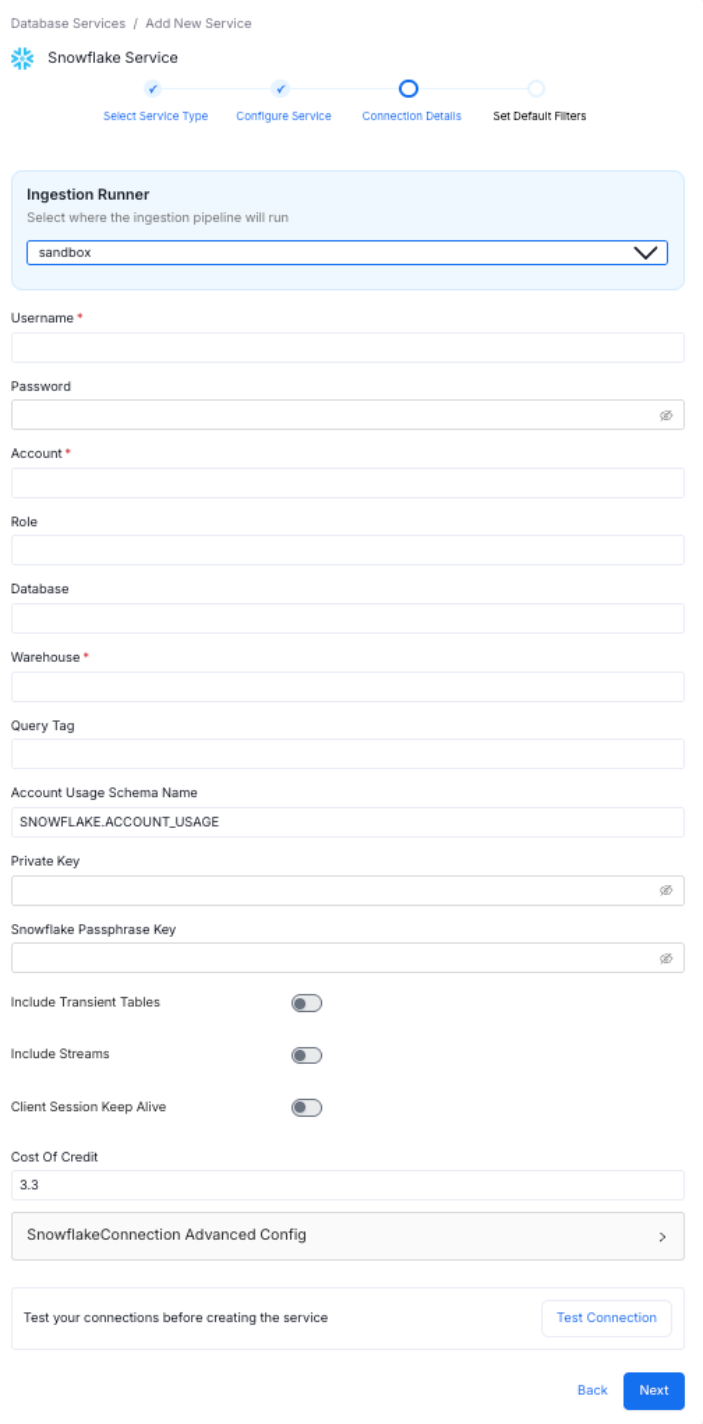
Step 5: Test the Connection
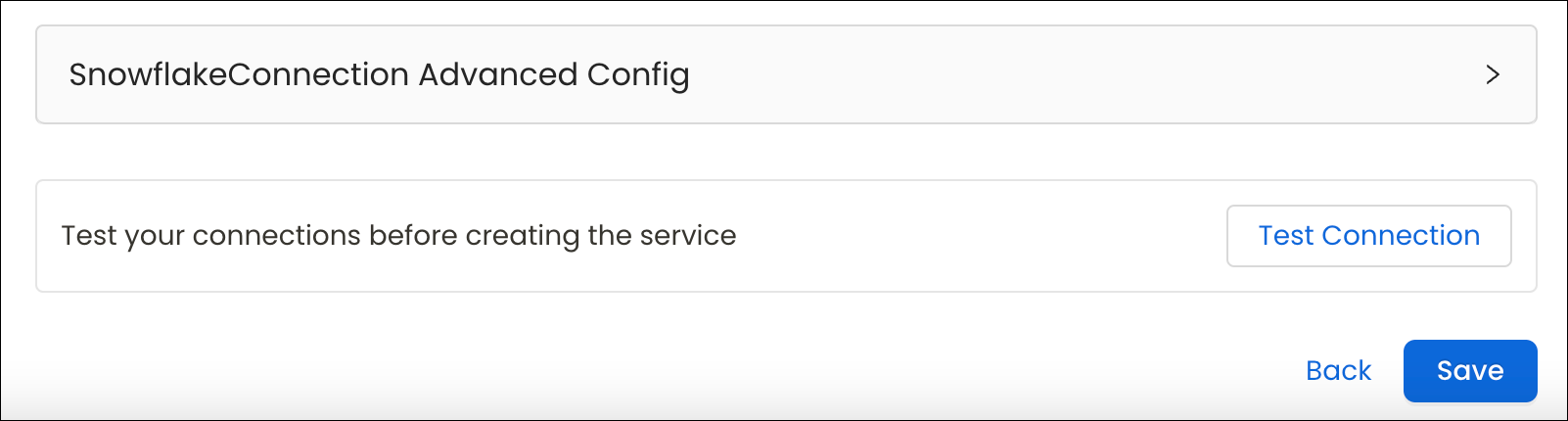
- Click Test Connection to verify access before saving.
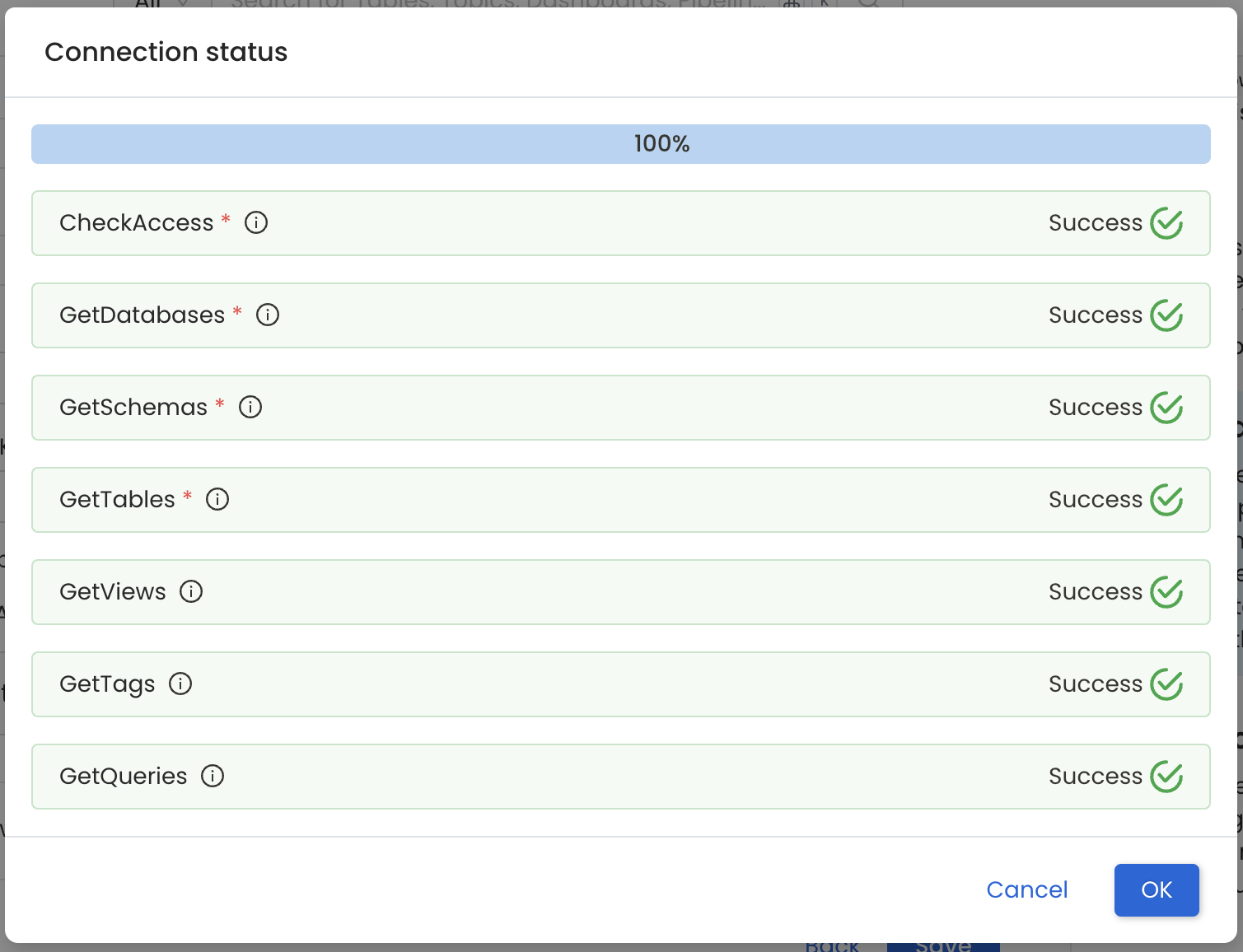
- The test checks connectivity and confirms which data assets can be ingested using the provided credentials.
- The Connection Status panel shows access results for the service and its data assets.
- The test checks connectivity and confirms which data assets can be ingested using the provided credentials.
- After the connection test passes, click Save.
Step 6: Save the Service and Add an Agent
-
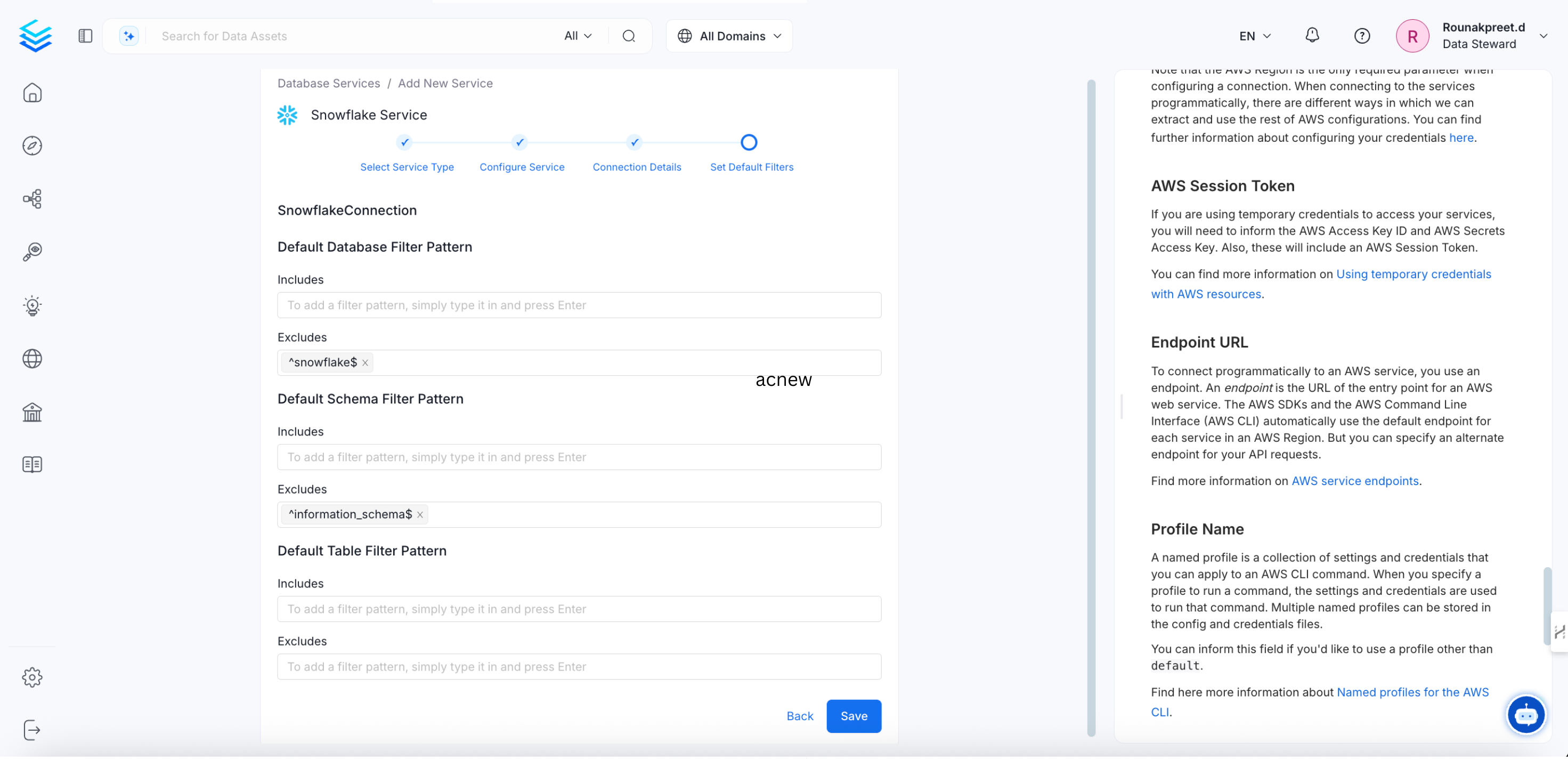
Add the default schema, database, and table filter patterns, and then click Save to create and configure the database service.
-
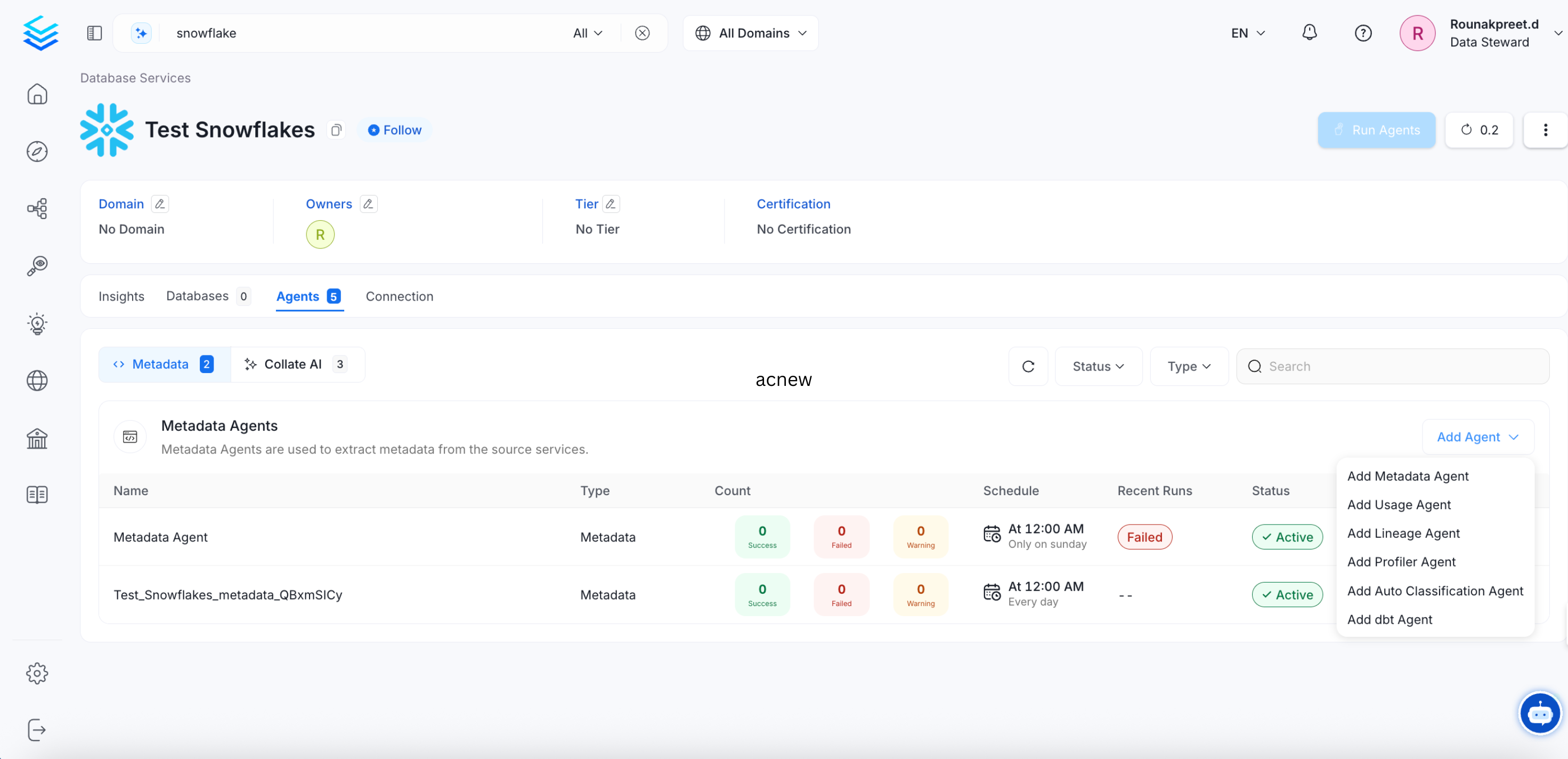
Go to the Agents tab and click Add Agent > Add Metadata Agent.
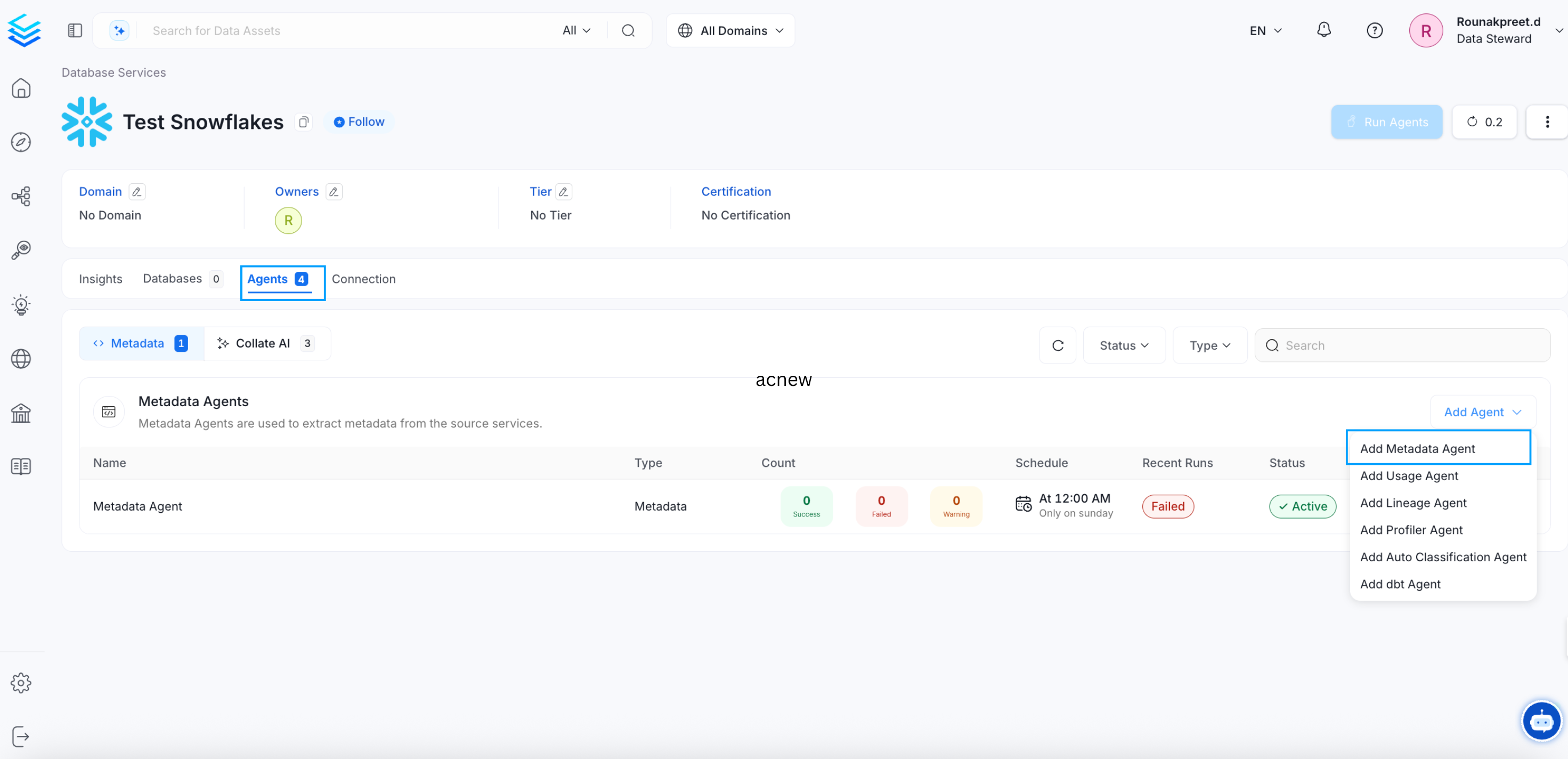 Note: The Agents tab is visible only to Admins, direct owners of the service, or members of an owner team.
Step 7: Configure the Metadata Agent
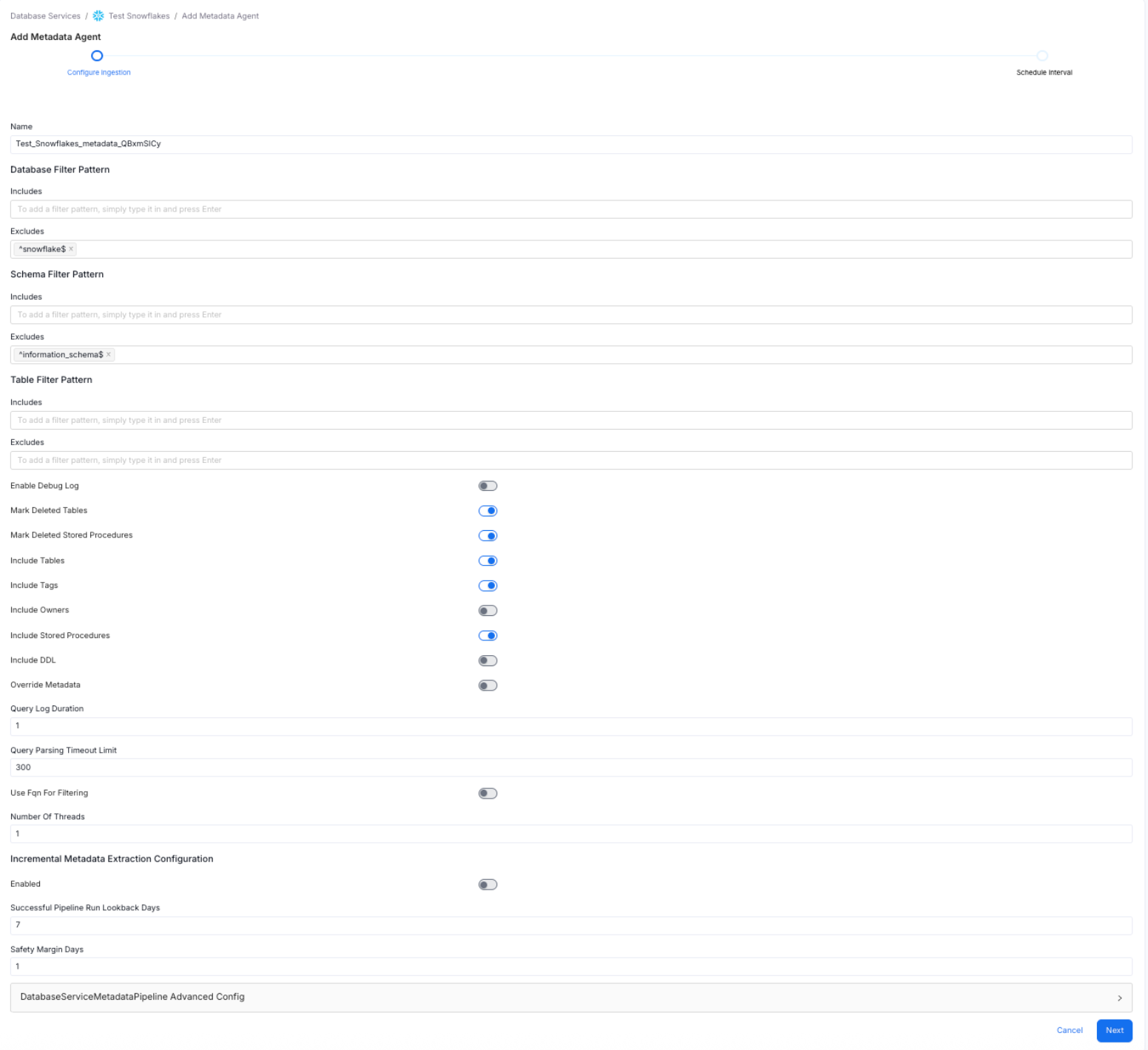
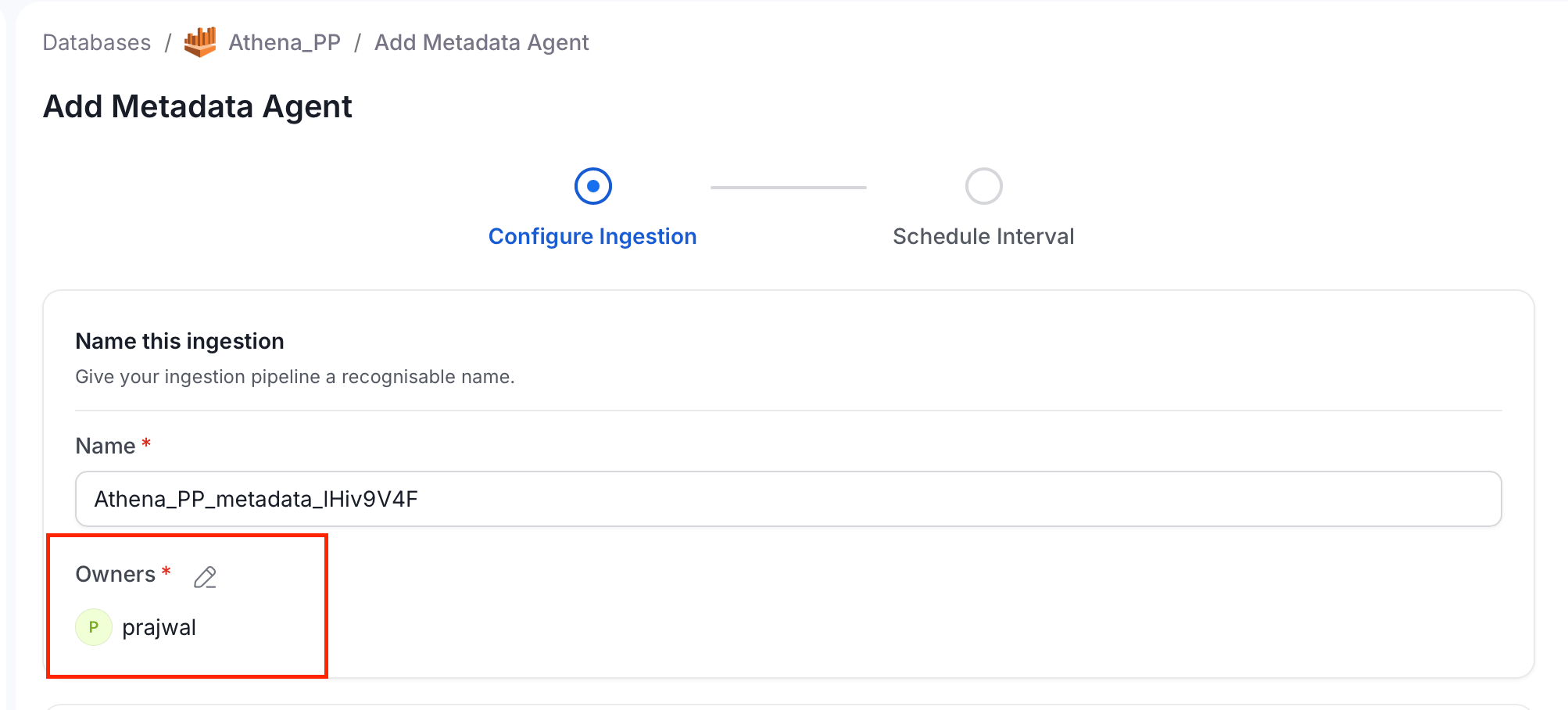
To set up the metadata agent, enter and configure the following details and click Next:- Name: Pre-populated with the service name and a randomly generated suffix to ensure uniqueness.
- Owners: Use the edit icon next to Owners to select the users and teams that own this agent. OpenMetadata fills the field with the owners of the service. If the service has no owners, OpenMetadata adds you. The agent needs at least one owner, so the field is required. To change the owners of an existing agent, you need permission to edit owners.
- Database Filter Pattern: Include or exclude specific databases. A database service can contain multiple databases – use this filter to ingest only the ones you need.
- Schema Filter Pattern: Include or exclude specific schemas within a database.
- Table Filter Pattern: Include or exclude specific tables within a schema.
- Use the toggle options to configure the following settings:
- Use FQN For Filtering – to apply the filters on fully qualified names.
- Include Views – to control whether to include views as part of metadata ingestion.
- Include Tags – to include tags as part of metadata ingestion.
- Enable Debug Log – recommended for troubleshooting.
- Mark Deleted Tables – enables soft deletion of tables during ingestion.
- Query Parsing Timeout Limit: Specify the timeout limit for parsing the view definition SQL queries to perform lineage analysis. Defaults to
300.
Step 8: Schedule and Deploy the Metadata Agent
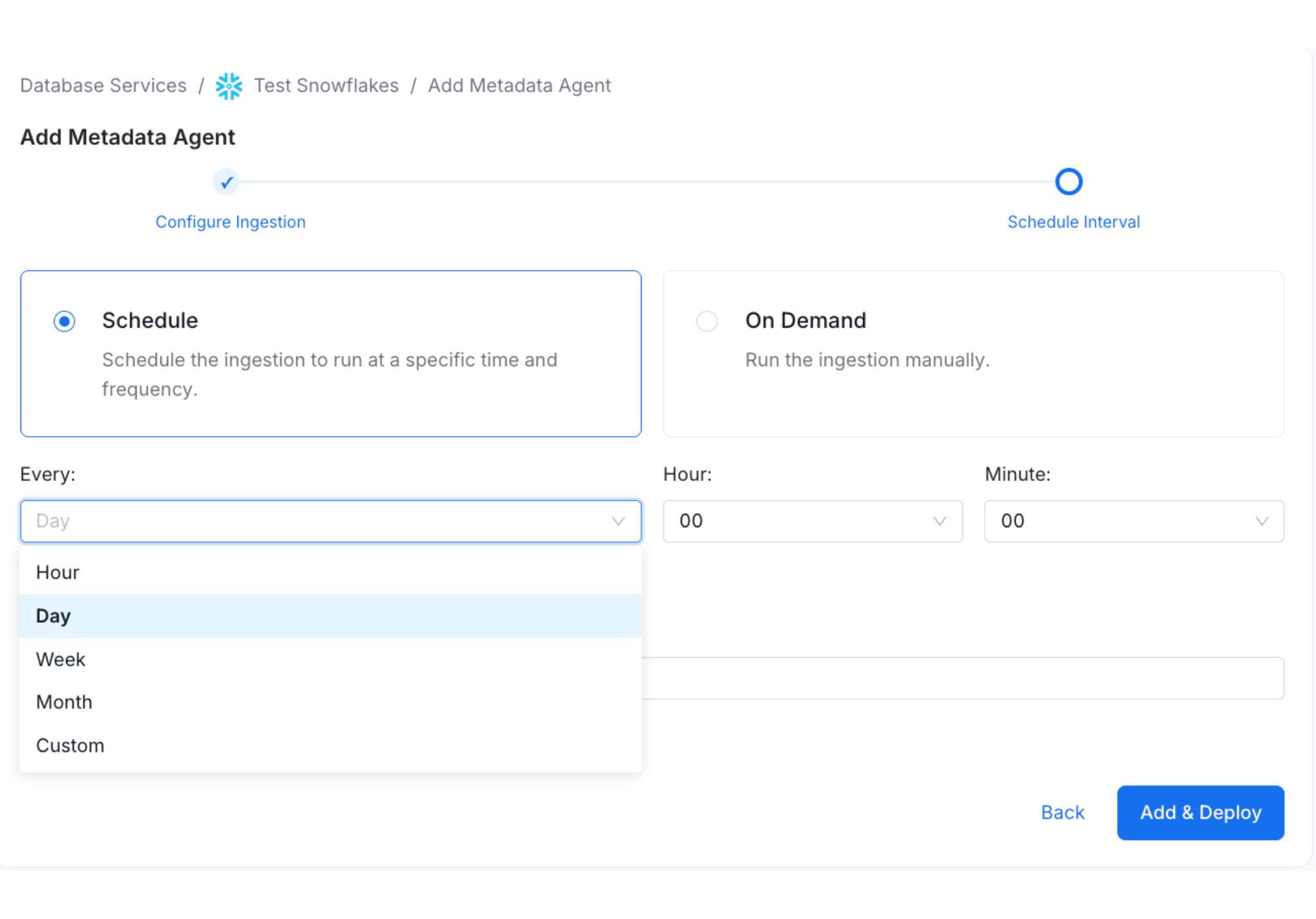
Define when the metadata agent pipeline runs. You can select a preset schedule or create a Custom schedule.- Select Schedule.
- From the Every drop-down, select a preset interval (Hour, Day, Week, or Month) or select Custom to define your own schedule.
- Enter Number of Retries. This sets the number of times the ingestion workflow restarts in case of failure.
- Click Add & Deploy.
Viewing Agent Run Status
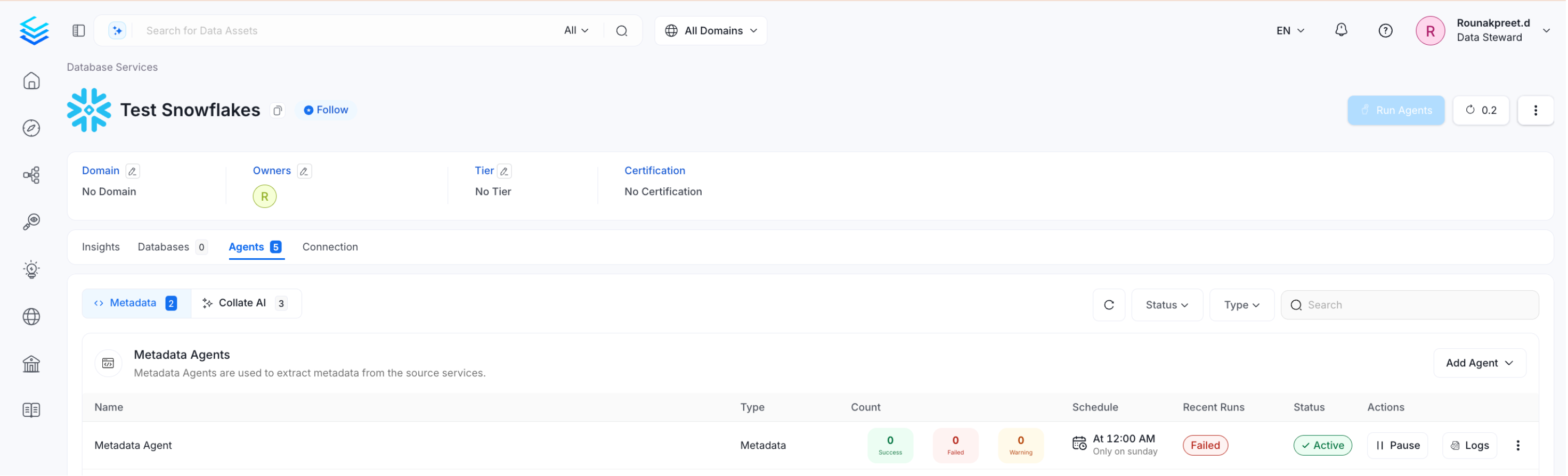
After the pipeline deploys successfully, click View Service. The Agents tab shows the status and run history for each agent – including whether a pipeline is queued, running, failed, or successful. Hover over an agent to view its scheduling frequency and the start and end times for recent runs. On the Agents tab, click the three-dot menu next to an agent to perform the following actions:- Run: Trigger the ingestion pipeline immediately.
- Kill: Stop all currently running instances of the pipeline.
- Re Deploy: Redeploy the pipeline definition after configuration, schedule, or credential changes. Use this if the source connection credentials change after the initial setup — redeploying applies the new access permissions and ingests any additionally accessible data.
- Edit: Edit or update an agent, including its owners.
- Delete: Remove an agent from the list. If the agent’s runner is unavailable, an administrator can force-delete the agent.
Force Delete an Agent
When an agent’s runner is unavailable, deleting a deployed agent fails, because OpenMetadata can’t remove the agent’s workflow from the runner. An administrator can force-delete the agent through the API. Force delete removes the agent from OpenMetadata even when the runner is unreachable.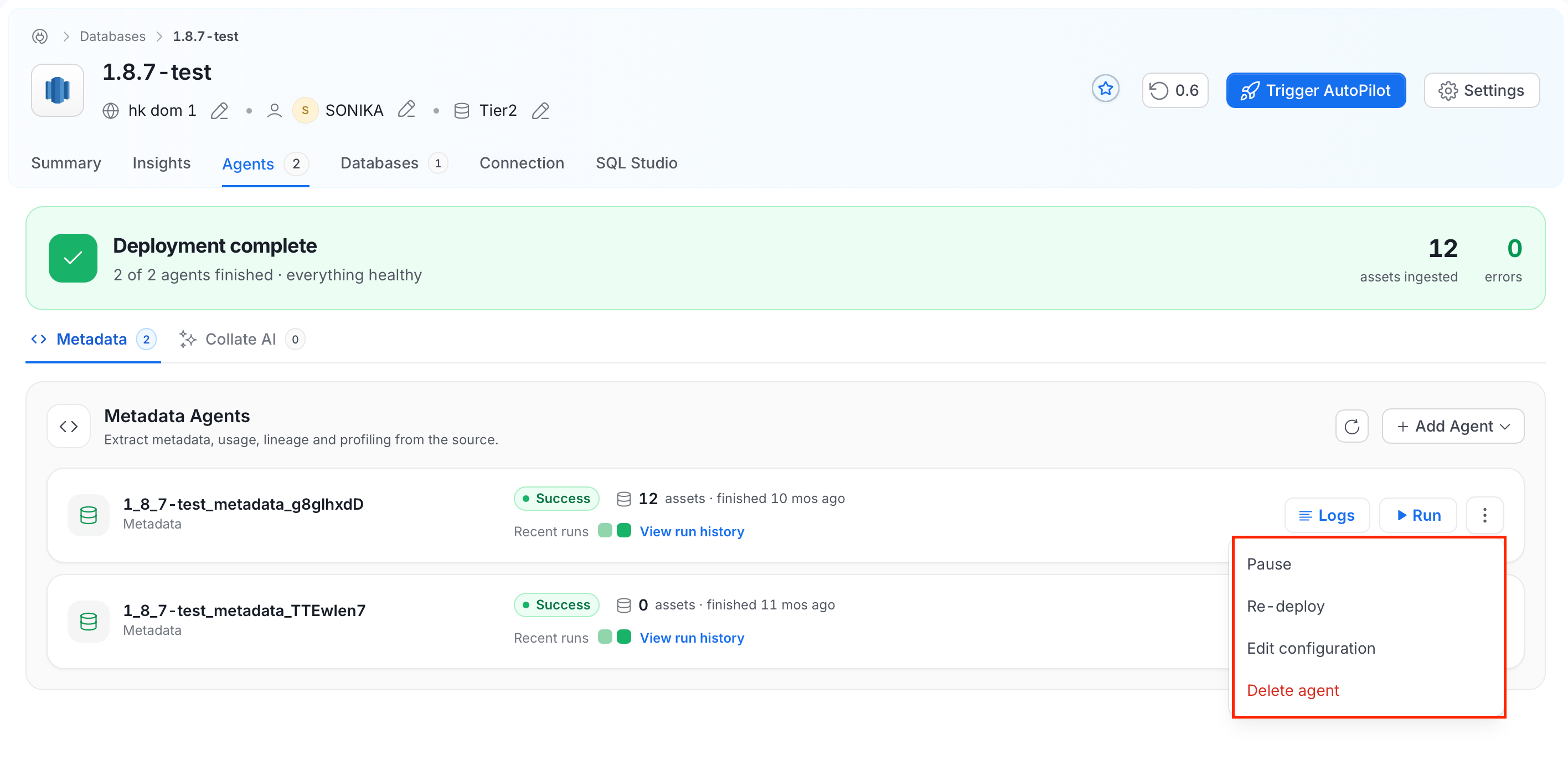
-
Get the ID of the agent, for example from the response of
GET {base_url}/api/v1/services/ingestionPipelines. -
Send a
DELETErequest with an administrator’s access token and with bothhardDelete=trueandforce=true: -
Check the response headers. If OpenMetadata skipped the runner cleanup, the response includes
X-OpenMetadata-Runner-Cleanup: skipped-unavailable.
- 400: The request has
force=truewithouthardDelete=true. - 403: The caller isn’t an administrator.
Browsing Ingested Data
Connecting to a database service lets you ingest databases, schemas, tables, and columns. The Databases tab on the Service page lists all ingested databases. You can further drill down to view Schemas and Tables for each database.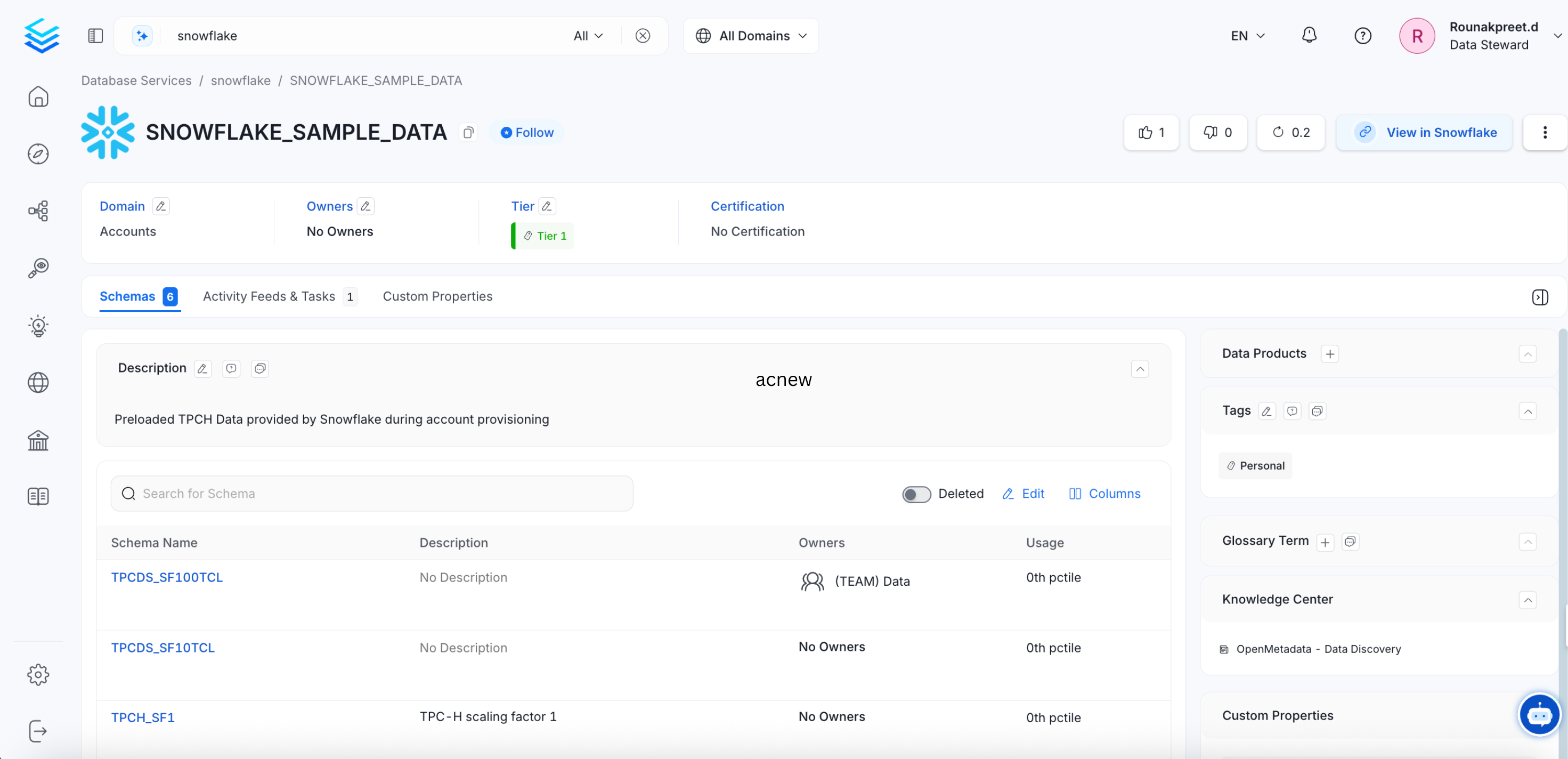
Managing Services
Admin users can create, edit, or delete services, and view connection details for existing services. To open a service, click Connections in the left navigation and select the service.View and Edit the Connection
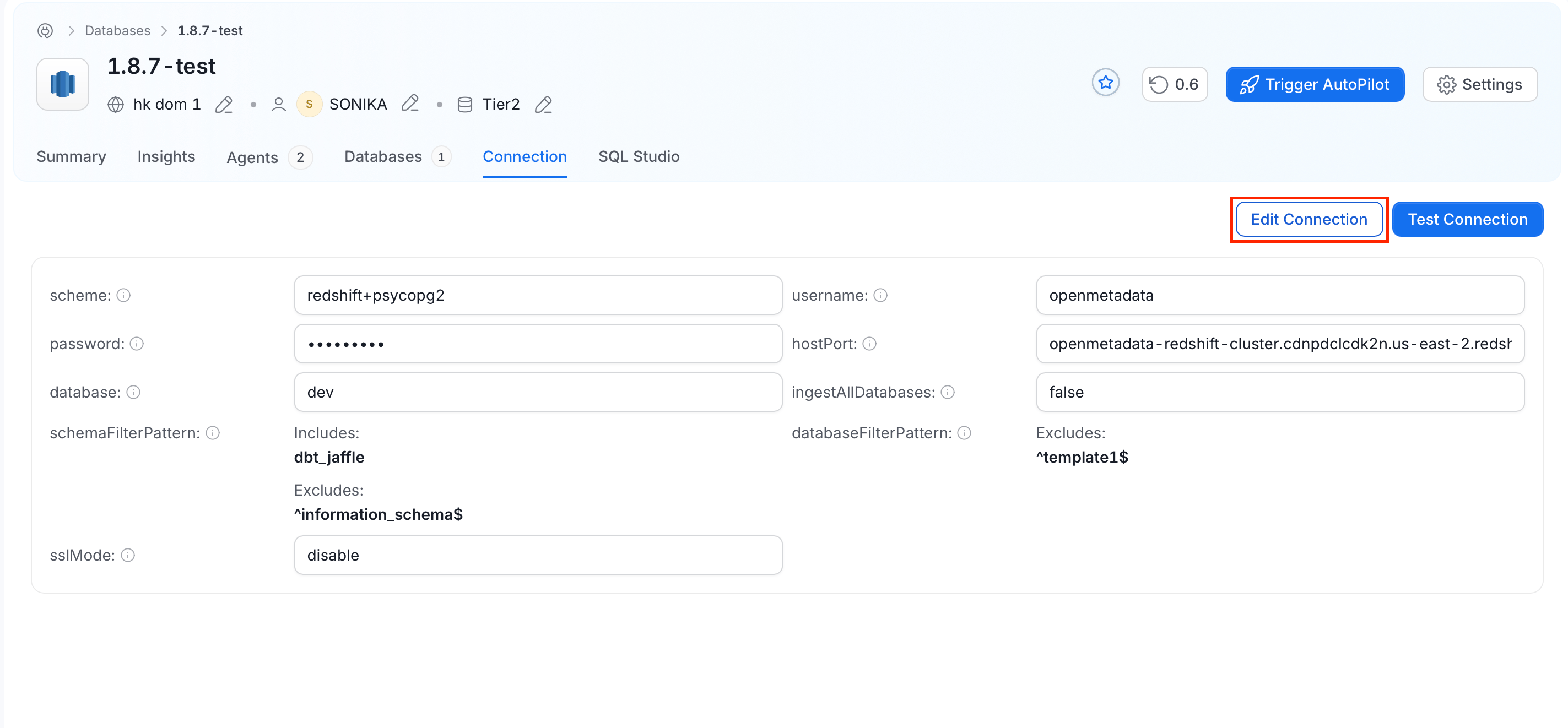
The Connection tab shows the connection details of the service, such as the scheme, username, host and port, and filter patterns. Sensitive values, such as passwords, are masked. To change the connection:- Open the service and click the Connection tab.
-
Click Edit Connection, update the connection details, and save your changes.
Manage the Service
Click Settings at the top right of the service page to open the service menu.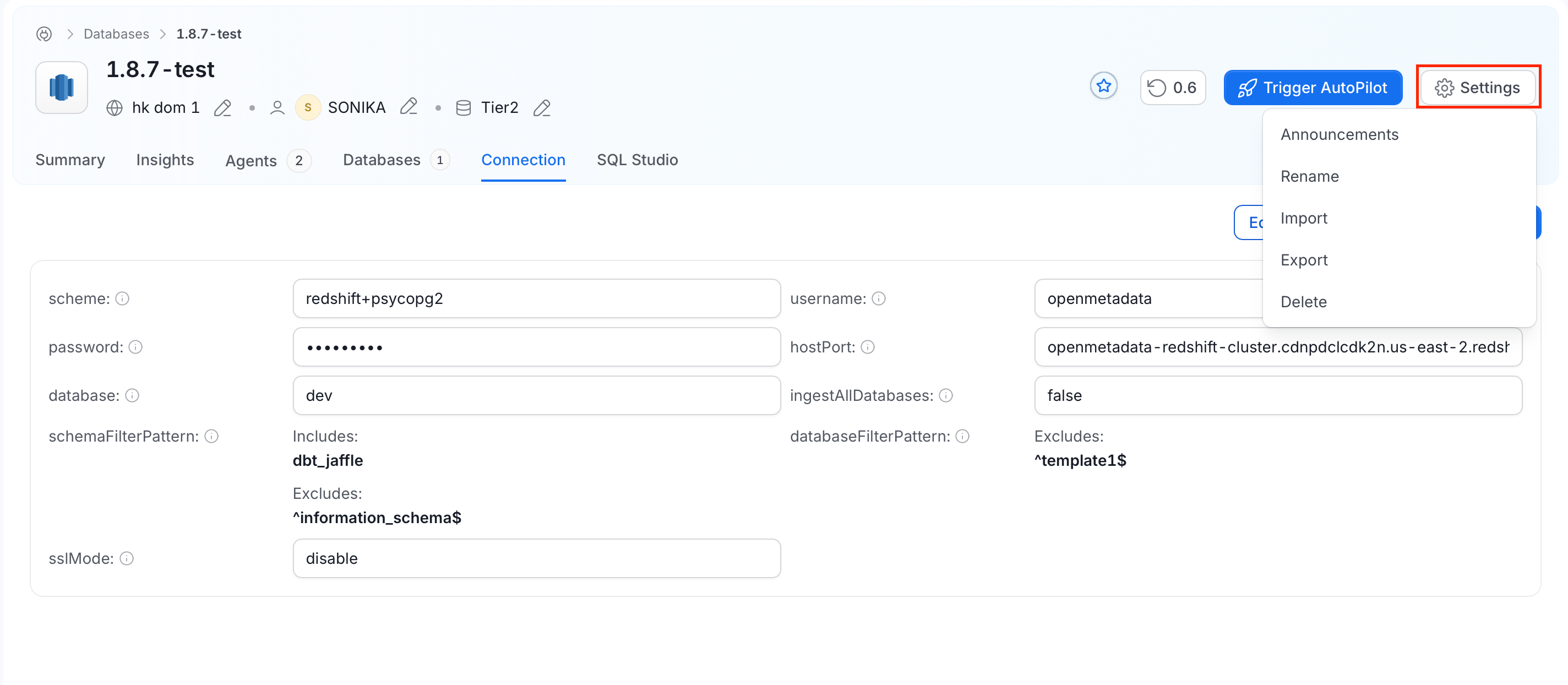
- Announcements: Create and manage announcements for the service.
- Rename: Change the display name of the service.
- Import: Import service details from a CSV file. This option is available for database services only.
- Export: Export the service details to a CSV file. This option is available for database services only.
- Delete: Delete the service. For more information, see Delete a Service Connection.
Delete a Service Connection
Permanently delete a service connection.