How to Visualize Test Results

From the Quality Page

From the left navigation bar, navigate to Observability > Data Quality. The page has these tabs:
  • Summary: The overall health of your data quality tests.
  • Test Cases: All test cases, with filters and search.
  • Test Suites: Your tests grouped by test suite.
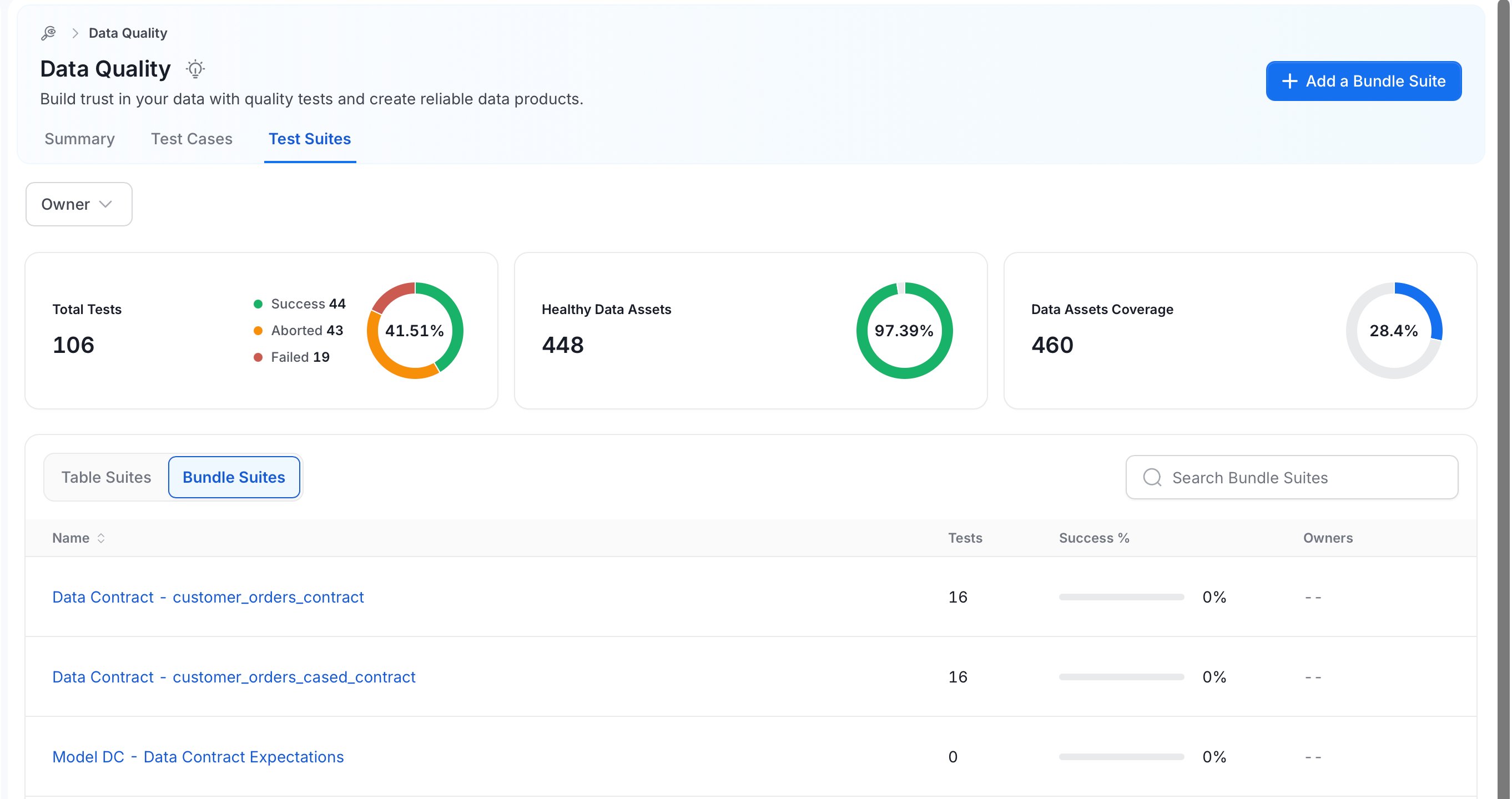
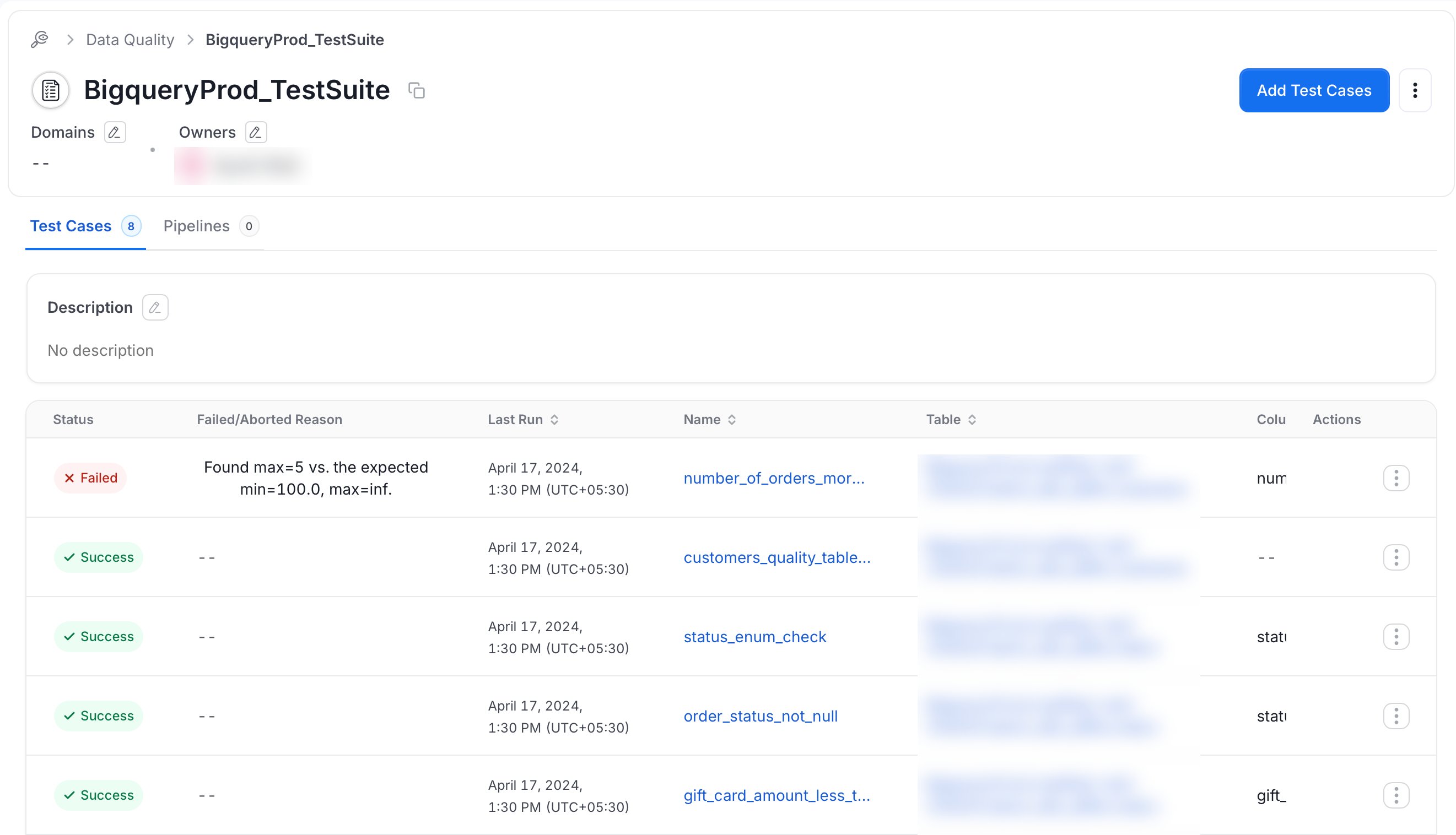
To look at your tests grouped by test suite, select the Test Suites tab. This opens the test suite page. Select a specific test suite to see its results. Test Suites tab on the Data Quality page with the Table Suites and Bundle Suites toggle and the list of bundle suites From there, select a test suite to visualize its results. Test suite page with the Test Cases and Pipelines tabs and the list of test cases

Delete and Restore a Test Case

On the Test Cases tab, deleting a test case soft deletes it by default, so the test case can be restored later. To delete a test case:
  1. Open the three-dot menu on the test case row and select Delete.
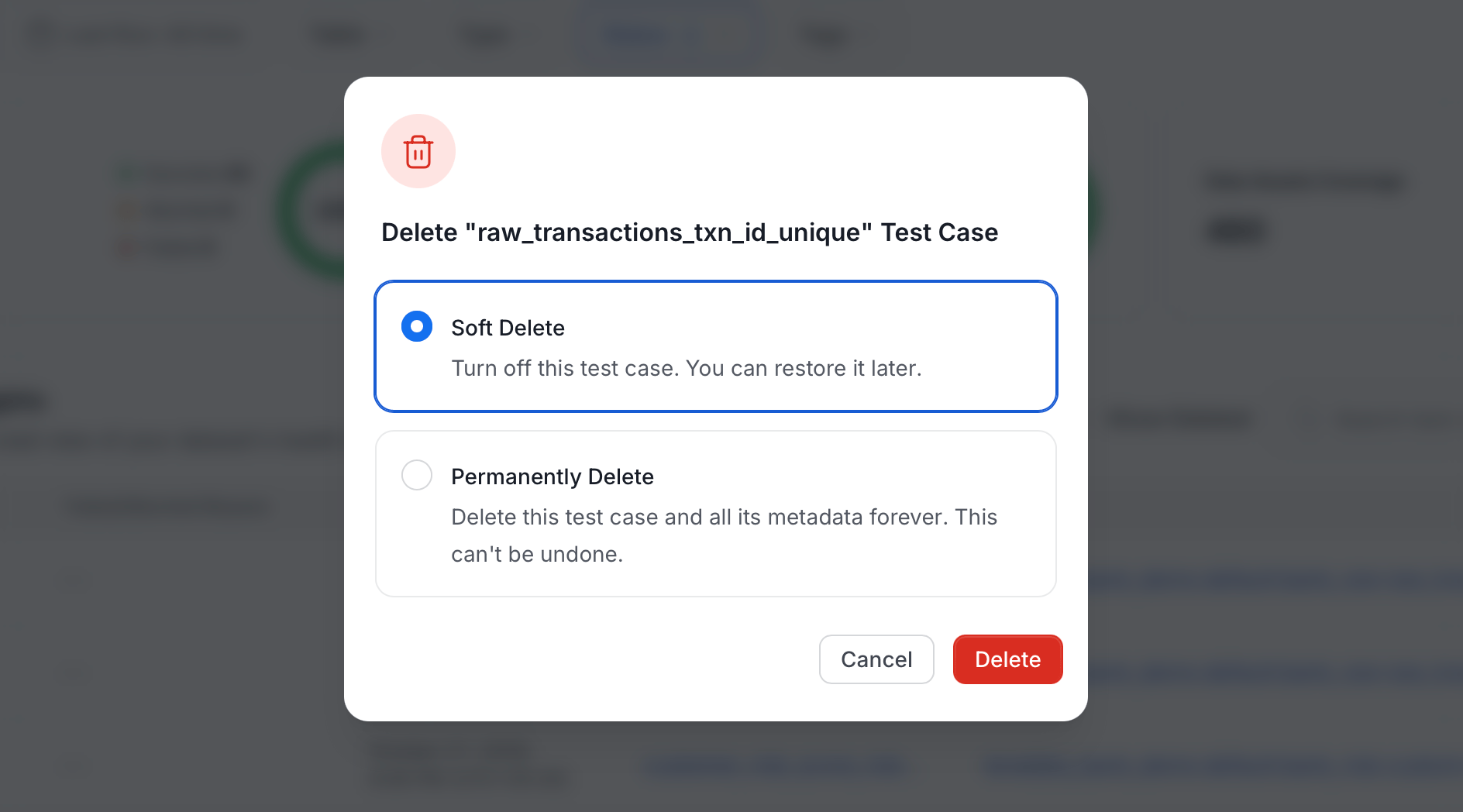
  2. In the delete dialog, choose Soft Delete (selected by default) or Permanently Delete. The dialog title shows the test case name. A permanent delete cannot be undone.
  3. Select Delete.
Delete test case dialog with the Soft Delete option selected and the Permanently Delete option below it A soft-deleted test case leaves the list. To see it again, turn on Show Deleted in the Test Case Insights header, next to the search box. While Show Deleted is on:
  • Deleted test cases appear in the list.
  • Bulk actions and the New test case action are hidden.
  • The three-dot menu of a deleted test case offers only Restore.
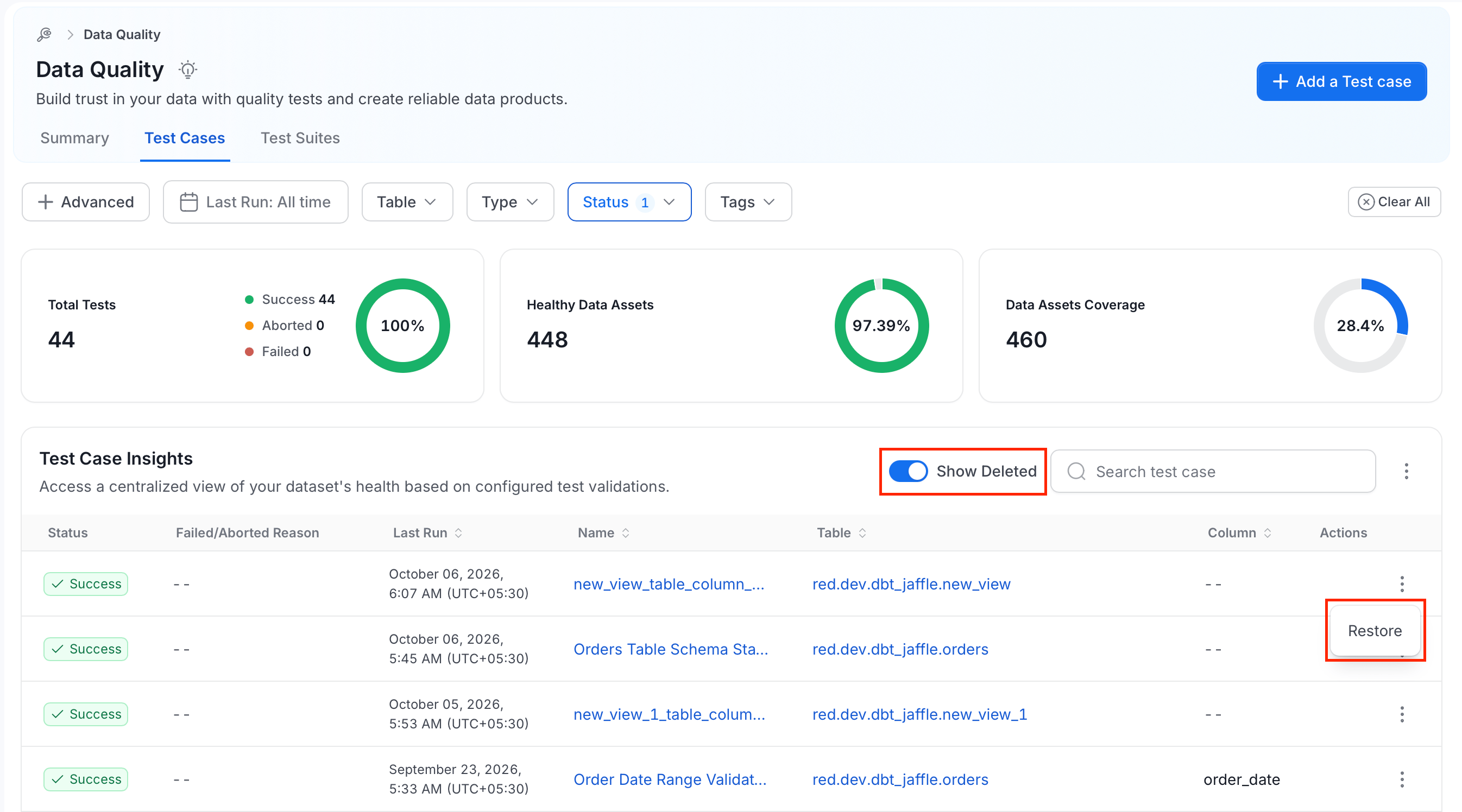
Test Cases tab with Show Deleted turned on and the Restore option open in a test case row menu To restore a test case from the list:
  1. Turn on Show Deleted.
  2. Open the three-dot menu on the deleted test case row and select Restore.
  3. Confirm in the Restore Test case dialog.
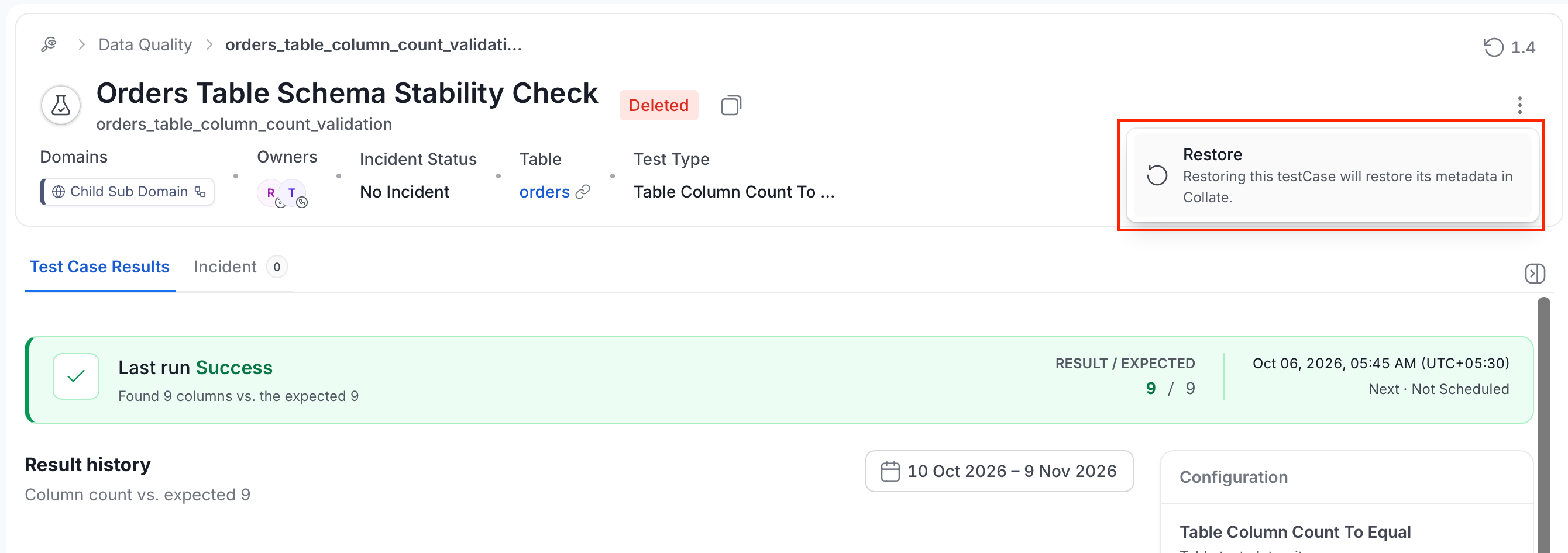
Restoring keeps the display name, description, parameters, inherited tags, and the last run result. Restoring requires permission to edit the test case. The details page of a deleted test case shows a Deleted badge next to its name. The page is read-only except for restoring, and Run now and Retry are not offered. Incidents of a deleted test case do not appear in the Incident Manager. To restore a test case from its details page:
  1. Open the three-dot menu in the header.
  2. Select Restore.
Details page of a deleted test case with the Deleted badge in the header and the Restore option open in the three-dot menu

From a Table Entity

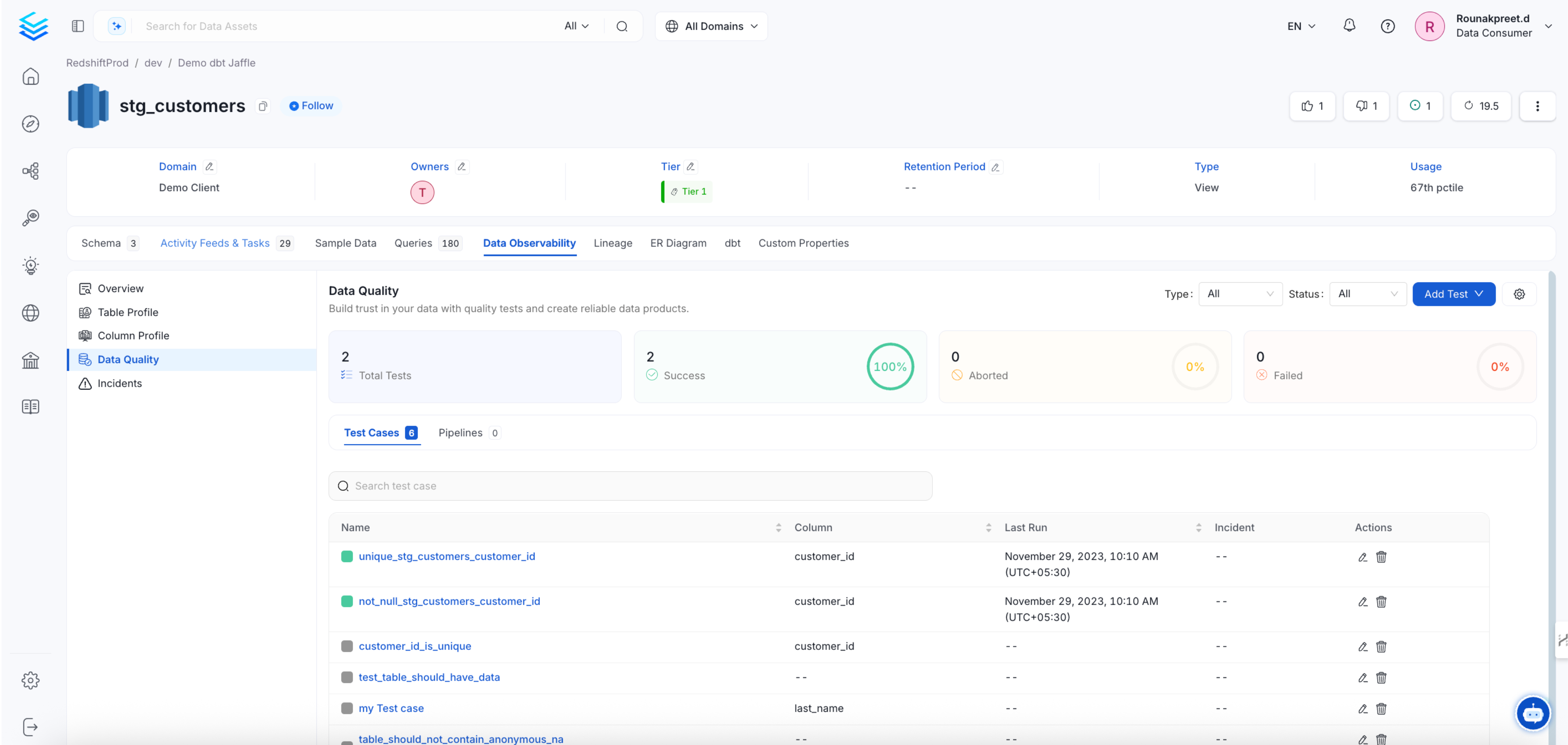
Navigate to your table and click on the profiler & Data Quality tab. From there you’ll be able to see test results at the table or column level.

Table Level Test Results

In the top panel, click on the white background Data Quality button. This will bring you to a summary of all your quality tests at the table level Test suite results table