
How to Add Assets to Glossary Terms
After creating a glossary term, data assets can be associated with the term. In the Glossary Term > Assets Tab all the assets associated with the glossary term are displayed. These data assets are further subgrouped as Tables, Topics, Dashboards, etc.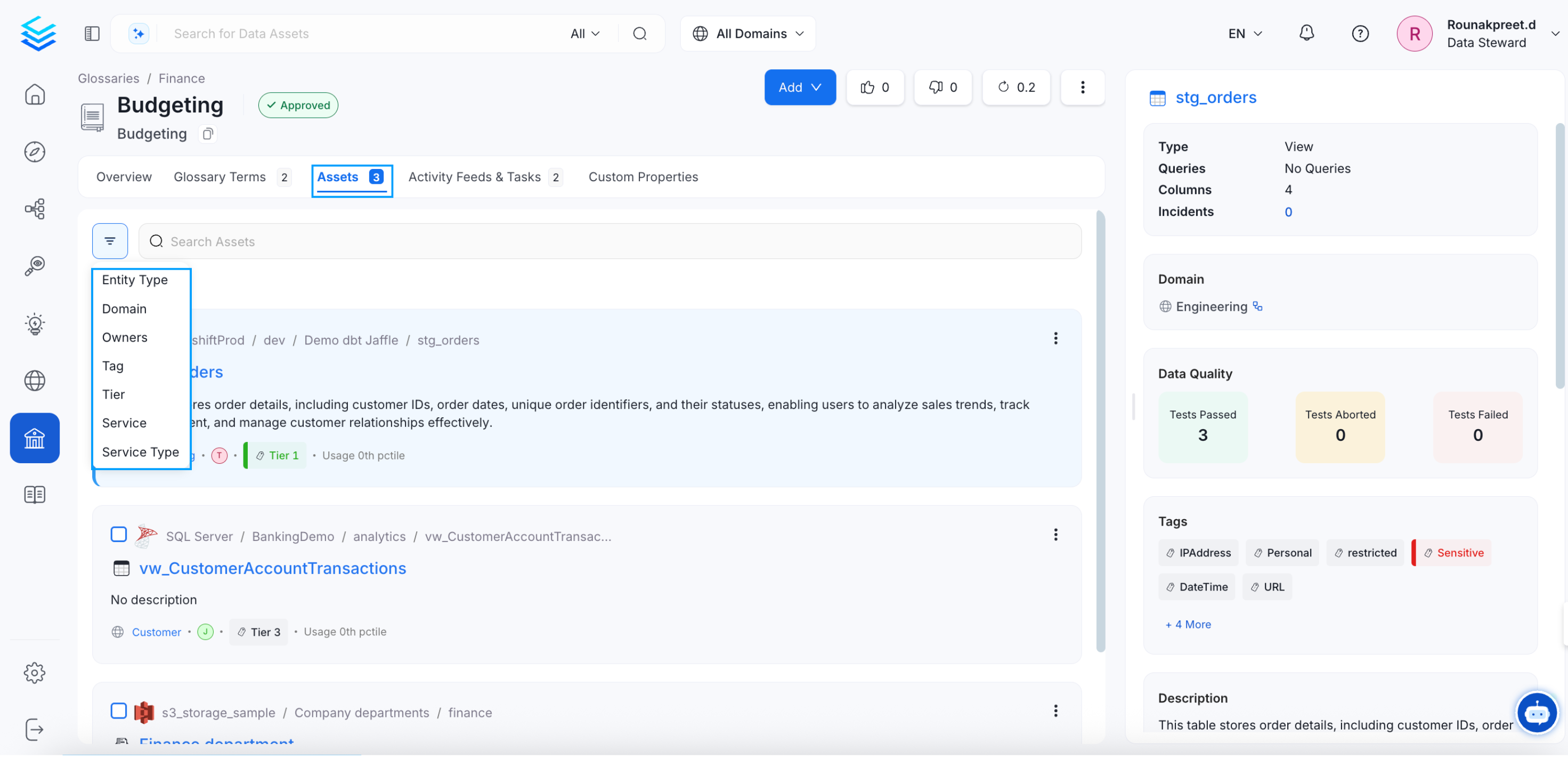
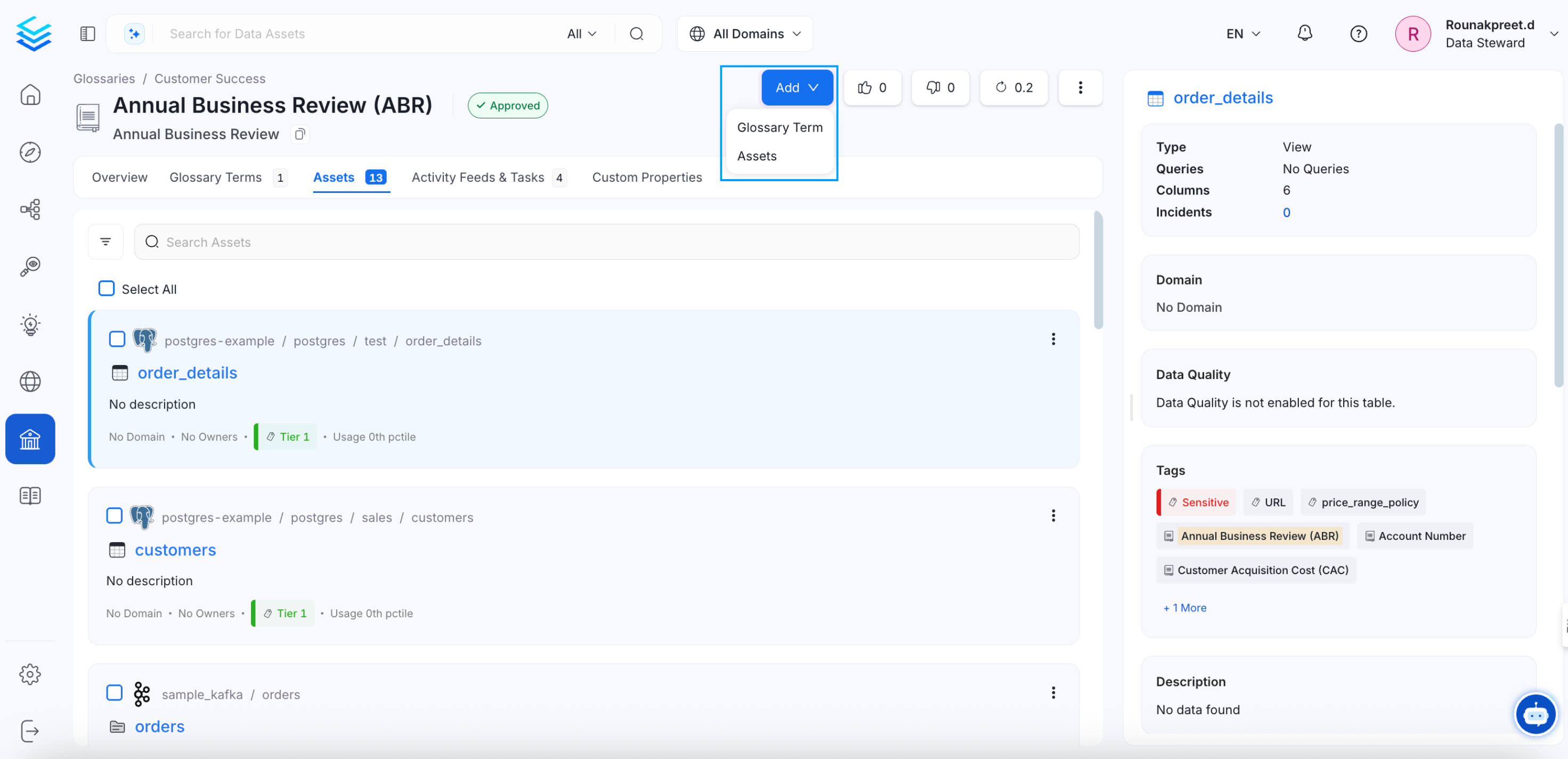
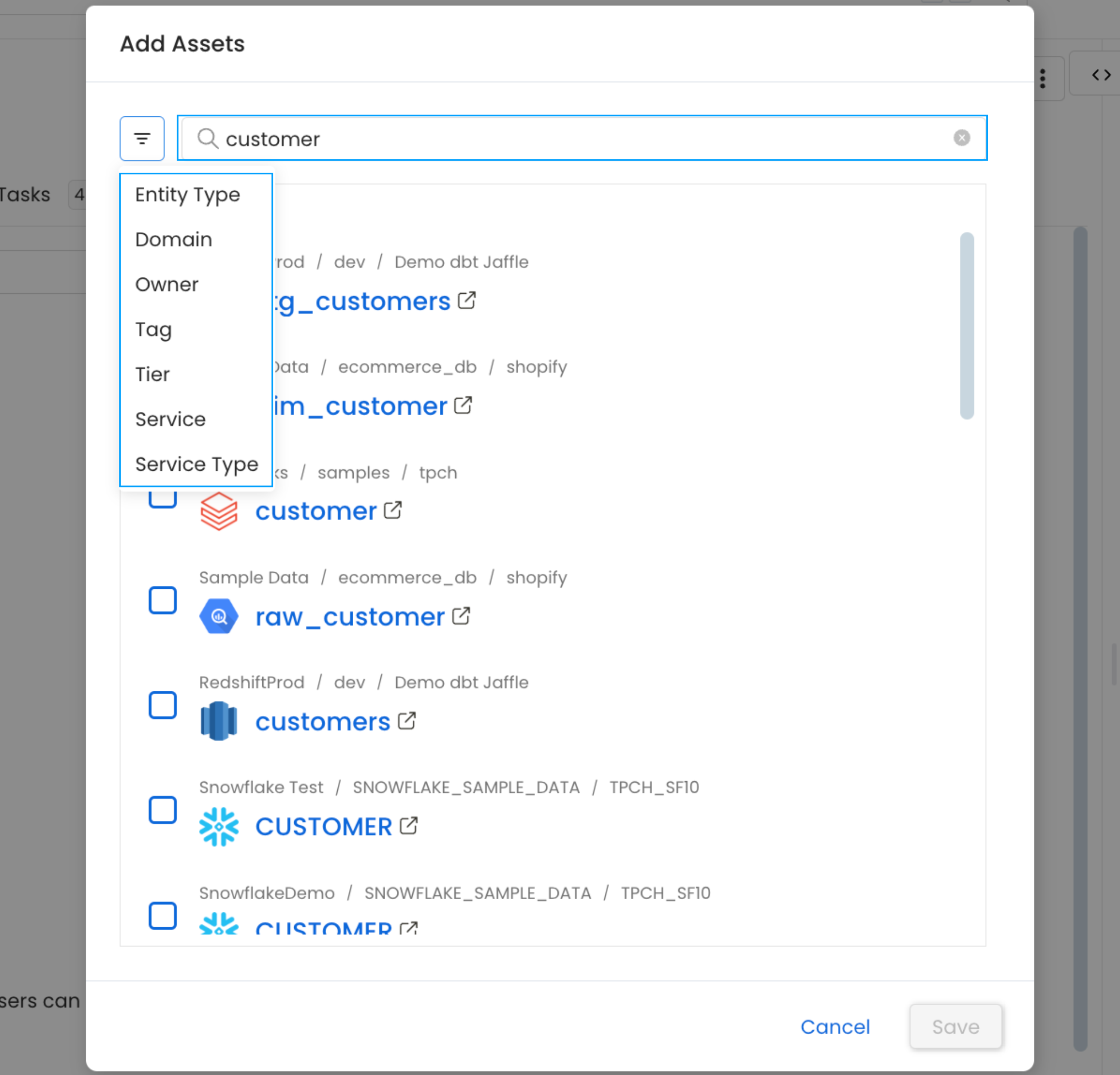
Only Approved Terms Can Be Applied
You can apply only Approved glossary terms to data assets. The same rule applies in the UI and through the API.- UI: The term picker offers only Approved terms. Add > Assets is disabled on a term that is not Approved.
- API: A request that applies a Draft, In Review, Rejected, or Deprecated term to an asset or to one of its columns or fields is refused with a
400error. This covers create,PUT,PATCH, and bulk requests, a term’sassets/addrequest, a table’s data model, and the column bulk-update and CSV previews. - Bots and automation: Bots follow the same rule. A write that applies a term that is not Approved fails for that entity.
- Terms already applied: A term that is already applied to an asset or column stays on it, even if the term later leaves the Approved status. A write that carries the same term back to the same asset or column still succeeds.
- Terms without a status: A term created before the approval workflow existed has no status and counts as Approved.
- Classification tags: The rule applies to glossary terms only.
Glossary Terms and Tags
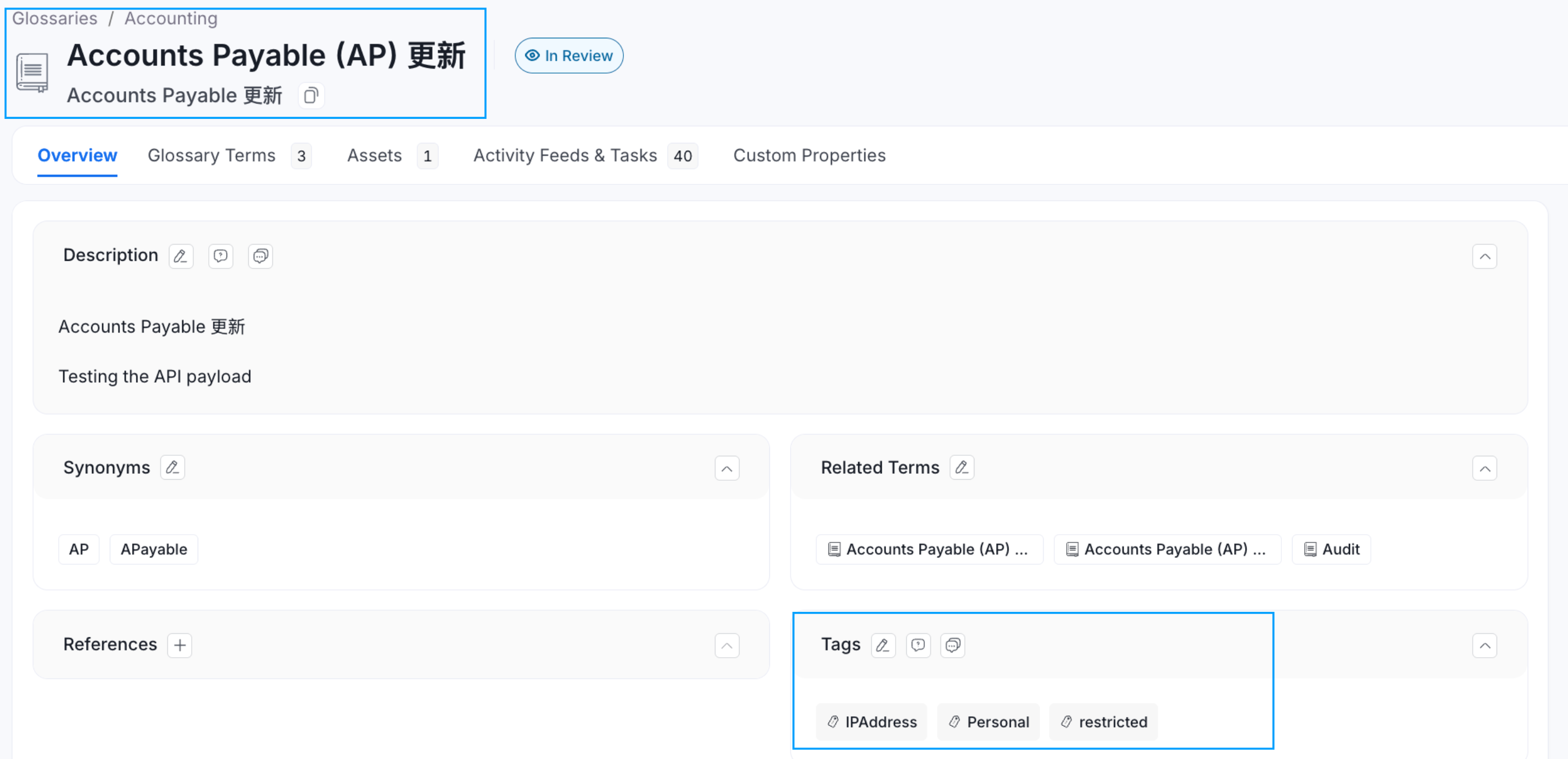
If Tags are associated with a Glossary Term, then applying that glossary term to a data asset, will also automatically apply the associated tags to that data asset. For example, the glossary term ‘Account’ has a PII.Sensitive tag associated with it. When you add a glossary term to a data asset, the associated tags also get added.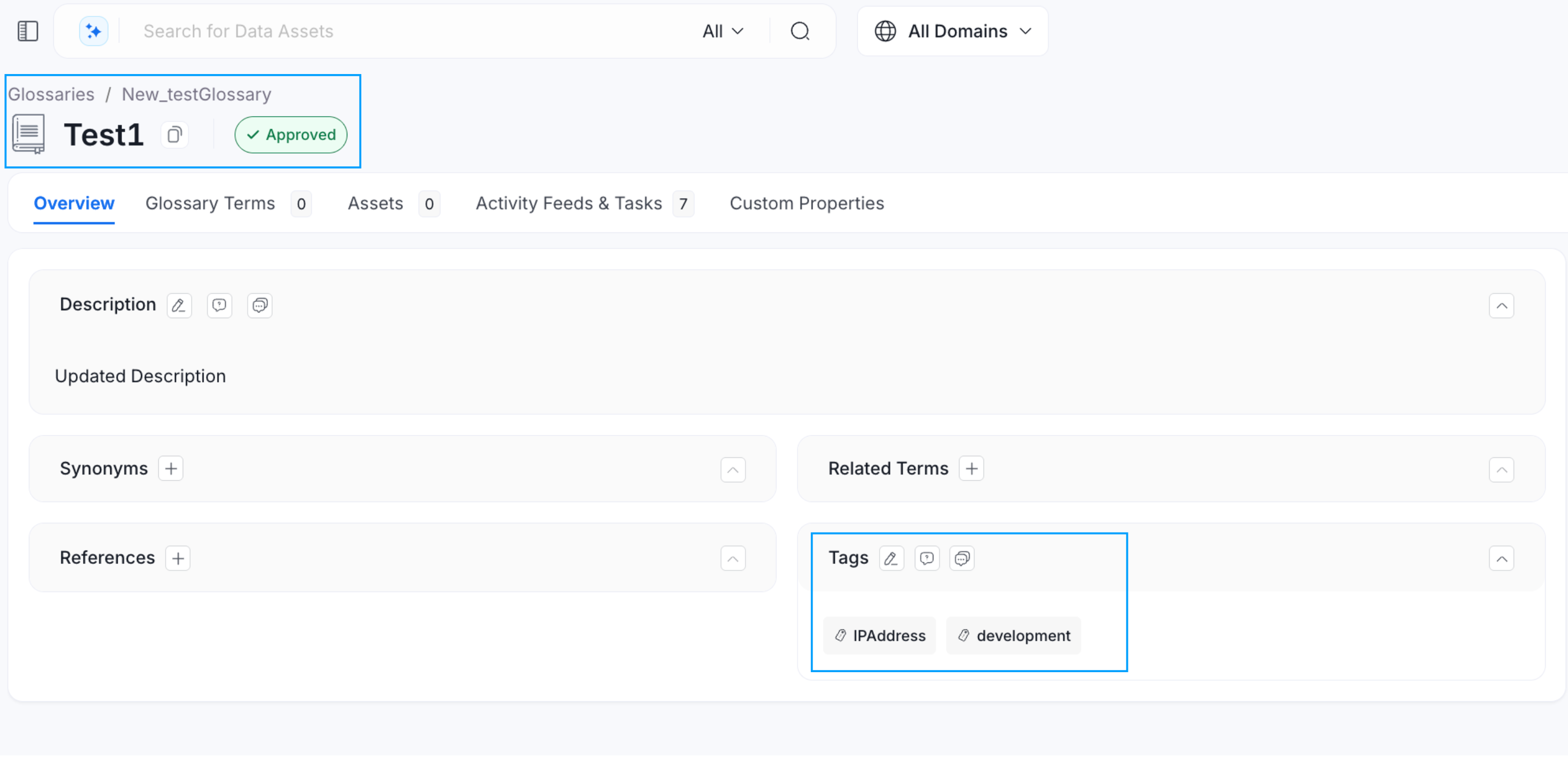
Best Practices for Glossary
Here are the Top 8 Best Practices around Terminologies.