
How to Create Glossary Terms
Once a glossary has been created, you can add multiple Glossary Terms and Child Terms in it. To add a term:- Open the glossary and click Add term. To add a child term, open the parent term, click Add, and select Glossary Term. The Add menu appears only when the parent term is Approved.
-
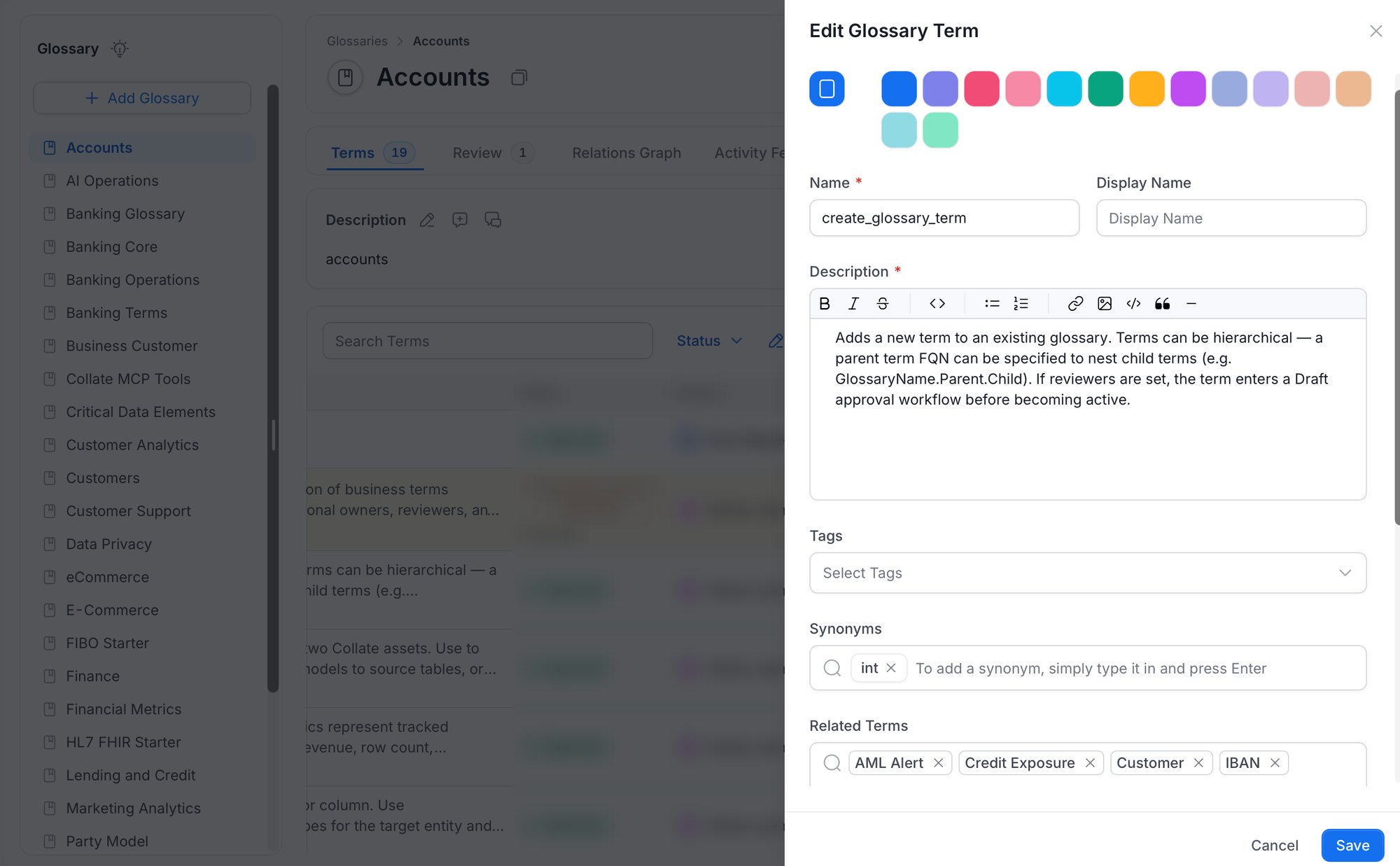
In the Add Glossary Term drawer that opens on the right, enter the details of the term.
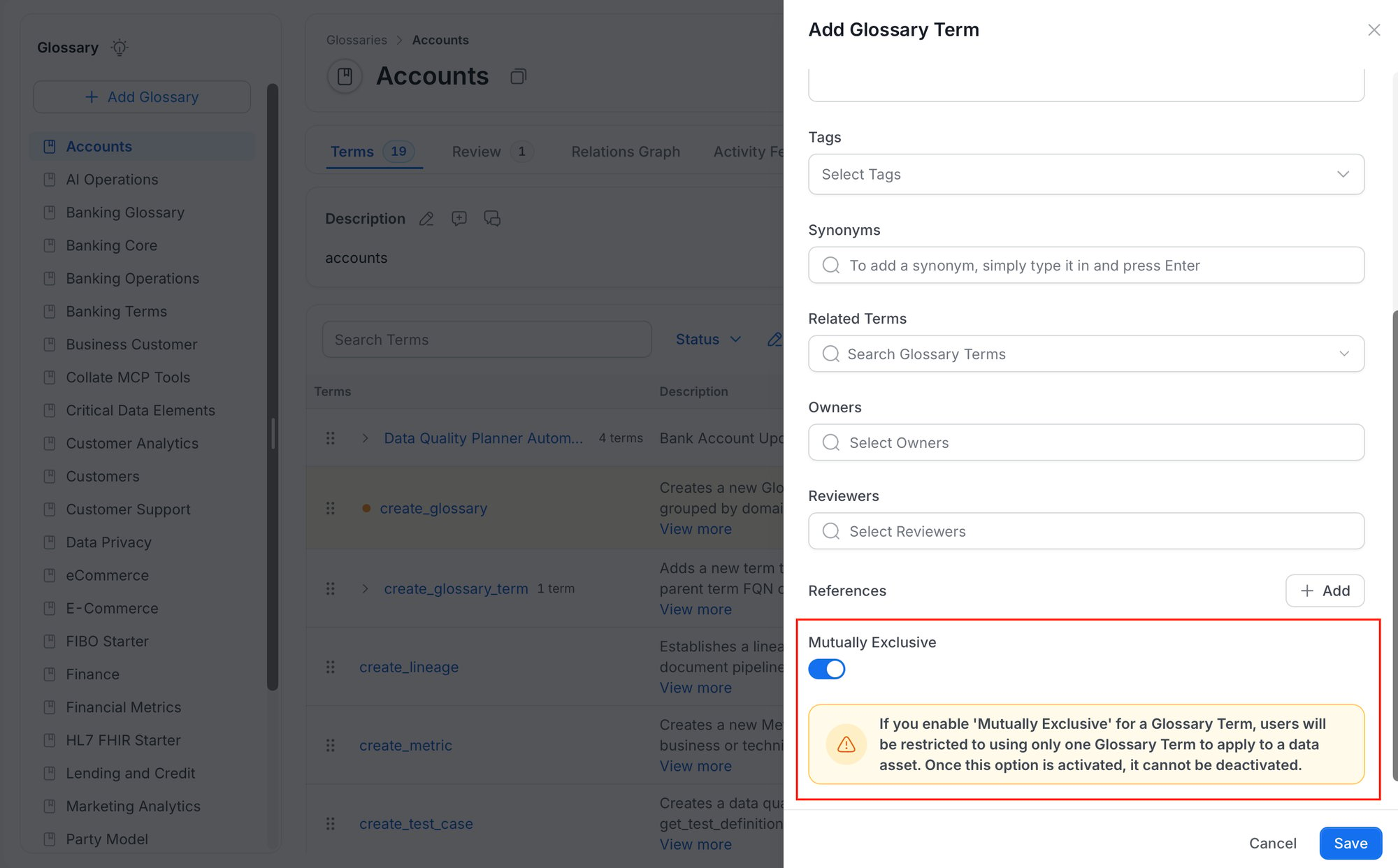
- Click Save.
- Icon and Color: The icon and color of the term. For the icon, select one from the list or enter an icon URL. The icon aspect ratio should be 1:1, and the recommended size is 64 x 64 px.
- Name*: The name of the glossary term.
- Display Name: The display name of the glossary term.
- Description*: A unique and clear definition to establish consistent usage and understanding of the term.
- Tags: Classification tags can be added to glossary terms. When adding a glossary term to assets, it will also add the associated tags to that asset. This helps to further describe and categorize the data assets.
- Synonyms: Other terms that are used for the same concept. For example, for a term ‘Customer’, the synonyms can be ‘Client’, ‘Shopper’, ‘Purchaser’. Type a synonym and press Enter to add it. Press Backspace to remove the last one.
- Related Terms: These terms can build a network of concepts to capture an associative relationship. For example, for a term ‘Customer’, the related terms can be ‘Customer LTV (LifeTime Value)’, ‘Customer Acquisition Cost (CAC)’. Select them in the glossary term picker. The term you are editing doesn’t appear in the picker, because a term can’t be related to itself. For more information about the picker, see The Glossary Term Picker.
- Owners: Either a Team or a User can be the Owner of a Glossary term.
- Reviewers: Multiple reviewers can be added.
- References: Click Add to add a link from the internet from where you inherited the term. Enter a Name and an Endpoint. The endpoint must be a valid URL that starts with
httporhttps. Click the remove icon to remove a reference. - Mutually Exclusive: There are cases where only one term from a particular glossary is relevant for a data asset. For example, an asset can either be ‘PII-Sensitive’ or a ‘PII-NonSensitive’. It cannot be both. For such cases, a Glossary Term can be created where the child terms can be mutually exclusive. If this configuration is enabled, you won’t be able to assign multiple terms from the same Glossary Term to the same data asset.
How to Bulk Import a Glossary
Save time and effort by bulk uploading glossary terms using a CSV file.
How to Add Assets to Glossary Terms
Associate glossary terms to data assets making it easier for data discovery