
Data Products
A Data Product packages curated data assets under a single entity with defined ownership, type, and visibility. Create one from the Data Marketplace, or from within a Domain if it belongs to a specific one. This guide walks through both paths, plus adding assets, input and output ports, and finding a data product’s assets from the Explore page.Add a Data Product
To create a new data product, follow these steps:Step 1: Access Data Products
-
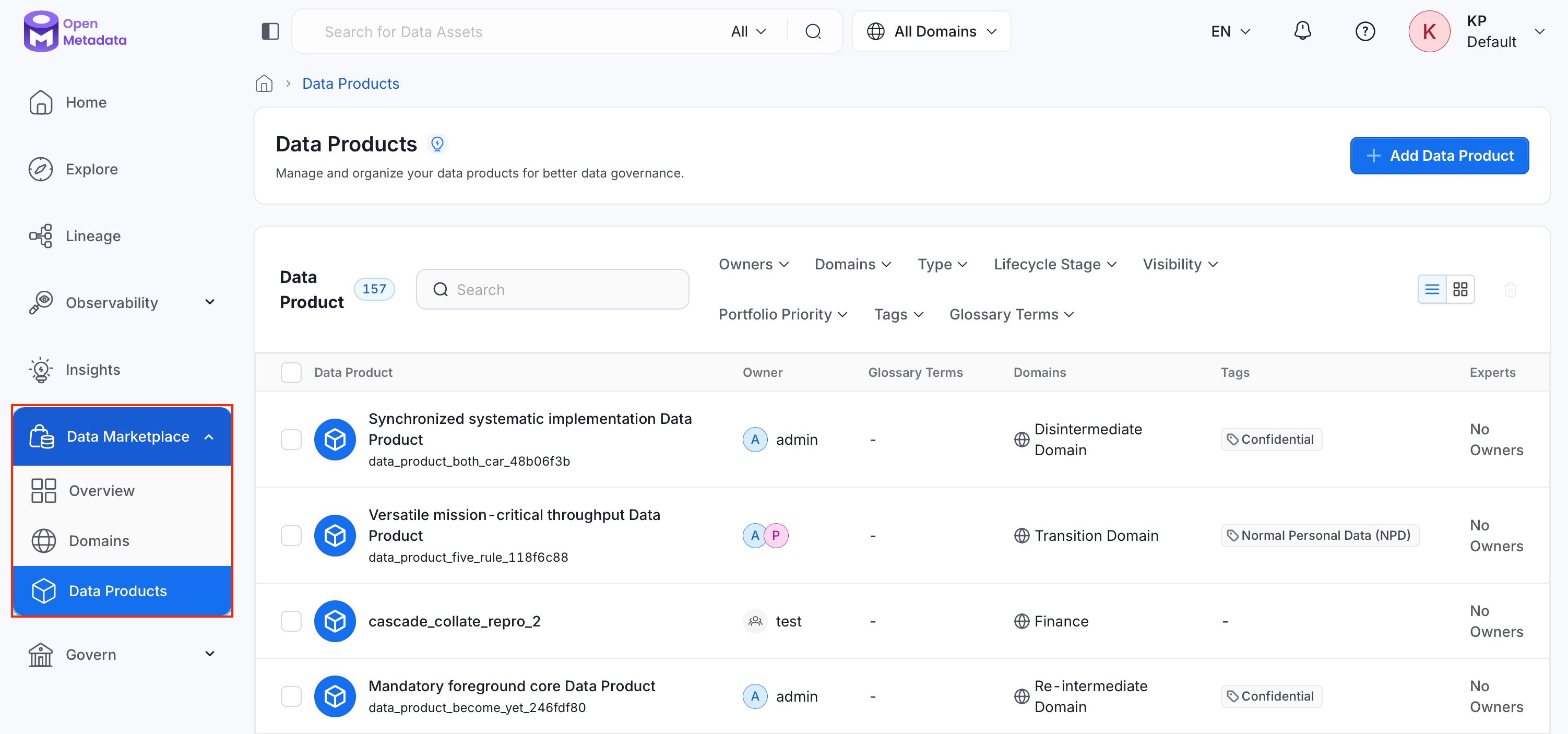
In the left navigation bar, click Data Marketplace, then select Data Products.
-
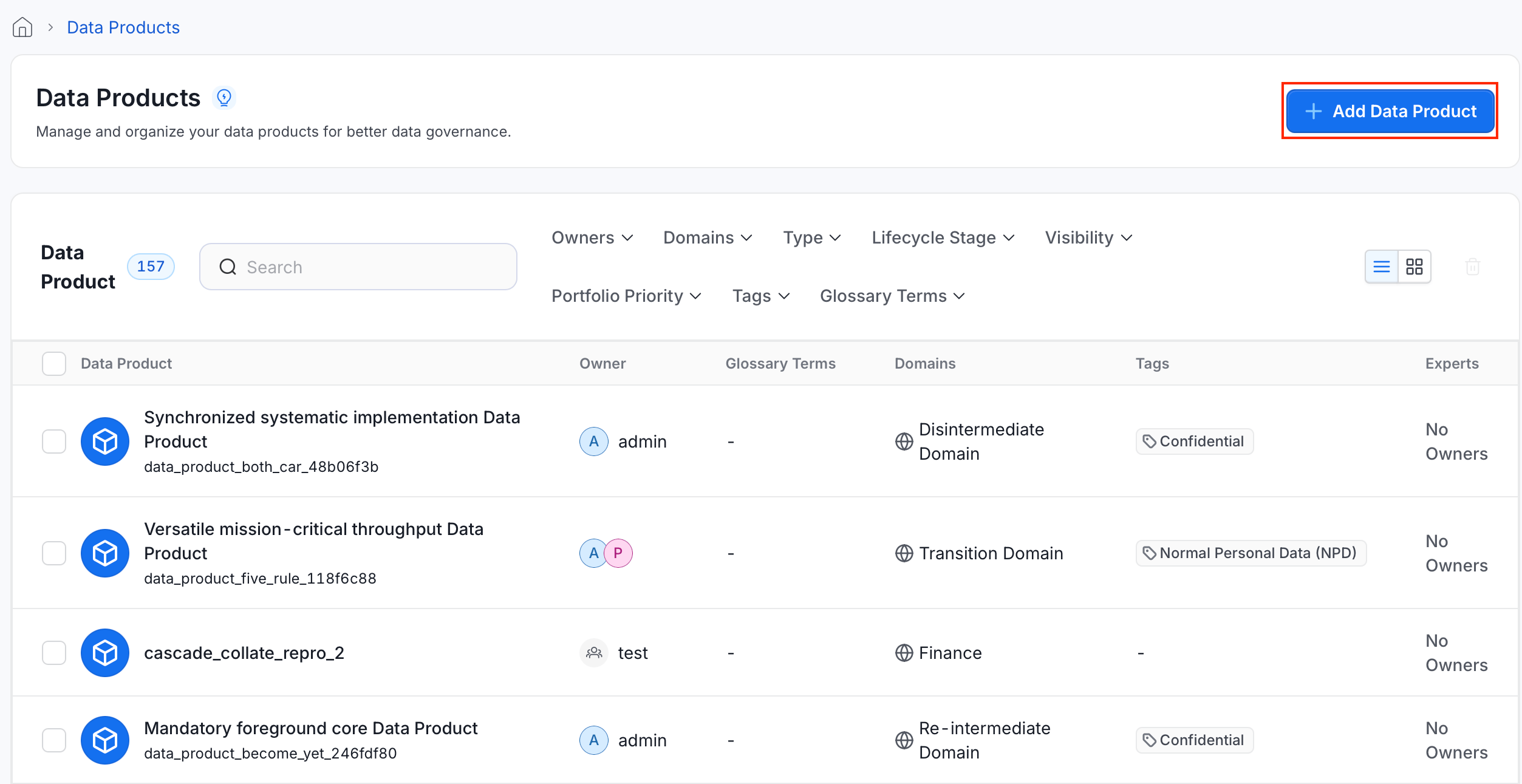
Click Add Data Product.
Step 2: Enter Data Product Details
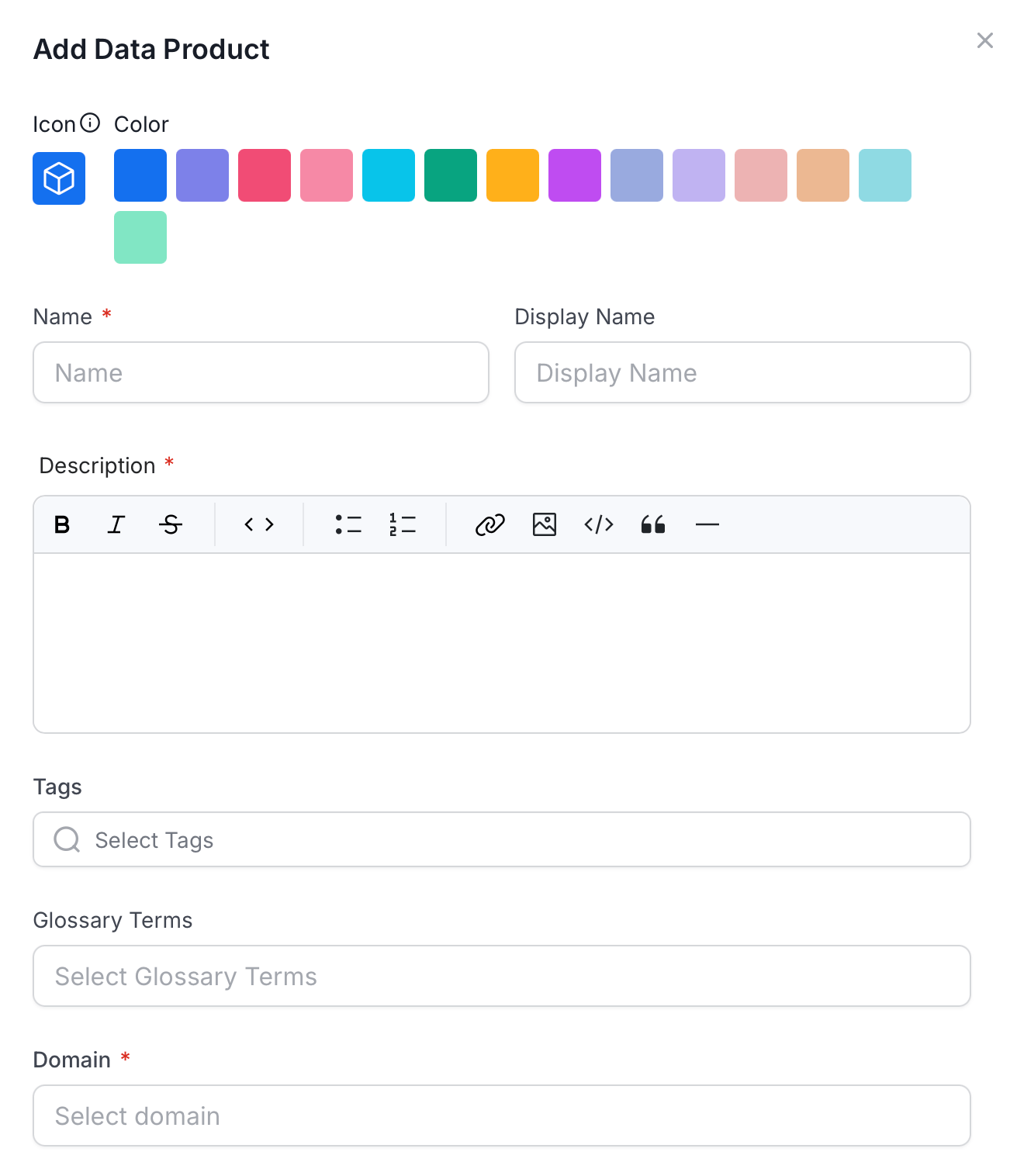
- Icon and Color: Select an icon and color to visually identify the data product in the catalog.
- Name (required): Enter a unique identifier for the data product.
- Display Name: Enter a human-readable label shown throughout the UI.
-
Description (required): Explain the data product’s purpose, the data it contains, and any context other users need.
Step 3: Add Tags and Glossary Terms
- Tags: Select classification tags to categorize the data product.
- Glossary Terms: Link the data product to relevant glossary terms.
Step 4: Configure Data Product Settings
- Domain (required): Select the domain this data product belongs to.
- Type: Select a data product type, for example Dataset, Raw Data, Derived Data, Reports, or Analytic View.
- Visibility: Control who can discover this data product.
- Portfolio Priority: Indicate the data product’s importance (Critical, High, Medium, or Low).
Step 5: Assign People
- Owners: Select the users or teams responsible for the data product.
- Experts: Select individual users with deep knowledge of the data product.
- Reviewers: Select users who review and approve changes to the data product.
Step 6: Save Data Product
Click Save. The data product appears in the Data Products list.Add a Data Product from Within a Domain
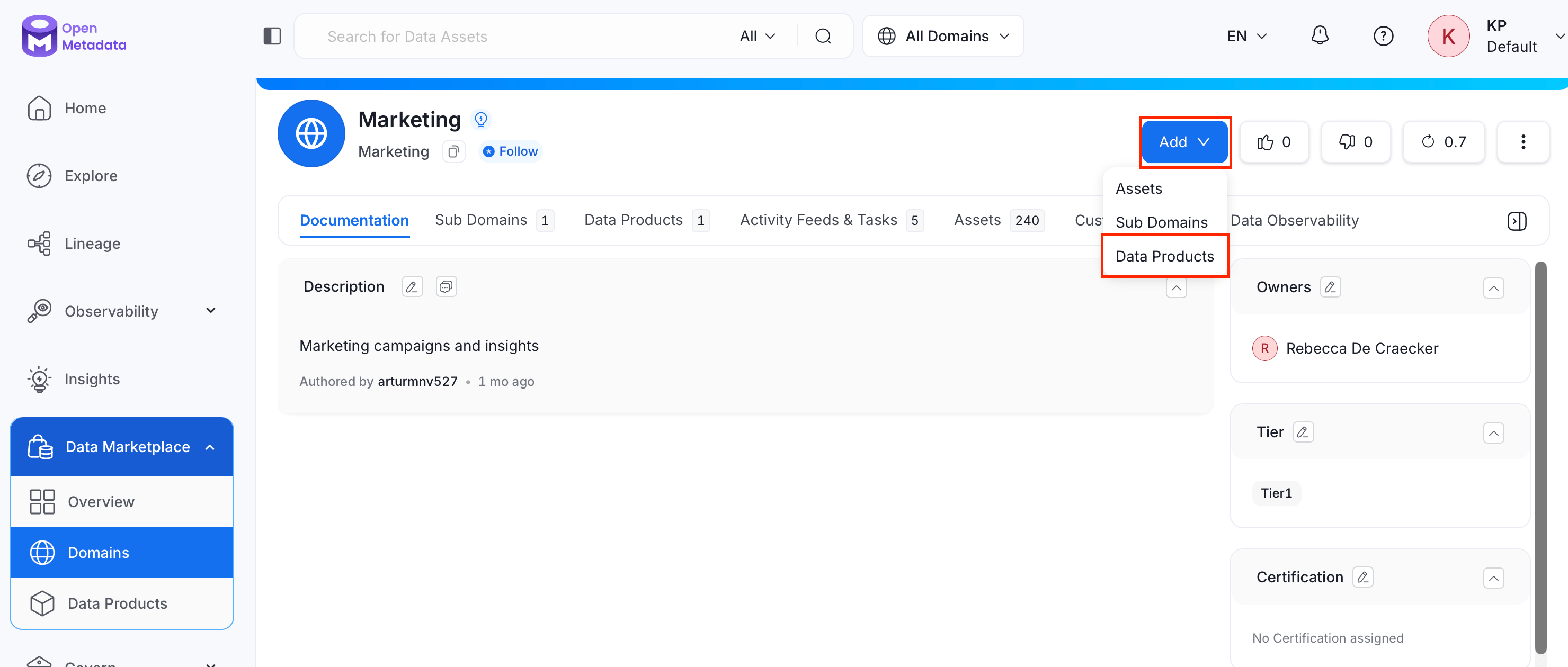
If a data product belongs to a specific domain, create it directly from that domain instead:- Navigate to Data Marketplace > Domains, then open the domain the data product should belong to.
- Click Add and select Data Products.
- Follow Add a Data Product steps 2 to 6.
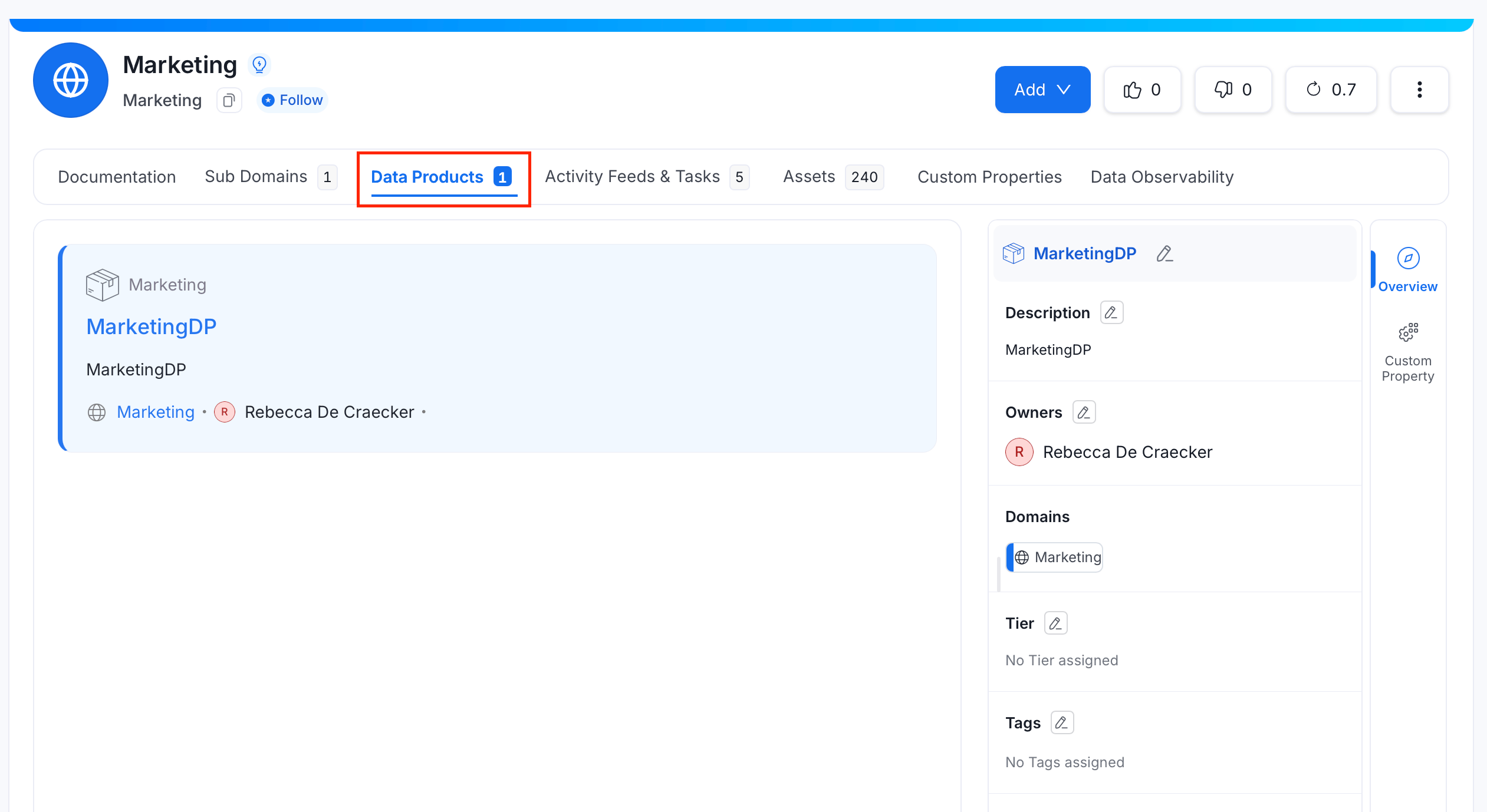
Add Data Assets to the Data Product
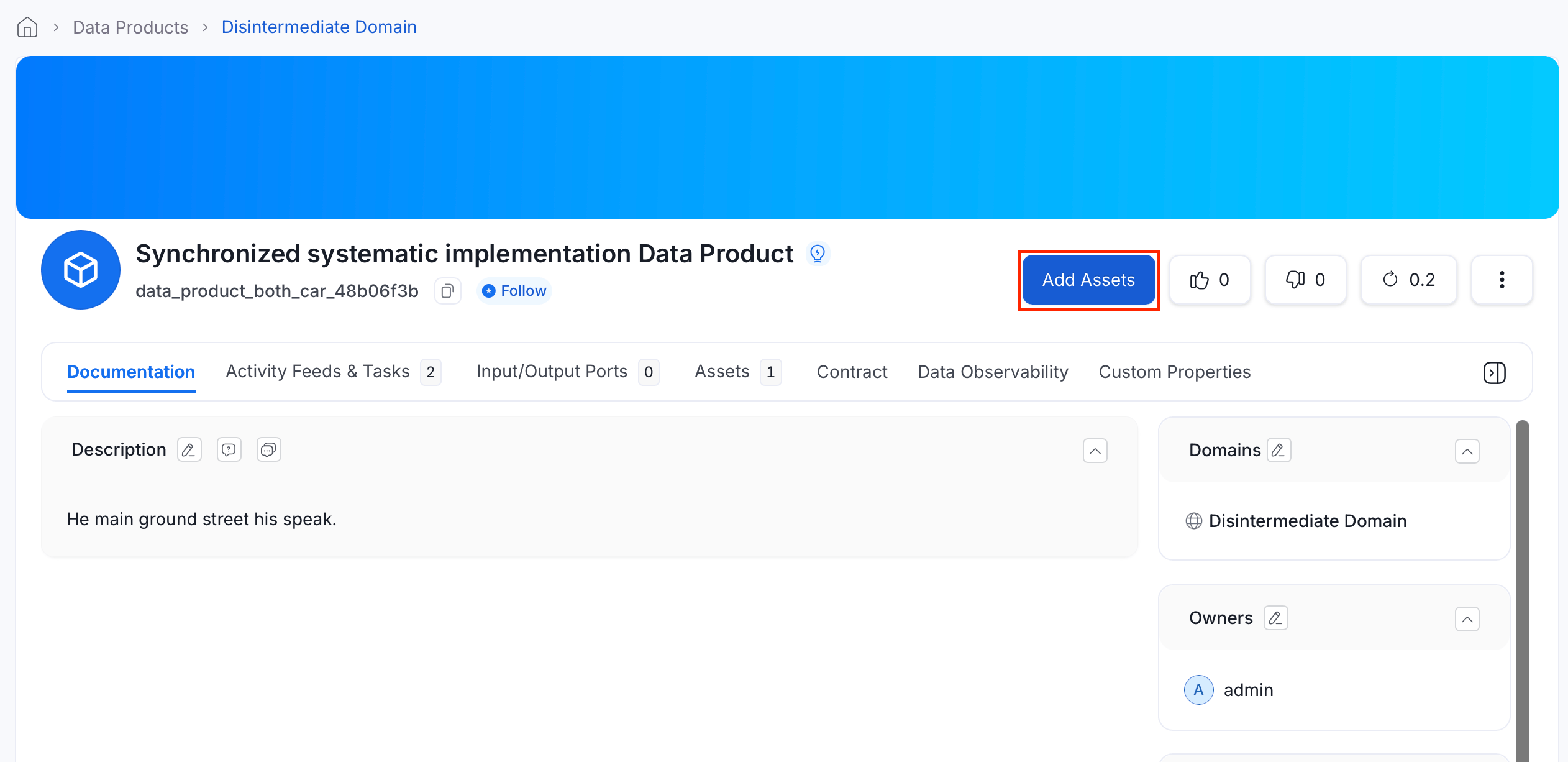
- From the Data Products list, open the data product’s detail page.
- Click Add Assets.
- Search for assets, or use the filters (entity type, owner, tag, tier, service, service type) to narrow the results.
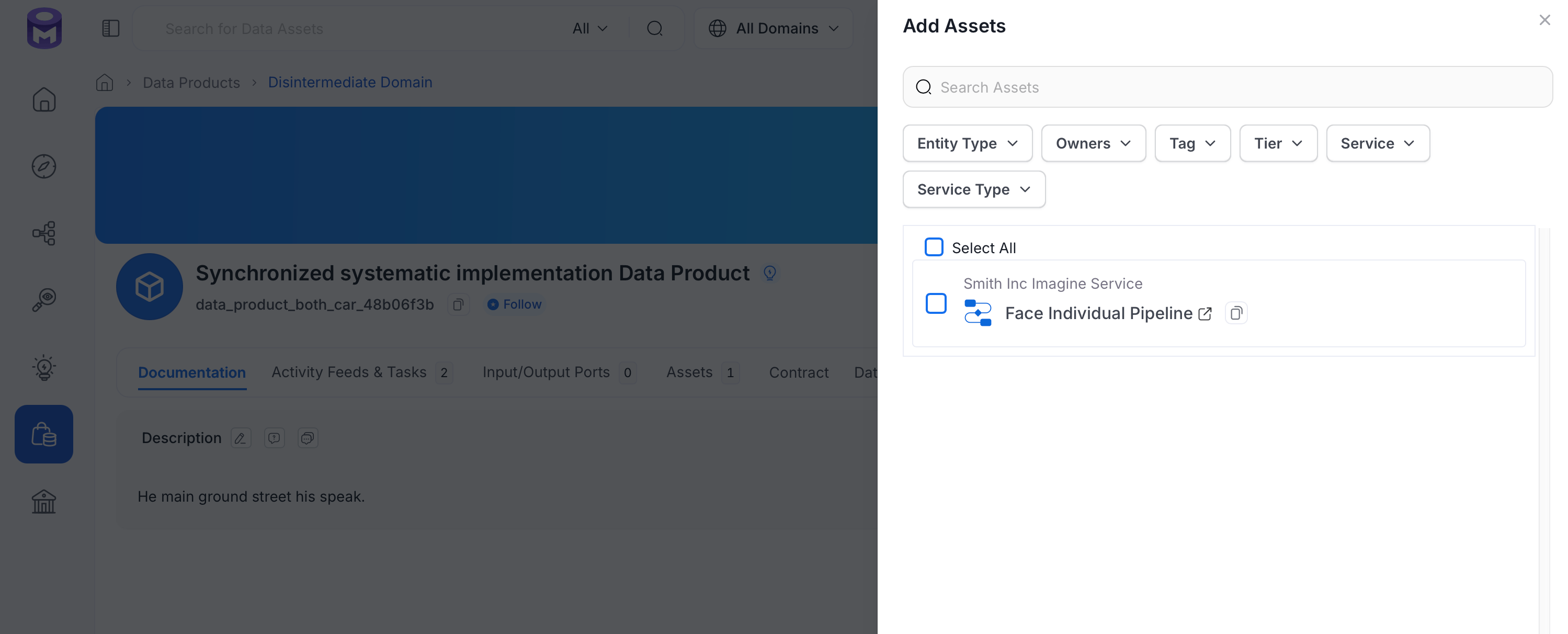
- Select the assets to include, then click Save.
Input Ports and Output Ports
Beyond general assets, a data product can declare which assets it consumes and which it produces or exposes: an ODCS/ODPS-aligned data contract concept that makes a data product’s data flow explicit for lineage-style visualization.- Input Ports: Data assets this data product consumes.
- Output Ports: Data assets this data product produces or exposes to consumers.
-
From the data product’s detail page, go to the Input/Output Ports tab.
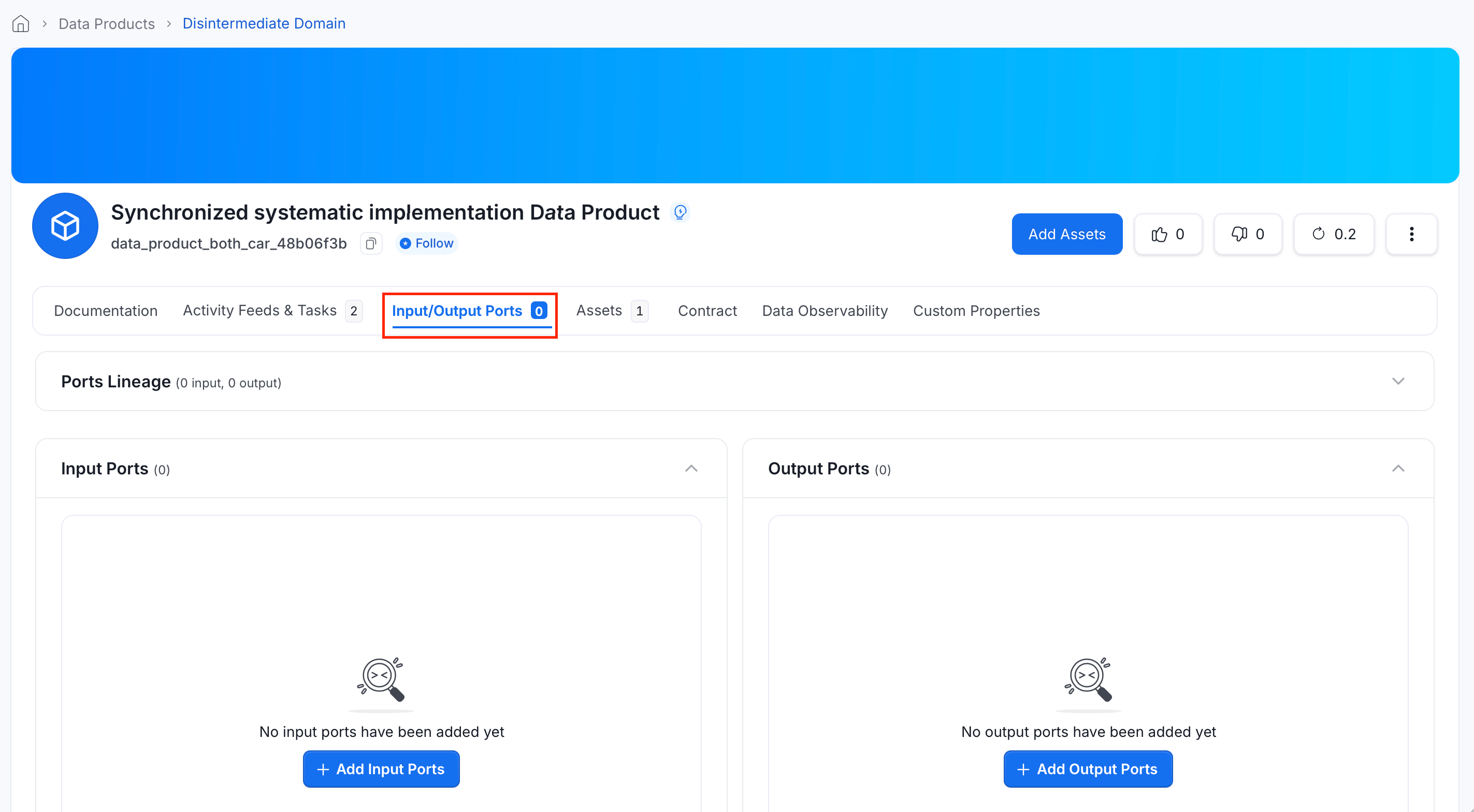
- Under Input Ports or Output Ports, click Add Port.
- Search for and select the assets to add, then click Save.
View Data Assets in the Data Product from the Explore Page
- In the left navigation bar, click Explore.
- In the Data Assets dropdown, select Data Product.
- All data products appear in the results. Click one to view its assets, documentation, and metadata.
How to Use Domains
Learn about Domains.