
Use Cases: Roles and Policies
OpenMetadata includes two default configurations out of the box – the Organization Policy and the Data Consumer role – both designed to encourage open data collaboration across your team. Keep the Organization Policy in place for open data collaboration. It lets everyone view assets and claim ownership when no owner is assigned, which keeps your catalog healthy and well-maintained. If you need per-team or per-tenant isolation, the Organization Policy’sOrganizationPolicy-ViewAll-Rule lets every user see every asset, including in search. For more information, see How Search Combines Your Policies.
For individual teams, tailor your policies to match what each team actually needs. The use cases below show how to handle the most common access control scenarios – from simple service creation to sensitive personally identifiable information (PII) protection.
Use Cases
Use Case 1: Let Teams Create Services and Extract Metadata
Goal: Allow specific users to set up database connections and run ingestion pipelines without needing an admin every time. Create a policy with Database Service, Ingestion Pipeline, and Workflow resources, with all operations set toAllow.
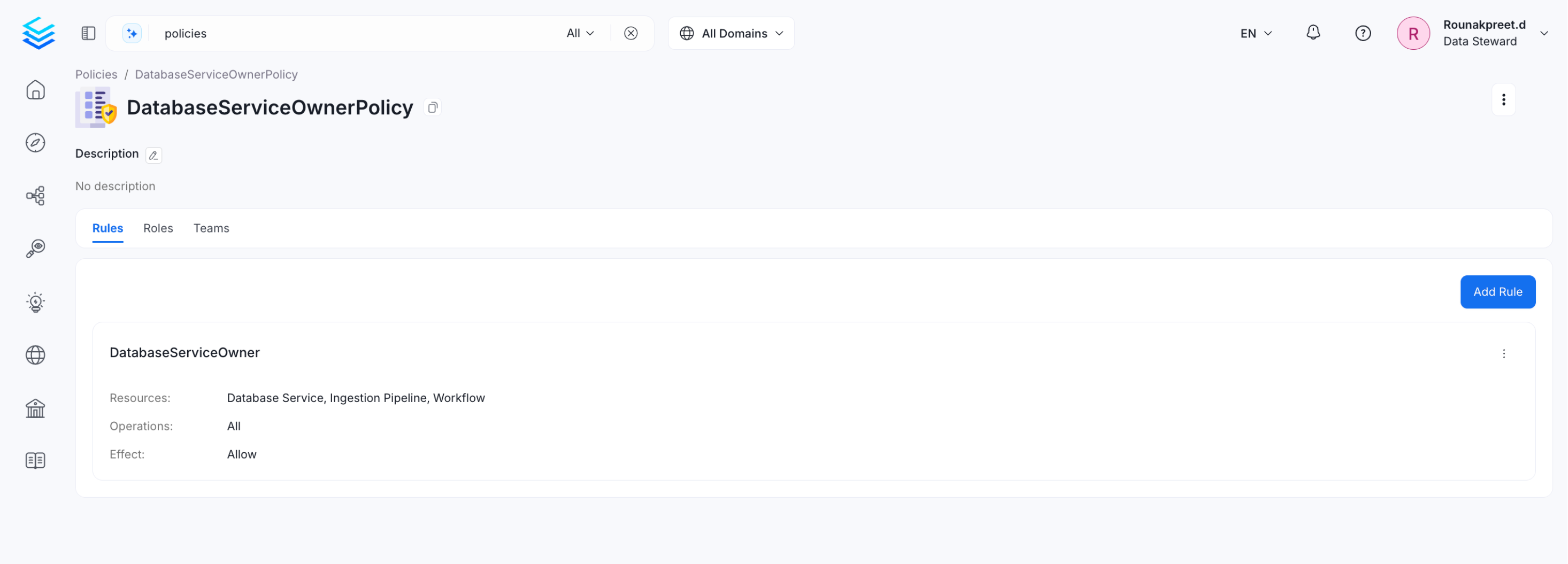
ServiceOwner role and assign this policy to it. Users with this role can create services and extract metadata on their own – no admin involvement needed.
Use Case 2: Set Up a Data Steward Role
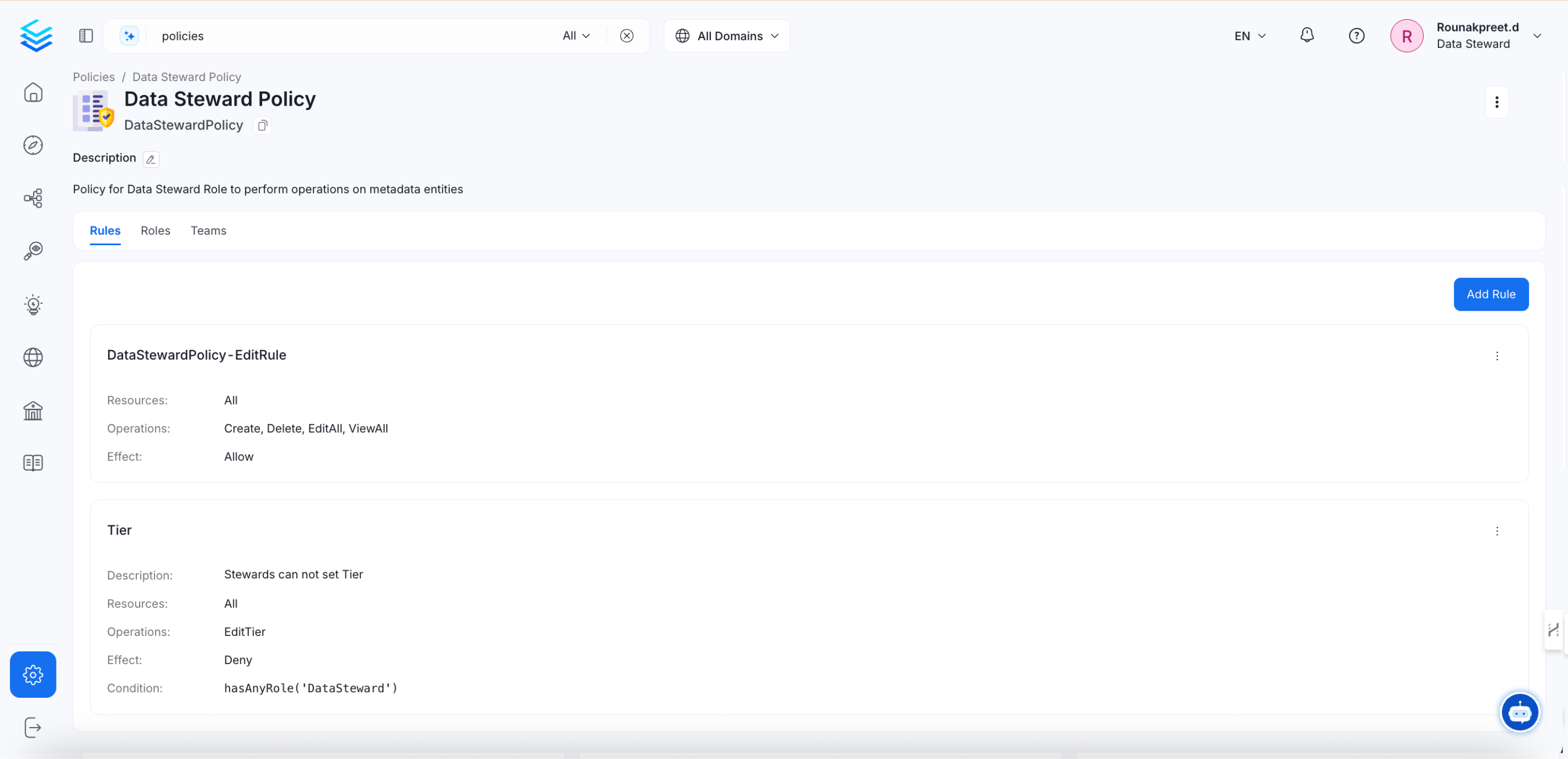
Goal: Give data stewards the access they need to manage governance – creating glossaries, applying tags, and editing metadata across all assets. Build a policy with two rules:- Allow glossary operations – allows all operations on Glossary and Glossary Term resources, so the steward can create and manage business definitions.
- Edit rule – grants
EditDescriptionandEditTagson all entities, so the steward can enrich and label data assets across the catalog.
Use Case 3: Restrict Access to Assets Owned by a Specific Team
Goal: Make sure only the team that owns a data asset can access it – block everyone else. Create a rule that denies all operations when the user isn’t the owner of the asset and their team isn’t the owner either.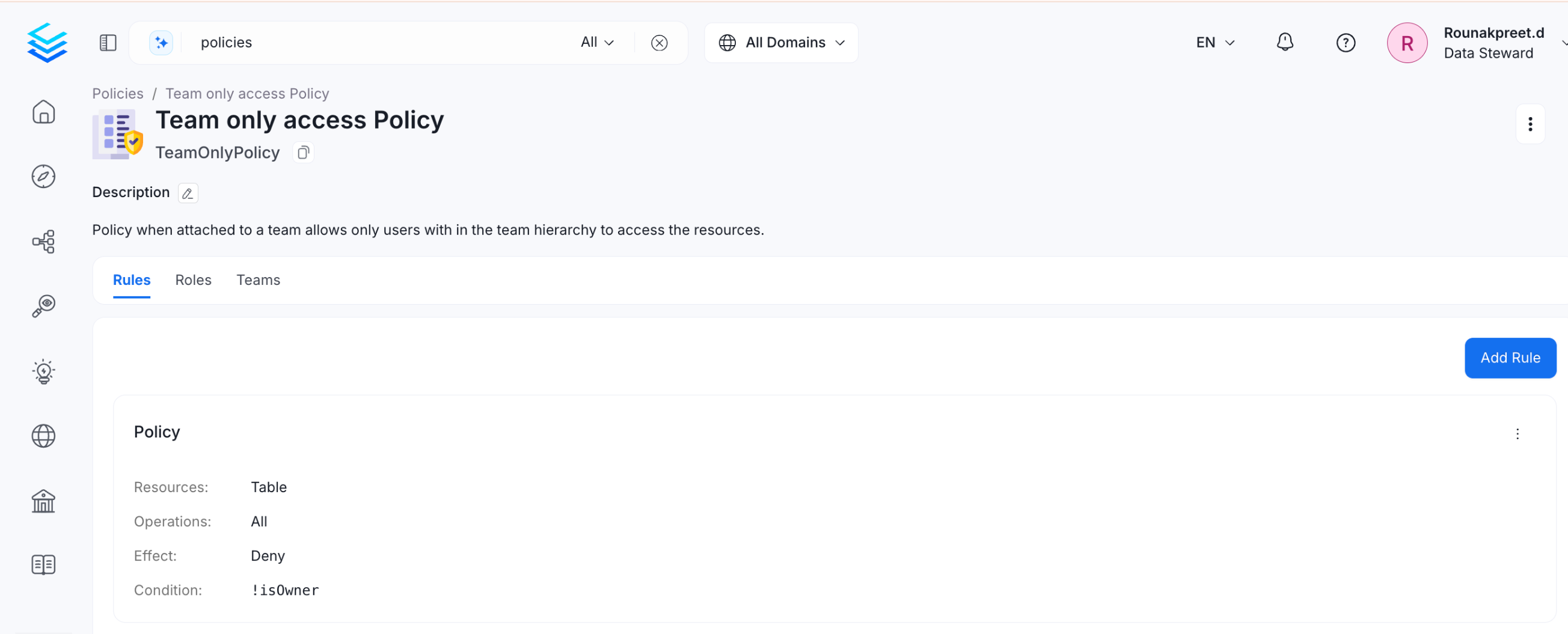
isOwner() and matchTeam() conditions together. If neither condition is true for the user, access is denied.
Roles Based Access Controls (RBAC) Search ignores
matchTeam(), so this rule might not hide the asset from Explore results. To control what appears in search, use isOwner(), which RBAC Search also applies to the user’s teams. For more information, see Condition.Use Case 4: Protect PII-Tagged Assets and Allow Only Owners to Access Them
Goal: Lock down any asset tagged withPII.Sensitive so only its owner or owning team can access it.
Create a rule that denies all operations on a Table when it carries the PII.Sensitive tag and the user isn’t the owner – and their team isn’t the owner either.
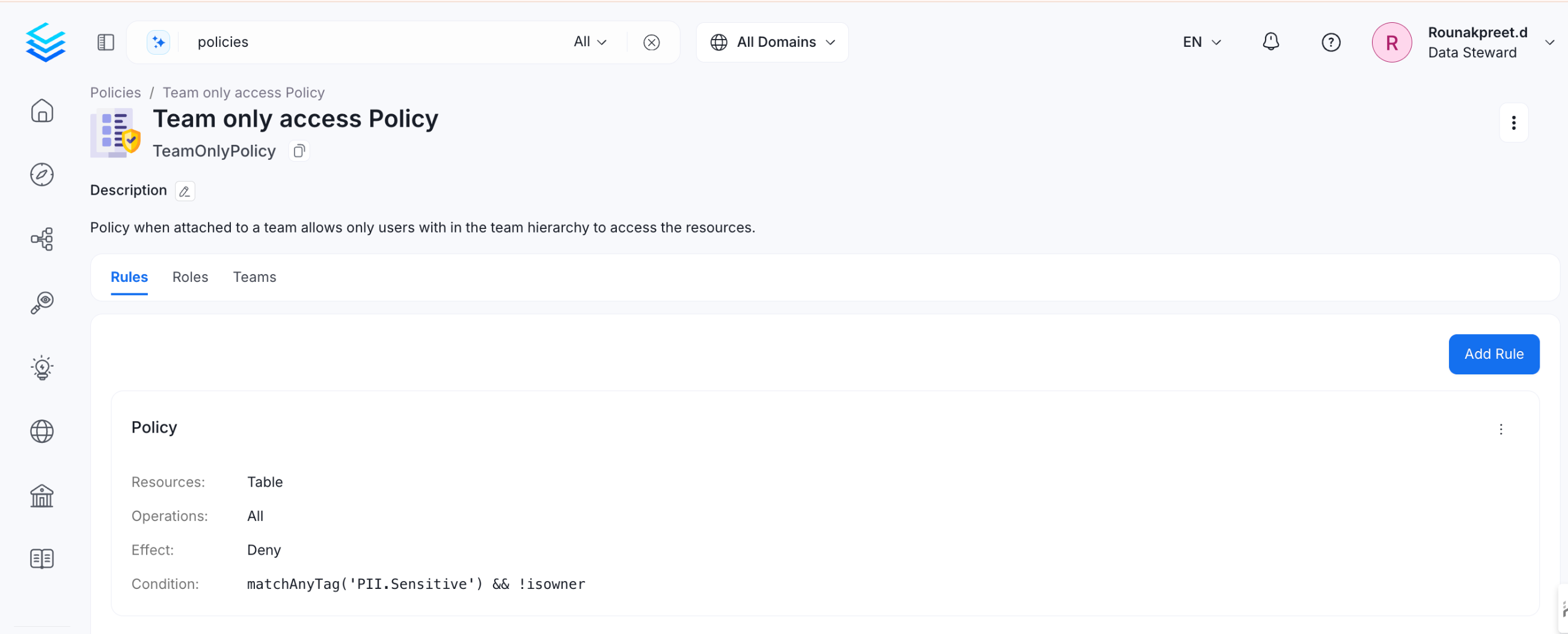
matchAllTags('PII.Sensitive') with isOwner() and matchTeam() conditions. All three are evaluated together – if the asset is tagged PII and the user has no ownership claim, access is denied.
RBAC Search ignores
matchTeam(), so this rule might not hide the asset from Explore results. To control what appears in search, use isOwner(), which RBAC Search also applies to the user’s teams.Use Case 5: Set Up a Read-Only Viewer Role
Goal: Give business stakeholders access to browse the catalog and understand what data exists, without exposing raw data or query history. Create a policy with the following rules:
Create a
Read-Only Viewer role and assign this policy to it.
Note: Leave out
ViewSampleData, ViewUsage, and ViewQueries. A viewer needs to
understand what exists – not access raw data or behavioral analytics.Use Case 6: Set Up a Data Analyst Role
Goal: Give analysts full metadata visibility, query context, and the ability to enrich assets with descriptions and tags. Create a policy with the following rules:
Create a
Data Analyst role and assign this policy to it.
Note: The
Query, Saved Query rule is what makes the Queries tab visible to non-admin users when RBAC Search is on. Don’t add an isOwner() condition to it.Note:
ViewSampleData is not included by default. If analysts need to preview row-level data, create a separate Analyst – Sample Data role and require manager approval before assigning it.Use Case 7: Set Up a Data Engineer Role
Goal: Give engineers full control over pipelines, ingestion, and data asset structure. Create a policy with the following rules:
Create a
Data Engineer role and assign this policy to it.
Note: The
Query, Saved Query rule is what makes the Queries tab visible to non-admin users when RBAC Search is on. Don’t add an isOwner() condition to it.Note: Don’t include
EditPolicy, EditRole, or Delete on User and Team resources. Infrastructure access doesn’t require access control modification.Use Case 8: Scope a Role to a Specific Domain
Goal: Give a user analyst-level access within one domain – for example, Finance – without giving them access to assets in other domains. Create aData Analyst – Finance role. In the policy, set the resource to Table with a condition using matchAnyDomain('Finance'). Assign ViewAll, ViewUsage, and ViewQueries to this scoped policy.
Repeat this pattern for other domains as needed – for example, a Data Steward – Marketing role that can only edit tags and glossary terms within the Marketing domain.
This keeps permissions tight and limits the impact if a role is misconfigured.
Use Case 9: Set Up Temporary Elevated Access
Goal: Give a user short-term access to sensitive permissions – for example, during an incident or audit – without permanently changing their role.- Create a
Break-Glassrole that includesViewSampleDataandViewTestCaseFailedRowsSample. - Assign this role to the user temporarily with a defined end date.
- After the session, review Audit Logs to confirm what actions were taken.
- Remove the role assignment once the task is complete.
Use Case 10: Show Each Team Only the Assets It Owns
Goal: Make Explore show users only the assets that they or their team own.- Go to Settings > Preferences > Search and turn on RBAC Search.
- Go to Settings > Policies > Organization Policy and delete
OrganizationPolicy-ViewAll-Rule. - Open every other policy that applies to the team, such as the policy of the Data Consumer role and the Read-Only Viewer policy from Use Case 5. In each rule that has no condition, remove
ViewBasic,ViewAll, andAll, or add a condition such asisOwner(). - Sign in as a member of the team and search in Explore. Repeat with a member who has each of the other roles that apply to the team. Confirm that only assets owned by that user or team appear.
OrganizationPolicy-Owner-Rule keeps access to owned assets in place.
Related Pages
- Building Blocks of Authorization – Rules, Policies, and Roles – how rules, policies, and roles work
- Resource Scope and Operations Reference – reference guide for resources and operations