
AI Context
AI Context lets administrators define rules for each persona. The rules select which metadata is compiled into a context document for that persona. When a user with that persona connects an MCP assistant, the assistant can read the compiled document with theget_persona_context tool. Answers are then based on the metadata that matters most to the user’s role, not only on what search surfaces for a single question.
Some rules can also narrow the search results an assistant sees. For more information, see Filtered in Search.
For example:
- A business analyst persona gets certified, top-tier tables, so the assistant starts from trusted data.
- A data engineer persona gets broad coverage across all services, so nothing is left out.
- A compliance persona always gets regulatory Glossary Terms and policy Articles, so the assistant has the right definitions and constraints.
Only administrators can manage AI Context.
Open AI Context
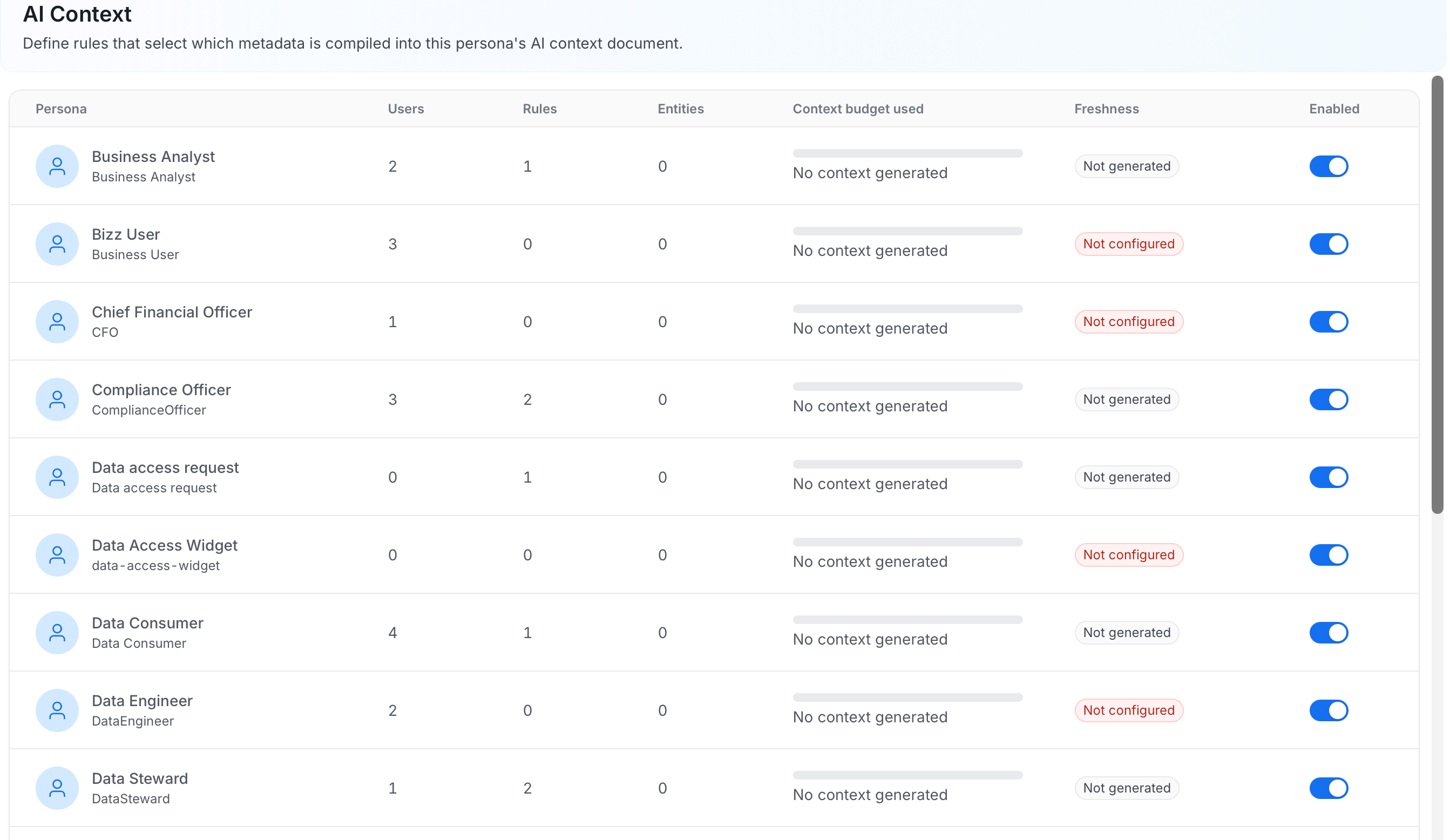
- From the left navigation bar, go to Context Center > AI Context. The page lists every persona.
- Select a persona to open its AI Context settings and rules.
- Persona: The persona name.
- Users: How many users have the persona.
- Rules: How many rules the persona has.
- Entities: How many entities the compiled context includes.
- Context budget used: How much of the persona’s budget the compiled context uses, shown as estimated tokens out of the total. It shows No context generated until the context is compiled.
- Freshness: The state of the compiled context. For more information, see Freshness.
- Enabled: A toggle that turns AI Context on or off for the persona without opening it.
Global Settings
At the top of the persona’s AI Context page, set the overall behavior before you add rules.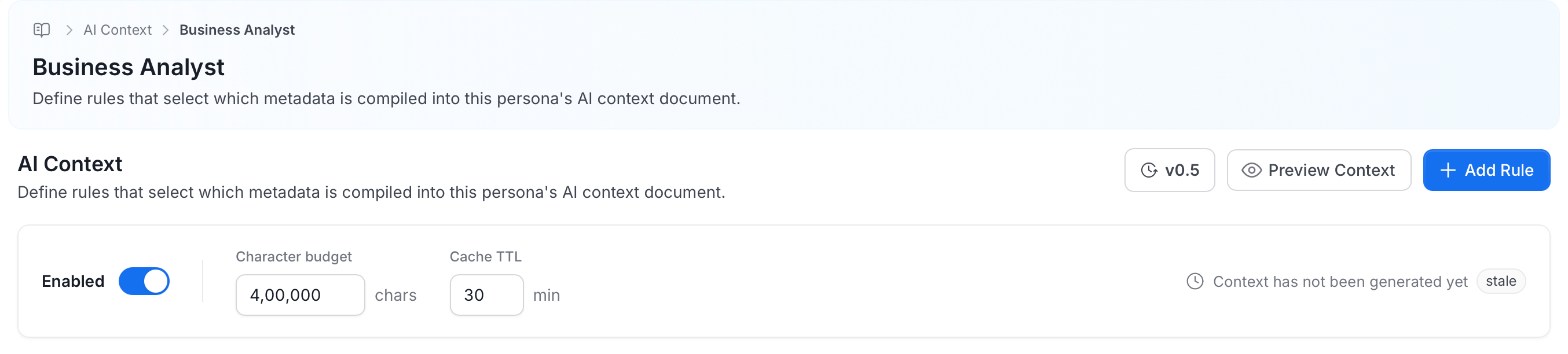
The character budget is a target, not a hard cap. Content that is always included, such as Articles from Always in context rules, can exceed it.
Version History
The version indicator, for example v0.6, shows the current version of the persona’s AI Context. Select it to open the version history. The history lists every change. Examples include rules added, updated, or deleted; the prompt updated; the budget or Cache TTL changed; and AI Context enabled or disabled. To go back to an earlier version, select Restore next to it and confirm. Restoring creates a new version with the rules and settings of the version you chose.Freshness
Next to the settings, the page shows when the context was last compiled, for example Last generated 5 minutes ago, with a status badge. If the context was never compiled, it shows Context has not been generated yet. If compilation fails, the page shows the reason.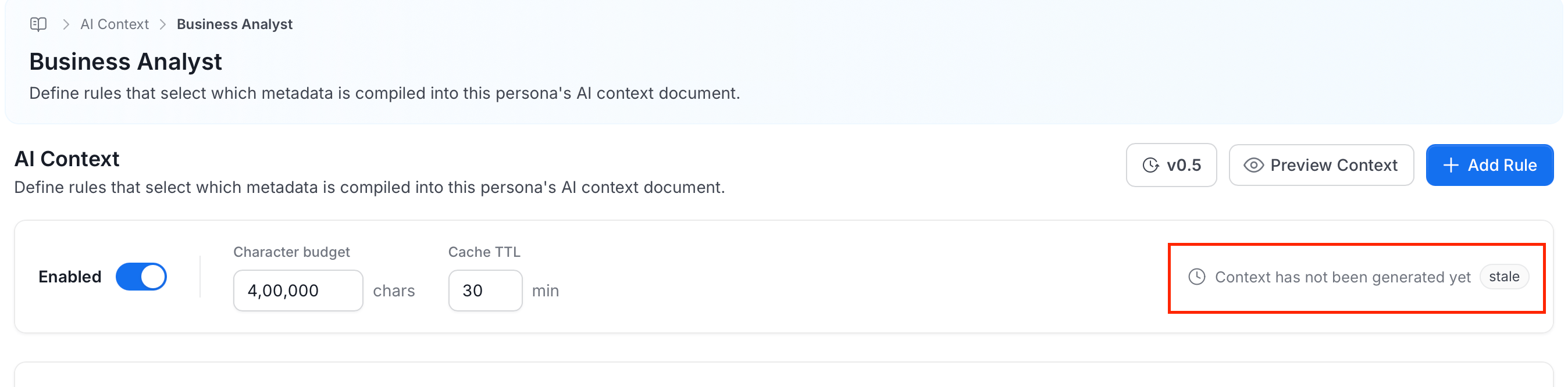
- Fresh: The compiled context is current. The badge also shows when it was generated.
- Stale: The compiled context is out of date and is compiled again when it is next needed.
- Not generated: The persona has rules, but the context hasn’t been compiled yet.
- Generating: The context is being compiled.
- Failed: The context couldn’t be compiled.
- Not configured: The persona has no rules yet.
Add a Prompt
The Prompt box is optional. Use it to tell the assistant who the users of this persona are and what they are responsible for. For example: You are assisting business users at Acme. They understand revenue and churn metrics, and they are responsible for quarterly planning.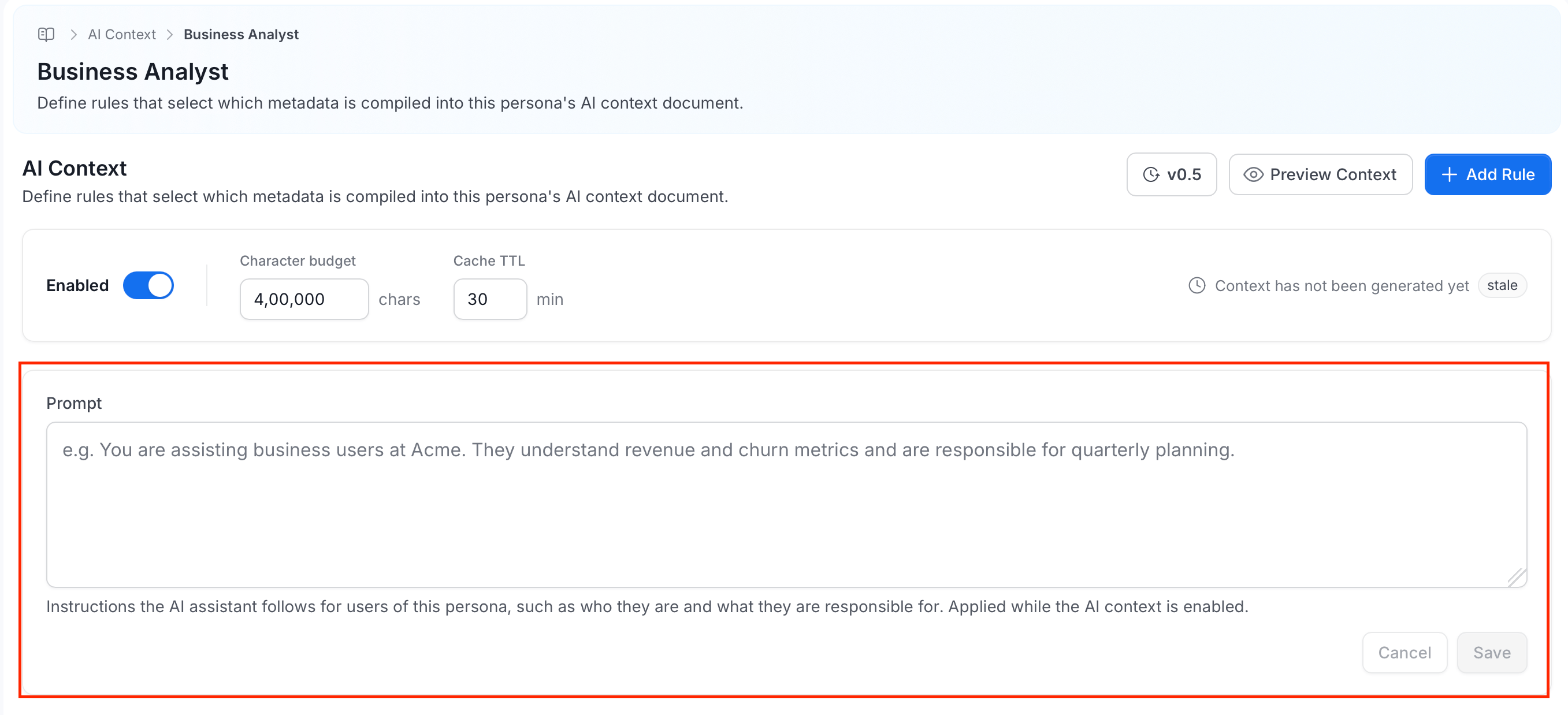
- Enter the instructions in Prompt. The prompt can be up to 8,000 characters.
- Click Save. Click Cancel to discard your changes.
Add a Rule
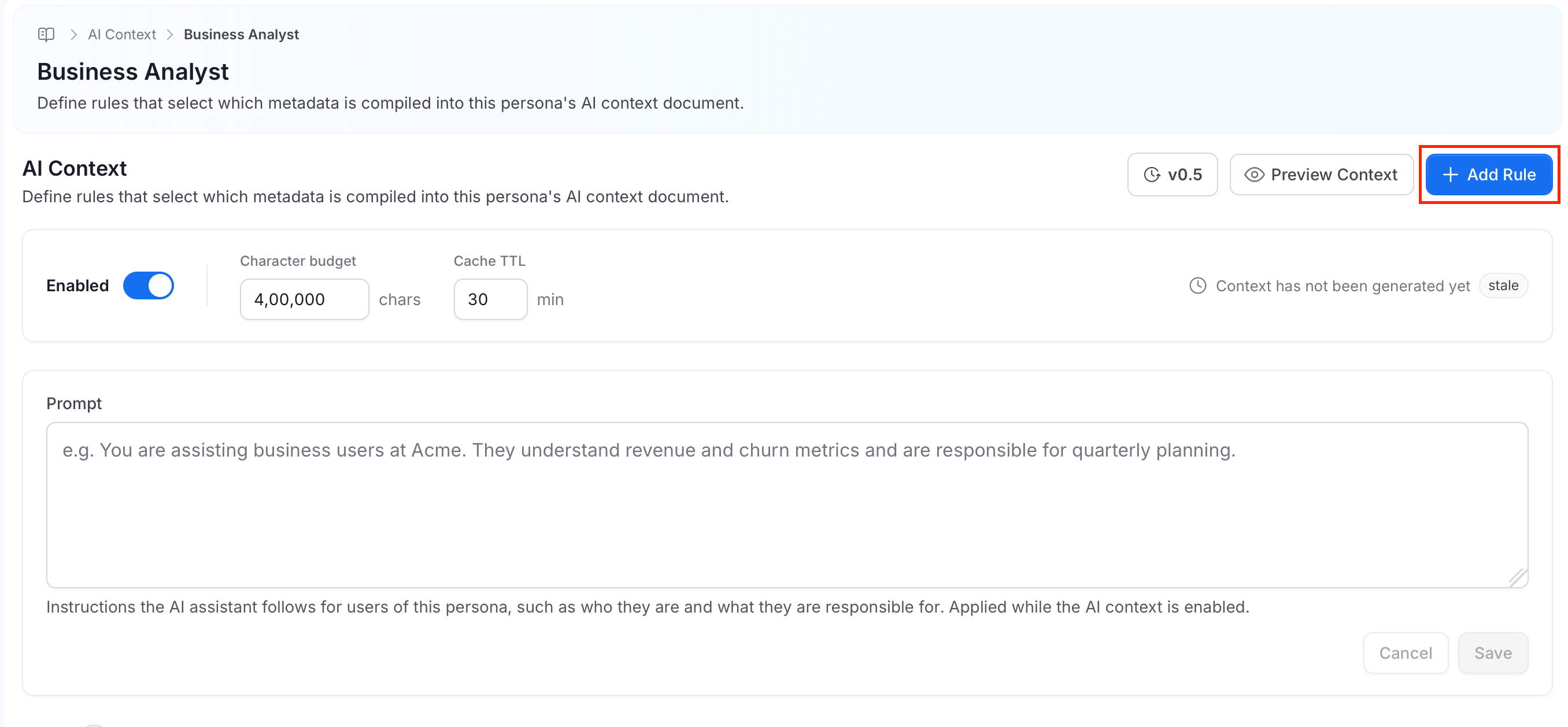
Each rule selects a set of entities whose metadata is compiled into the context document. Add several rules to build the full context for a persona. For example, use one rule for core tables, another for Glossary Terms, and another for policy Articles.-
Click Add Rule.
-
Fill in the rule fields. For more information, see Rule Fields.
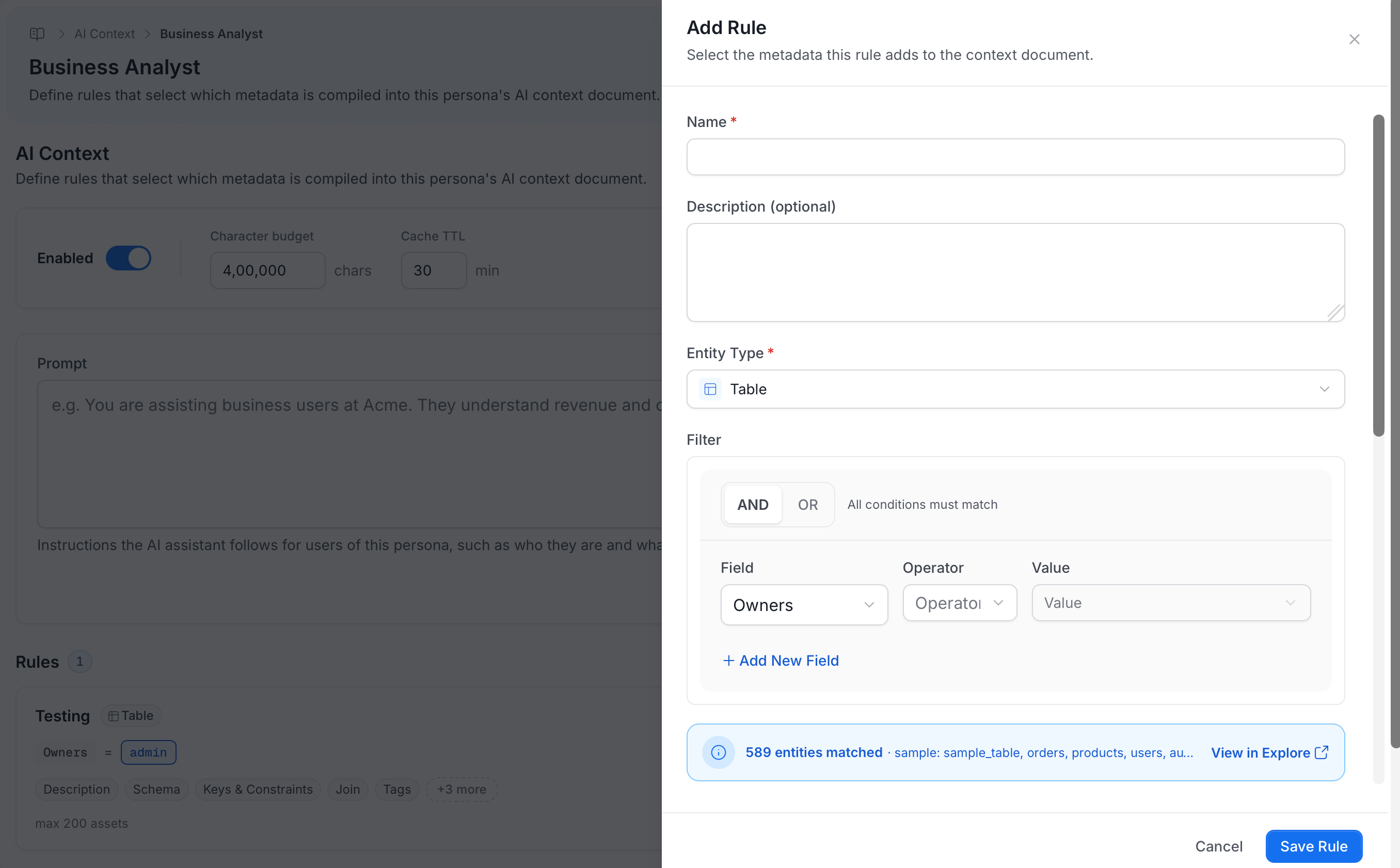
- Click Save Rule.
Rule Fields
Each rule has the following fields.Name and Description
Give the rule a name that says what it selects, for example Core finance tables or Compliance policy Articles. The name must be unique within the persona. The description is optional.Entity Type
Choose the type of entity the rule selects. Each rule selects one type, so create separate rules to include different types.- Data assets: Table, Topic, Dashboard, Chart, Data Model, Pipeline, ML Model, Container, Database, Database Schema, Stored Procedure, Search Index, API Collection, API Endpoint, and Data Product.
- Knowledge: Glossary Term, Article, and Metric.
Filter
Add conditions to narrow which entities the rule includes. Build them the same way as in the Explore advanced filter, using any field available for the entity type. Without a filter, the rule selects every entity of the chosen type. As you build the filter, the rule shows how many entities match, with sample names. Click View in Explore to check the selection before you save.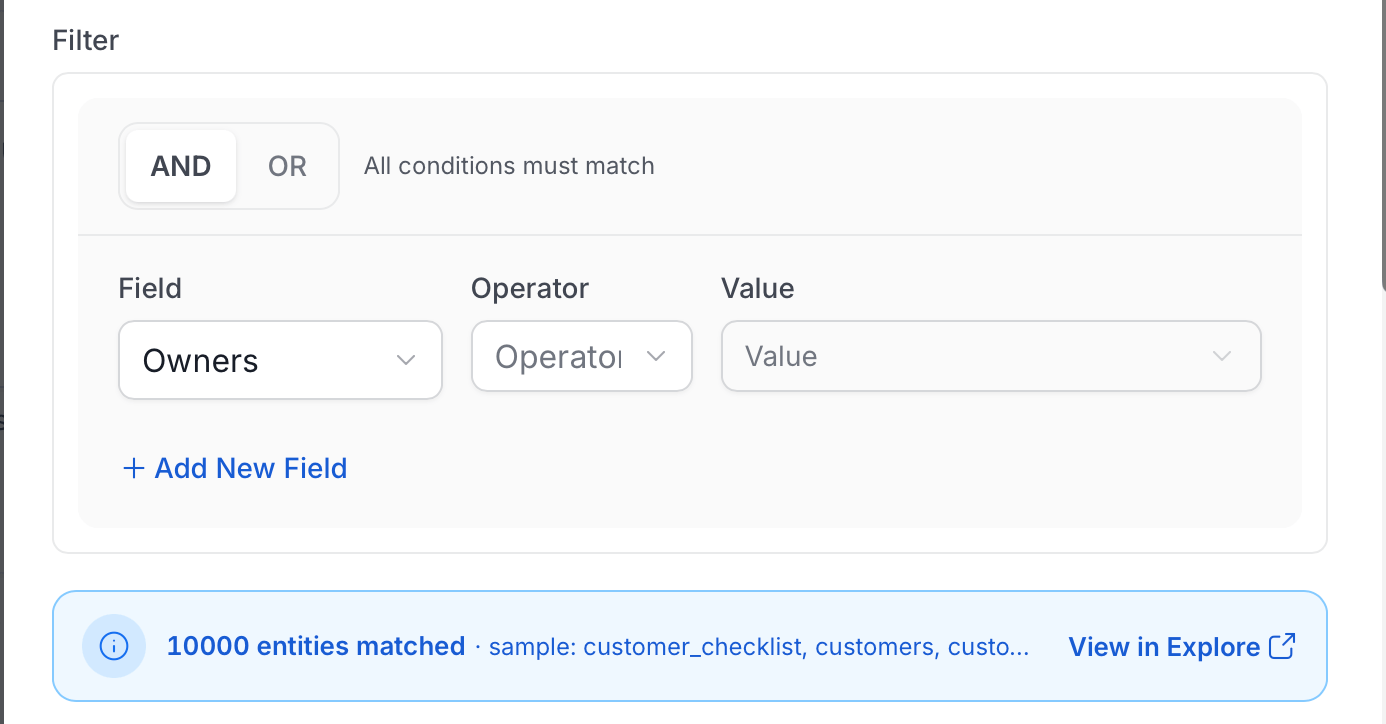
An unfinished condition is ignored when the rule runs, which would widen the rule to match everything. The editor asks you to finish or remove it before you can save.
Always in Context
When on, the rule’s content is added to every request for the persona, whatever the user asks about. This works well for Articles. For example, turn it on for a rule that selects Articles with domain conventions, business definitions, or team standards, so the assistant always has them.Filtered in Search
When on, the entities the rule selects are not preloaded into the context document. Instead, the rule becomes a default filter on the assistant’s metadata searches for the persona, so the persona sees only the assets the rule selects. Because nothing is preloaded, the rule doesn’t use the character budget. When this is on, Always in context, Fully rendered, Context sections, and Max assets don’t apply. Rules for Glossary Terms, Articles and Metrics are always preloaded with their full content. Filtered in search isn’t available for them.Fully Rendered
When on, each matched entity’s full documentation is compiled into the context. For a Data Product, this also includes the context of every asset it contains. When off, only the sections you pick under Context sections are included. Turn this on only when the persona needs complete documentation. It uses much more of the character budget. Rules for Glossary Terms, Articles and Metrics are always fully rendered.Context Sections
When Fully rendered is off, choose which parts of each entity’s documentation are compiled. The sections depend on the entity type. For data assets, the sections are:
Turn on the heavy sections only when the persona needs that depth. They use a large share of the character budget and can use budget that other rules need.
For other entity types, the sections are:
Max Assets
The maximum number of entities that the rule compiles. Default: 200. Allowed range: 1 to 1,000. When more entities match, the highest-priority ones are compiled first. Lower this value to leave more budget for other rules.Preview the Compiled Context
Click Preview Context to see the context document as an assistant receives it. The preview shows how many entities are included, how many were truncated, the estimated size in tokens and KB, and when it was generated. Use Rendered and Raw to switch views, Refresh to compile it again, and Copy to copy the content. The Content list jumps to each rule and the entities it includes.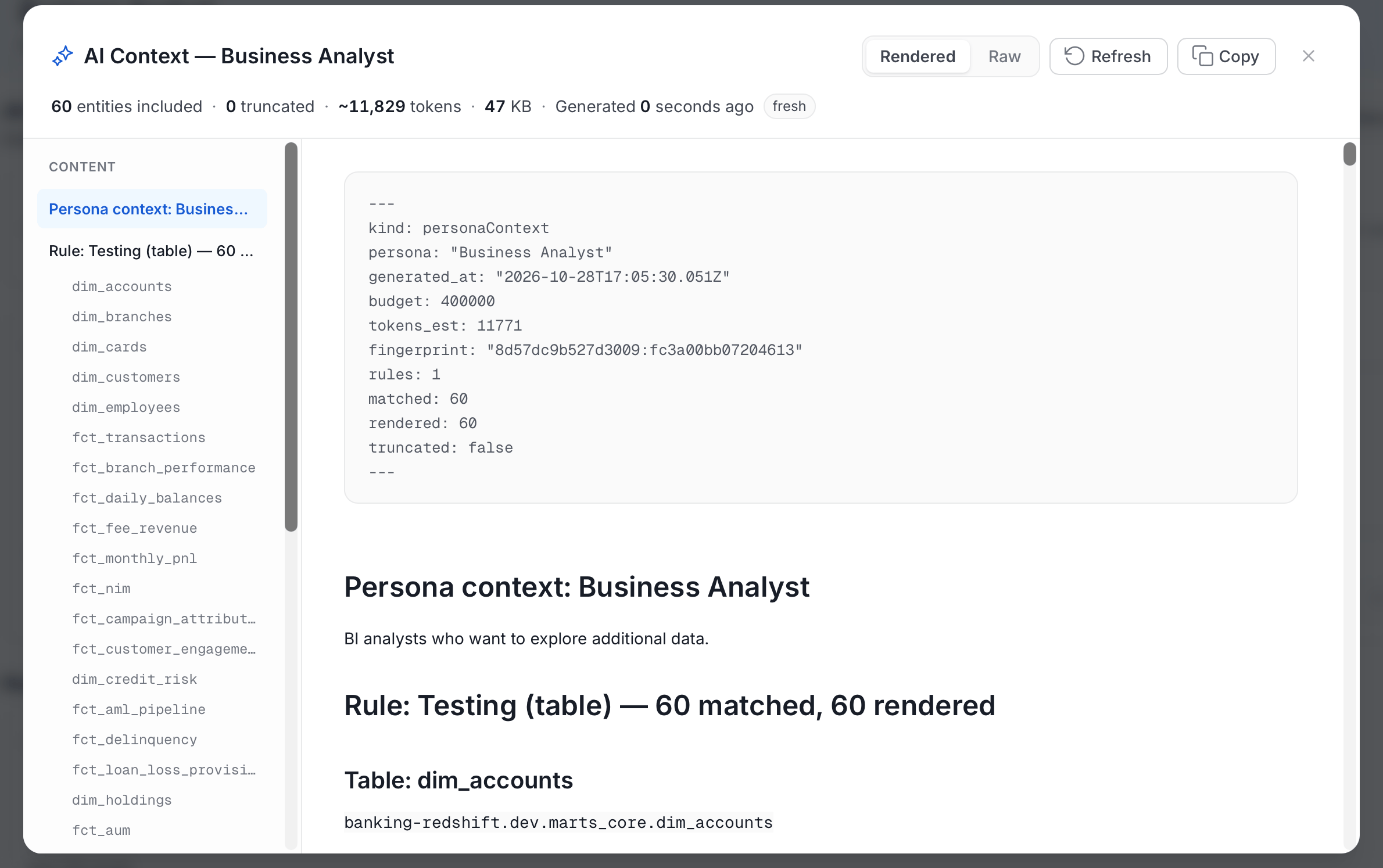
Example Configurations
Business analyst persona- Rule 1: Tables, filtered by Tier 1 and a certification, with Filtered in search off. This includes only trusted, business-critical assets in the context.
- Rule 2: Glossary Terms, filtered by the analyst’s domain. The assistant uses agreed business definitions.
- Rule 3: Articles, filtered by a tag such as
analyst-conventions, with Always in context on. Domain conventions are always available.
- Rule 1: Tables, no filter, with Filtered in search off and a high Max assets value. This gives broad coverage across services.
- Rule 2: Articles, filtered by a tag such as
pipeline-runbooks, with Always in context on. Runbooks are always included.
- Rule 1: Tables, filtered by a PII tag, with Filtered in search off. This includes sensitive data assets first.
- Rule 2: Glossary Terms, filtered by a regulatory classification. Correct definitions are always available.
- Rule 3: Articles, filtered by a tag such as
compliance-policy, with Always in context on. Policy documents are included in every interaction.