
Memories
Memories are short, atomic facts, such as definitions, preferences, and answers to recurring questions, captured by your team while working with an AI assistant, or added manually. Unlike Articles, Memories aren’t meant to be full pages. They’re quick, reusable pieces of context. Thecreate_context_memory MCP tool can create a memory when you ask an assistant to remember something. The company_context tool retrieves only the question and answer notes extracted from uploaded files. It doesn’t retrieve manually created or remembered Memories.
Create a Memory
To create a memory, follow these steps:-
From the left navigation bar, navigate to Context Center > Memories.
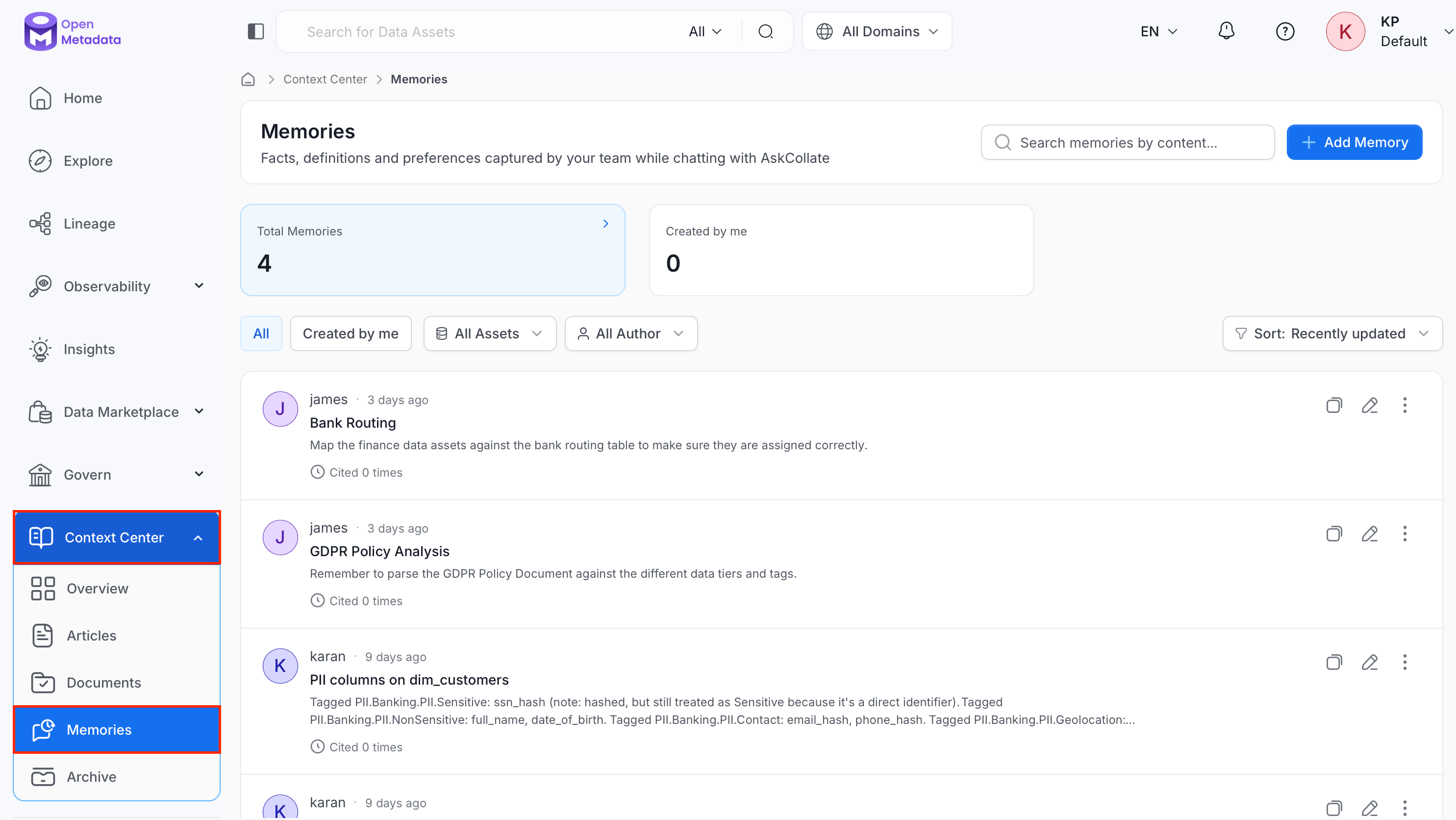
-
Select Add Memory.
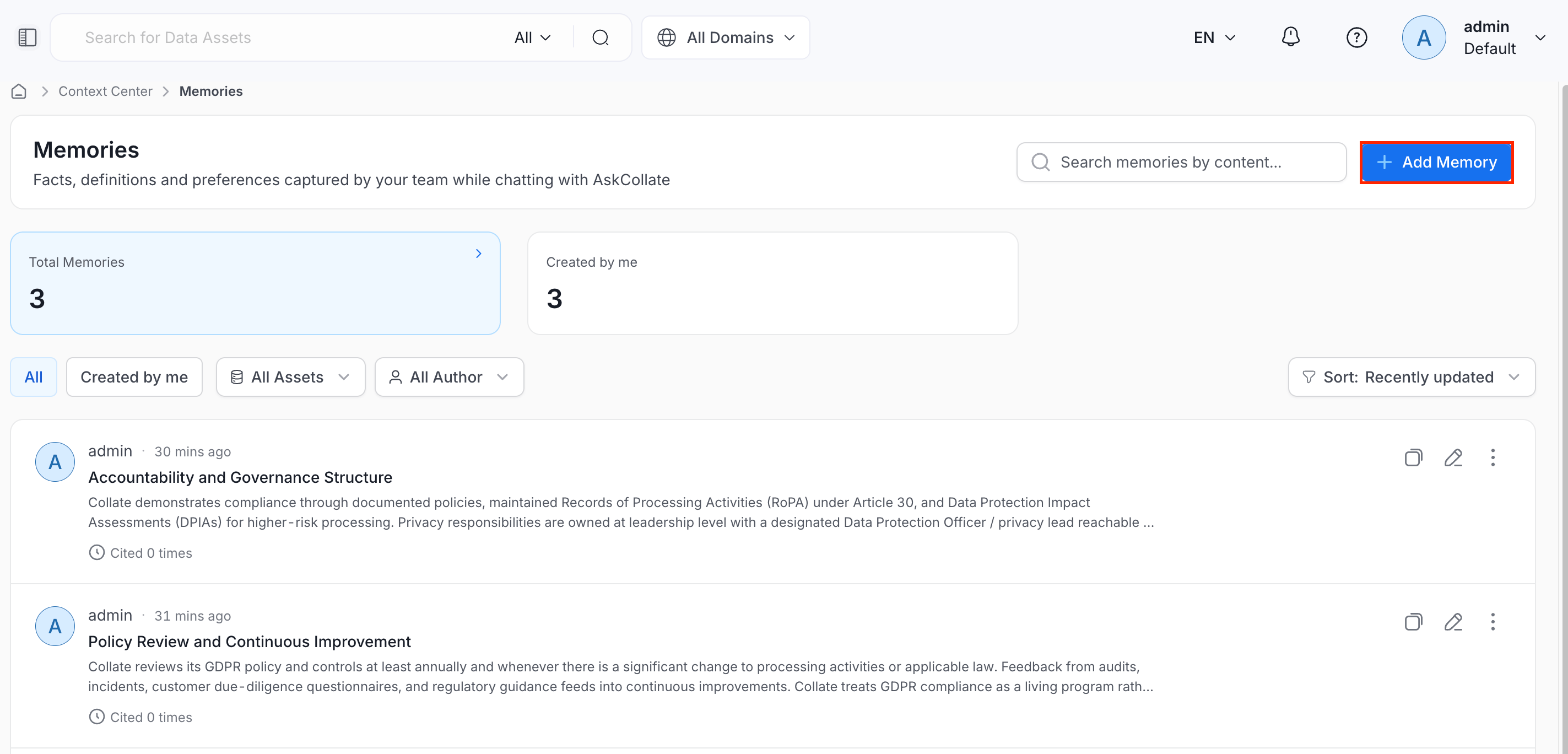
-
In the Add Memory dialog, fill in the following details:
- Title: An optional label for the memory.
- Memory: Required. Describe what the assistant should remember, written in plain markdown. Click Preview to see how the formatted content will look. Create Memory stays disabled until this field has content.
- Type: Optional. Choose the kind of memory:
- FAQ: A recurring question and its answer.
- Note: A general fact worth remembering.
- Preference: A personal preference for how the assistant should behave for you.
- Runbook: A step-by-step procedure.
- Use Case: A specific scenario and how to handle it.
- Linked Data Assets: Optionally link the memory to one or more data assets using Link an Asset.
- Metadata:
- Visibility: Choose who can see the memory. Defaults to Private.
- Shared: Visible to people or teams in the memory’s shared-with list. The Add Memory dialog currently doesn’t let you add people or teams to that list.
- Entity: Visible to everyone who can view the linked data asset, or to everyone when no asset is linked.
- Private: Visible only to you.
- Tags: Optionally tag the memory using Add Tag.
- Visibility: Choose who can see the memory. Defaults to Private.
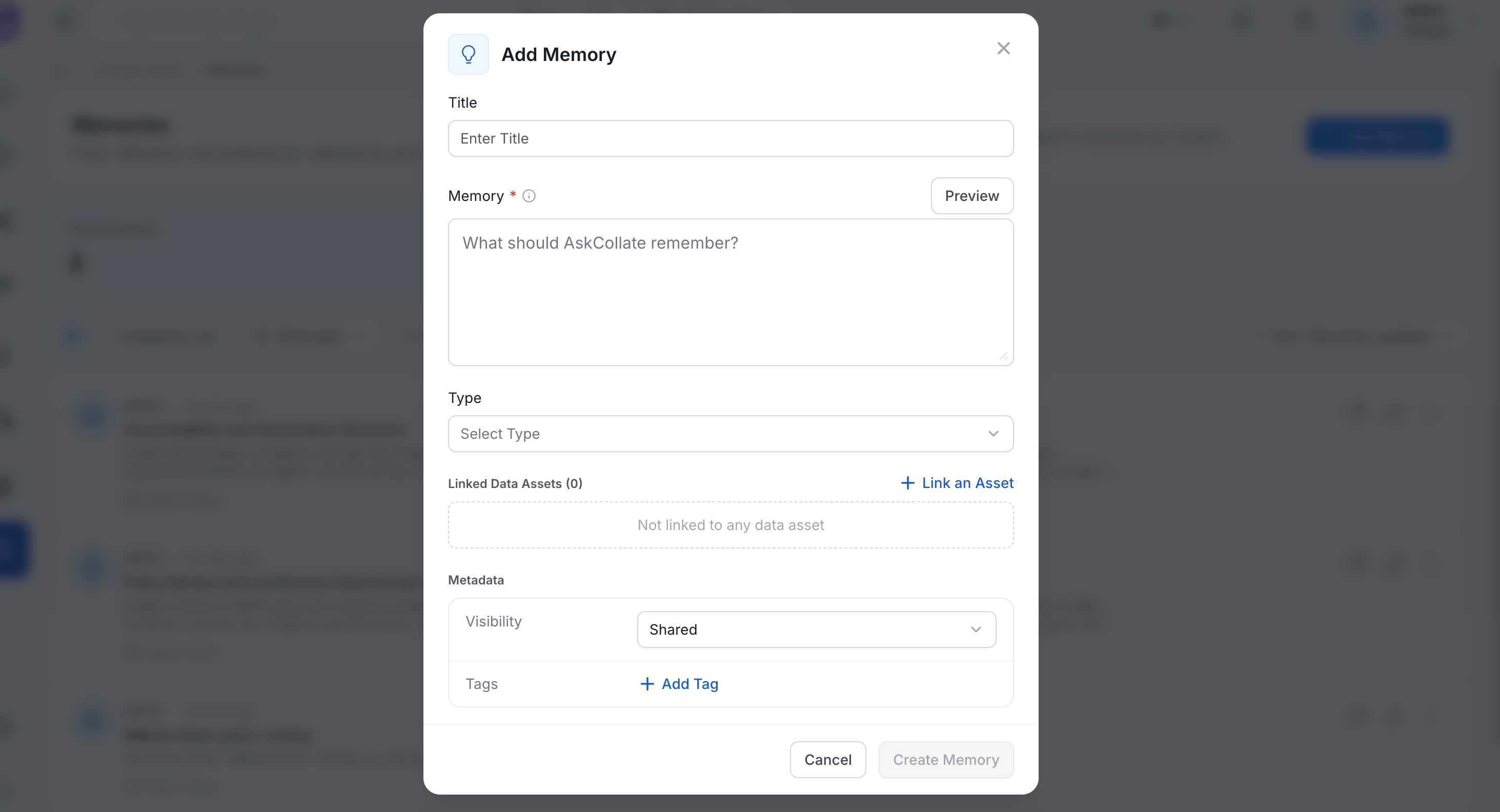
- Click Create Memory to save it.
View and Manage Memories
The Memories page shows:- Search bar: Search memories by their content.
- Summary cards: Three cards, Total Memories, Created by me, and Needs review, each showing a count. Select a card to switch the list to that view. The cards work with the keyboard, and the page has no All, Created by me, or Needs review tabs.
- Filters: Narrow the list by Status, All Assets, or All Author. Status defaults to Approved, Unprocessed, and Draft. Select Clear All to reset the filters.
- Sort: Order the list, for example by Recently updated or Most used. Most used sorts by how many answers a memory was applied to.
-
Memory list: Each row shows the memory’s author and when it was last updated, its title and status, and its content. A Reason line appears when a memory is held for review. When usage figures are available, the last line of a row shows how the memory has been used:
- Cited N times: The number of saved answers the memory was applied to, followed by when it was last used.
- Thumbs-up and thumbs-down counts: The helpful and unhelpful votes on those answers.
-
Corrected N times: How many times a memory captured from a conversation corrected this one. This appears only when the number is above zero.

-
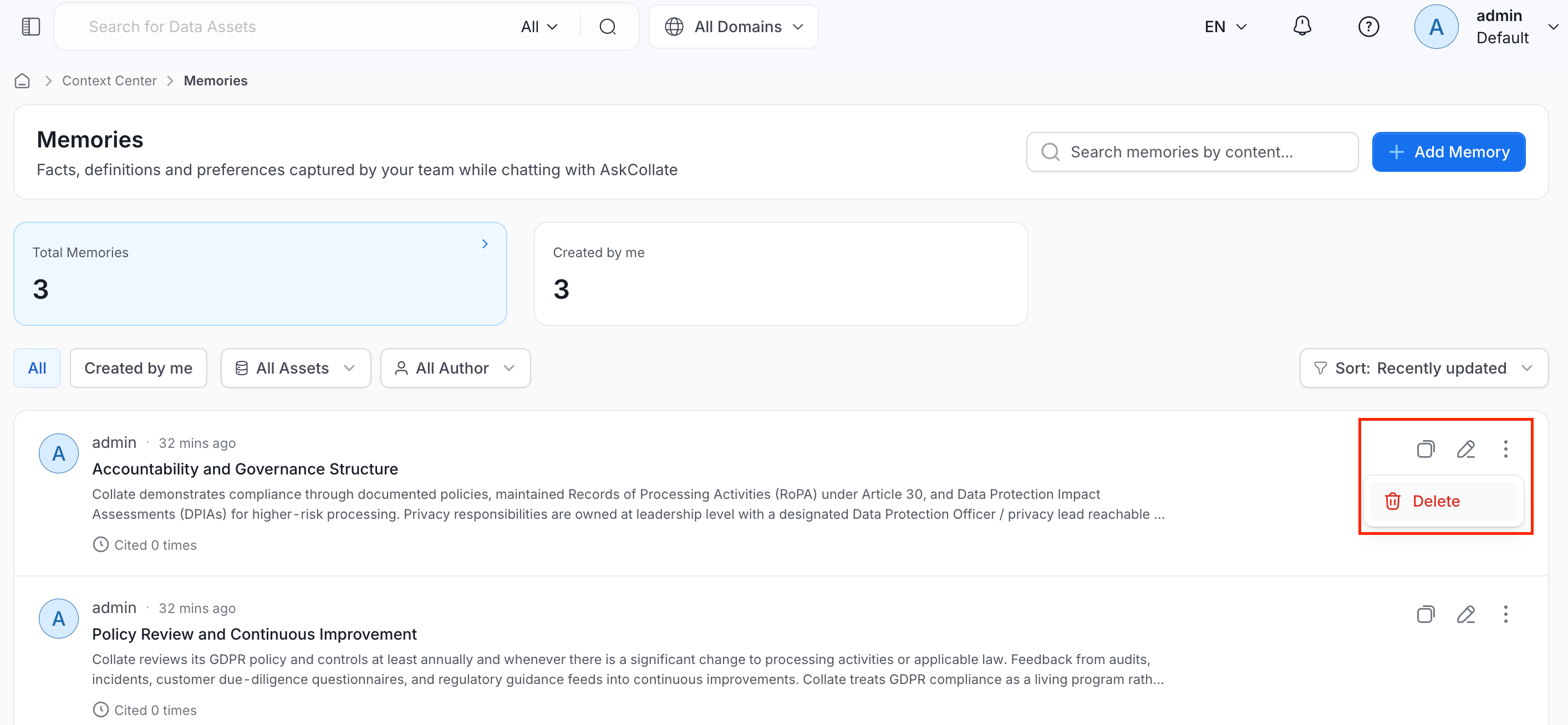
Row actions:
- Copy link: Copy the memory URL.
- Edit: Open the memory to change its title, content, type, visibility, tags, or linked assets.
-
Delete: Open the ⋮ menu and select Delete to remove the memory.
Memory Statuses
Every memory has a status. A new memory starts as Approved, because OpenMetadata has no reconciliation step. A distribution that requires review, such as Collate, starts new memories as Unprocessed instead. Only Approved memories ground AI assistant answers for other users. The Status filter lists these statuses:- Unprocessed: Awaiting reconciliation.
- Draft: Held for a person to review. A Reason line on the memory explains why.
- Approved: In use.
- Superseded: Replaced by another memory. A superseded memory must name the memory that replaces it.
- Invalidated: Found to be incorrect.
- Archived: No longer in use.
- Rejected: Declined, including when you keep the Approved memory in a conflict review.
- Deprecated: An older retirement stage that remains readable.
Who Can See Pending Memories
Unprocessed and Draft memories are listed only to their owners and to admins, in the Memories list, in search, and on a document’s memory card. A pending memory extracted from a document is also listed to that document’s owners, including team owners. Everyone else sees a memory only after it is Approved.Memories Held for Review
OpenMetadata moves a memory to Draft when a saved query that supports it is permanently deleted. Select a held memory to read its Reason in the list or in the memory details, under Metadata.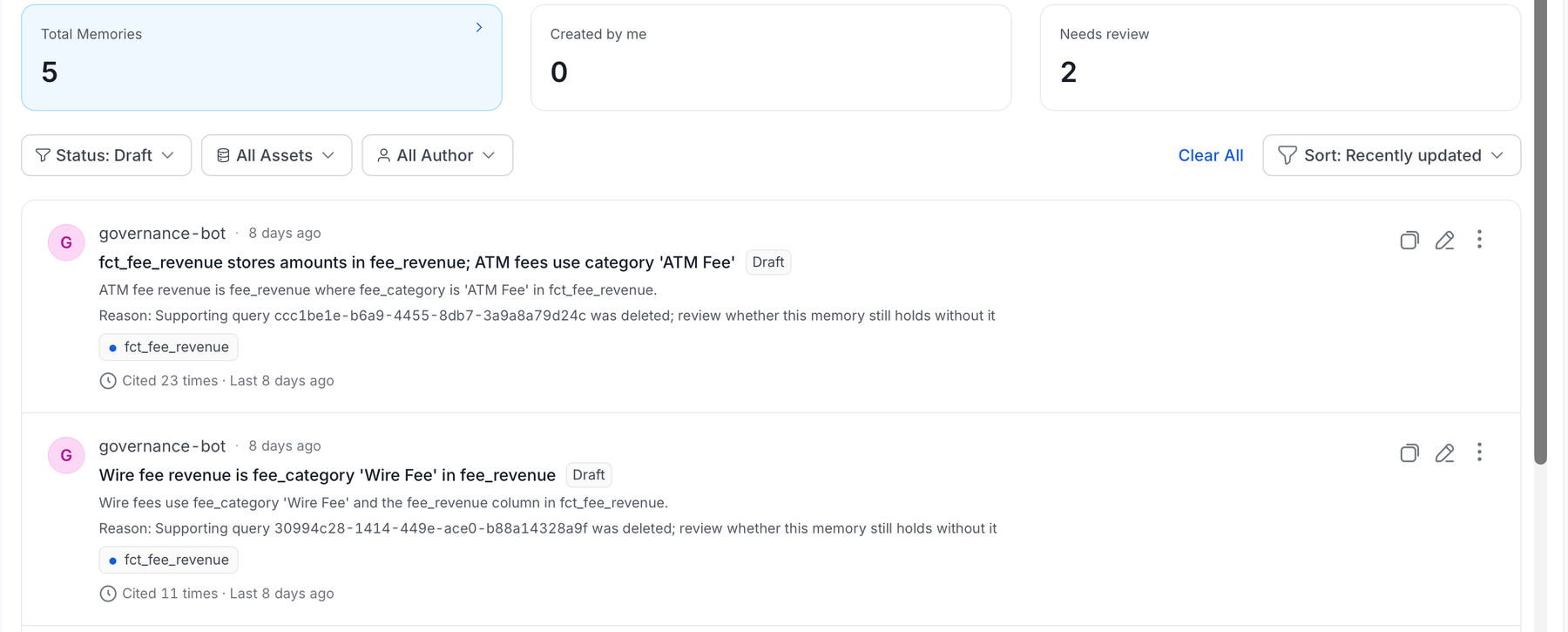
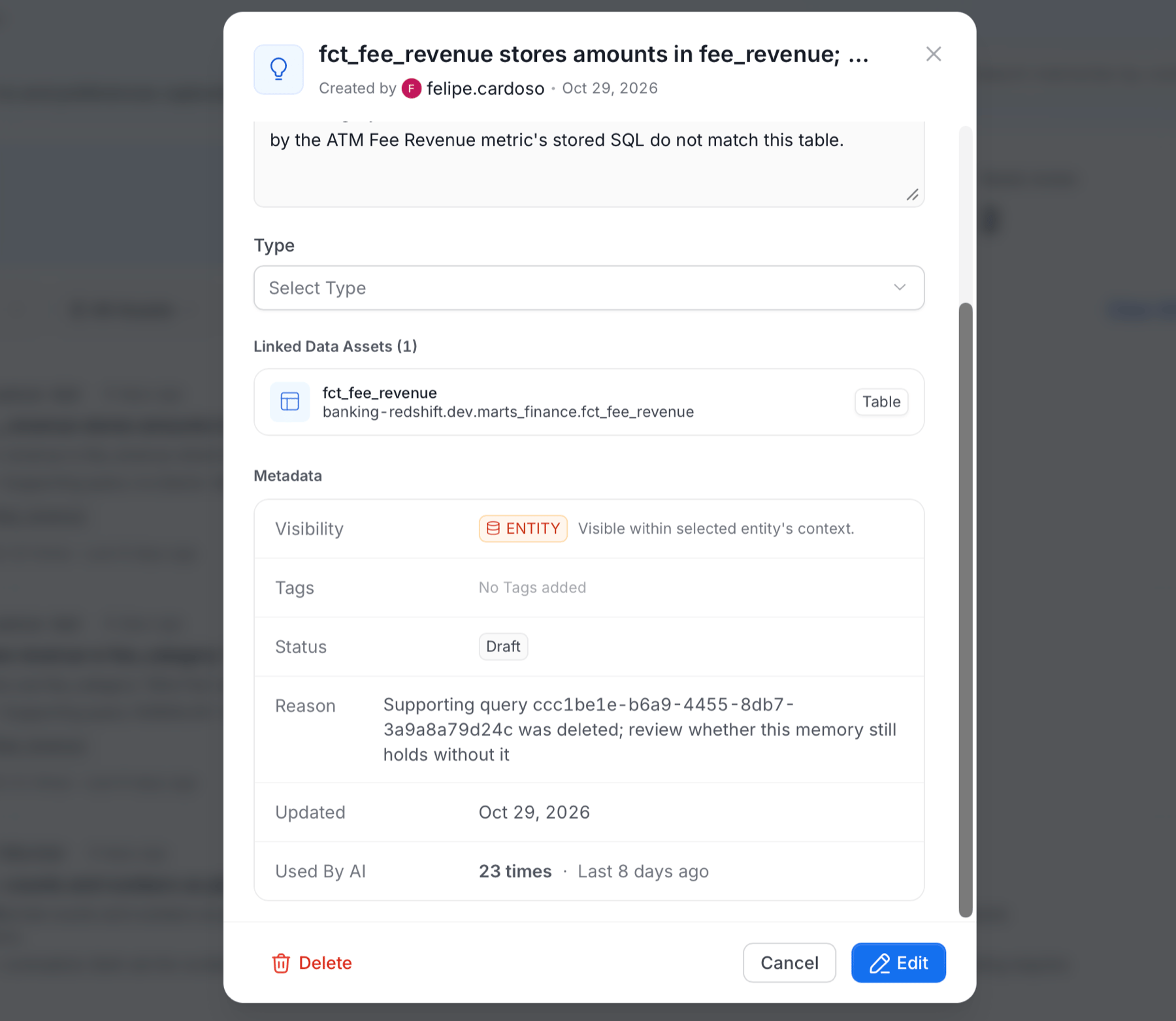
Supporting query <id> was deleted; review whether this memory still holds without it, and OpenMetadata removes the query from the memory’s related entities. Memories in other statuses aren’t changed.
A hold for a deleted query doesn’t open a review task. The owner or an admin approves or rejects it directly from the memory. A reader who can’t view a query sees only its ID and type in a memory’s evidence.
Review Conflicting Memories
A Review conflicting memory task asks you to decide between two memories that contradict each other. OpenMetadata creates the task asgovernance-bot and assigns it to the owners of both memories. Memory reconciliation in Collate is what detects a contradiction and holds the memory, so these tasks appear only when such an application writes the disputes. The task also appears in your Inbox > Tasks, where each row and the task detail header carry a Memory conflict chip.
To review a conflict, follow these steps:
-
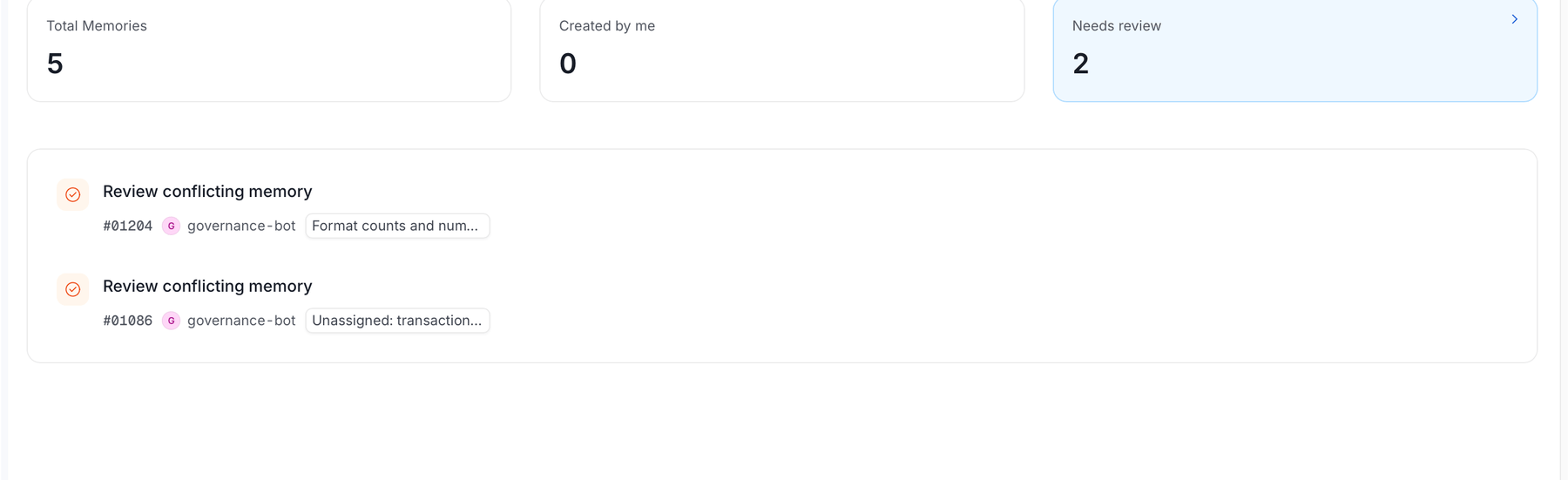
Navigate to Context Center > Memories and select the Needs review card. Admins see all reviews. Other users see the reviews assigned to them or to their teams. The list loads 20 at a time, so select Load more to see the rest.
-
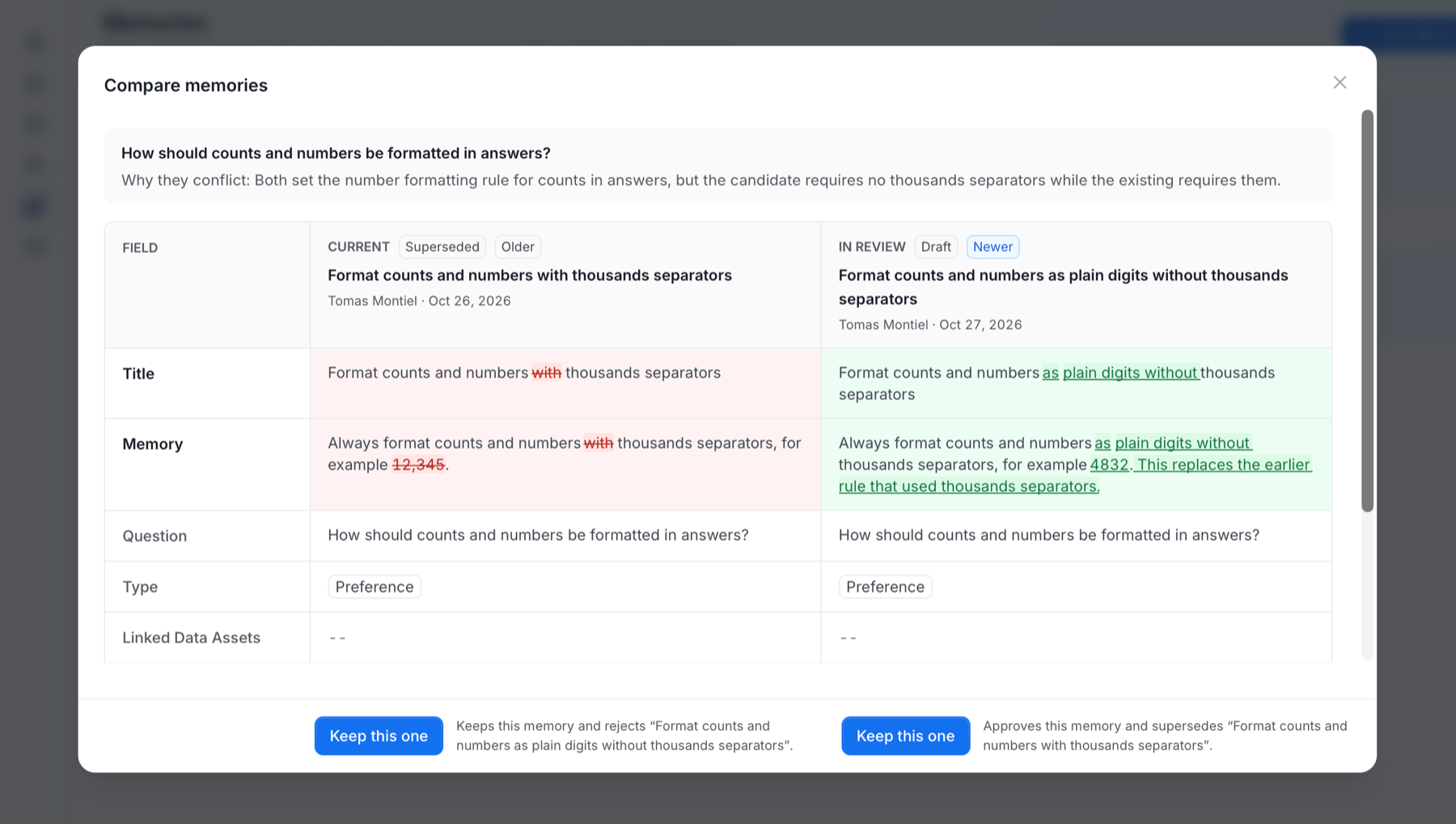
Open a review. The Compare memories dialog compares the two memories side by side:
- Current: The Approved memory that is currently in use, on the left.
- In review: The memory in review, on the right.
- Each side shows its title, author, date, status, and whether it is Newer or Older.
- Why they conflict: The reason for the conflict.
- A table compares the Title, Memory, Question, Type, and Linked Data Assets of both memories, with the differences highlighted.
- When several memories are contradicted, use the selector to switch between them.
-
Click Keep this one under the memory you want to keep:
- Under the memory in review: Approves this memory and supersedes the disputed memory. The reviewed memory becomes Approved, and the disputed Approved memories become Superseded.
- Under the Approved memory: Keeps this memory and rejects the memory in review. The reviewed memory becomes Rejected, and the disputed memory isn’t changed.
- The memory left review another way.
- A disputed memory was edited after the conflict was found.
- You can’t read or supersede the disputed memory.
- Either memory changed while you were deciding.
Control Access to Memories with Roles and Policies
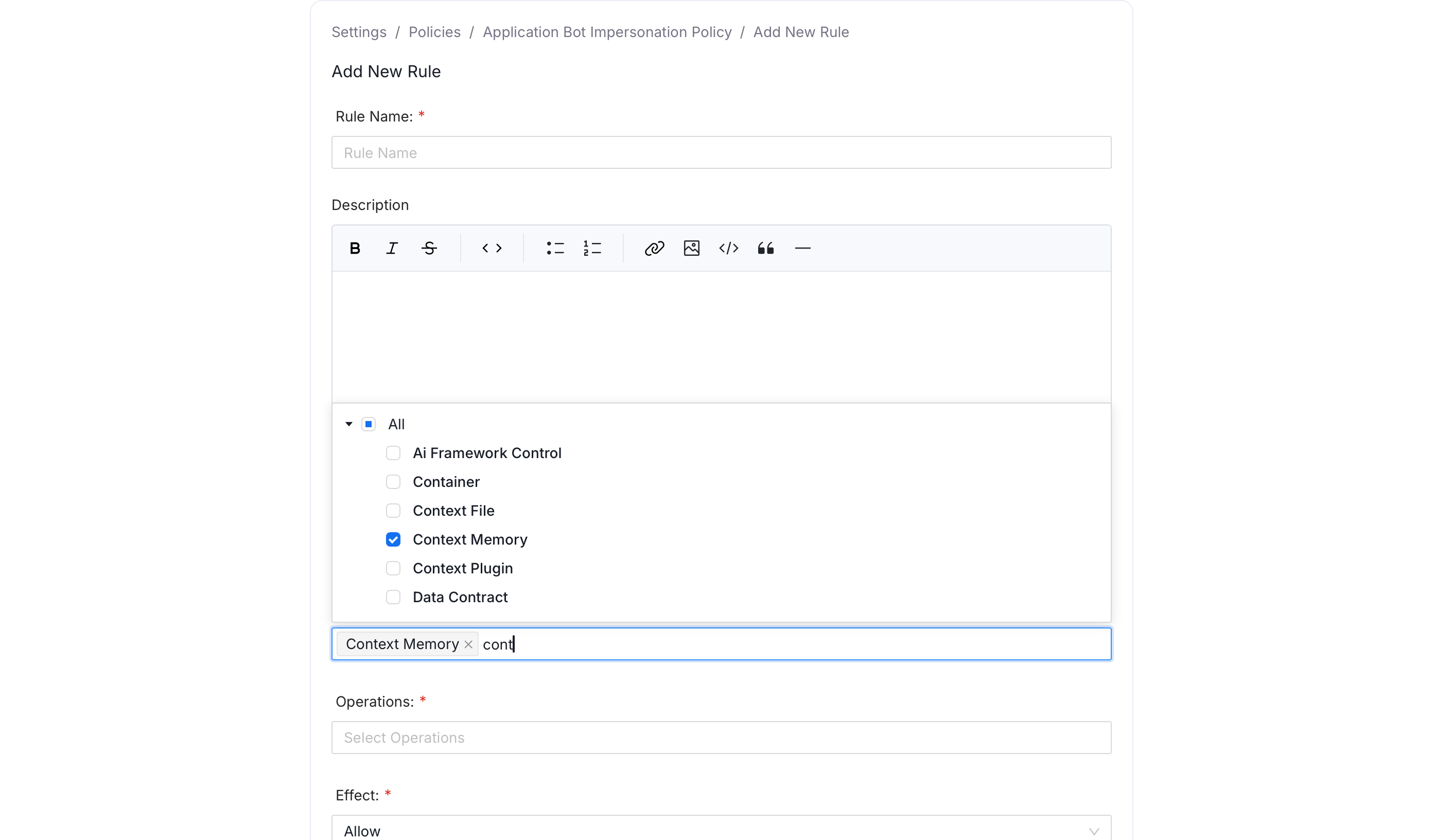
Memories are a governed resource in OpenMetadata’s role-based access control system, listed as Context Memory under the Misc resource category. Admins control who can view, create, edit, or delete memories platform-wide by adding a rule to a policy that targets the Context Memory resource.- Click the Profile icon and navigate to Settings > Access Control > Policies.
- Open an existing policy and click Add Rule.
-
Fill in the following details:
- Name: Enter a unique rule name.
- Description (optional): Add a note explaining what this rule does and why, so other admins reviewing the policy later understand its intent.
- Resources: Select
Context Memory. - Operations: Set the actions to allow or deny, for example
Allto cover every operation, or a specific set such asCreateandEditAll. - Effect: Select from
AlloworDeny. - Condition (optional): A CEL expression to scope the rule further, such as restricting it to a domain.
-
Click Save, then attach it to the roles that should have this access.
Default Access for Data Consumers
By default, every user can create memories, including the ones an AI assistant saves from their conversations. The seeded Data Consumer policy includes the allow ruleDataConsumerPolicy-CreateContextMemory-Rule (Create on Context Memory), and every user receives it through the Organization team. The creator owns the new memory and can edit or delete it.
Users who can only create memories have these limits:
- They can create only memories that they own. Naming another owner returns a 403 error.
- They can link only data assets they can view.
- They can’t set extraction sources.
DataConsumerPolicy-CreateContextMemory-Rule from the Data Consumer policy. To withdraw creation from chosen users only, add a Deny rule for Create on Context Memory to a role assigned to them.
Memories with Entity visibility that are linked to an asset are also findable in search by anyone who can view that asset.