Documents and Archive
Documents let you upload files, such as reports, spreadsheets, and compliance audits, without rewriting them as an Article. When OpenMetadata extracts question and answer notes from a file, MCP assistants can retrieve the extracted content. The assistant searches the extracted notes, not the Document record itself. MCP assistants reach Articles through thefind_context tool instead. Organize files into folders to keep related documents together.
Upload a Document
-
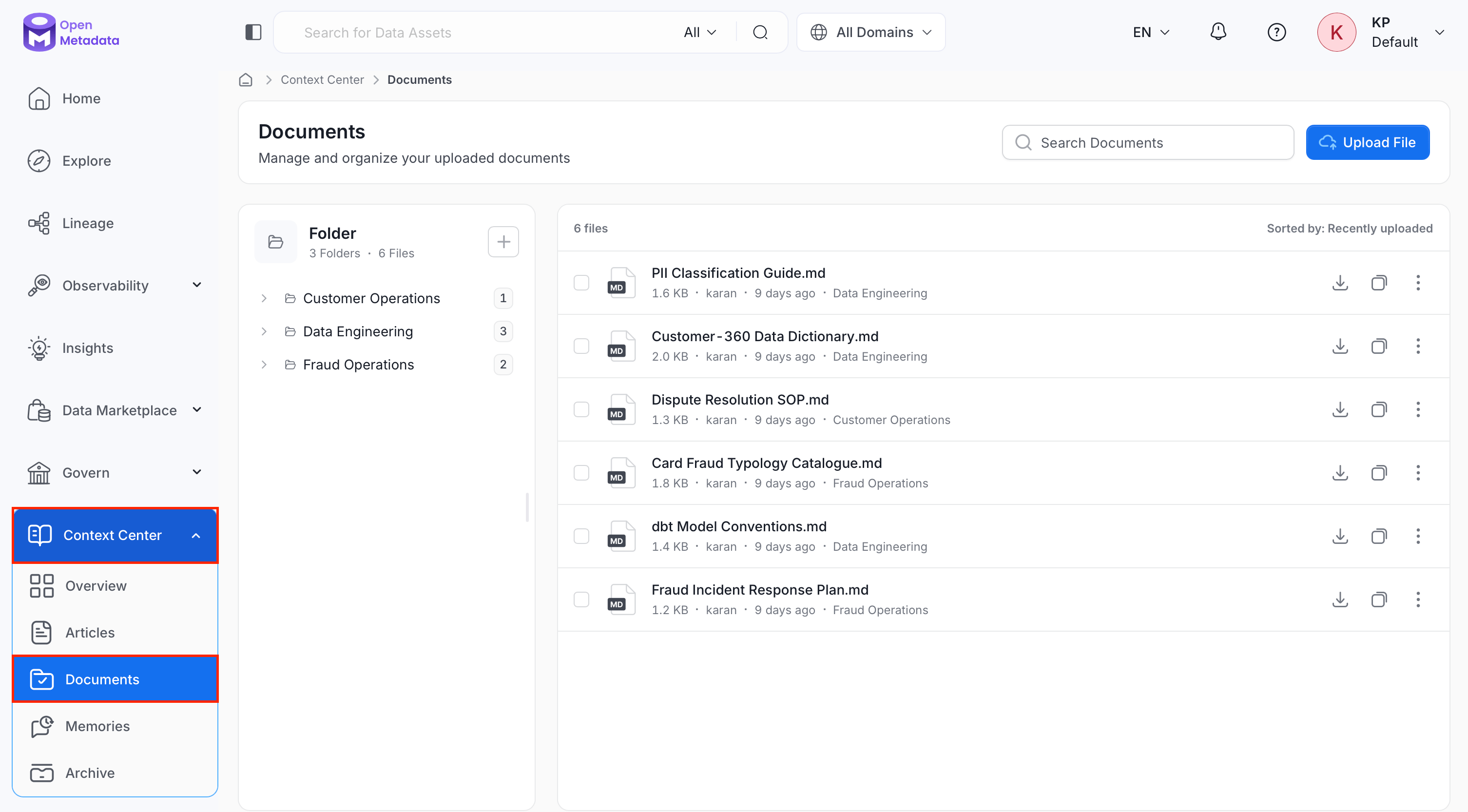
From the left navigation bar, navigate to Context Center > Documents.
-
Click Upload File.
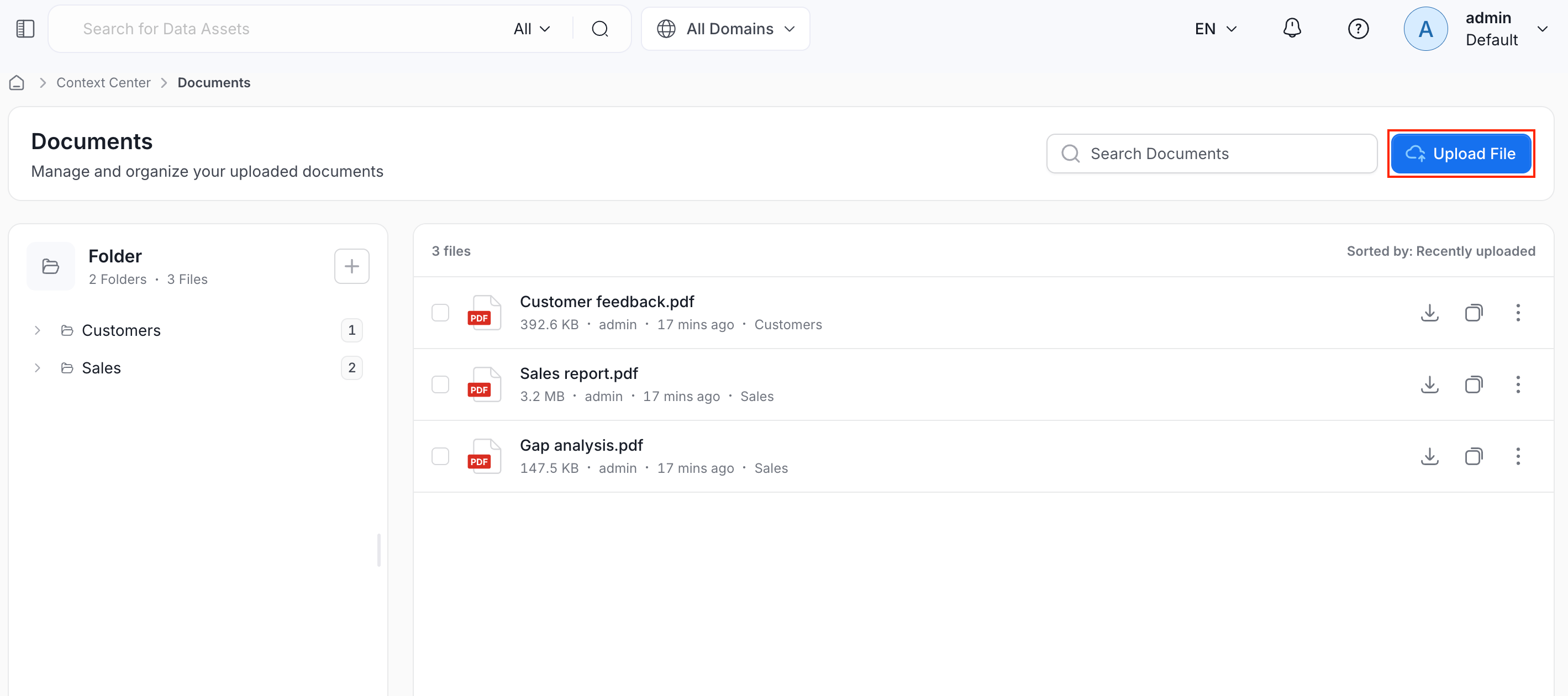
- Browse to the files on your computer and upload them.
-
Optionally, organize the file into a folder:
- Click the + icon next to Folder to create a new folder.
- Files you don’t move into a folder stay listed at the top level.
View and Manage Documents
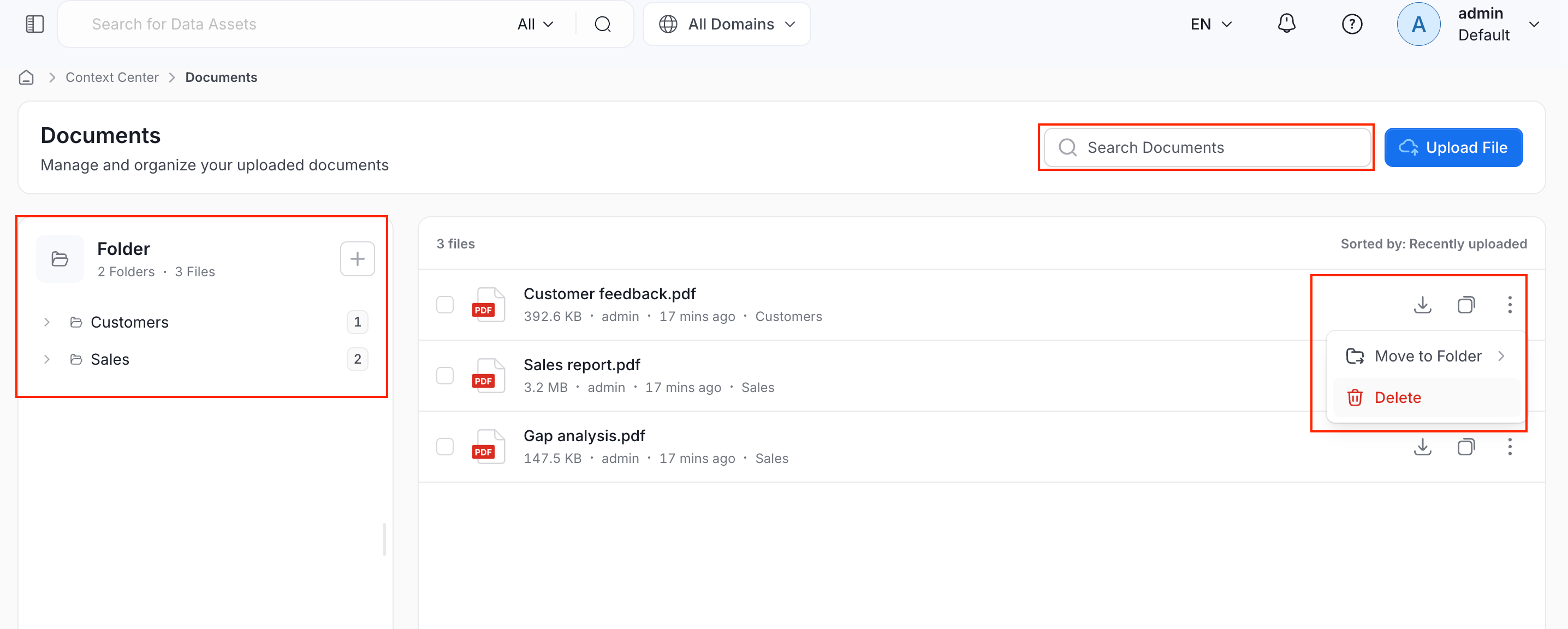
The Documents page shows:- Search bar: Search documents by file name.
- Folder panel: Lists your folders on the left, each showing how many files it contains.
- To create a new folder, click the
 icon next to Folder.
 - Click a folder to see only the files inside it.
- To create a new folder, click the
- File list: Shows the total number of files, sorted by Recently uploaded by default.
- Files Actions:
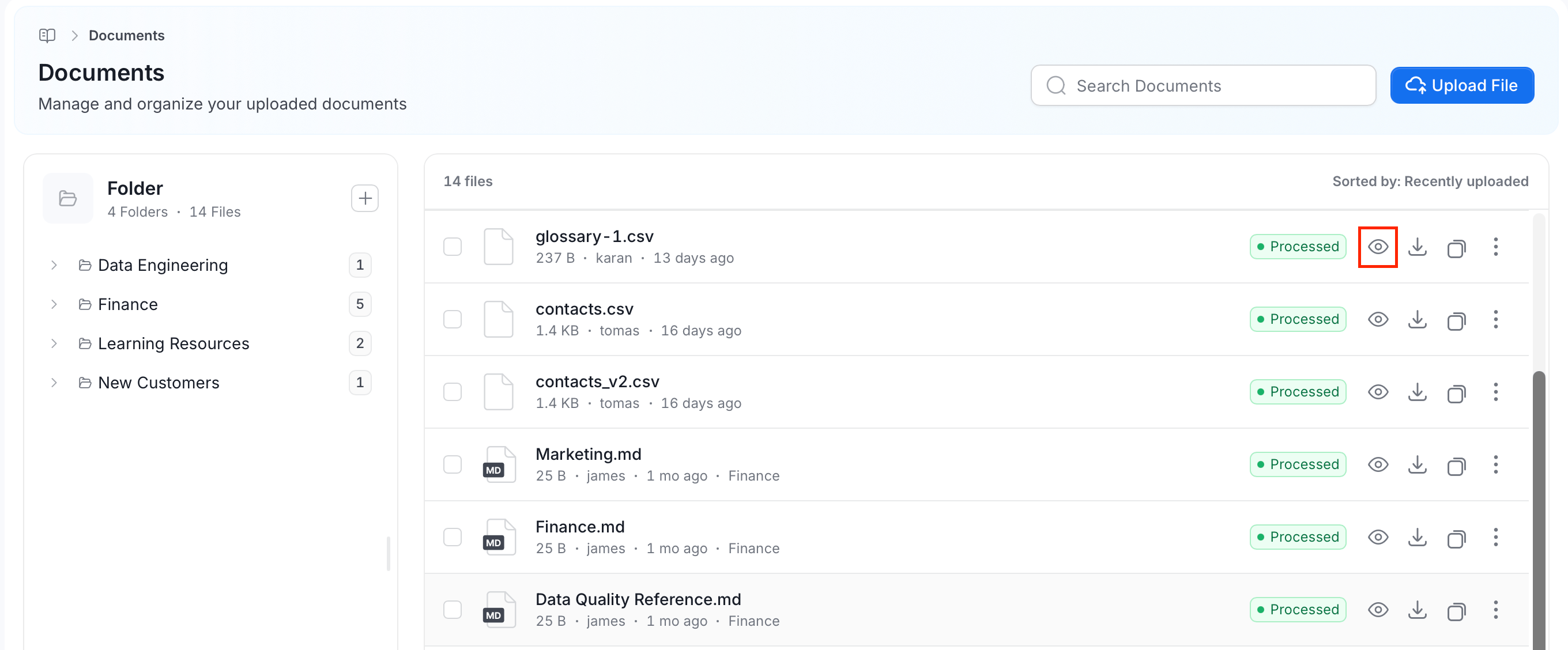
- Preview: Open the file in a preview window. See Preview a Document.
- Download: Save a copy of the file to your local system.
- Copy link: Copy the document URL.
-
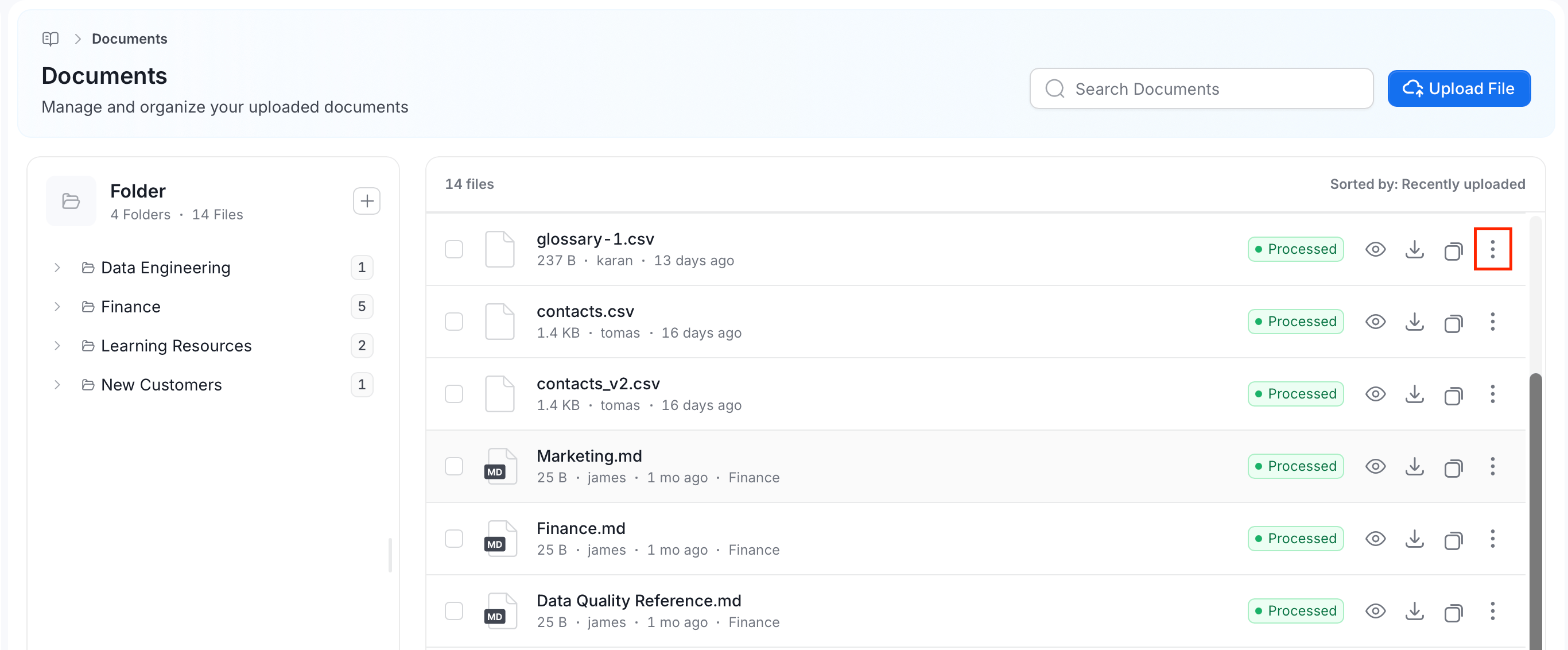
Three-dot (⋮) menu:
- Visibility: Choose who can see the file. See Control Who Can See a Document.
- Move to Folder: Move the file into a different folder.
- Delete: Remove the file from Documents. This doesn’t erase it immediately. See Archive.
Preview a Document
You can read a file in OpenMetadata without downloading it. Preview is available from release 2.1.-
In the file list, click the Preview (eye) icon on the file row. A preview window opens with the file name as its title.
- Read the file, then close the window.
- Markdown: Shown as formatted text.
- Text and CSV: Shown as plain text. OpenMetadata shows the first 100,000 characters and adds a note that the preview is truncated. Download the file to read the rest.
- PDF: Shown in the preview window.
- Images: Shown in the preview window.
Control Who Can See a Document
Each document has a visibility setting. Visibility controls who can find and open the document in Documents and in search. It’s available from release 2.1. To change the setting:-
In the file list, click the ⋮ icon on the file row.
-
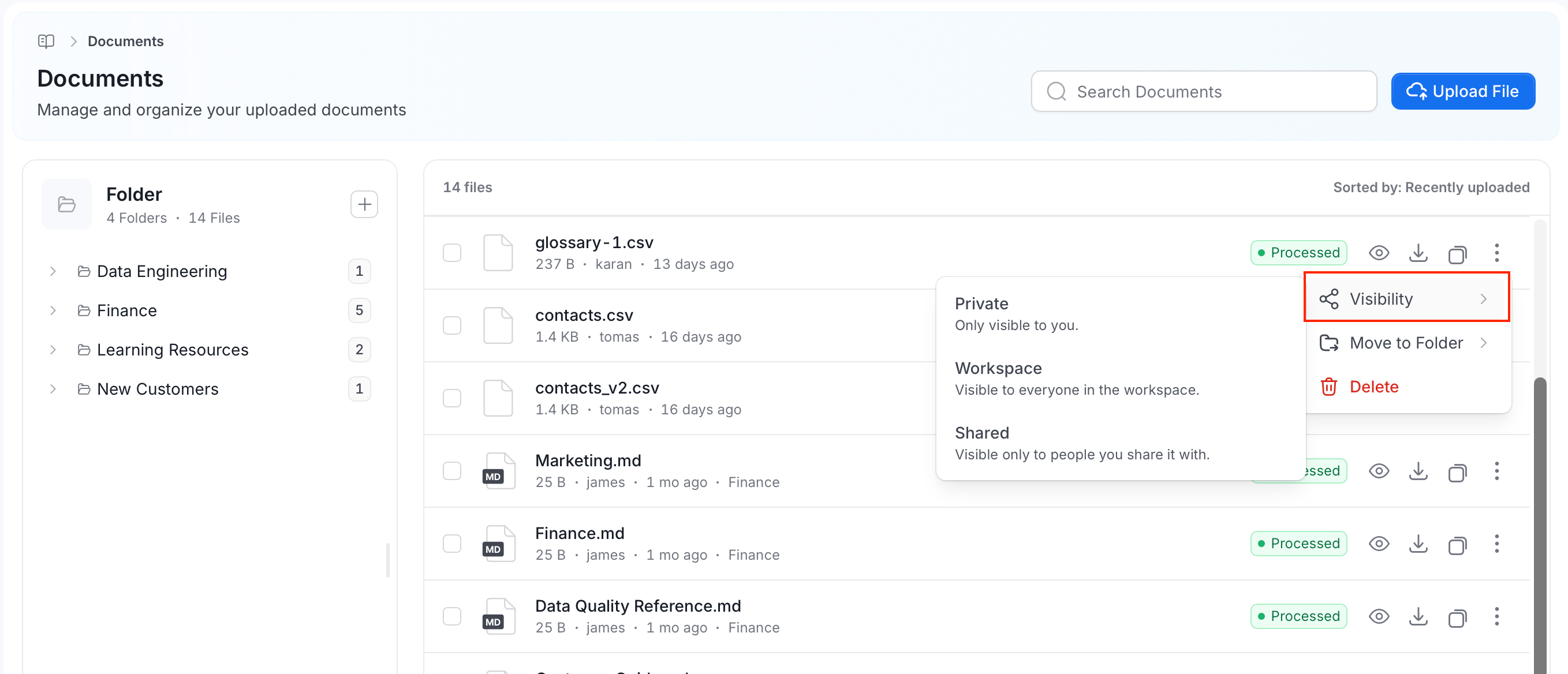
Select Visibility, then select one of the following options:
- Private: Visible only to the owners of the document and to administrators.
- Workspace: Visible to everyone in the workspace.
- Shared: Visible only to the people you choose. Select the users in the list that opens. They get view access.
- Only the owner of a document or an administrator can make it Private or Shared. Other users who try this see the message Only a document’s owner can make it private or choose who it is shared with.
- Documents that were uploaded before release 2.1 have no visibility setting. They stay visible to everyone, as before. A document is restricted only when you set it to Private or Shared.
- Users who can’t see a document can’t open it, and it doesn’t appear in the list or in search results for them.
- The Visibility option appears only for users whose role allows editing documents. See Access Control (RBAC).
Archive
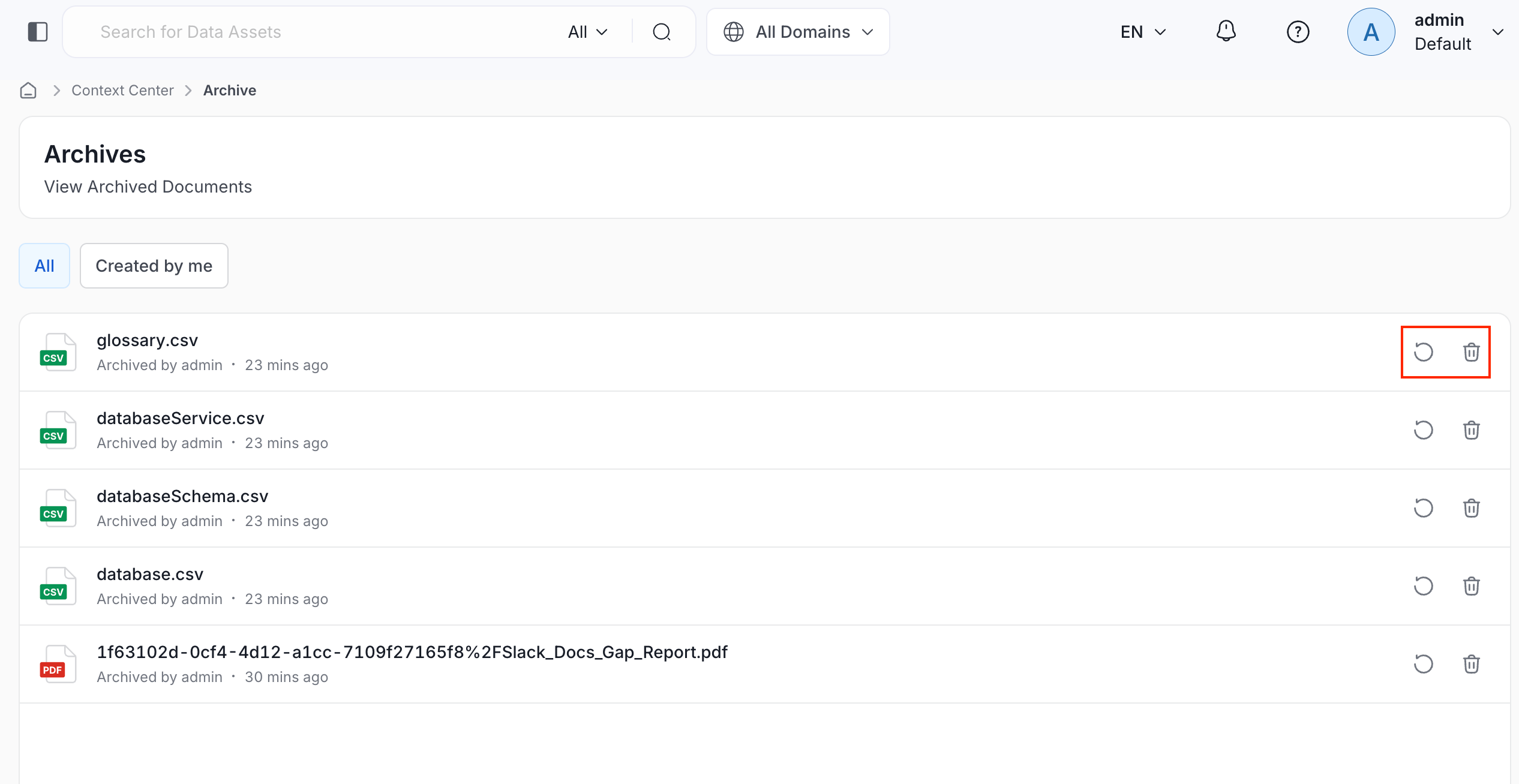
Deleting a document moves it to Context Center > Archive instead of erasing it right away. From Archive, you can:- To restore the document, click the Restore icon next to the document.
-
To remove the document permanently, click the Delete icon next to the document.