
Single Sign-On (SSO)
Configure Single Sign-On (SSO) so your team logs in to OpenMetadata with your organization’s existing identity provider instead of managing separate OpenMetadata credentials. OpenMetadata supports Google, Okta, Auth0, Azure AD, Amazon Cognito, custom OIDC, SAML, and LDAP. Select your provider below for setup instructions. Set up SSO before moving to production. It’s faster to test OpenMetadata without it, but you’ll need to migrate any existing users to their SSO identities afterward.Note: OpenMetadata supports only one authentication mechanism at a time. You can’t combine SSO with Basic Authentication, or configure multiple SSO providers together.
Add a Provider
-
Navigate to Settings > SSO.
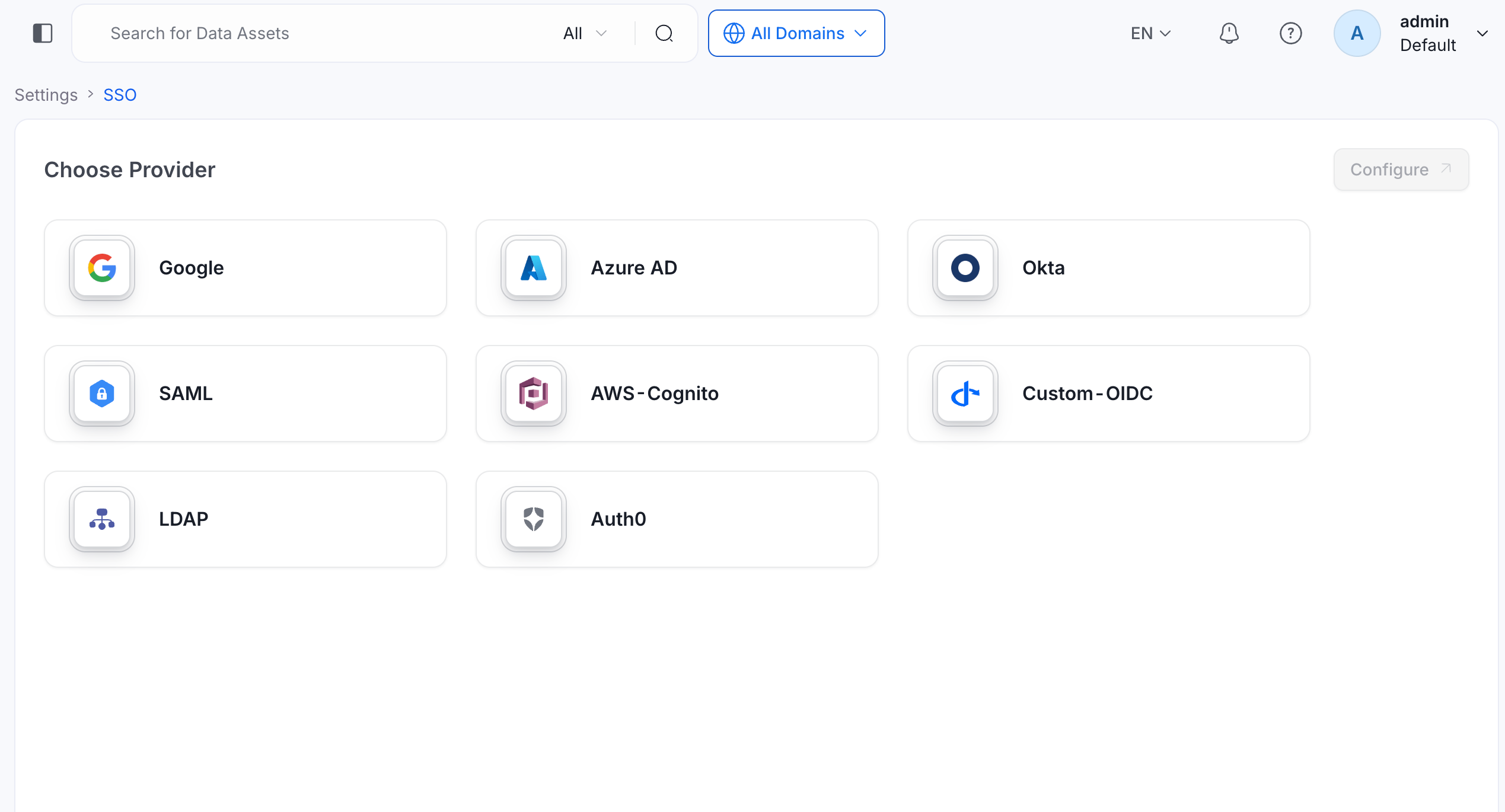
- Click your identity provider tile, and then click Configure. The configuration page for that provider opens.
- Fill the configuration details. Each provider guide lists the fields for that provider.
- Run Test Login, and then click Save.
Change the Provider
After you configure SSO, the Single Sign-On page opens on the configured provider, with Overview and Configure tabs. To switch to a different identity provider, click Change Provider at the top right of the page and select the new provider.Test Login
Test Login runs a real sign-in against the configuration you entered, before you save it. It checks the configuration first, then opens the identity provider sign-in in a popup window. It doesn’t create users, tokens, or sessions, and your current session stays signed in. Test Login supports confidential OIDC, public OIDC, SAML, and LDAP configurations.- Fill the configuration details.
- Click Test Login next to Save.
- In the Test Login dialog, OpenMetadata validates the required fields, checks that the identity provider is reachable, and checks the credentials. The dialog lists each check as it runs, from Configuration checked to Domain rules checked. It also lists every problem it finds.
- Complete the sign-in in the popup window. For LDAP, enter an email and password in the dialog. OpenMetadata uses them once and doesn’t store them.
-
When the dialog shows You signed in successfully as
{email}. These settings are safe to save., click Close, and then click Save.
- Pop-ups: Allow pop-ups for OpenMetadata in your browser. If the browser blocks the window, the dialog shows “The sign-in window was blocked. Allow pop-ups for this site and try again.”
- Saving: OpenMetadata holds Save until a test passes when you create a configuration or change how users sign in. To save without testing, click Save anyway.
- Saved secrets: When a secret field shows the masked value, Test Login uses the saved client secret or LDAP bind password. This works only while the configuration still targets the same client.
- Limits: Only admins can run Test Login. Each admin can have at most 20 tests running at once, and OpenMetadata rate limits credential attempts.
Session Behavior
Users stay signed in while their identity provider session is alive. When a user’s OpenMetadata session needs renewal, OpenMetadata re-authenticates them silently with the identity provider instead of signing them out. A session that OpenMetadata itself ends, such as a session limit, an admin action, or a sign-out, still signs the user out.Provider Guides
Select your identity provider for the setup steps and the field reference.
Auth0 SSO
Configure Auth0 SSO to access the UI and APIs.

Azure AD SSO
Configure Azure AD SSO to access the UI and APIs.

Custom OIDC SSO
Configure a custom OIDC SSO to access the UI and APIs.

Google SSO
Configure Google SSO to access the UI and APIs.

Okta SSO
Configure Okta SSO to access the UI and APIs.

Amazon Cognito SSO
Configure Amazon Cognito SSO to access the UI and APIs.

SAML
Configure SAML SSO to access the UI and APIs.

LDAP
Configure LDAP SSO to access the UI and APIs.