
How to Define Personas
What is a Persona?
In OpenMetadata, a persona represents an organization’s specific role or function, such as a data engineer, data steward, or data scientist. Personas define how the user interacts with the platform by tailoring the interface and functionality to their role. Example:- A data engineer might focus on pipelines and data quality.
- A data steward is more concerned with governance and glossary management.
Steps to Define a Persona:
- As an administrator, navigate to Settings > Personas in OpenMetadata.
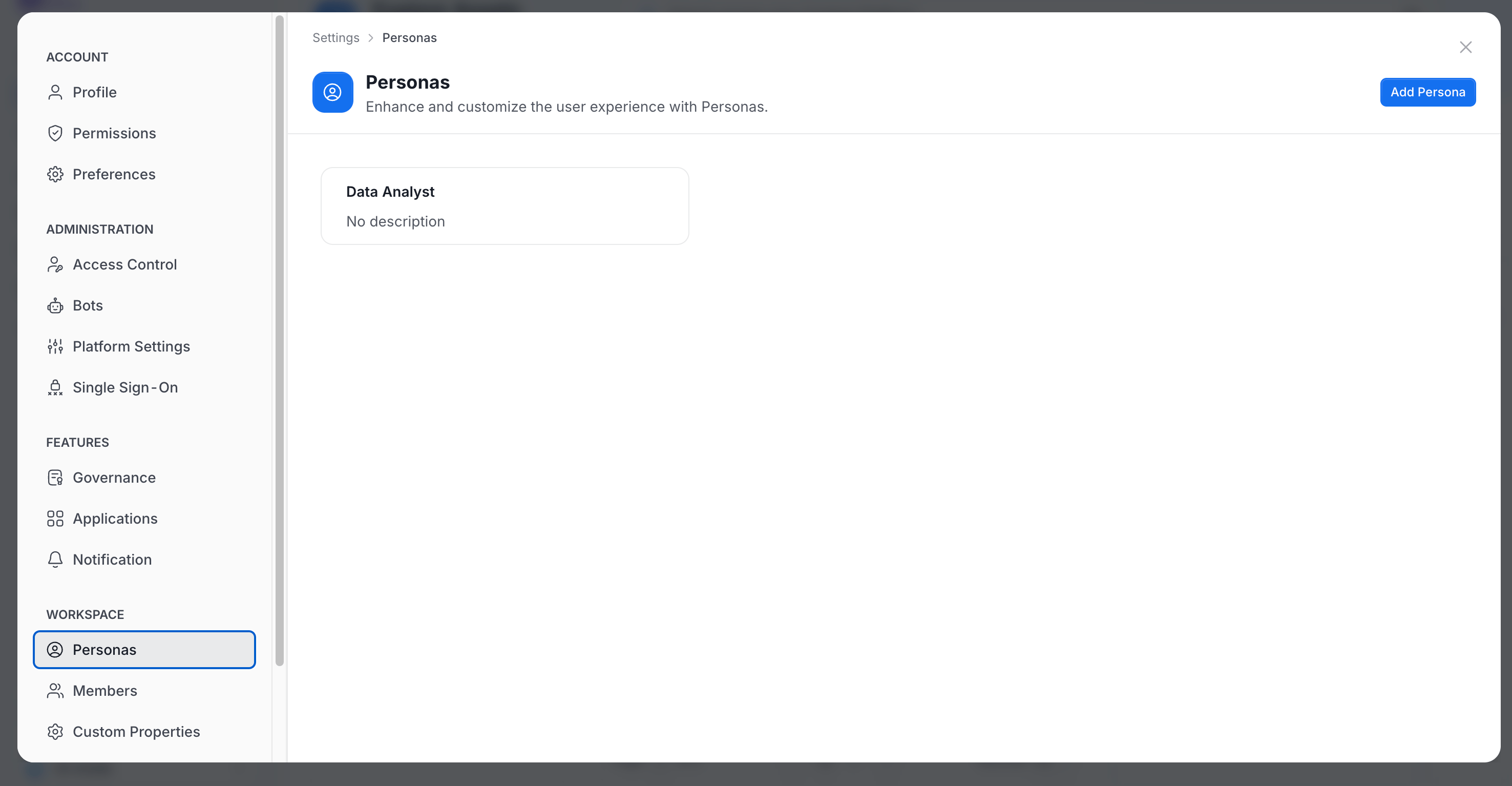
- Create a new persona or modify an existing one.
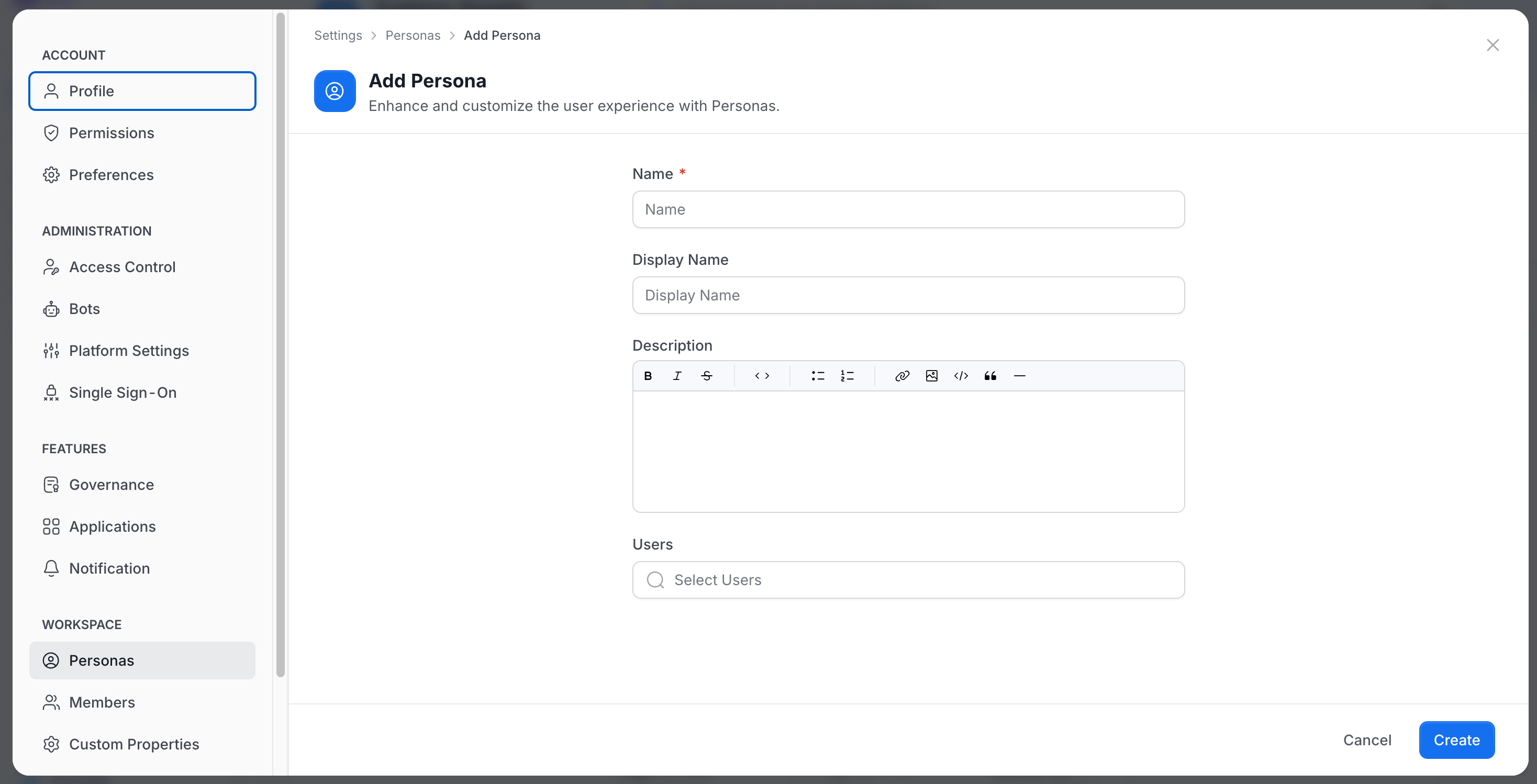
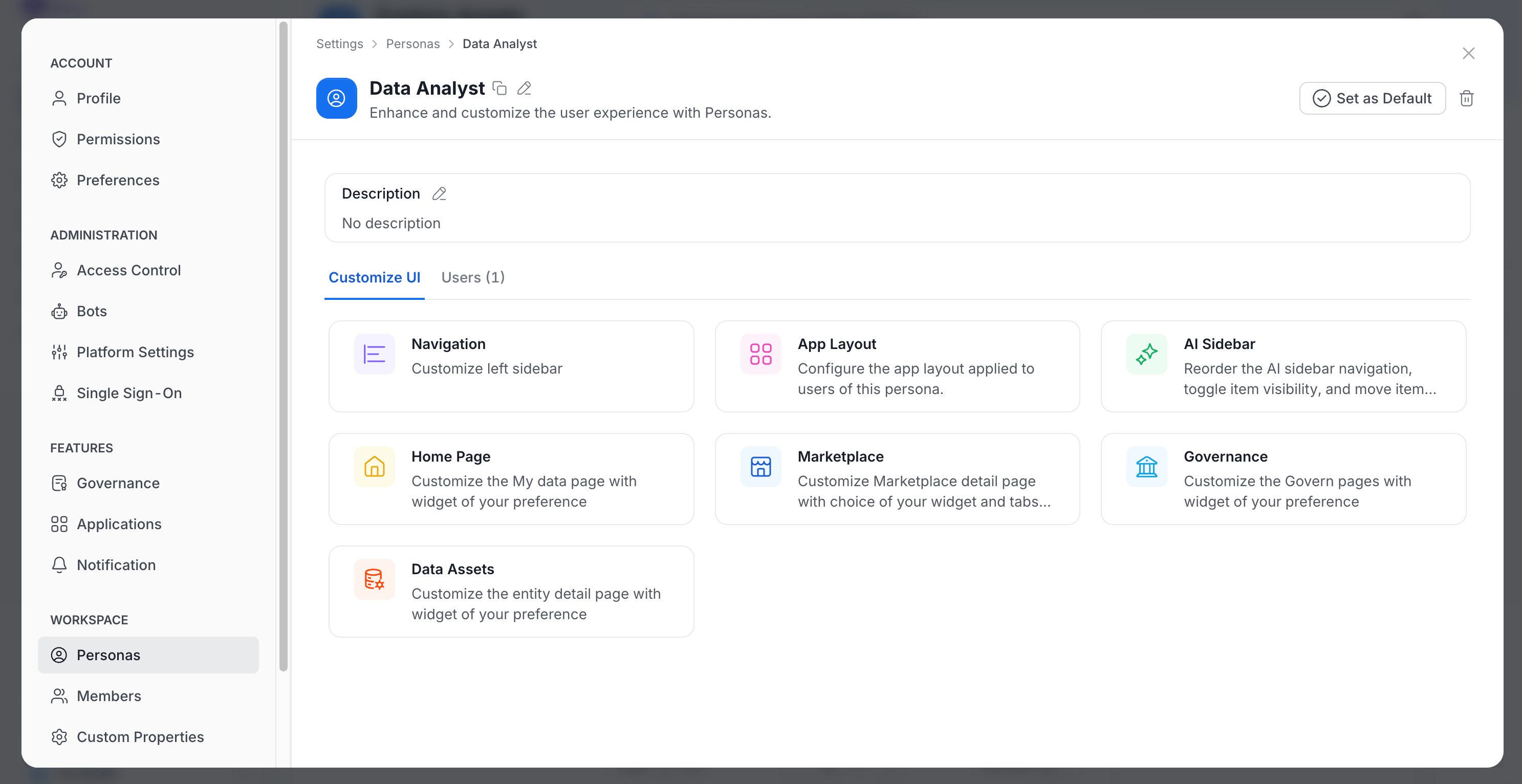
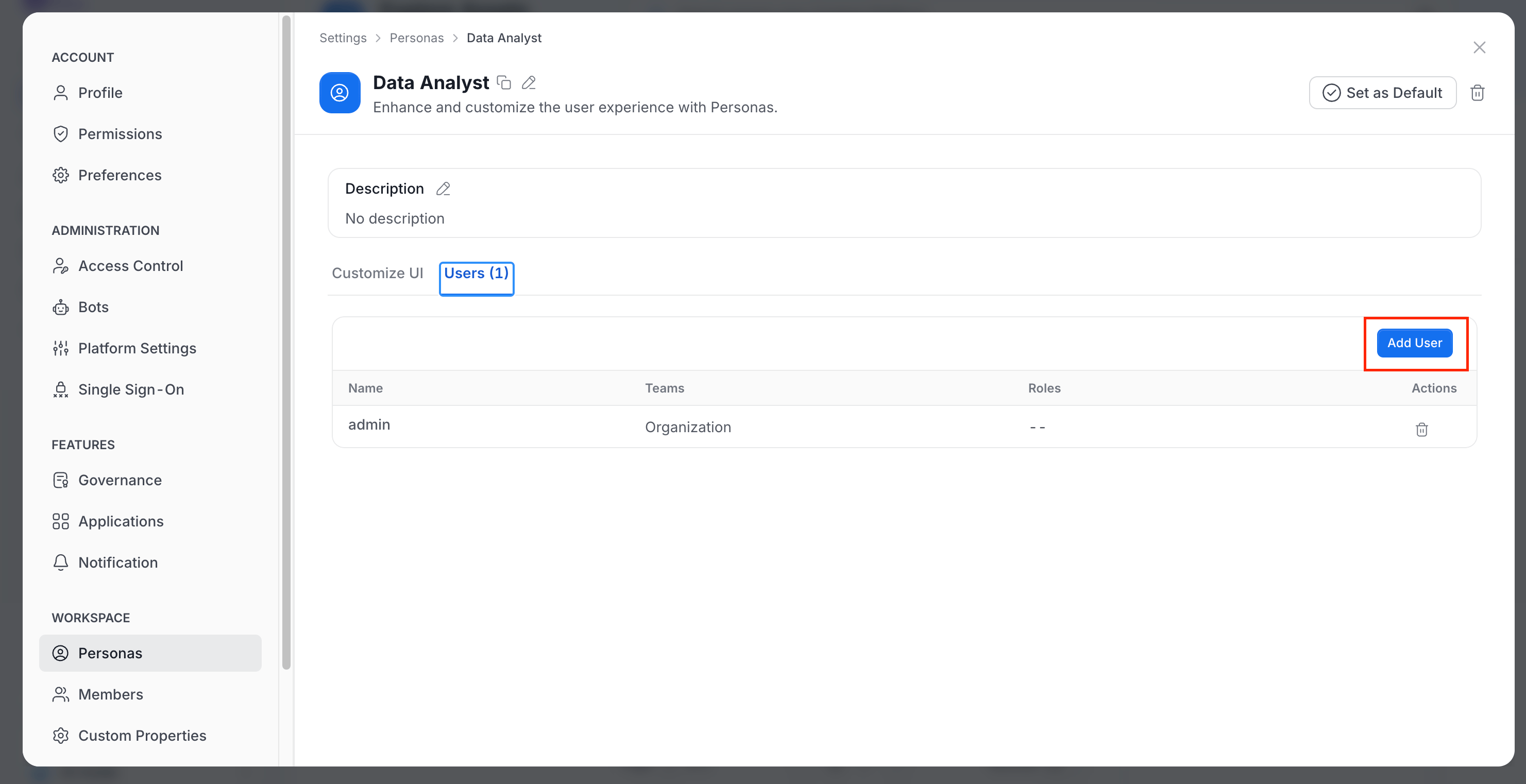
- Associate users with the appropriate persona to customize their experience based on their roles.
Manage a Persona
Select a persona in Settings > Personas to open its detail page. Only admins see Personas. The page header and tabs offer the following actions.- Copy URL: Click the copy icon next to the title to copy a link to the persona. OpenMetadata confirms with “Link copied to clipboard”.
- Rename: Click the pencil icon to change the display name. This needs the EditDescription permission.
- Edit the description: Edit the text under Description, and then save it.
- Set as Default or Remove Default: Click the button in the header to make this persona the organization default, or to remove that status. This needs the EditAll permission.
- Delete: Click the delete icon and confirm. This needs the EditAll or Delete permission.
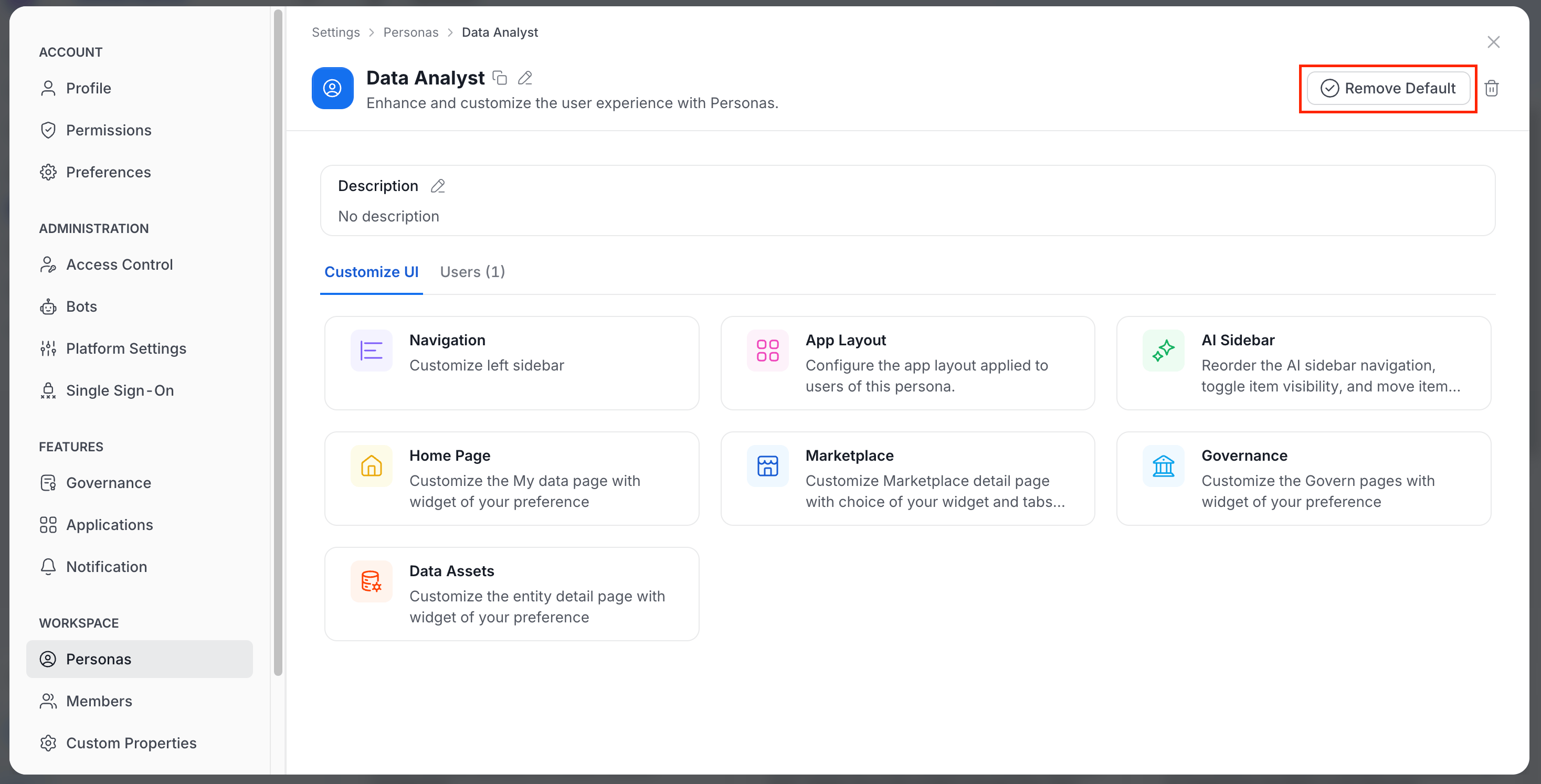
Set as Default is a button in the page header in AI mode. In Classic mode, open the ⋮ menu on the persona page and select Set as Default instead. Only one persona can be the default. Setting a new default removes the previous one for all users.
Users Tab
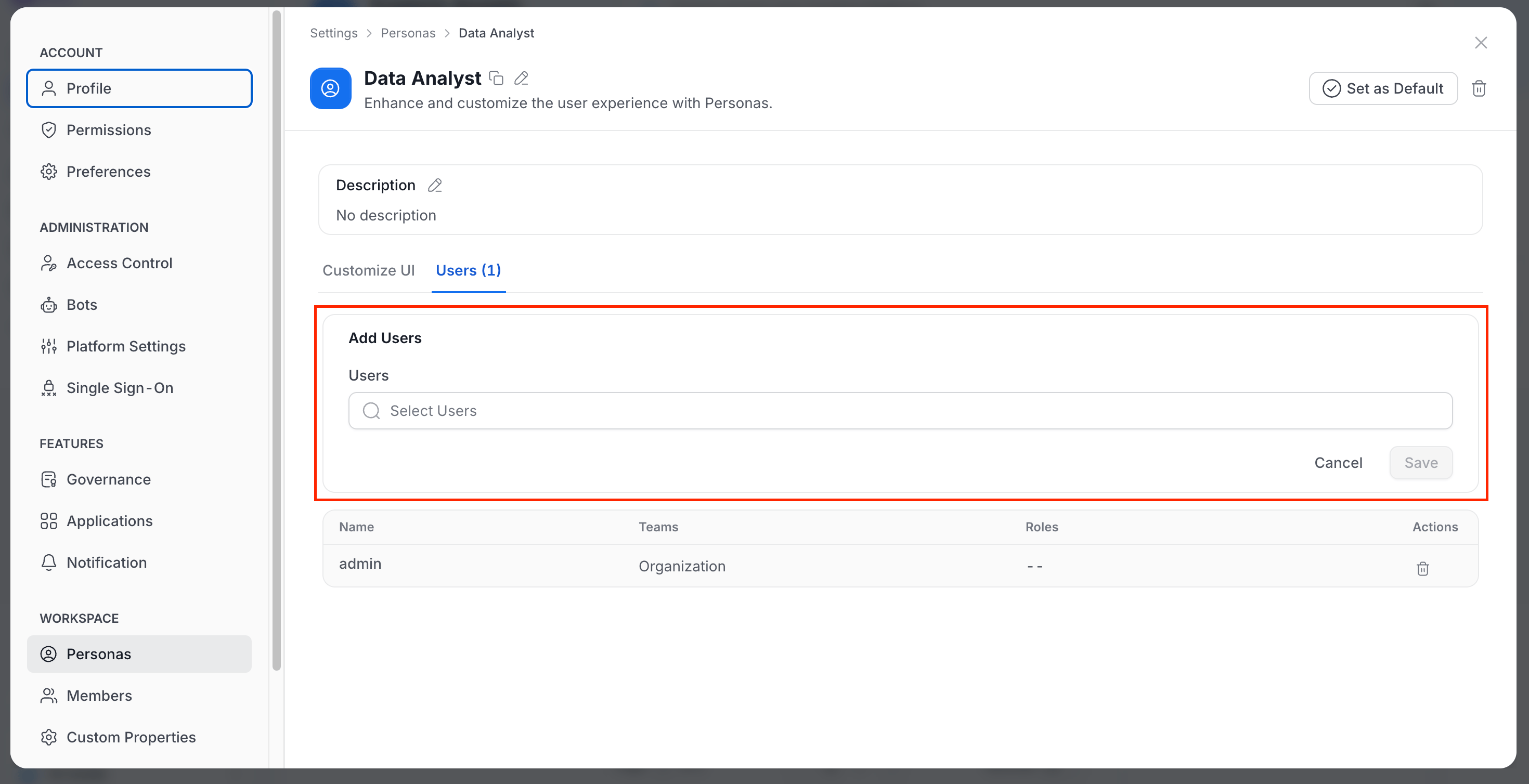
The Users tab lists the users assigned to the persona, with their teams and roles.- Click Add User, select the users in the Users field, and click Save.
- Use the remove action in a row to take a user out of the persona.