
Create a Custom Property for a Data Asset
OpenMetadata uses a schema-first approach, and that’s why we support custom properties for all types of data assets. Organizations can extend the attributes as required to capture custom metadata. You can view the Custom Properties tab in the detailed view for all types of data assets.Supported Types
Custom properties support the following types.Create a Custom Property
To create a Custom Property:-
Navigate to Settings > Custom Properties.

- Click the type of data asset you want to create a custom property for.
-
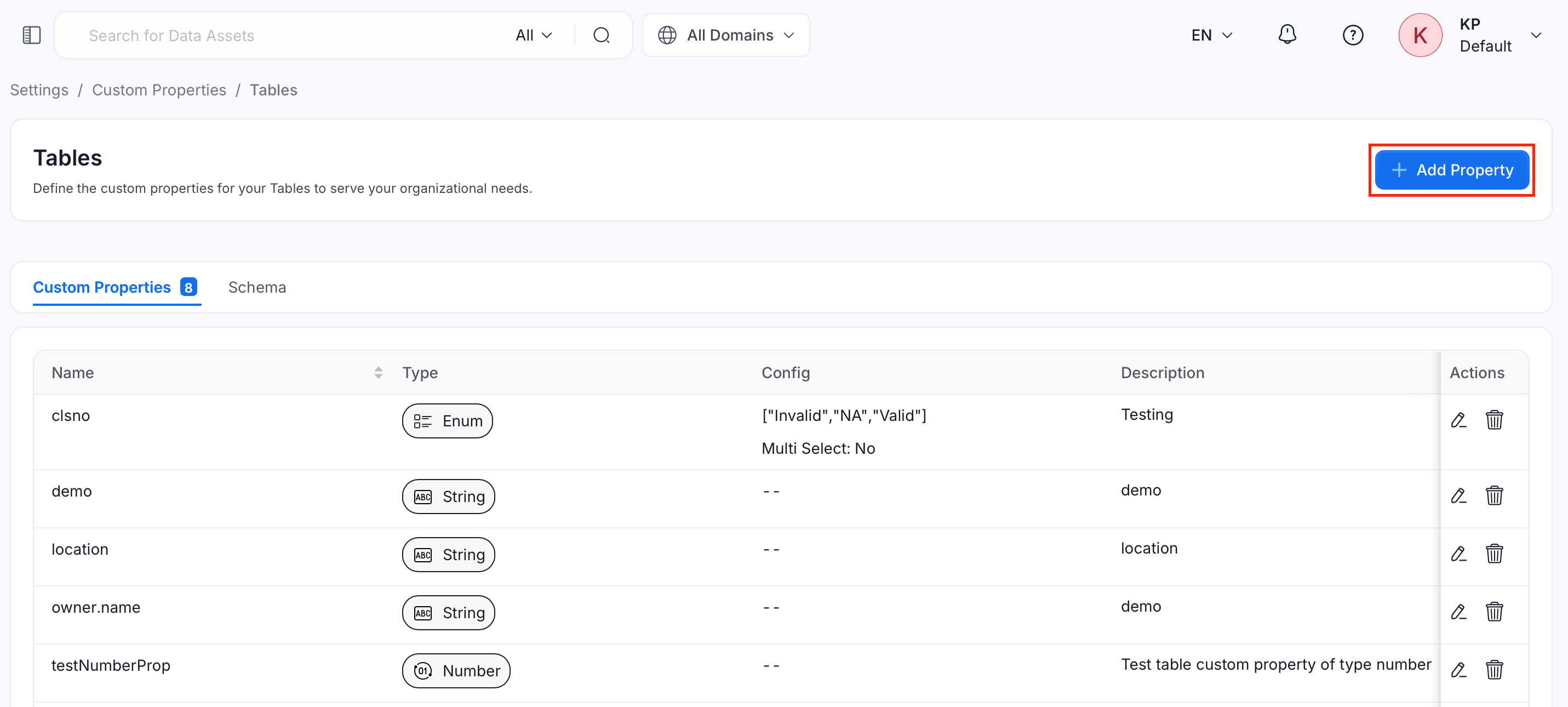
Click Add Property.
-
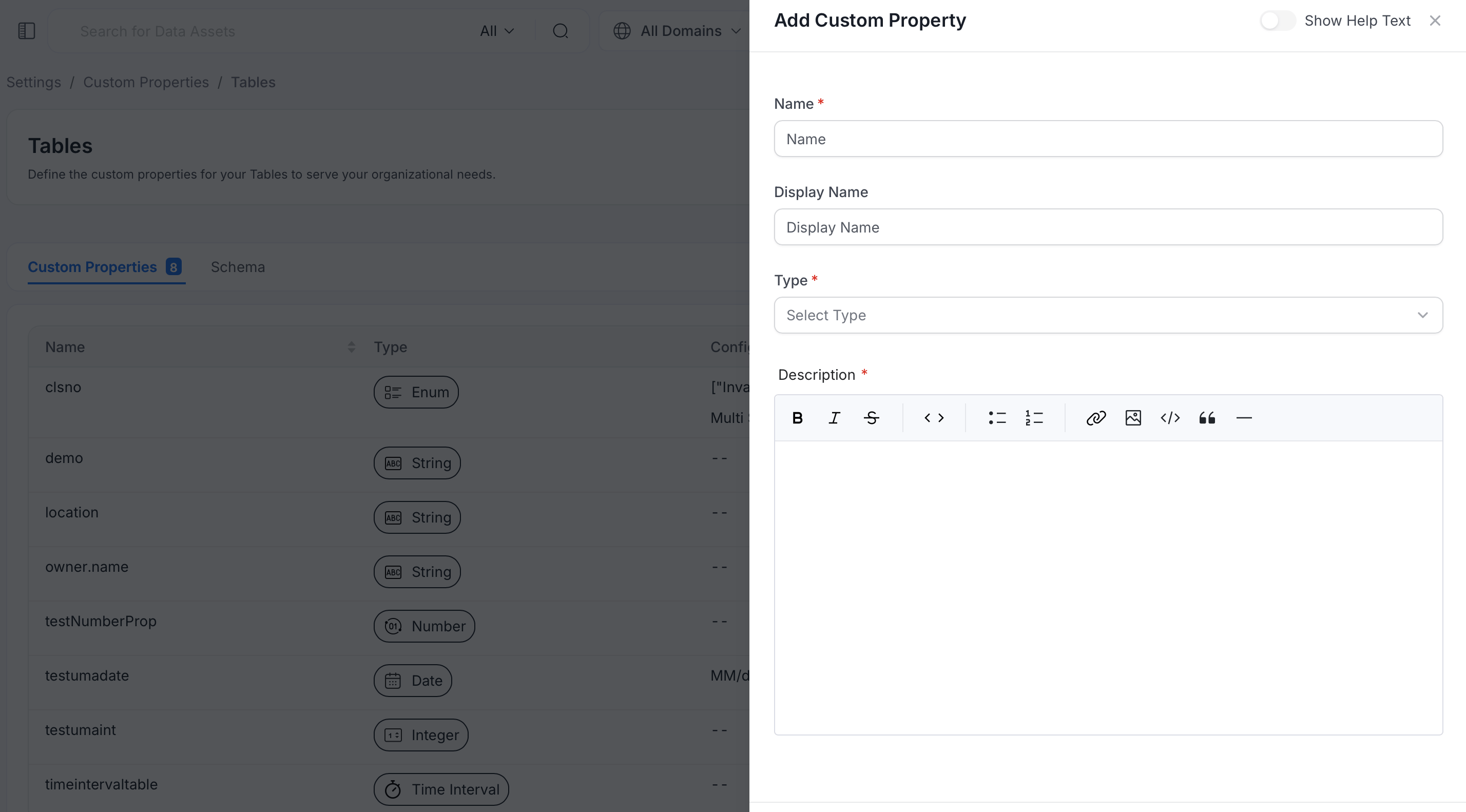
Enter the following details. Turn on Show Help Text at the top of the panel for an explanation of each field.
- Name (required): Start with a lowercase letter, preferably in camelCase. You can use uppercase letters and numbers. Spaces, underscores, and dots are not supported.
- Display Name: A friendlier label to show instead of the name.
- Type (required): Select the type of custom property, such as
entityReferenceoremail. For the full list, see Supported Types. - Description (required): Describe what the property is for, so your team knows how to use it.
- Click Create.
Add and Edit Custom Property Values
Once the custom property has been created for a type of data asset, you can add the values for the custom property from the Custom Properties tab in the detailed view of the data asset. The tab shows each property as a card.Find a Property
- Search: Type in the search box to filter the cards by name or description.
- Sort: Use the Sort dropdown to order the cards by Name, Type, or With value first.
Read a Card
Each card shows an icon for the property type, the property name, a type badge, and the description.-
No value yet: The card shows “No value yet”, an example of a valid value, and a button to add one. The button label depends on the property type, such as Add text, Add email, Add number, Add link, Add query, Add row, Choose value, Set date, Set time, or Set interval.
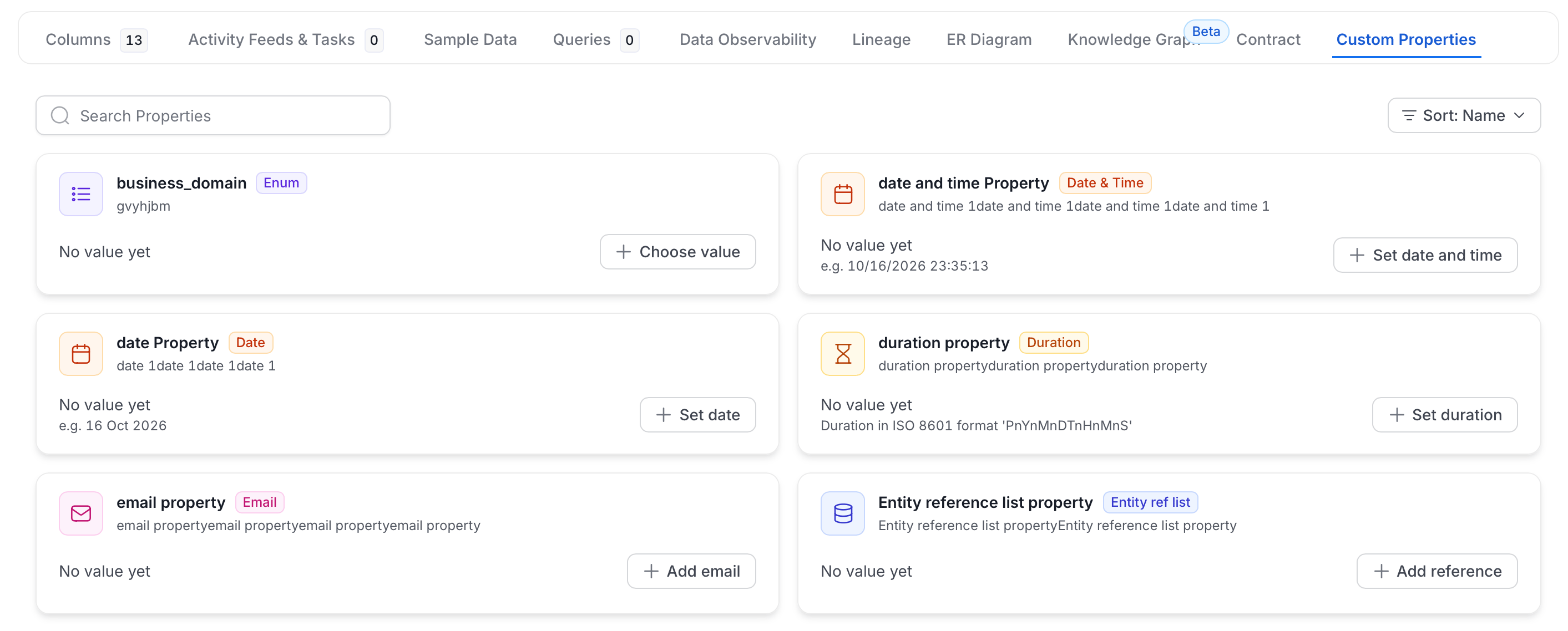
- Has a value: The card shows the value and an edit (pencil) icon.
- Long lists: Enum and Entity Reference List values show the first few items. Click +N more to see the rest, and Show less to collapse them.
Add or Edit a Value
- Click the add button on a card with no value, or the edit (pencil) icon on a card that has one.
- Enter the value in the window that opens. The editor matches the property type:
- String, Integer, Number, Email, Timestamp, Duration: A text field. OpenMetadata checks the format before you can save.
- Date, Date Time, Time: Date and time pickers. Date Time and Time values keep seconds.
- Enum and Entity Reference: A list to select from.
- Hyperlink: A URL and optional display text. Only
httpandhttpslinks are accepted. - Table: Editable rows.
- SQL Query: A code editor. Press
Cmd+Enter(macOS) orCtrl+Enterto save. - Markdown: A rich text editor.
- Time Interval: A start and end time, with quick picks, a range calendar, and manual entry. Choose Local or UTC time. The end must be after the start.
- Click Save.
You only see the add and edit controls if you have permission to edit the data asset. Other users can view the values but not change them.
Manage Custom Properties
You can edit or delete a custom property from the same page where you create it.Edit a Custom Property
- Navigate to Settings > Custom Properties.
- Click the type of data asset the property belongs to, such as Tables.
-
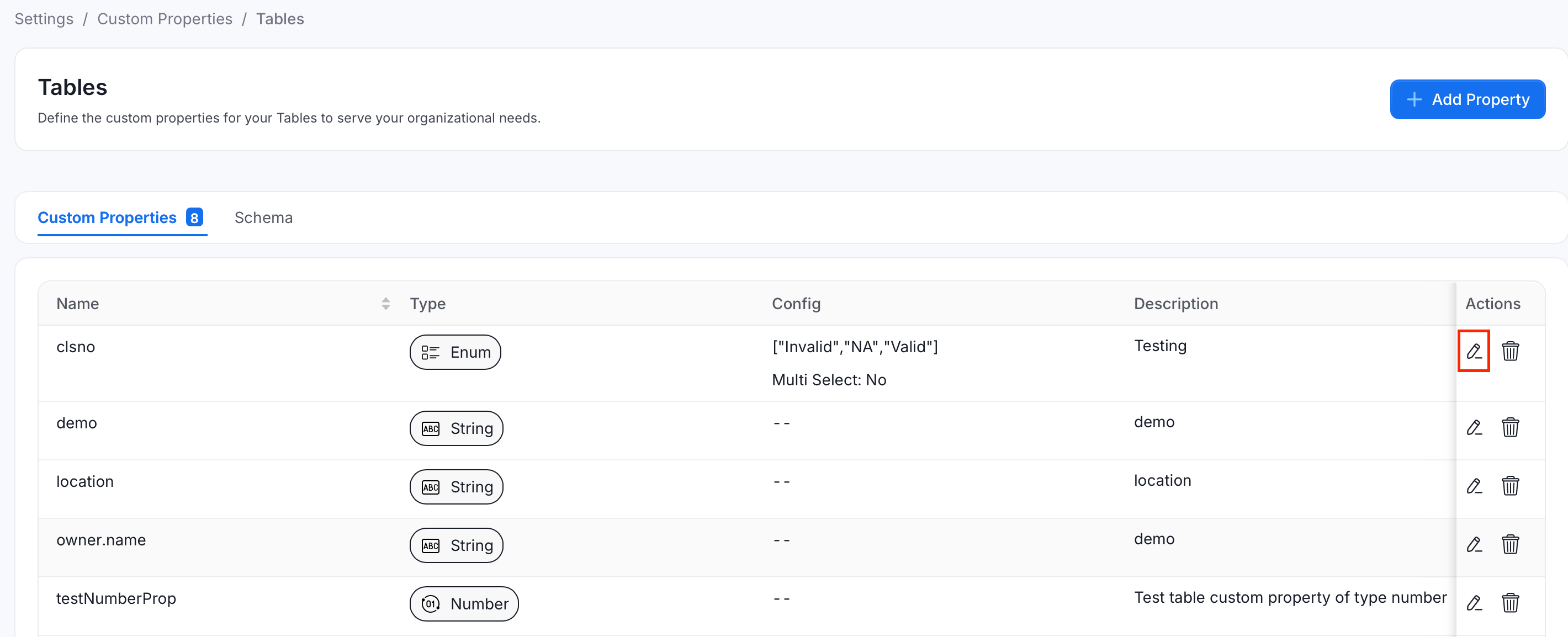
Find the property in the list and click the edit (pencil) icon in the Actions column.
-
Update the details in the Edit Property window:
- Display Name: The label shown for the property.
- Description (required): What the property is for.
- Type settings: Settings specific to the property type. For an Enum property, you can change the Enum Values and turn Multi Select on or off.
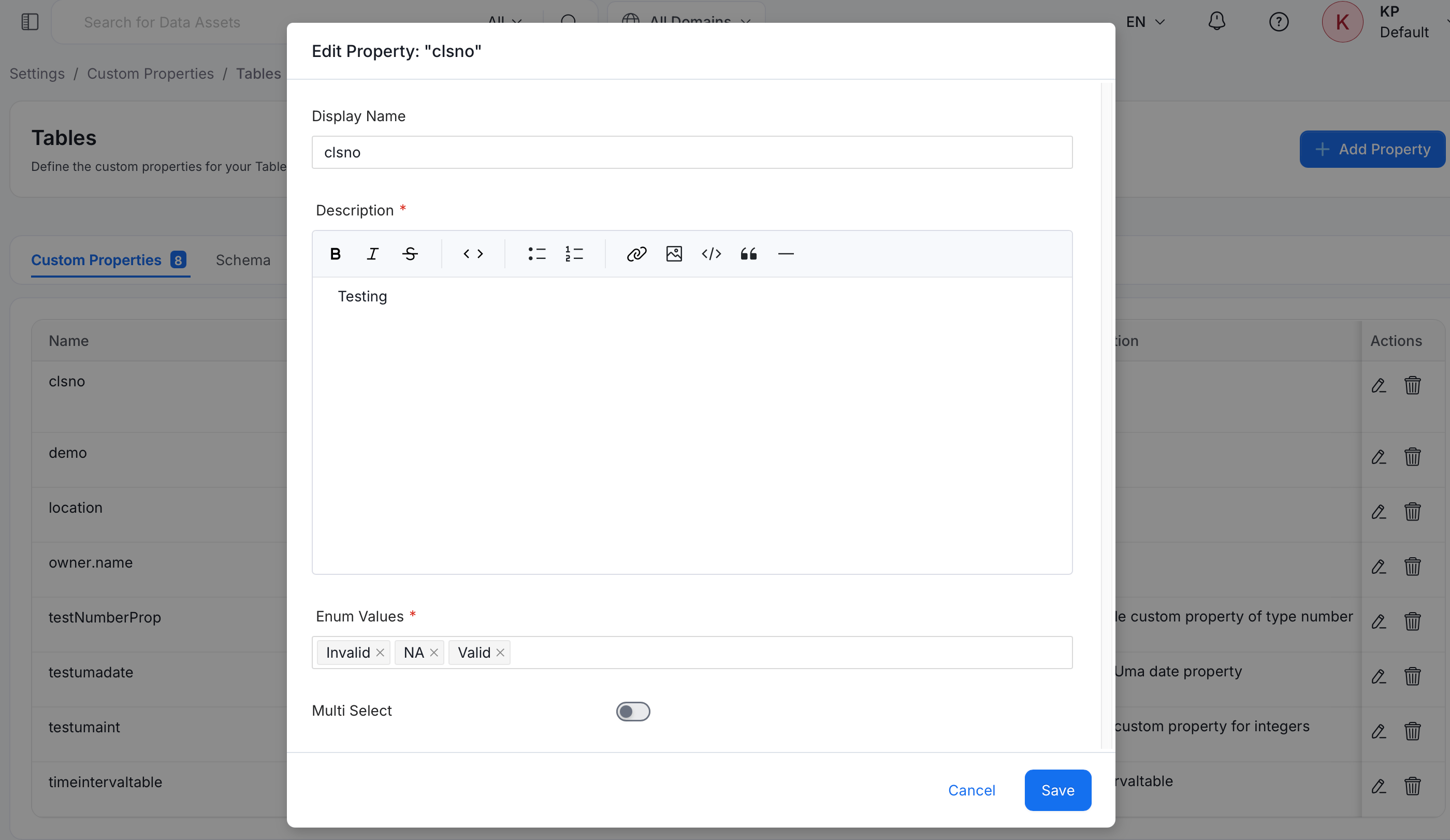
- Click Save. Click Cancel to close the window without saving.
The Edit Property window doesn’t include the name or type, so you can’t change them after you create the property.
Delete a Custom Property
- Navigate to Settings > Custom Properties.
- Click the type of data asset the property belongs to, such as Tables.
-
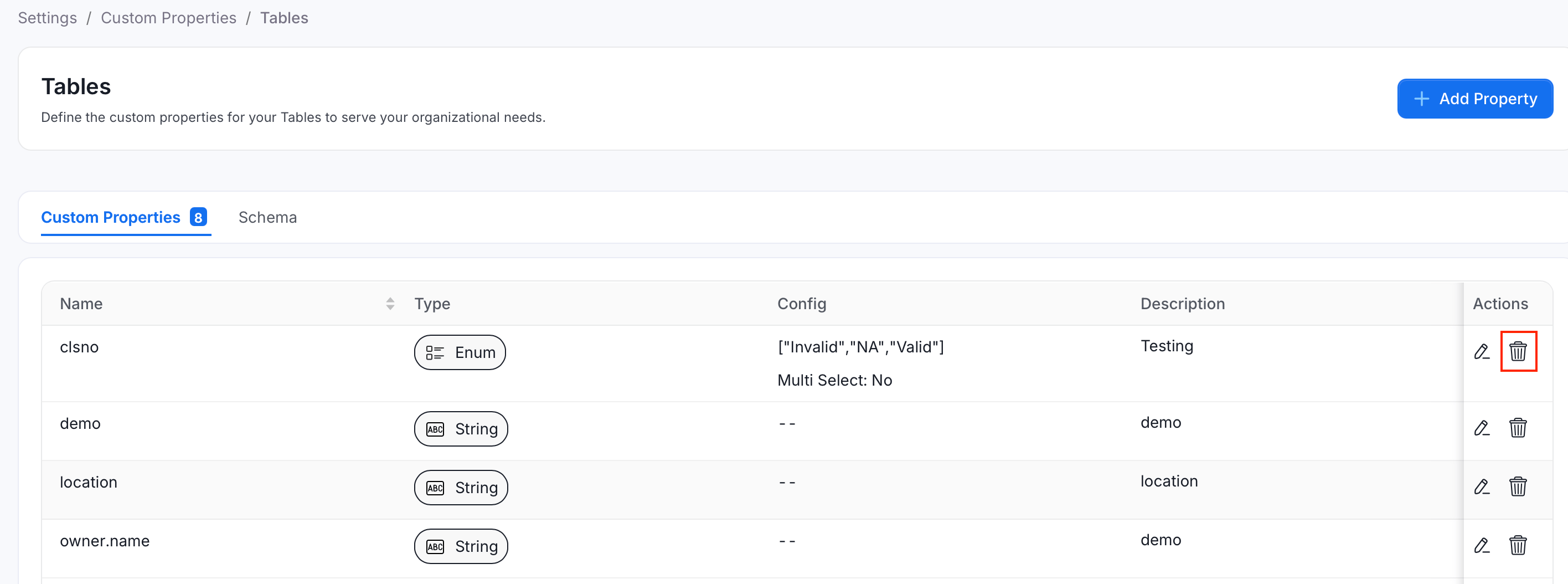
Find the property in the list and click the delete (trash can) icon in the Actions column.
-
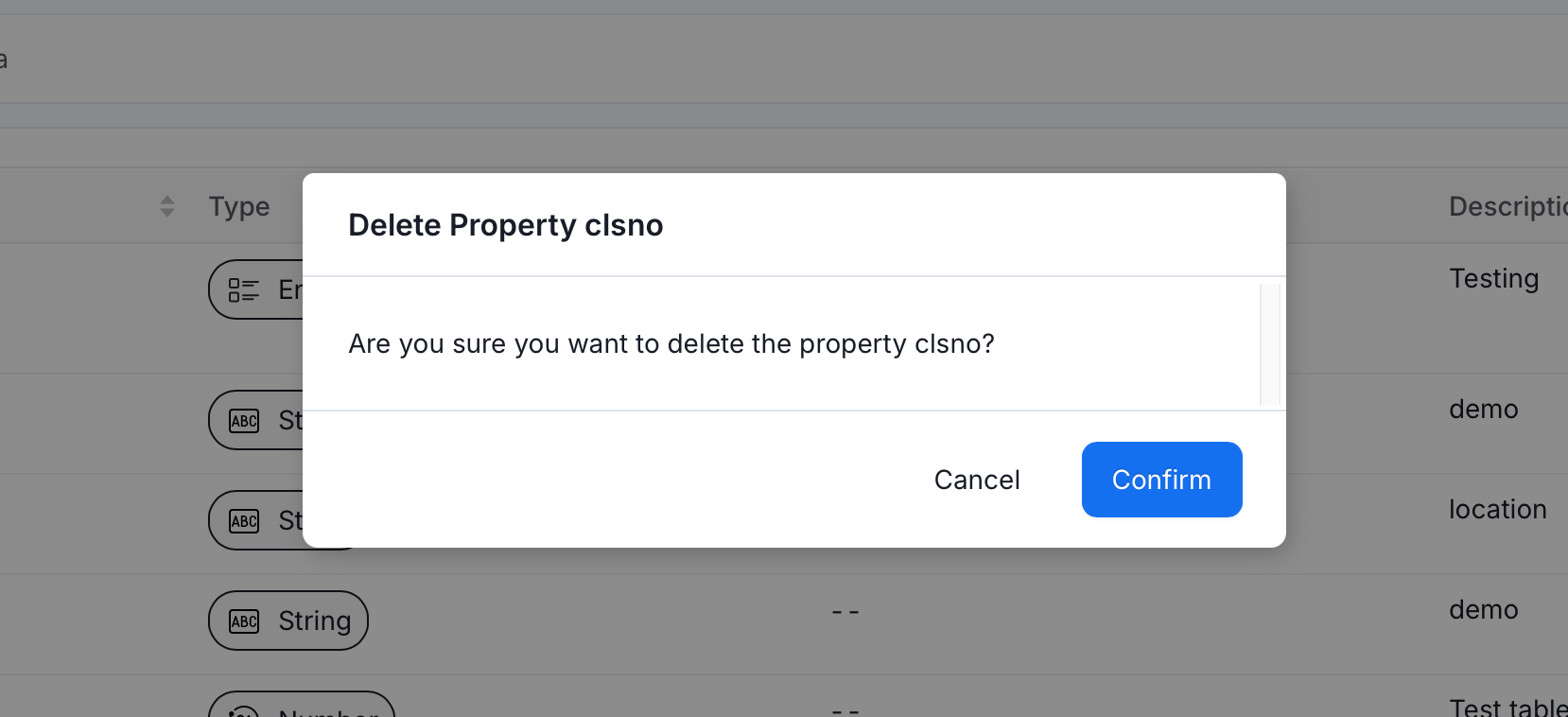
In the Delete Property window, click Confirm. Click Cancel to keep the property.
Overview of Announcements
Learn more about the announcements in OpenMetadata