
User Details
The user details view shows everything OpenMetadata knows about a single user in one place. Open it from Settings > Members > Users by selecting a user. The breadcrumb reads Settings > Members > Users > the user’s name.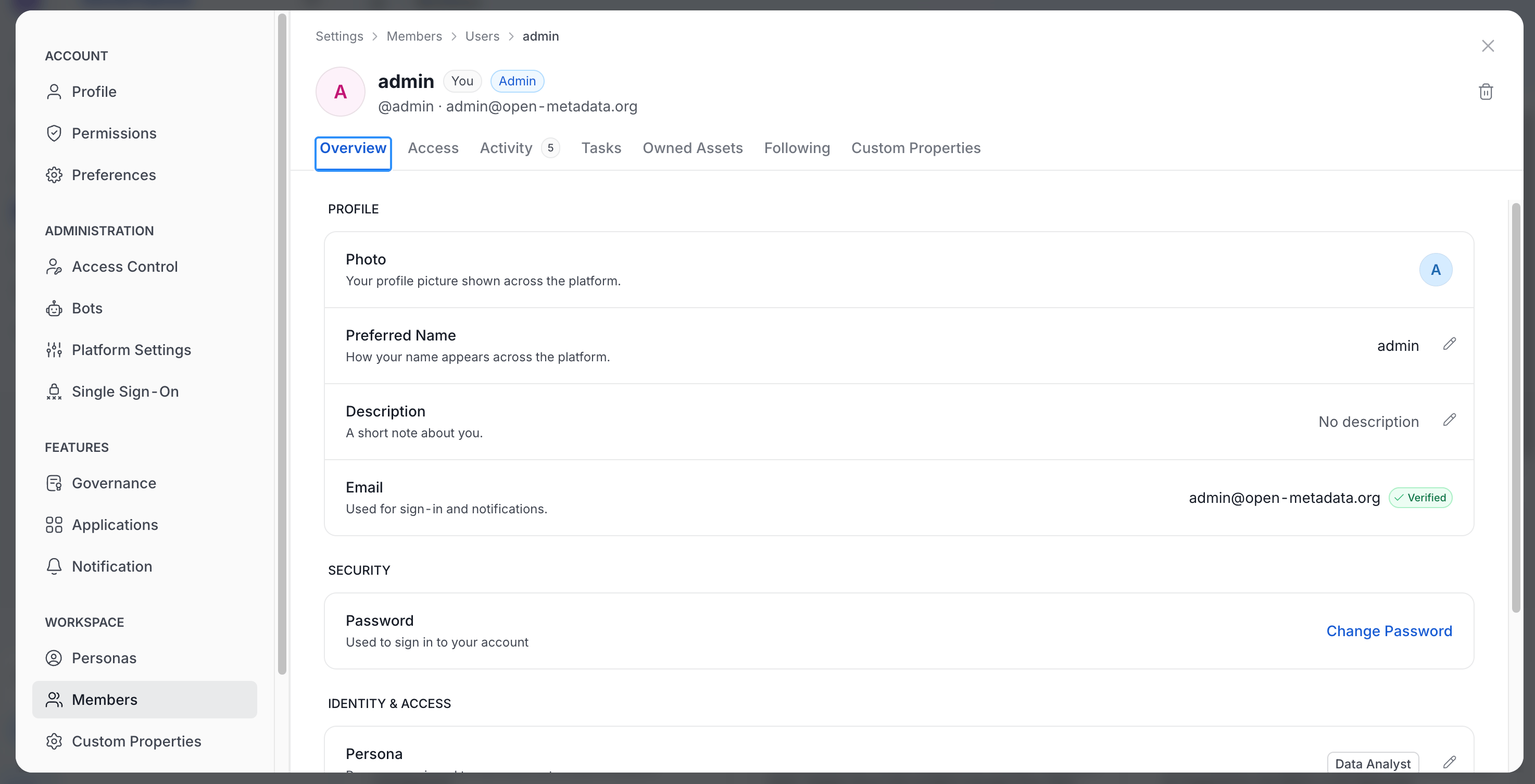
Header
The header identifies the user and shows their status. It contains:- Avatar and name: The user’s profile picture and display name.
- Badges: You on your own profile, Admin for administrators, Bot for bot accounts, and Deleted for deleted users. Bots never show the Admin badge.
- Activity badge: Online now or Active recently shows how recently the user was active. OpenMetadata hides the badge when the user has been inactive for more than an hour, and for bots.
- Username and email: Shown as
@usernamefollowed by the email address. OpenMetadata hides the email when it is masked. - Delete icon: Appears only if you have the Delete permission. For a deleted user, the icon is labeled Delete permanently.
Tabs
Tabs with items show a count badge. A count of zero is hidden.Overview
The Overview tab groups the user’s details into sections. A pencil icon next to a value edits it, if you have permission.- Profile: Photo, Preferred Name, Description, and Email. The email shows a Verified badge when OpenMetadata has verified it.
- Security: Change Password. For more information, see Change a User’s Password.
- Identity & Access: Persona, Default Persona, and Domains.
Access
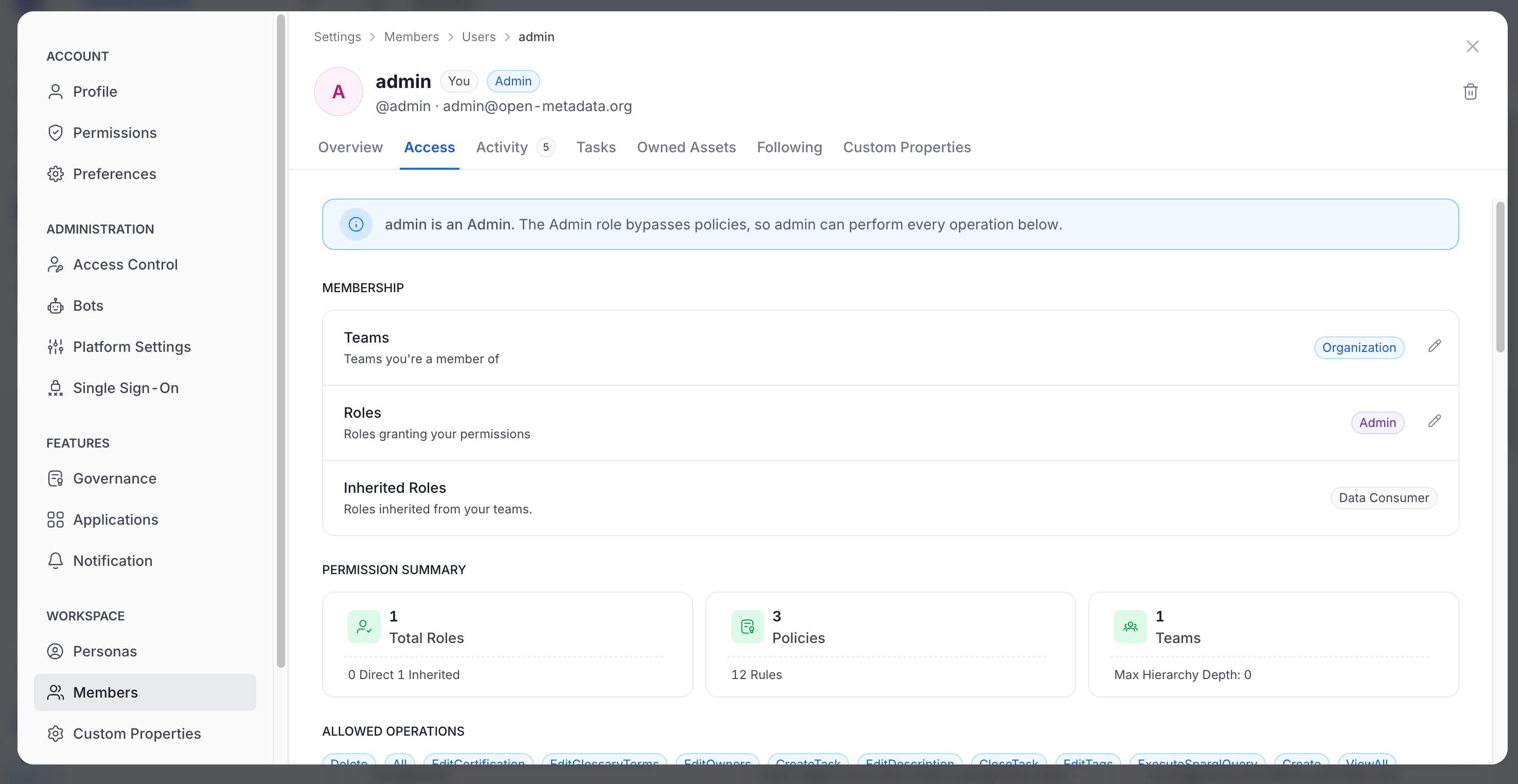
The Access tab shows how the user gets their permissions.- Banner: For an administrator, a banner explains that the Admin role bypasses policies, so the user can perform every operation.
- Membership: Teams, Roles, and Inherited Roles.
- Permission Summary: Cards for Total Roles, Policies, and Teams.
- Direct Roles: The roles assigned directly to the user.
Tasks
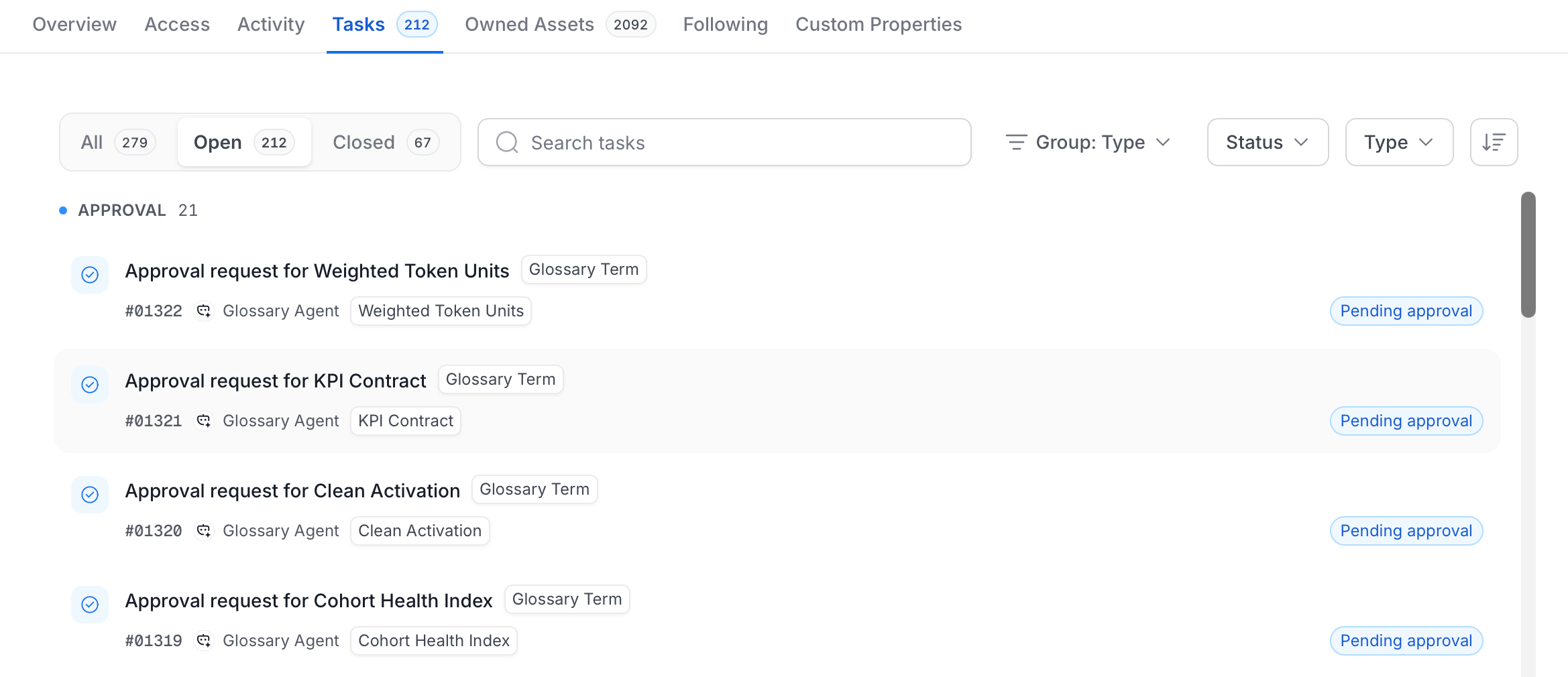
The Tasks tab lists the user’s tasks. Select a task to open it as a full page. The breadcrumb ends with the task ID.- All, Open, and Closed: Switch between task states.
- Search tasks: Find a task by name.
- Group, Status, and Type: Group the list and filter by status or task type.
Owned Assets and Following
These tabs list assets in the same card layout. Use the controls to narrow the list:- Search assets: Enter text to find an asset by name.
- Type: Filter the list by asset type.
Custom Properties
The tab lists one row for each custom property defined for users. For more information, see Set a Value on a User.Change a User’s Password
The Security section on the Overview tab includes a Change Password option. OpenMetadata offers it only when all of these conditions are true:- The user is active, not deleted, and not a bot.
- The user signs in with Basic authentication.
- You are viewing your own profile, or you are an admin.
Permissions
What you can do in the user details view depends on your permissions:- EditAll on the user: Edit the display name, description, persona, and teams.
- Delete: Delete the user.
- Admin only: Assign roles, set the admin flag, and change a user’s domains.
Error States
These messages can appear when OpenMetadata can’t load a user.- No User found: The user doesn’t exist.
- Something went wrong: OpenMetadata couldn’t load the user. Select Reload to try again.