
Ontology Releases
Editing an ontology doesn’t change what other users see. Edits collect as unpublished changes on the working Draft. Publishing turns them into a release: a frozen, numbered snapshot that can’t change afterward. Only one release is Active at a time. The active release is what users without edit permission read and query, and what the knowledge graph uses. How a release goes live depends on whether the ontology has reviewers:- No reviewers: An author or owner clicks Publish, and the release goes live immediately. The release is recorded as published without review.
- One or more reviewers: The author clicks Request review. Reviewers approve or reject the release in the Tasks drawer. After approval, an author or owner clicks Publish to make the release live.
Open the Review & Publish Dialog
Click Publish in the Studio header. The number in parentheses, as in Publish (15), shows how many changes are waiting.- With one ontology selected, Publish opens the Review & publish dialog for that ontology.
- With All ontologies selected, the button reads Review & publish and is disabled. Choose an ontology first.
The Changes Tab
The Changes tab lists the unpublished changes and is where you publish a release or request a review.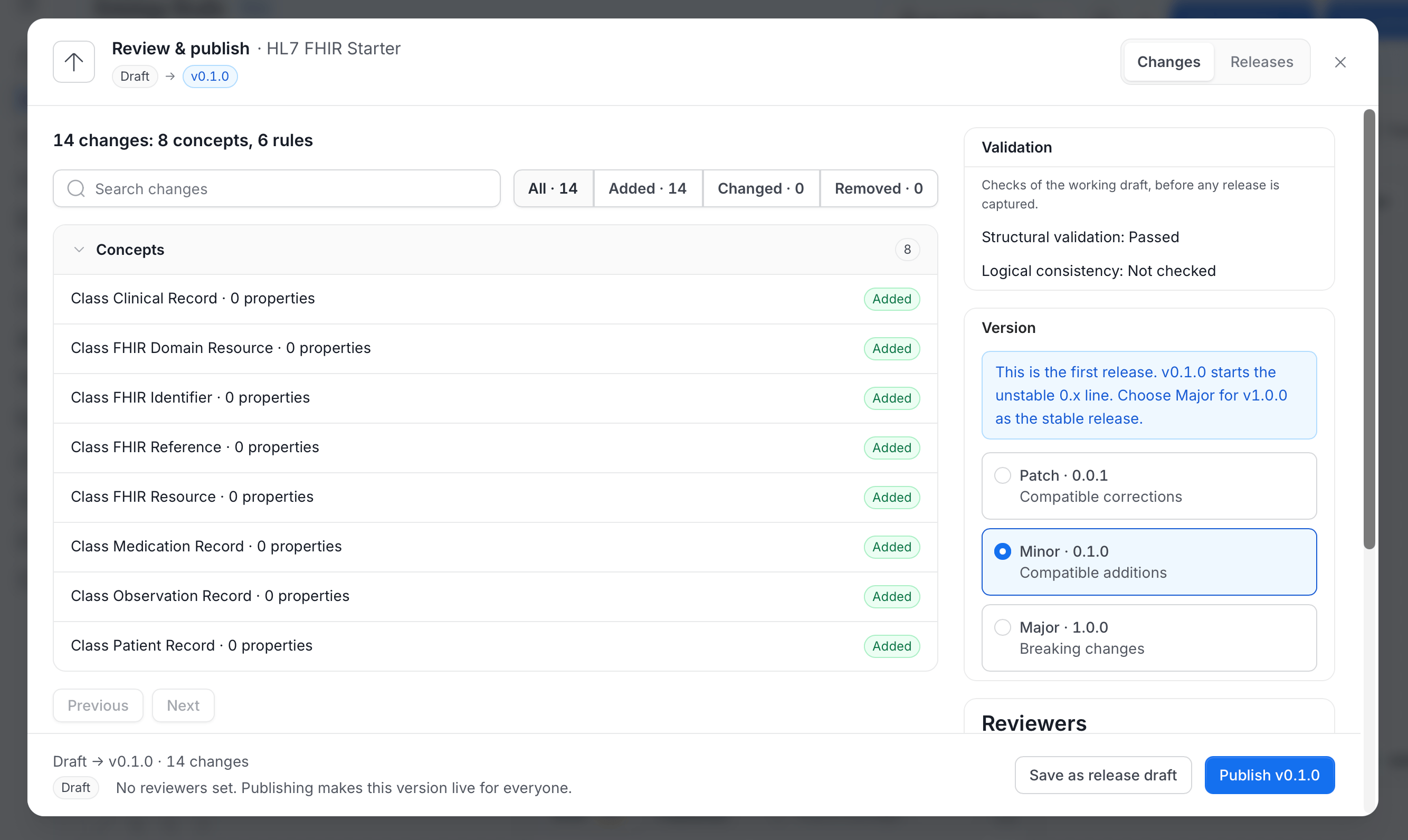
Review the Changes
The summary line, for example “14 changes: 8 concepts, 6 rules”, shows how much changed. Below it:- Search changes: Filters the list by name.
- All, Added, Changed, and Removed: Filter by type of change. Each shows its count.
- Change cards: Changes are grouped under Concepts, Properties, Relationships, Rules, and Ontology settings. Each row shows the item, for example “Class Clinical Record · 0 properties”, and whether it was Added, Changed, or Removed.
- Previous and Next: Page through the list.
Check Validation
The Validation panel checks the working draft before any release is captured:- Structural validation: Whether the ontology is well formed. It reads Passed or Failed. A failure blocks publishing, with the message “Fix these to publish.”
- Logical consistency: Not checked. Studio checks that the ontology is well formed, but it doesn’t prove that the rules are free of contradictions.
- SHACL validation: The number of violations and warnings found by the built-in ontology shapes. This check doesn’t need a triple store.
- Deprecation impact: The bound assets, subclasses, and properties that still use a deprecated concept.
Choose a Version
The Version panel offers three increments. It shows the resulting number next to each choice.
Studio preselects an increment from your changes: removals suggest Major, additions suggest Minor, and edits suggest Patch. Choose a different one if needed. Studio bases the new version on the active release.
For the first release, Minor is preselected and gives
v0.1.0. A note explains that v0.1.0 starts the unstable 0.x line, and that Major gives v1.0.0 as the stable release.
Set Reviewers
The Reviewers panel lists the people who will review the release. It appears when the ontology has reviewers.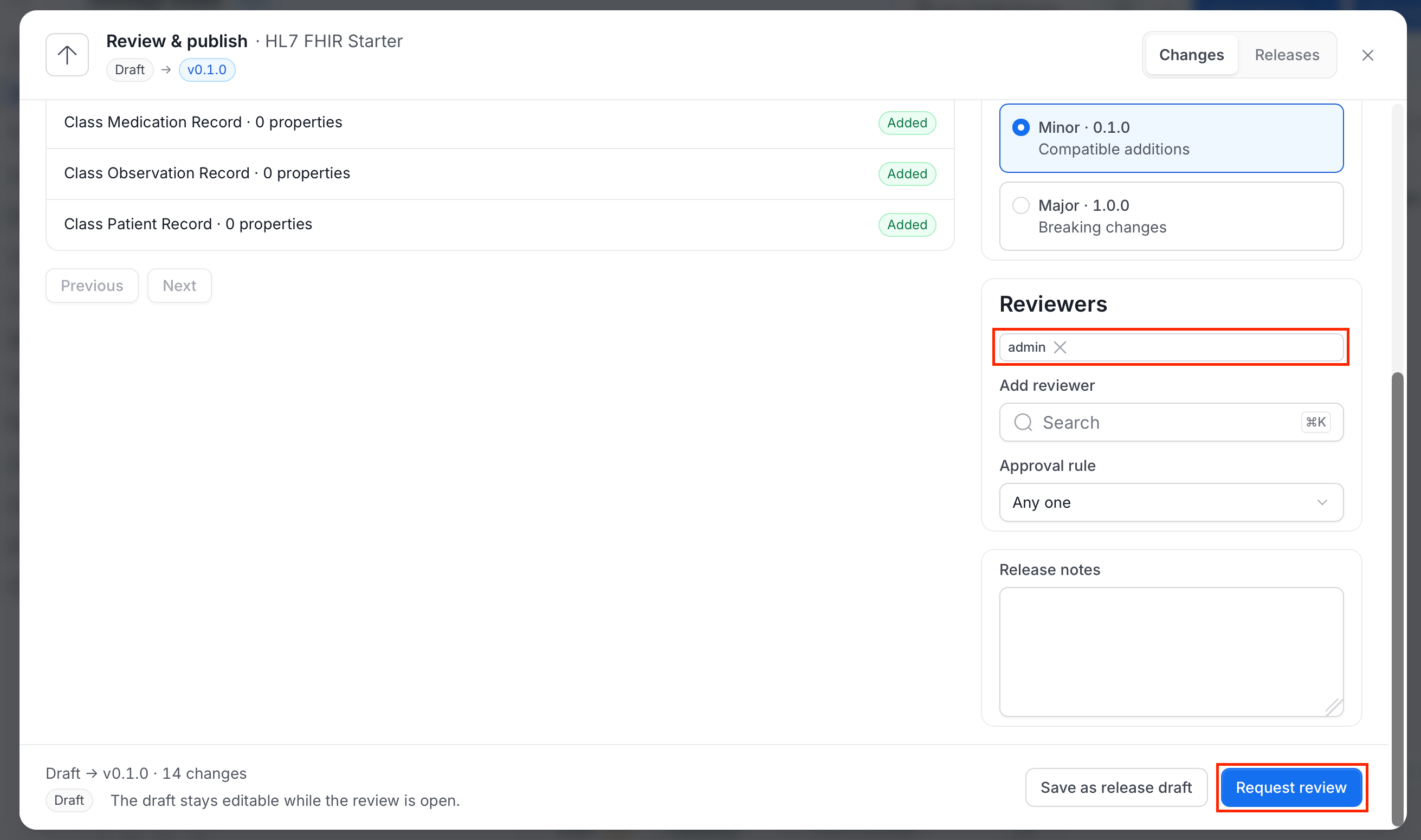
- Reviewers: The current reviewers appear as chips. Click the x on a chip to remove one.
- Add reviewer: Search for a user or team to add.
- Approval rule: Choose how many reviewers must approve.
- Any one: One approval is enough.
- All: Every reviewer must approve.
Add Release Notes
Use Release notes to explain what changed, up to 16,384 characters. The notes are kept with the release.Publish or Request Review
The footer shows the version path and the number of changes, for example “Draft → v0.1.0 · 14 changes”, with a status message. Which buttons you see depends on the ontology’s reviewers and the state of the release.
Save as release draft is available in each case. It saves the version as a release in Draft status without publishing or requesting review. If nothing changed since the saved draft, Studio tells you it is the same draft.
Withdrawing a request returns the release to Draft.
The Tasks Drawer
Review requests appear in the Tasks drawer. Click Tasks in the Studio header to open it. The badge shows your open tasks.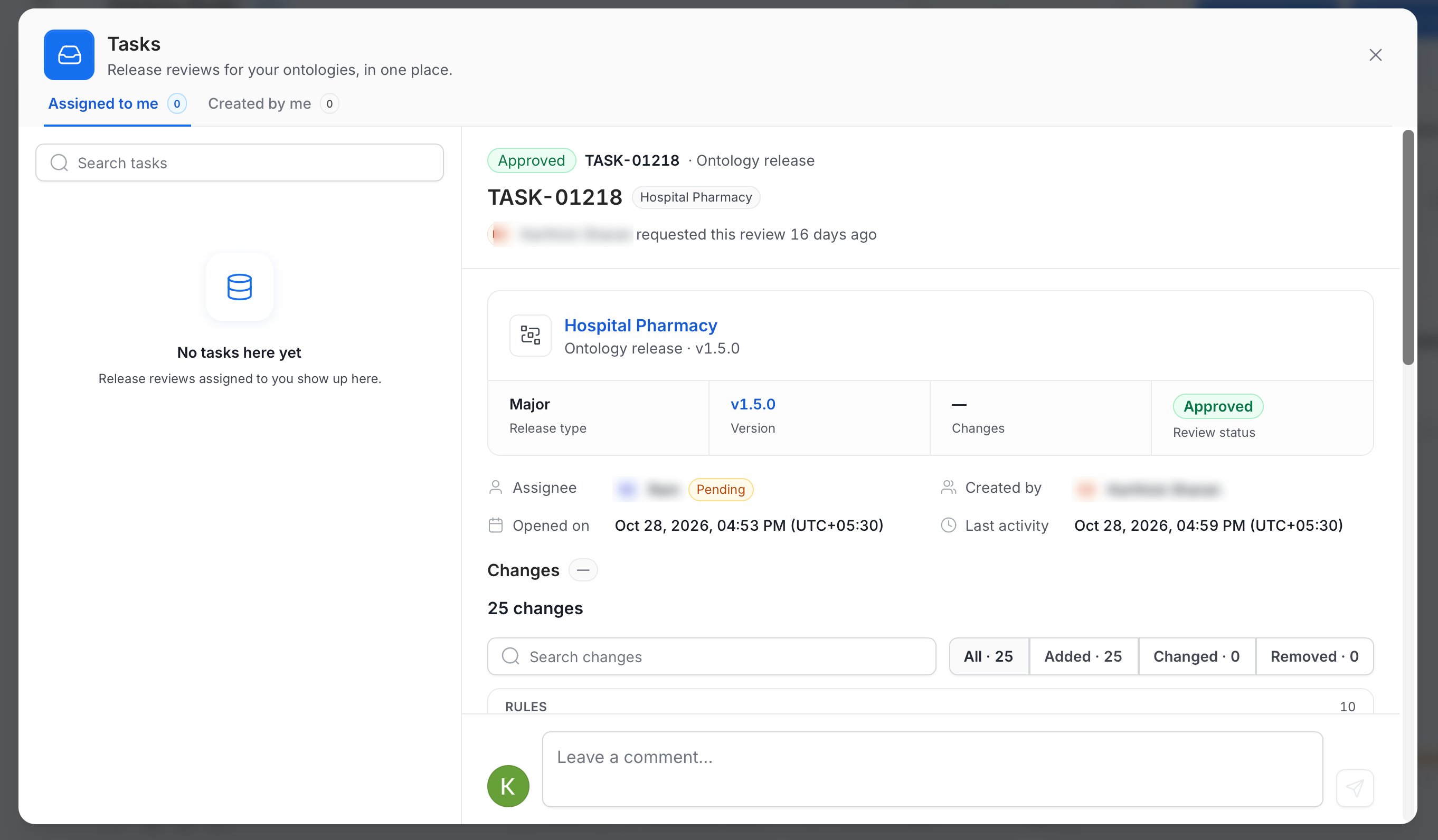
- Assigned to me: Review requests where you are a reviewer.
- Created by me: Review requests you submitted.
- Task header: The review status, the task ID such as
TASK-01218, the ontology name, and who requested the review and when. - Release summary: The release type, version, number of changes, and review status.
- People and dates: The Assignee with their status, Created by, Opened on, and Last activity.
- Changes: The same searchable change list as in the Changes tab.
- Comments: A comment thread. Type in Leave a comment… and send.
- Approve: Records your approval. With the approval rule set to All, the release is approved when every reviewer approves.
- Approve & publish: Appears when you are also allowed to publish. It approves the release and makes it active in one step.
- Reject: Asks for a reason, then returns the release to the author with the reviewer’s reason.
The Releases Tab
The Releases tab lists every release of the ontology, newest first.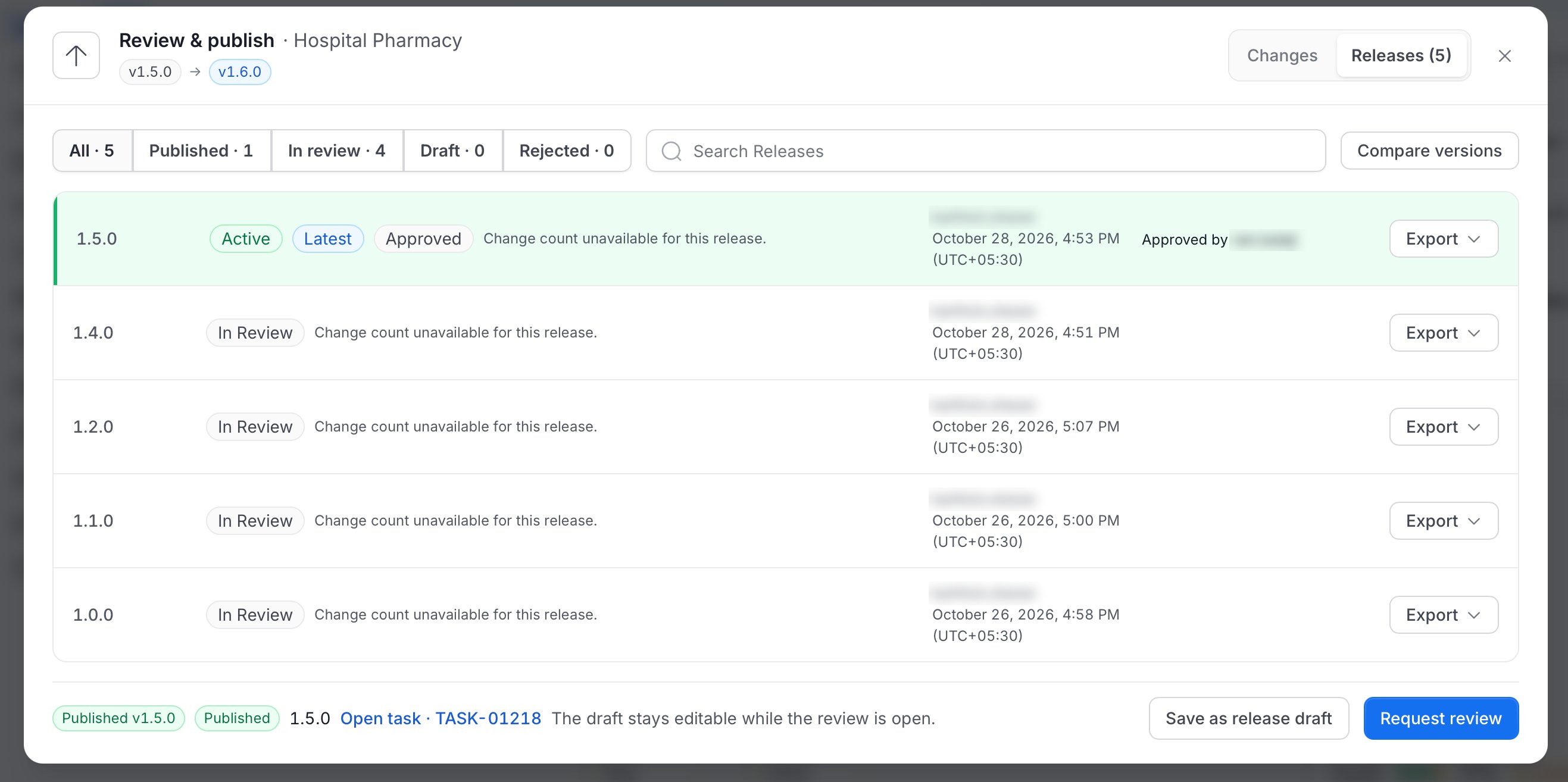
- Filters: All, Published, In review, Draft, and Rejected, each with its count. Rejected lists releases where a reviewer asked for changes.
- Search Releases: Filters by version or name.
- Compare versions: Choose a From version and a To version to see what changed between two releases.
- The version, for example
1.5.0. - Badges for Active and Latest, and the release status.
- A summary of the changes, or “Change count unavailable for this release.” for releases created before change counts were recorded.
- Who created the release and when.
- Who approved it, for example “Approved by ram.balaji”.
- An Export menu for that release.
Release Statuses
A release moves through the following statuses.Release Details
Click a release to see its details.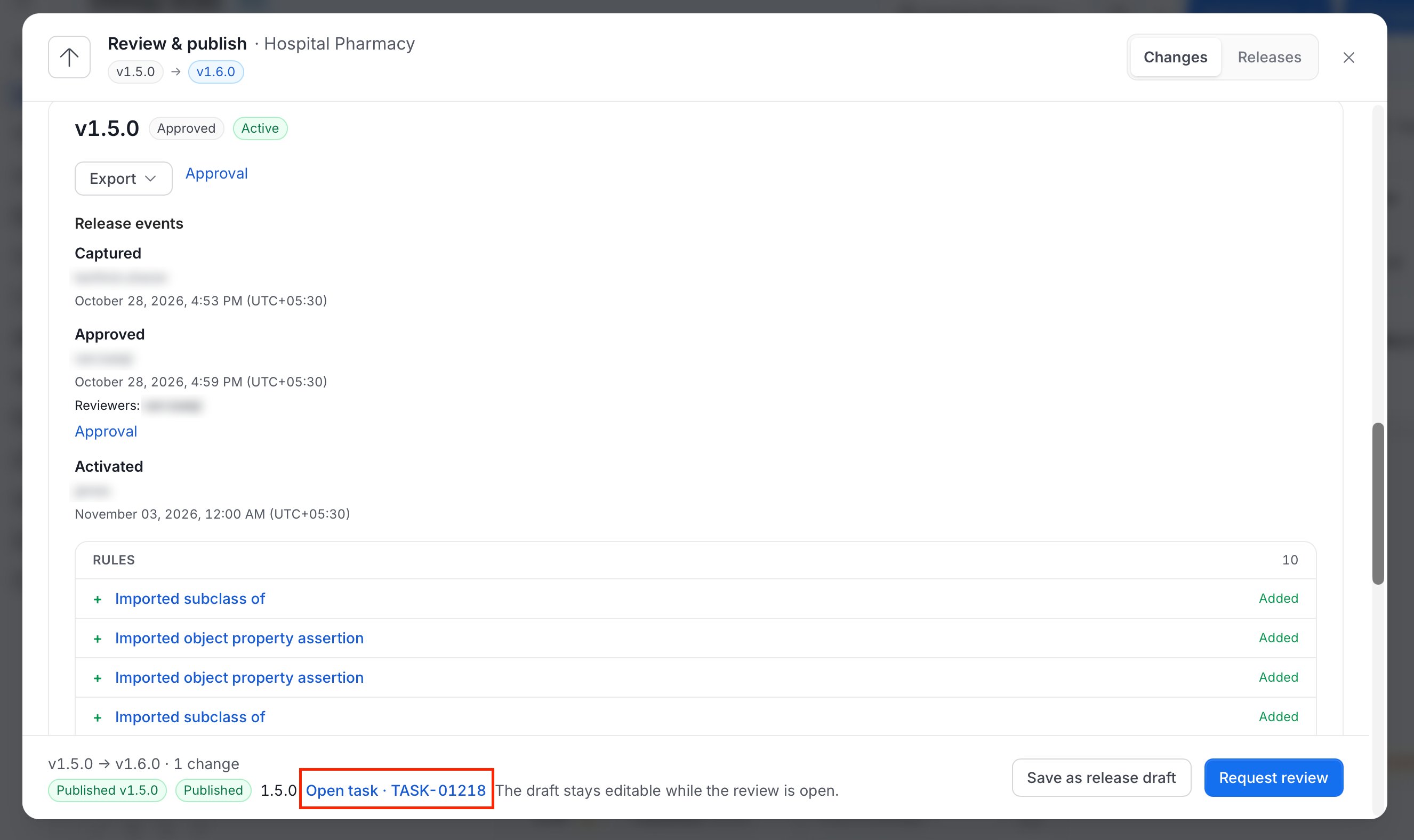
- Version and badges: The version with its status, for example Approved and Active.
- Export: Download the release. For more information, see Export a Release.
- Approval: A link to the release’s review task.
- Release events: A log of what happened to the release, with who did it and when. Events include Captured, Review requested, Review withdrawn, Approved, Rejected, and Activated. Approved events list the reviewers.
- Changes: The items in the release, grouped by type, with a before and after view of each item’s definition.
Activate and Roll Back
Publishing a release makes it the active one. To go back to an earlier version, open an older Approved release and click Activate release, or click Roll back to , and confirm. The newer releases stay in the list and can be activated again. Activation queues an update to the RDF knowledge graph in the background.Export a Release
Every row in the Releases tab has an Export menu, to download any release, not only the active one.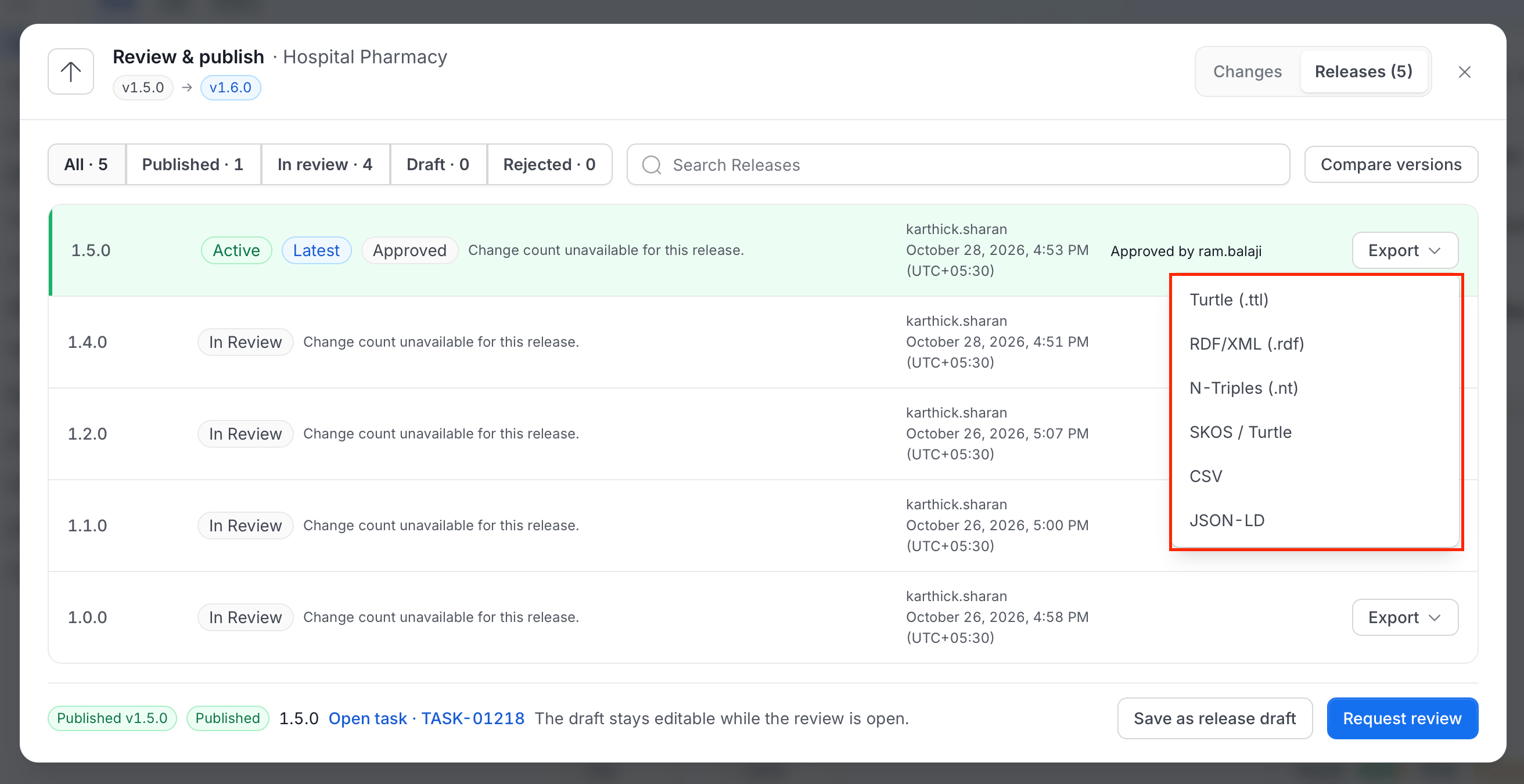
To export the working draft, to run SHACL checks before you download, or to import a file, use Import & Export.
Permissions
The following permissions apply to releases.
If you lack the role, Studio shows “You need the OntologyAuthor role to capture or publish a release. An admin can grant it.” For more information, see Ontologies.
Requirements
An ontology with reviewers needs a deployed approval workflow with a user approval step. If the workflow is missing or suspended, Studio can’t submit a release for review. An ontology with no reviewers publishes directly and doesn’t need the workflow.REST Endpoints
Paths start with/api. For the full reference, see the Ontology API Reference.