
Data Products
A Data Product packages curated data assets under a single entity with defined ownership, type, and visibility. Create one from the Data Marketplace, or from within a Domain if it belongs to a specific one. This guide walks through both paths, plus adding assets, input and output ports, and finding a data product’s assets from the Explore page.Add a Data Product
To create a new data product, follow these steps:Step 1: Access Data Products
-
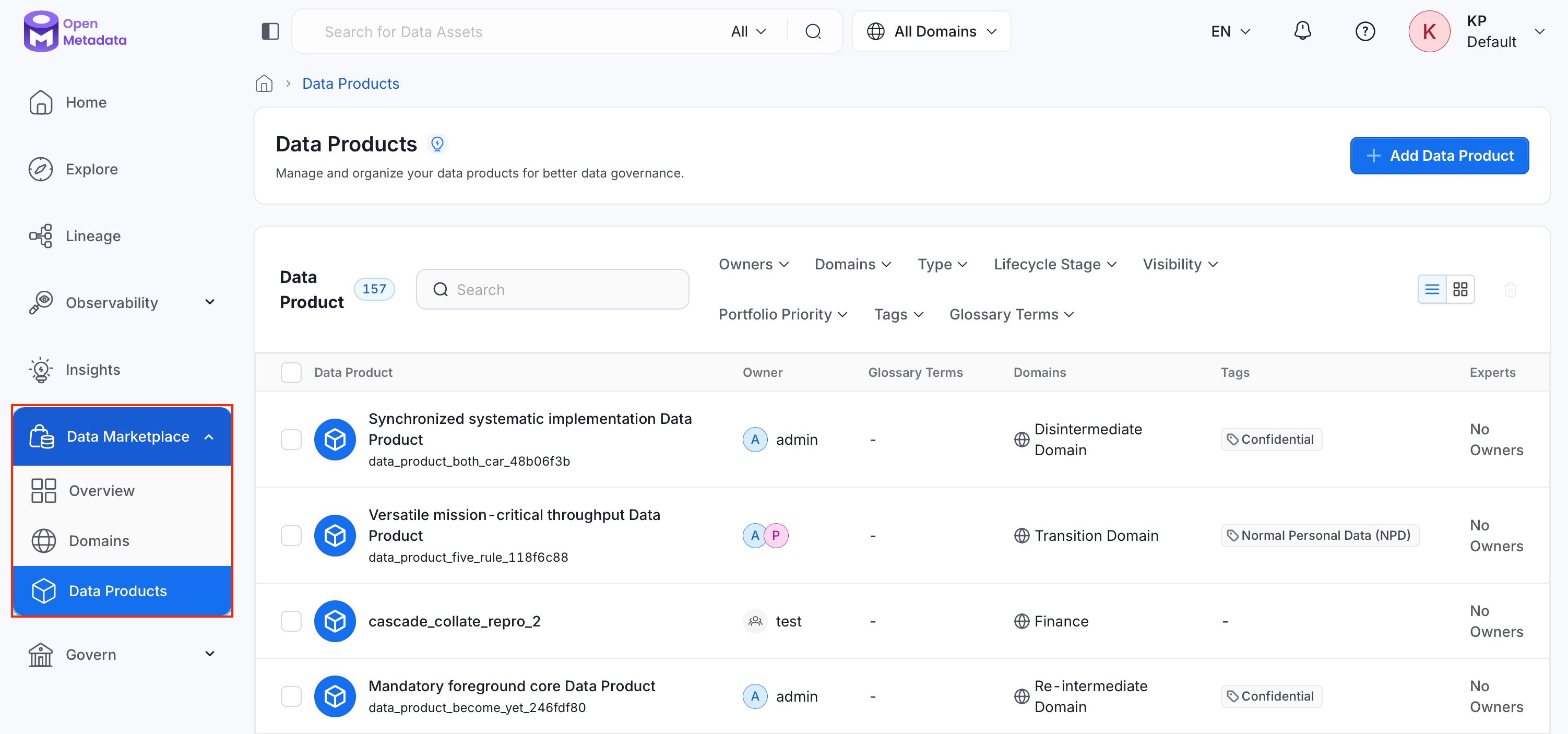
In the left navigation bar, click Data Marketplace, then select Data Products.
-
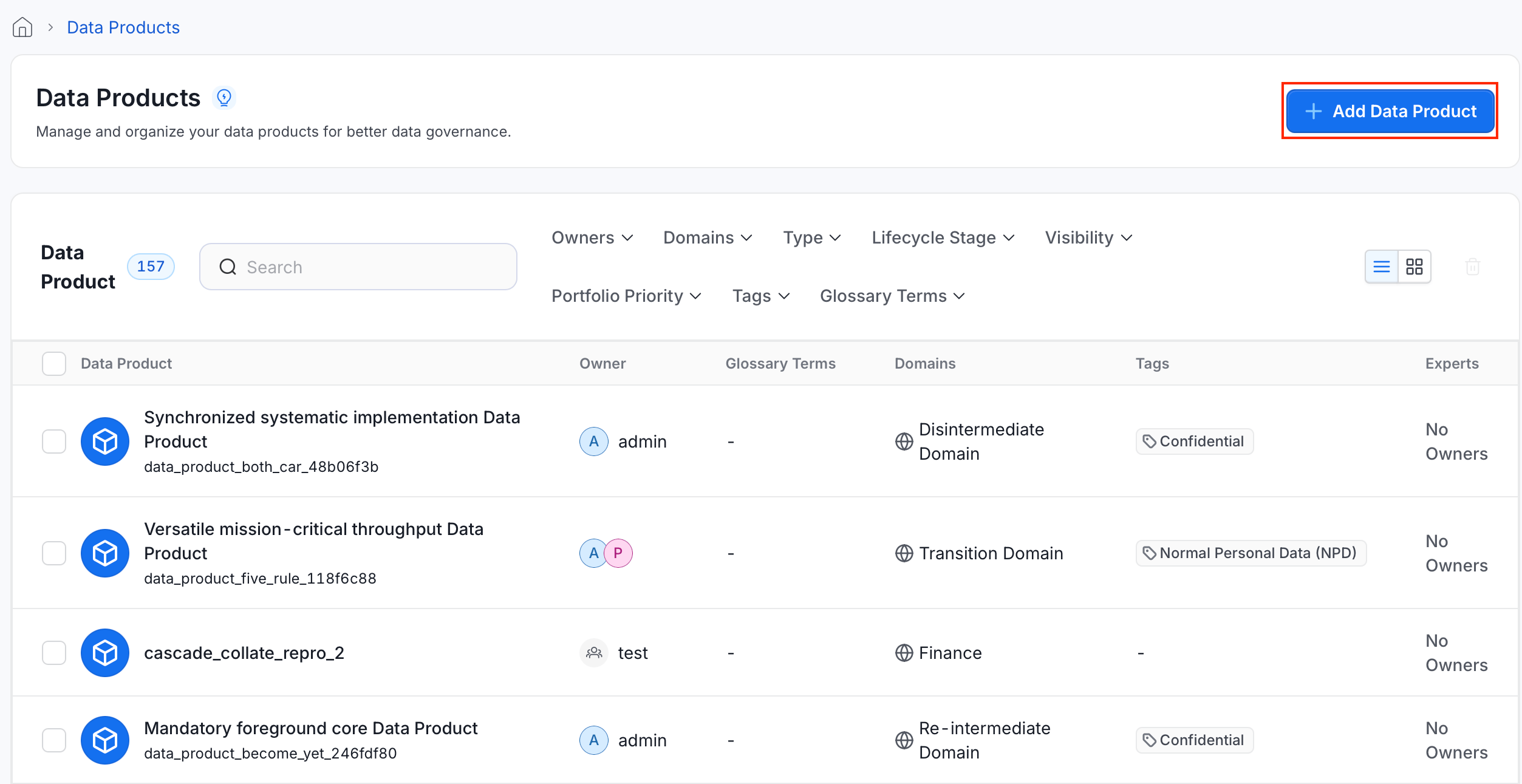
Click Add Data Product.
Step 2: Enter Data Product Details
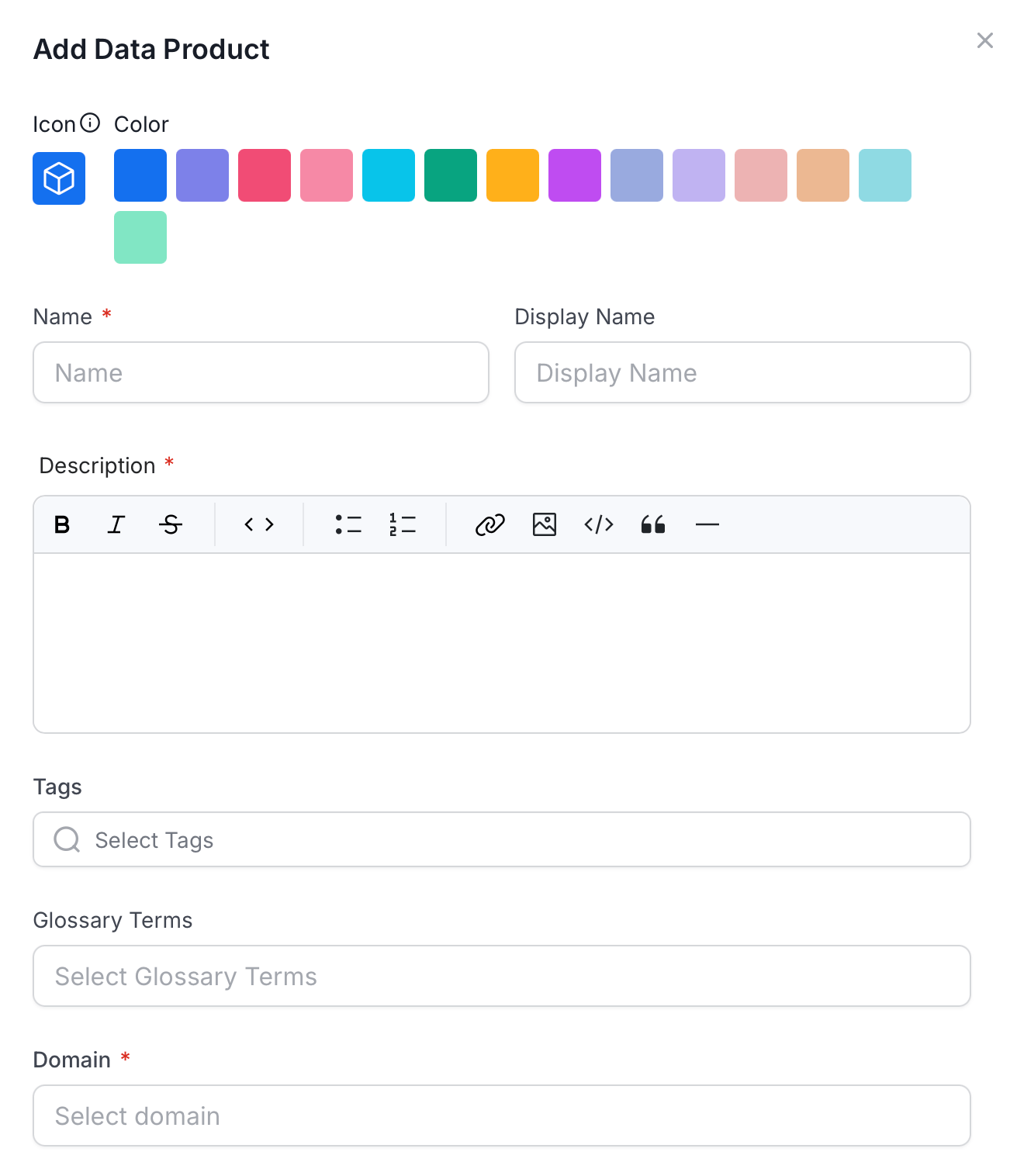
- Icon and Color: Select an icon and color to visually identify the data product in the catalog.
- Name (required): Enter a unique identifier for the data product.
- Display Name: Enter a human-readable label shown throughout the UI.
-
Description (required): Explain the data product’s purpose, the data it contains, and any context other users need.
Step 3: Add Tags and Glossary Terms
- Tags: Select classification tags to categorize the data product.
- Glossary Terms: Link the data product to relevant glossary terms.
Step 4: Configure Data Product Settings
- Domain (required): Select the domain this data product belongs to.
- Type: Select a data product type, for example Dataset, Raw Data, Derived Data, Reports, or Analytic View.
- Visibility: Control who can discover this data product.
- Portfolio Priority: Indicate the data product’s importance (Critical, High, Medium, or Low).
Step 5: Assign People
- Owners: Select the users or teams responsible for the data product.
- Experts: Select individual users with deep knowledge of the data product.
- Reviewers: Select users who review and approve changes to the data product.
Step 6: Save Data Product
Click Save. The data product appears in the Data Products list.Add a Data Product from Within a Domain
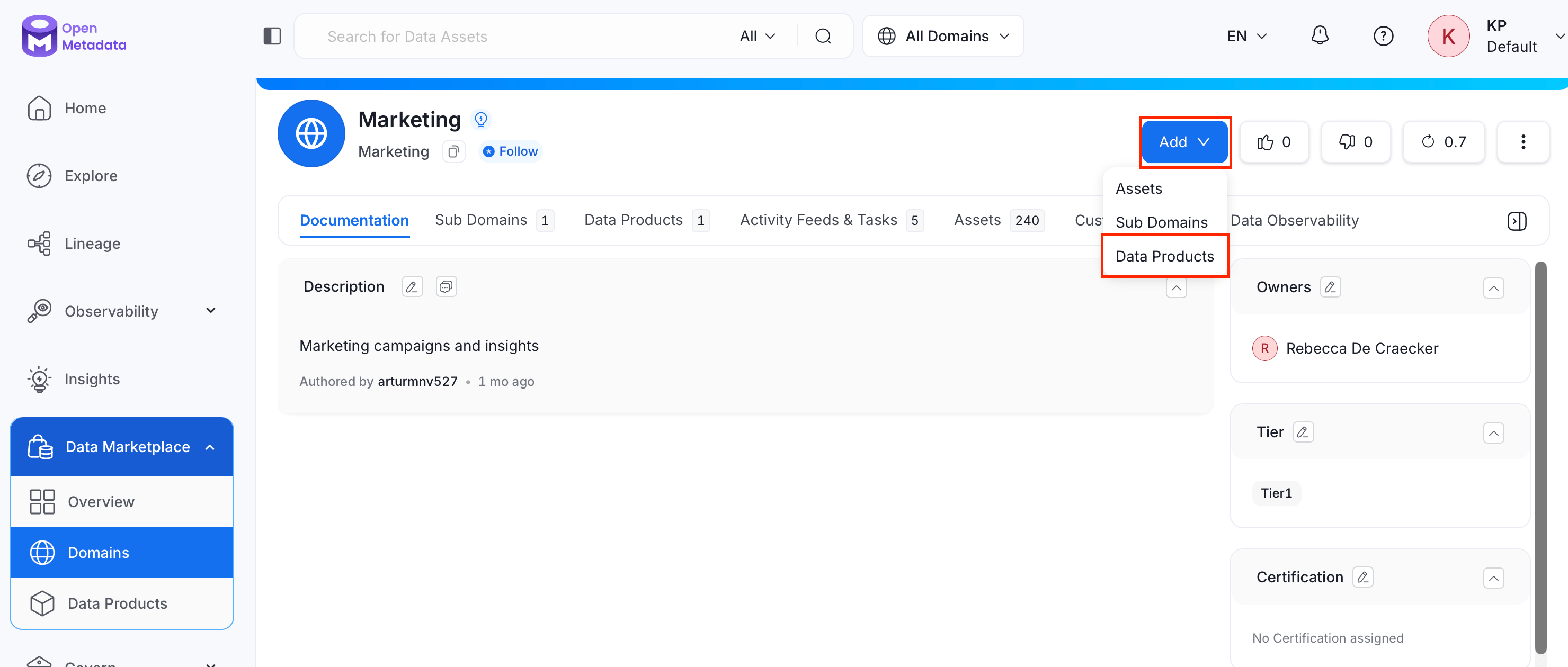
If a data product belongs to a specific domain, create it directly from that domain instead:- Navigate to Data Marketplace > Domains, then open the domain the data product should belong to.
- Click Add and select Data Products.
- Follow Add a Data Product steps 2 to 6.
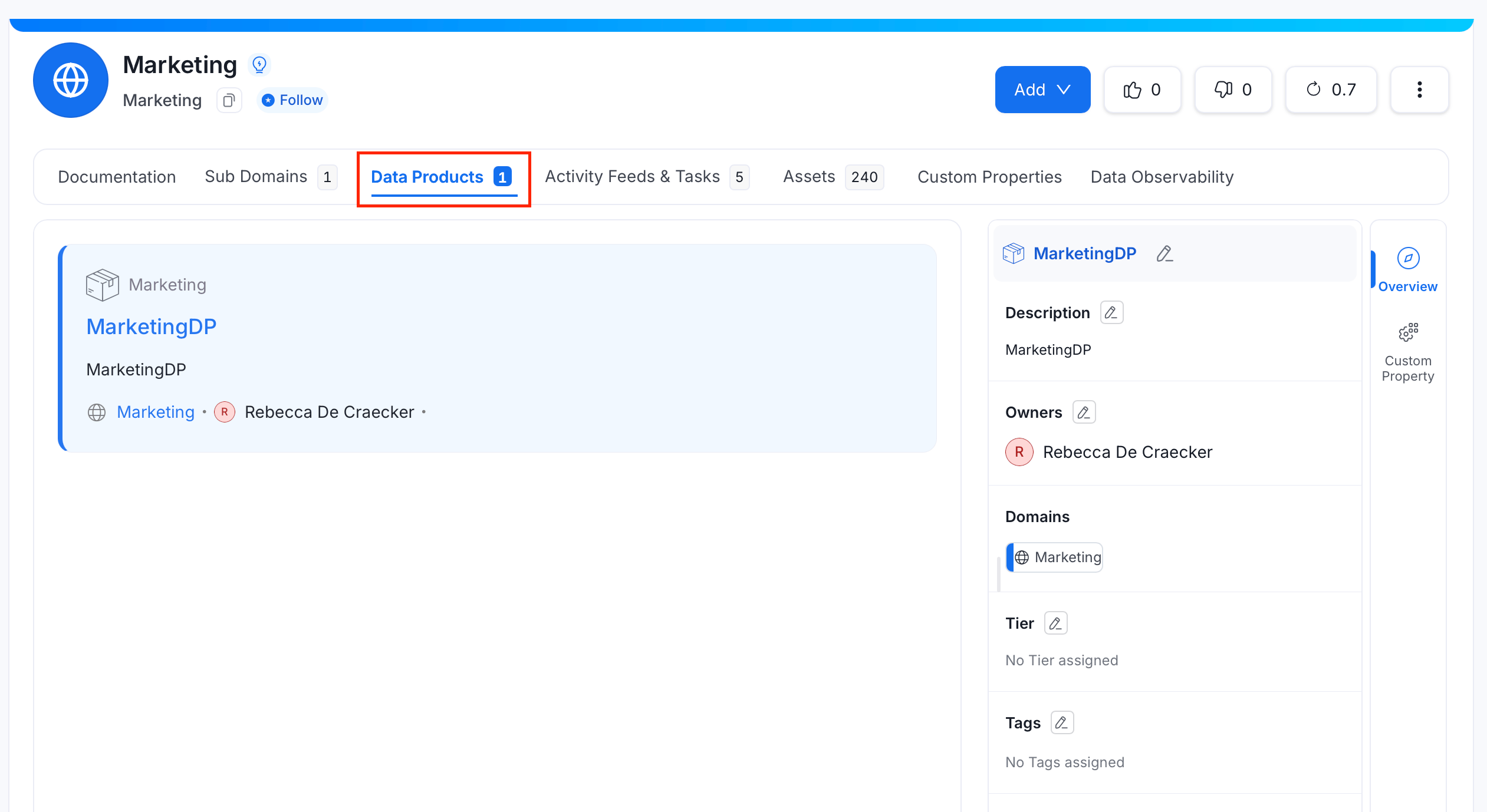
Add Data Assets to the Data Product
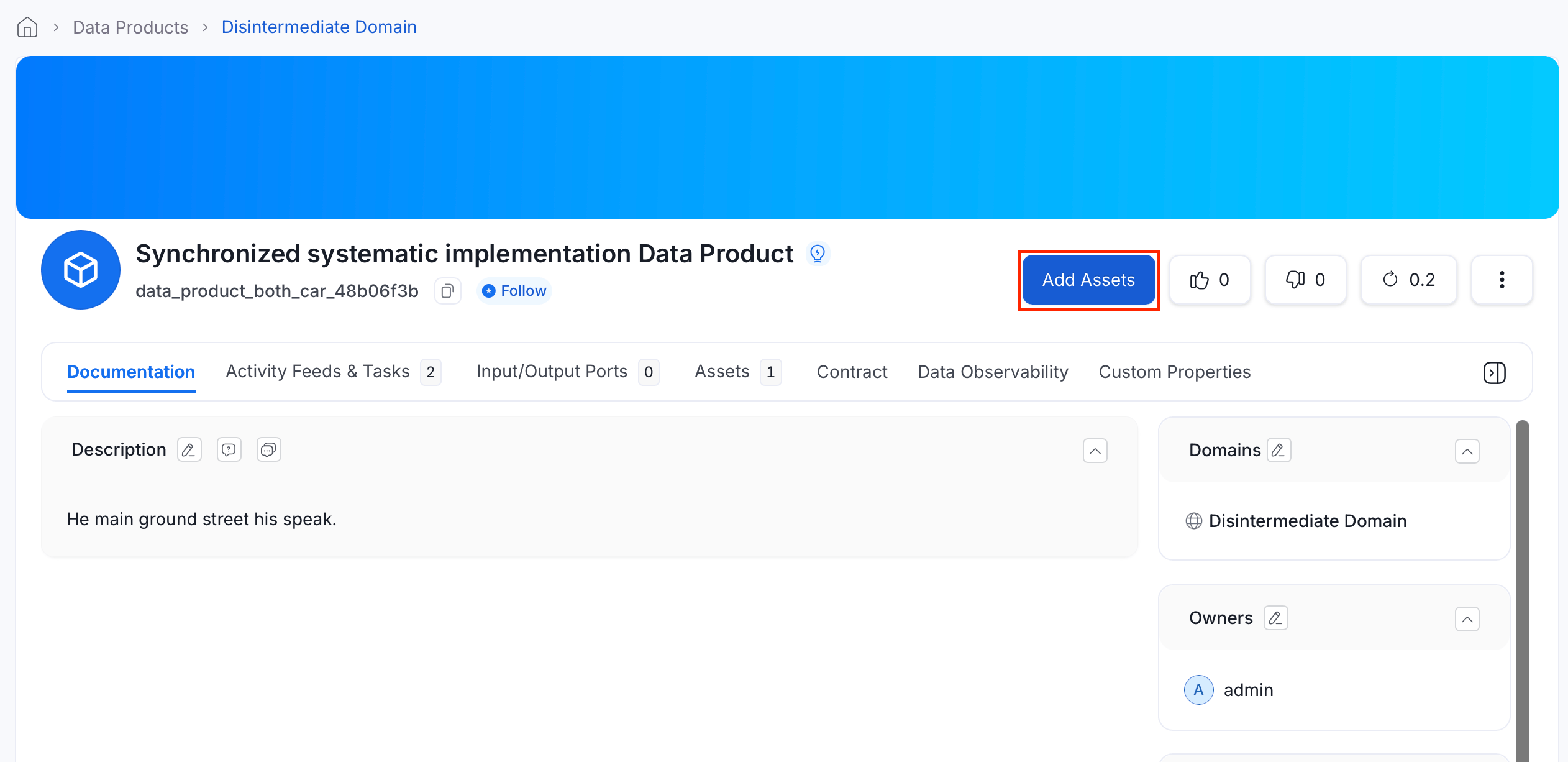
- From the Data Products list, open the data product’s detail page.
- Click Add Assets.
- Search for assets, or use the filters (entity type, owner, tag, tier, service, service type) to narrow the results.
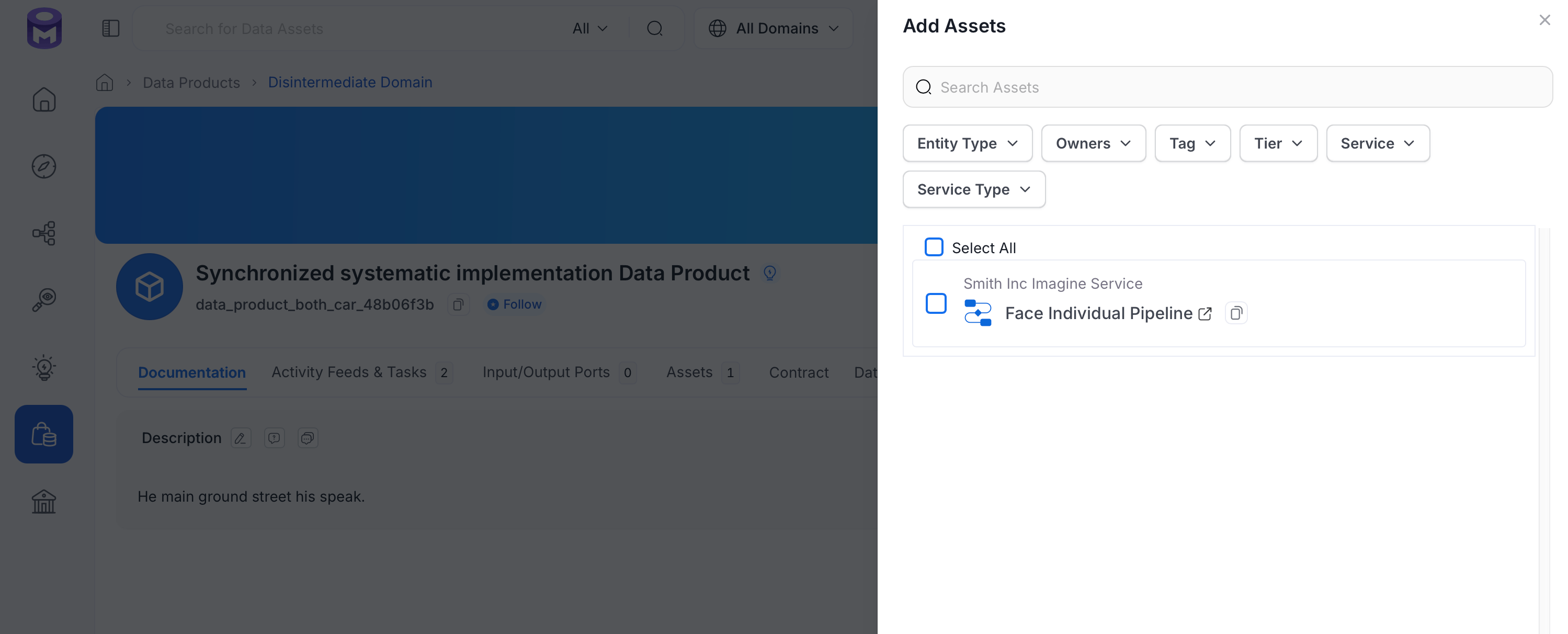
- Select the assets to include, then click Save.
Troubleshooting
Common issues when adding assets to Data Products:Data Product Domain Validation Doesn’t Recognize Subdomains
Problem: An asset assigned directly to a subdomain (for example,customer_domain.finance) can’t be added to a Data Product assigned to the subdomain’s parent domain (customer_domain), even though the subdomain is nested under it. The same asset assigned directly to the parent domain can be added without issue.
Cause: The Data Product Domain Validation rule currently checks for an exact domain match between an asset and a Data Product. It doesn’t yet treat a subdomain as a match for its parent domain.
Status: Disabling the rule in Data Asset Rules doesn’t currently resolve this for subdomains, since the underlying domain-matching logic needs to recognize the parent-subdomain relationship independently of the toggle. This is a known limitation the OpenMetadata team is actively addressing.
Input Ports and Output Ports
Beyond general assets, a data product can declare which assets it consumes and which it produces or exposes: an ODCS/ODPS-aligned data contract concept that makes a data product’s data flow explicit for lineage-style visualization.- Input Ports: Data assets this data product consumes. Use input ports for sources your team does not own, such as a table from another domain or an external system you read from but do not manage. An input port does not have to be one of the data product’s assets. Record an external source you only consume as an input port, and leave it off the Assets list.
- Output Ports: Data assets this data product produces or exposes to consumers. An asset must already belong to the data product before it qualifies as an output port.
-
From the data product’s detail page, go to the Input/Output Ports tab.
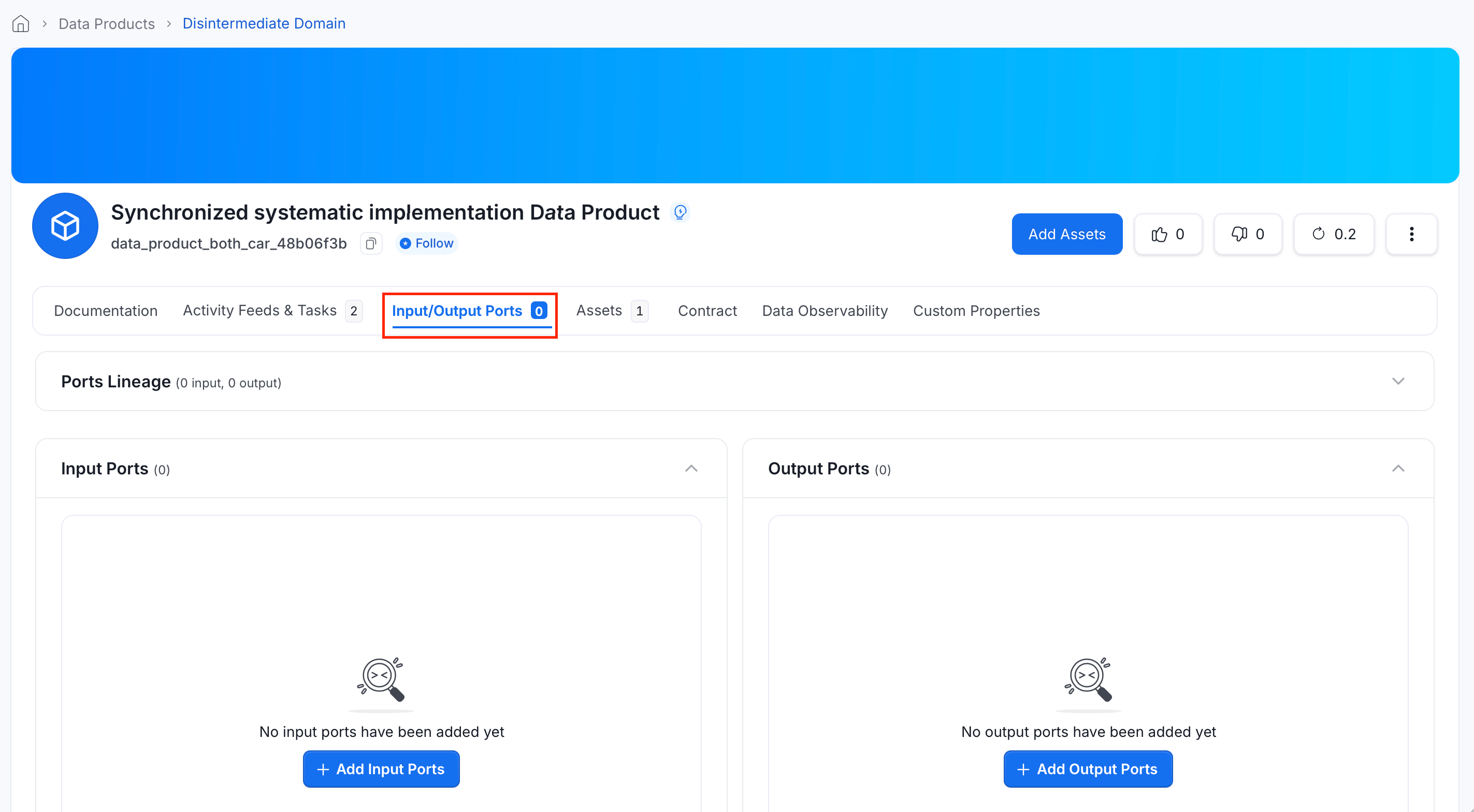
- Under Input Ports or Output Ports, click Add Port.
- Search for and select the assets to add, then click Save.
View Data Assets in the Data Product from the Explore Page
- In the left navigation bar, click Explore.
- In the Data Assets dropdown, select Data Product.
- All data products appear in the results. Click one to view its assets, documentation, and metadata.
How to Use Domains
Learn about Domains.