Requirements
OpenMetadata reads jobs and pipelines through the Databricks REST API, and reads lineage from the Unity Catalog lineage system tables through a SQL warehouse. Grant the following to the user or service principal OpenMetadata connects with.Pipeline Metadata Permissions
- Can View on the jobs you want to ingest, to list jobs and their runs.
- Can View on the Lakeflow Declarative Pipelines (DLT) you want to ingest.
- Can Read on the notebooks and workspace files those pipelines use. OpenMetadata parses pipeline source code to build Kafka and S3 lineage.
Lineage Permissions
OpenMetadata builds table and column lineage from thesystem.access.table_lineage and system.access.column_lineage system tables. To read them:
- Make sure the
system.accessschema is enabled in your Unity Catalog metastore. If it is not, ask a Databricks account admin to enable it. - Enter an HTTP Path in the connection details. OpenMetadata runs the lineage queries on that compute, so lineage cannot be fetched without it.
- Grant Can Use on the SQL warehouse that the HTTP Path points to.
- Grant access to the lineage system tables:
Metadata Ingestion
Connection Details
1
Connection Details
- Host and Port: Enter the fully qualified hostname and port number for your Databricks Pipeline deployment in the Host and Port field.
- Token: Generated Token to connect to Databricks Pipeline.
- HTTP Path: The HTTP path of the SQL warehouse OpenMetadata uses to query lineage system tables. Find it in Databricks under SQL Warehouses > your warehouse > Connection details. Required for lineage.
- Connection Arguments (Optional): Enter the details for any additional connection arguments such as security or protocol configs that can be sent to Databricks during the connection. These details must be added as Key-Value pairs.
- In case you are using Single-Sign-On (SSO) for authentication, add the
authenticatordetails in the Connection Arguments as a Key-Value pair as follows:"authenticator" : "sso_login_url"
- In case you are using Single-Sign-On (SSO) for authentication, add the
2
Test the Connection
Once the credentials have been added, click on Test Connection and Save the changes.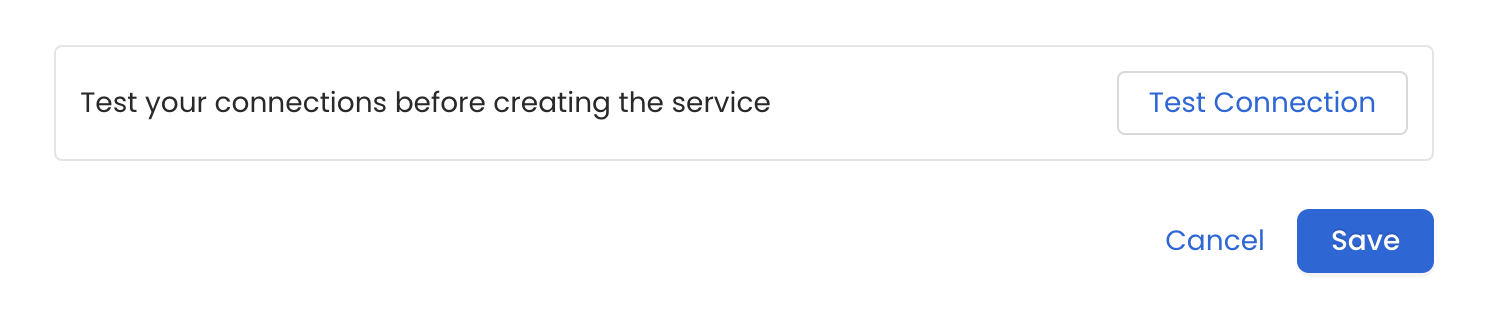
3
Configure Metadata Ingestion
In this step we will configure the metadata ingestion pipeline,
Please follow the instructions below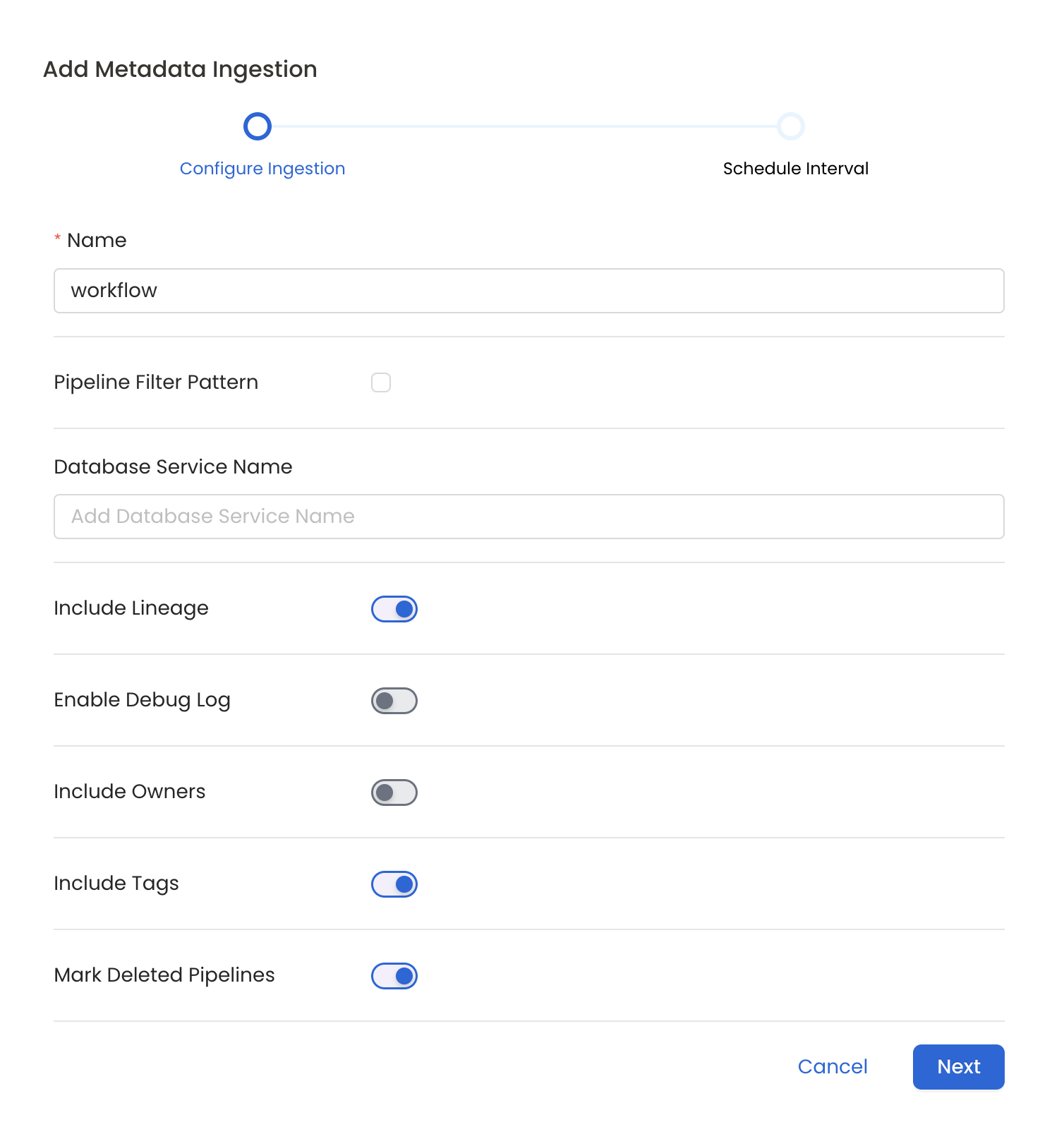
Metadata Ingestion Options
- Name: This field refers to the name of ingestion pipeline, you can customize the name or use the generated name.
- Pipeline Filter Pattern (Optional): Use to pipeline filter patterns to control whether or not to include pipeline as part of metadata ingestion.
- Include: Explicitly include pipeline by adding a list of comma-separated regular expressions to the Include field. OpenMetadata will include all pipeline with names matching one or more of the supplied regular expressions. All other schemas will be excluded.
- Exclude: Explicitly exclude pipeline by adding a list of comma-separated regular expressions to the Exclude field. OpenMetadata will exclude all pipeline with names matching one or more of the supplied regular expressions. All other schemas will be included.
- Include lineage (toggle): Set the Include lineage toggle to control whether to include lineage between pipelines and data sources as part of metadata ingestion.
- Enable Debug Log (toggle): Set the Enable Debug Log toggle to set the default log level to debug.
- Mark Deleted Pipelines (toggle): Set the Mark Deleted Pipelines toggle to flag pipelines as soft-deleted if they are not present anymore in the source system.
4
Schedule the Ingestion and Deploy
Scheduling can be set up at an hourly, daily, weekly, or manual cadence. The
timezone is in UTC. Select a Start Date to schedule for ingestion. It is
optional to add an End Date.Review your configuration settings. If they match what you intended,
click Deploy to create the service and schedule metadata ingestion.If something doesn’t look right, click the Back button to return to the
appropriate step and change the settings as needed.After configuring the workflow, you can click on Deploy to create the
pipeline.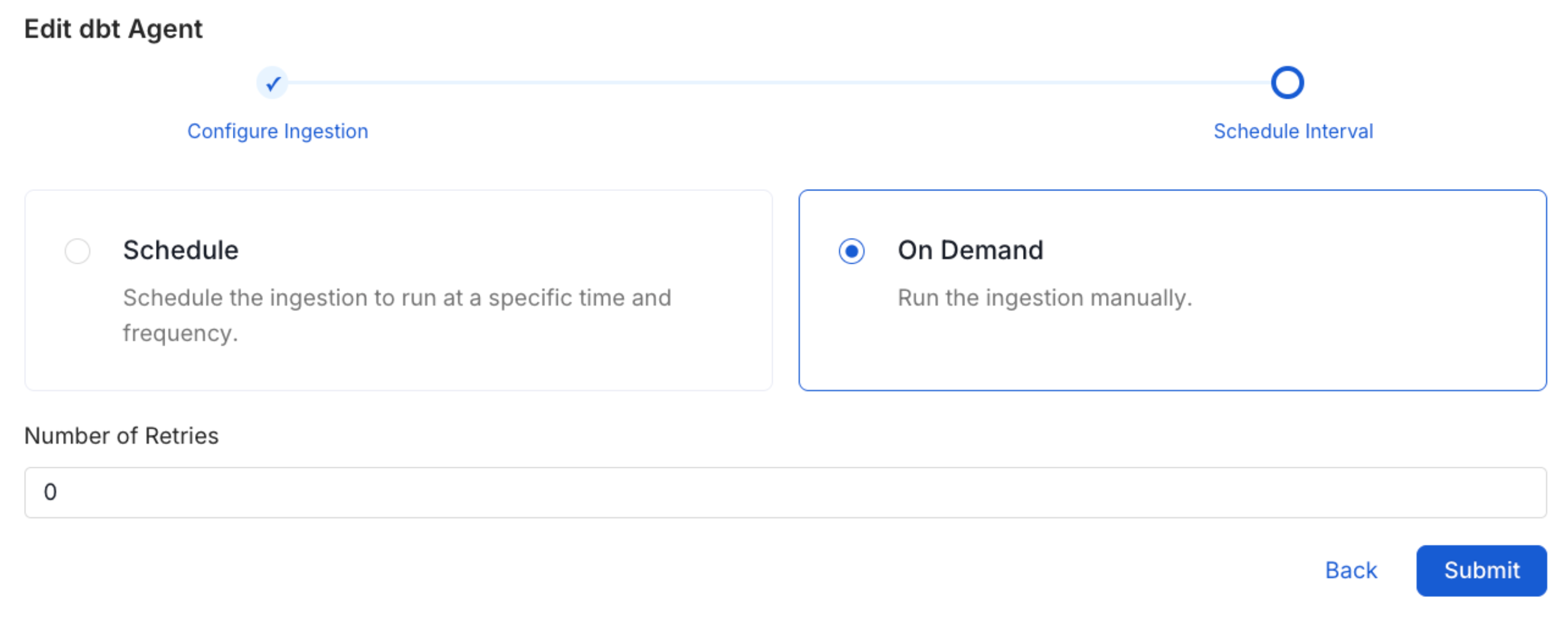
5
View the Ingestion Pipeline
Once the workflow has been successfully deployed, you can view the
Ingestion Pipeline running from the Service Page.