
Key Performance Indicators (KPI)
Admins can define the Key Performance Indicators (KPIs) and set goals within OpenMetadata to work towards better documentation and ownership. These goals are based on data assets and driven to achieve targets within a specified timeframe. For example, Admins can set goals to have at least 60% of the entities documented and owned by the end of Q4 2023. The Data Insights feature in OpenMetadata helps organizations to decentralize documentation and ownership of data assets. Organizations can drive the adoption of OpenMetadata by setting up company-wide KPIs to track the documentation and ownership of data assets.KPI Categories
OpenMetadata currently supports the following KPI Categories. Completed Description: This KPI measures the description coverage of your data assets in OpenMetadata. You can choose an absolute (number) or a relative (percentage) value. Completed Ownership: This KPI measures the ownership coverage of your data assets in OpenMetadata. You can choose an absolute (number) or a relative (percentage) value. KPIs track only your data assets, such as tables, dashboards, and pipelines. Each KPI checks whether those assets have a description or an owner. For example, a Completed Description KPI of 60% means 60% of your data assets have a description filled in. KPIs don’t include glossary terms, tags, or data products.Prerequisites
Data Insights calculates KPI progress for you. By default, it reviews your catalog once a day and records how many data assets have a description or an owner. A KPI shows no progress until Data Insights has run at least once. If your KPI chart is empty, run or schedule Data Insights. For more information, see Data Insights ingestion.Limitations
A KPI can’t be linked to a metric. A metric documents how a number is calculated. A KPI tracks description or ownership coverage of your data assets. They are separate features.How to Add KPIs
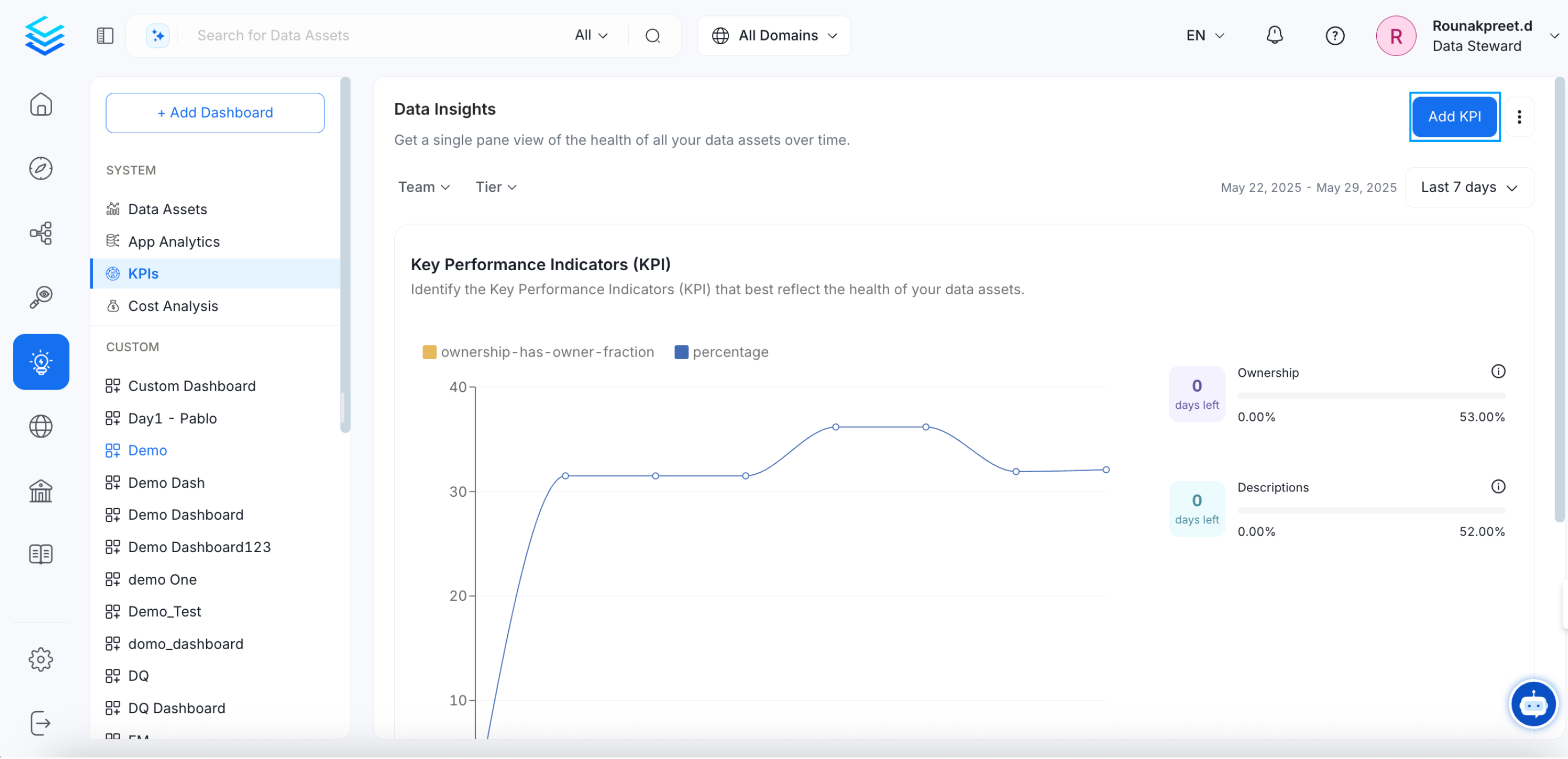
When OpenMetadata is set up with data ingestion from third-party sources, the details on the description and ownership are also brought into OpenMetadata. You can track the existing documentation and ownership coverage and work towards a better data culture by setting up Data Insights. Configure the KPIs and set goals at an organizational level to encourage your team to get your data to a better state. To add KPIs:- Navigate to Insights and click on Add KPI.
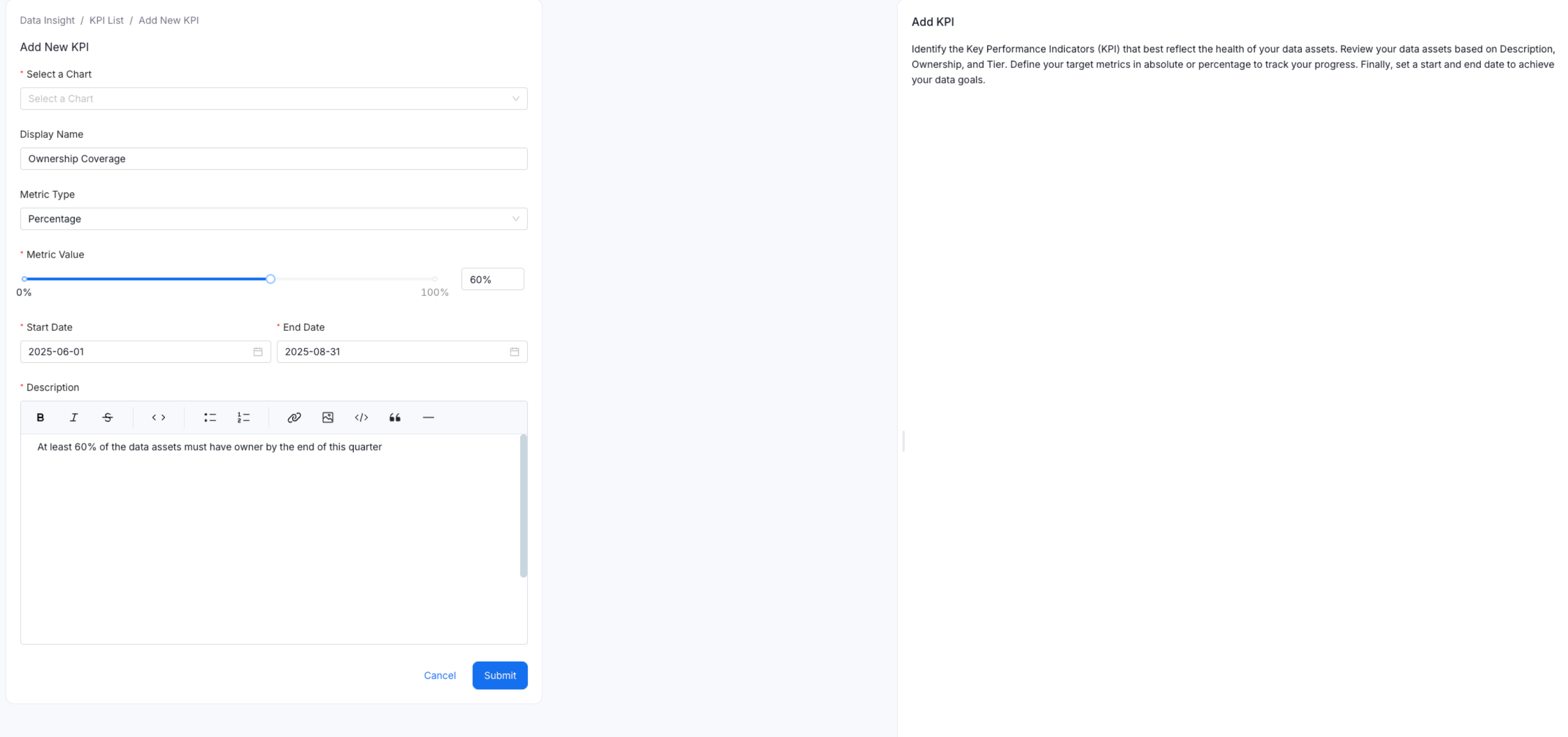
- Enter the following details on the KPI configuration page:
- Select a Chart among the available chart options.
- Enter a Display Name.
- Select the Metric Type, i.e., Percentage or Number. You can choose an absolute number or define a relative percentage of the data assets to be covered.
- Select a Start and End Date by which to achieve the KPI target.
- Add a Description to define what the KPI is about.
- Click on Submit.
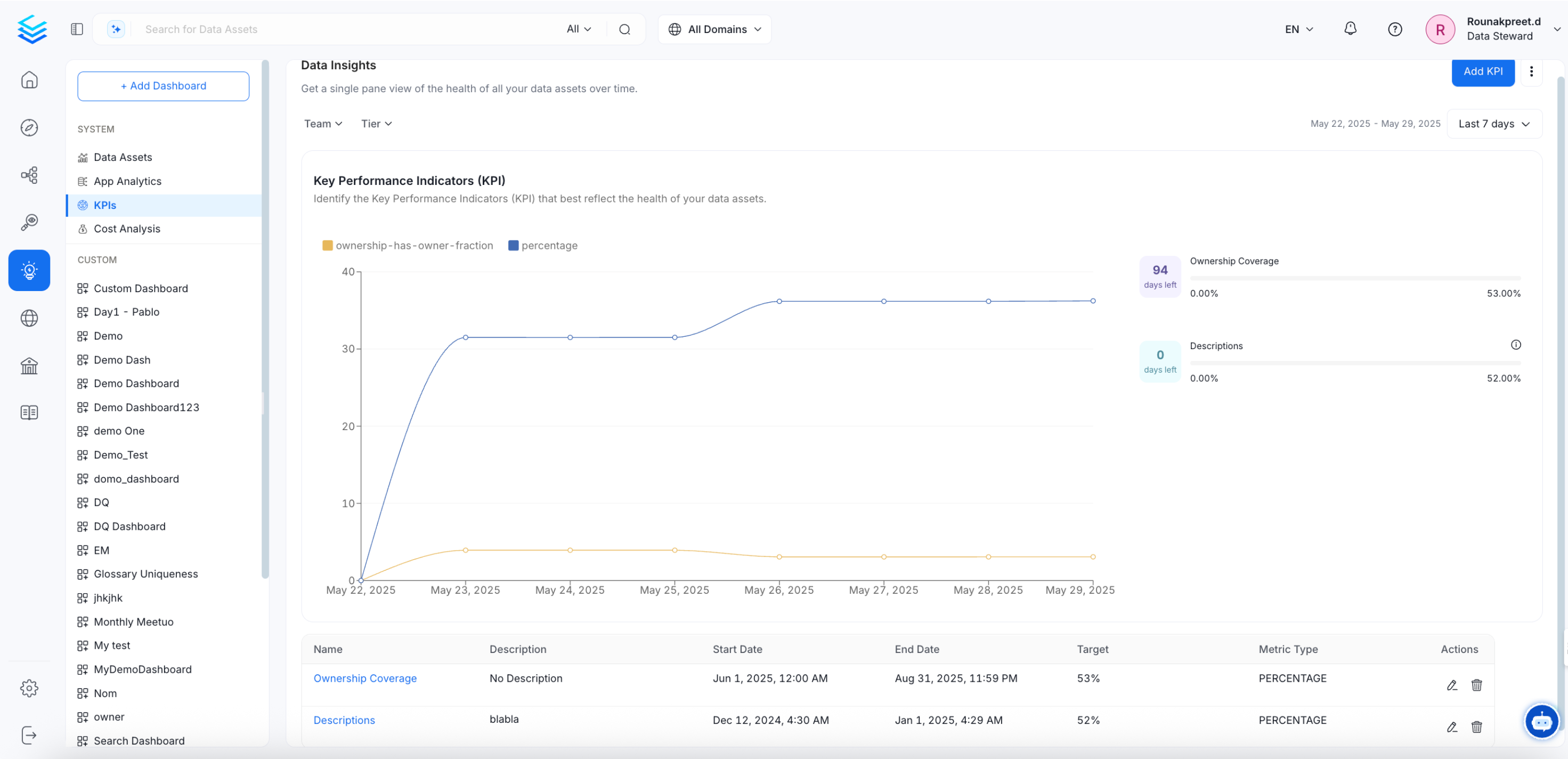
Data Insights Report
See description, ownership, and tiering coverage across your data assets in the Data Insights Report.